How to Implement Digital Signage in Schools for Maximum Impact
Shenzhen TopAdkiosk Display Technology Co., Ltd.
Add.: 2F, Bldg 10, Changfeng Industrial Park, Dongkeng, Fenghuang, Guangming, Shenzhen, China 518132
Mobile/WHATSAPP: 86-138 25769658
Email: marketing@topadkiosk.com topadkiosk@gmail.com
Skype: pghenry1
Wechat: adkioskhenry
English Web.: https://www.topkioskdisplay.com/
http://www.ad-kiosk.com/
https://www.toplcddisplay.com/
http://www.multitouchdigitalsignage.com/
https://www.youtube.com/channel/UCYVYNJHxLVEcQD8fuUxXNTA/videos?view_as=subscriber
https://www.facebook.com/TOPADKIOSKSHENZHEN/?ref=bookmarks

You can transform your digital signage schools by sending messages quickly and engaging more people. Many K-12 schools report improved community involvement and streamlined daily routines. Digital displays can help save up to 60% on printing costs. Staff gain more time as they can schedule updates remotely. Students receive announcements, event schedules, and emergency alerts without interrupting class. Digital signage enhances school spirit and keeps everyone informed across K-12 campuses.
Key Takeaways
Digital signage helps schools share news fast. It shows fun and useful information to students, staff, and visitors.
Digital displays can help schools spend less money on printing. Schools can save up to 60%. They can use the extra money for new technology or student programs.
Interactive tools like quizzes and polls get students more interested. These tools make news and announcements more fun and easy to remember.
Updating the content often keeps digital signage new and important. This helps students stay interested and join in school activities.
When students help make content, it builds school spirit and pride. Digital signage becomes a team project that helps everyone in the school.
What Is Digital Signage Schools?
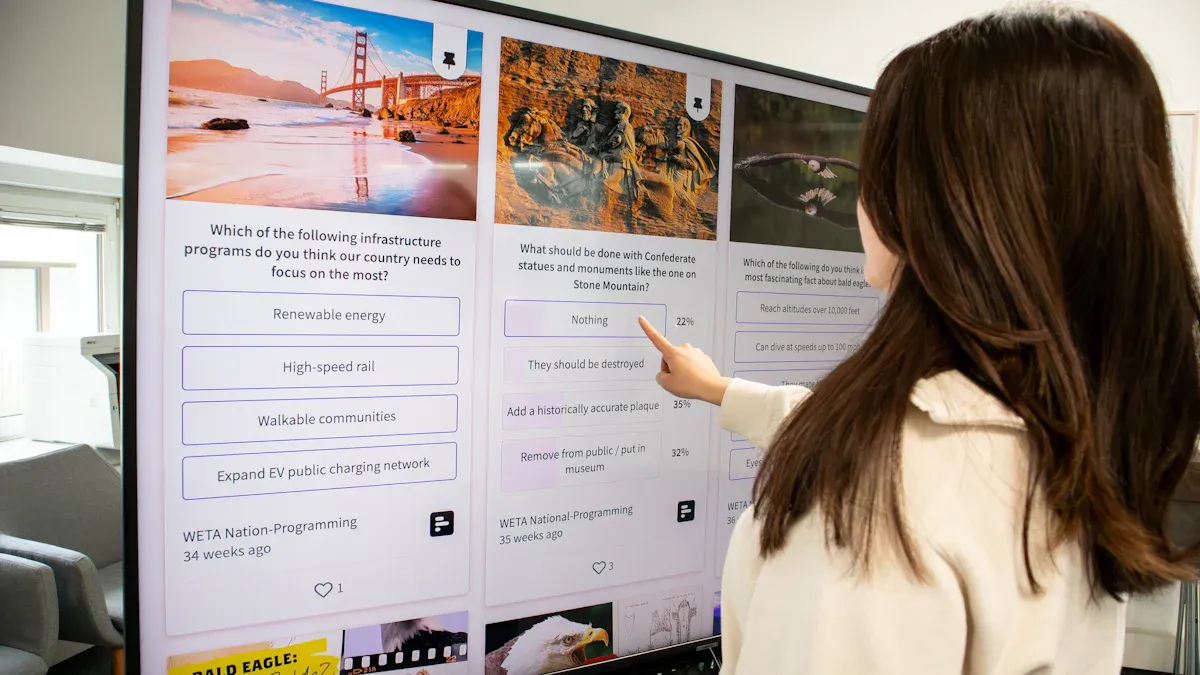
Digital signage schools use a digital signage network to share news around campus. You can show announcements, event reminders, and emergency alerts on screens in hallways, cafeterias, and classrooms. This system helps you reach students, staff, and visitors fast. A digital signage network links many screens together. You can update all the screens from one place. This keeps everyone on campus informed and interested.
Core Features of Digital Signage
A digital signage network in schools has many important parts and technologies. Here is a table that lists the main parts you will see in most systems:
Component/Technology | Description |
|---|---|
Media Players | Store and play content, from simple USB sticks to advanced networked devices |
Content Management Software | Lets you create, schedule, and manage content easily |
Interactive Interfaces | Allow users to interact with the display for more engagement |
Interactive Whiteboards | Bring lessons to life with multimedia and dynamic presentations |
Kiosks | Standalone units for information and wayfinding on campus |
Video Walls | Combine screens for large, eye-catching displays |
Touchscreen Displays | Enable interactive lessons and information retrieval |
Digital signage is easy to use. You can plan content to fit your school schedule. Remote management lets you change screens from anywhere on campus. It can work with other systems, like learning management or student information systems, so sharing news is simple. Interactive features like quizzes and polls help students join in. Analytics and reporting tools show how well your content is doing.
Digital Signage vs Traditional Methods
Digital signage is different from old ways of sharing news. A recent survey showed that 71% of people notice digital signage more than paper displays. This means you can reach more people and keep them interested.
Here is a table that compares some key differences:
Barrier to Communication | Traditional Methods | Digital Signage |
|---|---|---|
Time-sensitive announcements | Limited reach, may not be understood | Real-time updates, reaches wider audience |
Wasted paper resources | Flyers often go unnoticed | Environmentally friendly, reduces waste |
Reaching only partial audiences | Emails/texts may exclude some individuals | Engages all passersby, visible to everyone |
You can use digital signage in classrooms for news and lessons. In cafeterias, you can show menus and events. Assembly spaces get better presentations and up-to-date news. With a digital signage network, students learn about events, have a 24-hour information hub, and know more about campus activities. This helps you build a connected and informed school community.
Benefits of Digital Signage in K-12 Schools
Student Engagement and School Spirit
Digital signage helps students feel involved every day. Fun messages and student spotlights get their attention. Games and contests on screens make news exciting. Most students like getting updates this way. When schools share important news fast, more students pay attention. Showing off student wins makes even more students join in. Animated pictures help students remember what they see. Students remember more when they see moving images.
Sharing club news and sports wins brings everyone together. Event photos on screens help students feel proud. Digital signage schools help students feel like they belong.
Communication and Campus Navigation
Digital signage changes how schools share news. Everyone gets important news right away. One system lets you talk to students, staff, and visitors.
Wayfinding kiosks help new students and guests find their way.
Interactive maps show where to go step by step.
Real-time updates tell everyone about shuttles and emergencies.
Digital signage helps all departments talk to each other better.
This makes the school feel friendly and keeps everyone connected.
Cost Savings and Efficiency
Digital signage helps schools save a lot of money. Schools use less paper and do not need to print as much. This saves money on ink, paper, and work.
Evidence | Description |
|---|---|
Reduction in Paper Usage | Schools use less paper with digital signage, so they spend less on printing and supplies. |
Elimination of Printing Costs | Digital signage means schools do not need to buy ink, paper, or pay for printing outside. |
Reallocation of Savings | Money saved from printing can buy new technology or help student programs. |
Schools can use the extra money for new tools or fun programs. Digital signage also makes daily jobs easier and helps the school be more green.
Use Cases for Digital Signage Schools
Announcements and Daily Updates
Digital signage can be used for morning announcements. You can share news and reminders with everyone at school. This happens at the start of each day. Digital signage lets you update messages right away. You do not need paper flyers or intercoms. This saves time and cuts down on waste. Staff can change the content from anywhere. You will not miss important news. Students see announcements in hallways, cafeterias, and classrooms. Everyone stays informed and the school works better.
Tip: Set morning announcements to repeat at certain times. This helps students and staff remember them.
Emergency Messaging and Alerts
Digital signage sends emergency messages quickly. You can show alerts on every screen in seconds. This helps keep everyone safe. People see alerts right away. Digital signage can connect to safety tools like CAP systems. Emergency updates show up automatically. This protects students and staff during emergencies. Your school stays ready for anything.
Event Schedules and Calendars
Digital signage shows event schedules and calendars. Everyone can see what is happening. You can change event times or places fast. Interactive screens let students and visitors check schedules. They can find their way around campus easily. Central management makes showing events simple. Smart scheduling puts the right information up at the right time.
Feature | Benefit |
|---|---|
Real-time updates | Keeps everyone informed about changes |
Interactive displays | Helps users find events and locations |
Smart scheduling | Shows relevant event schedules automatically |
Showcasing Achievements and Recognition
Digital signage celebrates student achievements. You can show awards, sports wins, and projects. Students see their names and photos on screens. This makes them feel proud and happy. It helps build a positive school culture. Everyone wants to do their best. Parents and visitors notice these displays. This makes your school look good.
Digital Bulletin Boards
Digital bulletin boards are a new way to share news. You can post club updates, lunch menus, and reminders. Administrators can update many screens at once. This makes communication easy. Digital bulletin boards also show emergency alerts and promote events. This helps everyone feel connected and involved at school.
Implementing Digital Signage in Schools
Assessing Needs and Goals
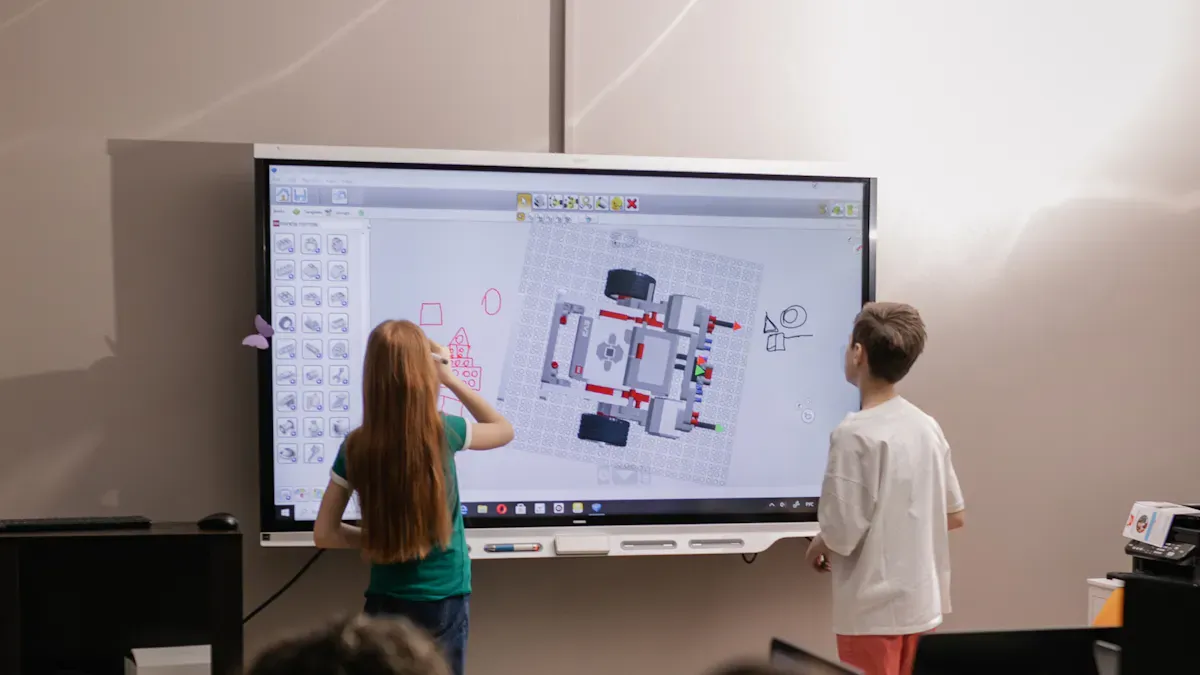
First, think about what you want digital signage to do. Ask yourself what problems you want to fix. Do you want to make communication better or help people find their way? Write down your main goals. Talk with teachers, students, and staff to see what they need. Decide where to put screens so everyone can see them. Good spots are hallways, cafeterias, and entrances. When you know your goals, you can pick the right tools and make a good plan.
Choosing Hardware and Media Players
Pick hardware that fits your school and your goals. The right screen size helps everyone see the information. Use this guide to match screen size to each place:
Hallways and corridors: 43-55 inches (8-12 foot viewing distances)
Lobbies and common areas: 55-65 inches (12-18 foot viewing distances)
Gymnasiums and auditoriums: 65-75+ inches (20+ foot viewing distances)
Interactive recognition displays: 55-65 inches (best for touch and engagement)
Choose commercial-grade displays because they last longer. Look for screens that work 16-24 hours a day and have good warranties. Pick screens with high brightness (400-700 nits) so you can see them in bright places. For safety, get vandal-resistant screens and ones that stay cool.
When you compare hardware and media players, use this table to help you decide:
Criteria | Description |
|---|---|
Functionality match | Make sure the hardware fits your school's needs. |
Ease of use | Staff should find the system simple to operate. |
Total cost of ownership | Check costs over five years, not just the first year. |
Integration with existing systems | Make sure new screens work with your current technology. |
Vendor stability and support | Choose vendors with good support and a strong track record. |
Reference checks | Ask other schools about their experience with the vendor. |
Implementation timelines | Know how long setup will take and what help you get. |
Contract terms | Review contracts for clear exit options and support. |
Tip: Put screens where students and staff spend the most time. This helps more people see the content and stay informed.
Selecting Digital Signage Software
Pick software that is easy for staff to use. Look for a simple interface so staff can make and schedule announcements. Good software lets you update content from anywhere on campus. It should connect with your learning management and student information systems. Choose software with fun features like quizzes and polls. Analytics and reporting tools show what works best.
Here are important features to look for:
User-friendly interface for easy content management
Content scheduling to automate announcements and updates
Remote management for large or multi-building campuses
Integration with other systems for real-time communication
Interactive features for student engagement
Analytics and reporting to measure content visibility and success
Note: Cloud-based systems let you control screens from anywhere. This is helpful for schools with more than one building.
Content Creation and Templates
Make content that is clear and easy to read. Use a content management system (CMS) to control what shows on each screen. This keeps messages the same all over campus. Templates save time and make your screens look neat. They help you keep the same style for all news, events, and alerts.
Key Feature | Benefit |
|---|---|
Unified content workflow | Keeps messaging and branding consistent across departments. |
Centralized content management | Allows real-time updates and consistent communication. |
Tailored templates | Saves time and ensures content looks the same everywhere. |
User permissions | Only trained staff can edit or publish content. |
Scalability | Lets your system grow as your campus and community grow. |
Use templates for daily news, event schedules, and emergency messages.
Organize your media library so you can find photos and videos fast.
Set user permissions so only trusted staff can make changes.
Tip: Plan your content ahead of time and schedule updates. This keeps your digital signage new and useful.
Training and Maintenance
Train your staff so everyone knows how to use the system. Give training to administrators, content managers, and other staff. Hold refresher classes and train new staff when they start. Check screens every day for quality and correct information. Each week, check the system’s health and update software. This keeps your digital signage working well and makes sure people see the right content.
Give a full training program for all users.
Schedule refresher classes and training for new staff.
Check screens every day for good quality and correct news.
Do weekly system checks, including software and security updates.
Remember: Regular training and maintenance help your digital signage system stay strong and useful for everyone in your school.
Best Practices for Maximum Impact
Keeping Content Fresh
It is important to keep digital signage content new. Change what is on the screens every week. Switch out old messages every month. Use photos, videos, and student voices to make things interesting. Match your messages with the school calendar. This keeps them useful. Ask students to help make content for the screens. This makes them feel proud and excited.
Best Practice | Description |
|---|---|
Regular Updates | Change content every week so it stays new. |
Monthly Static Message Replacement | Switch out old messages each month to keep things fresh. |
Diverse Formats | Use photos, videos, and student voices to keep people interested. |
Timely Content | Make sure messages match what is happening at school. |
Student-Generated Content | Let students help make content to get them more involved. |
Tip: Make a plan for when to update your screens. Use bright pictures and short words. Automation tools can help keep your screens up to date.
Using Templates and Scheduling
Templates and scheduling tools make digital signage simple. Fill-in-the-blank templates help you make event ads fast. Ready-made kits and feeds save time for staff. Plan your messages ahead of time so they show up when needed. Use pre-made templates for news and schedules. This gives your school a neat look. Change plug-and-play designs for safety alerts. Sort your content by grade, topic, or place using channels and tags.
Use templates for news and event times.
Plan content early to save time.
Sort content by grade, topic, or where it will be shown.
Gathering Feedback and Measuring Success
You can see if digital signage works by asking for feedback. Use surveys and interviews to learn what people think. Look at answers to find ways to do better. Check how many students pay attention to the screens. See if students who see digital signage do better in school. More students remember news from screens than from paper flyers. Most students get their news from digital displays.
Ask for feedback with surveys and interviews.
Check how many students remember the news.
Compare grades to see if digital signage helps.
Aligning with School Mission
Digital signage should support your school’s goals and values. Motivational signs help build a strong school spirit. Good displays share important news and keep everyone informed. Using the same style in halls and classrooms makes the school look nice. Show important news so everyone knows what is happening. Fun displays make students excited about events and help everyone feel like part of the school.
Note: Let students help design signs for learning. This helps them be creative and builds school pride.
You can help your school by using digital signage. First, decide what you want to do. Build your system step by step. Plan what will go on each screen. Pick tools that work best for your school. Make sure your screens show new information often. Use digital signage to share news and celebrate students. It also helps keep everyone safe. When staff and students join in, school pride grows. More people pay attention and get involved. Start your project now. This will help your school stay connected and know what is happening.
Benefits and Use Cases of Digital Signage in Educational Settings
Digital signage is transforming schools, colleges, and universities from static information environments into dynamic, connected, and engaging learning communities. Unlike traditional bulletin boards and public address systems, digital signage delivers timely, visual, and interactive content that benefits students, staff, parents, and visitors.
Key Benefits of Digital Signage in Education
1. Improved Communication
Instant, school‑wide updates – One‑click publishing of announcements, schedule changes, emergency alerts, and event reminders to all screens.
Centralised information hub – Replaces scattered paper notices, hallway chatter, and missed emails.
Targeted messaging – Different screens can show different content (e.g., cafeteria menus in dining hall, exam timetables in academic building).
2. Enhanced Student Engagement
Visual and dynamic content – Videos, animations, and live data capture attention better than static posters.
Student‑created content – Displays student art, project showcases, and achievements – building pride and participation.
Interactive quizzes and polls – Touchscreens in common areas can pose daily challenges, encouraging active learning during breaks.
3. Stronger Safety and Emergency Response
Real‑time emergency alerts – Integrated with fire, weather, or security systems, screens automatically display evacuation routes, lockdown instructions, or weather closures.
Daily safety reminders – Loop short animations on bullying prevention, cyber safety, hand hygiene, or bus safety.
4. Operational Efficiency
Reduced printing costs – No more printing and distributing paper flyers, schedules, or event posters.
Less staff time on manual updates – Updates are made remotely from a central dashboard.
Room and resource management – Display real‑time occupancy of libraries, study rooms, labs, and meeting spaces.
5. Positive School Culture
Celebrating achievements – Showcase honor rolls, athletic wins, debate team awards, and teacher recognitions.
Promoting events – Build excitement for dances, plays, sporting events, and club fairs.
Inclusive environment – Multi‑language support helps non‑native speakers and families feel included.
6. Parent and Community Engagement
Visitor welcome screens – Guide parents to the main office, gymnasium, or auditorium.
Event information – Display upcoming parent‑teacher conference schedules, open house details, and school board meeting notices.
Volunteer opportunities – Encourage parent participation with PTA meeting announcements and volunteer calls.
Use Cases by Location
📍 School / Main Entrance
Use Case | Description |
|---|---|
Welcome screen | “Welcome to Springfield High School – Home of the Eagles” with school logo and mission statement. |
Visitor wayfinding | Interactive map showing main office, gym, library, and auditorium. |
Daily bell schedule | Display early release days, late start, or modified periods. |
Emergency status | In case of weather closing or lockdown, screen is first point of notification. |
📍 Corridors & Hallways
Use Case | Description |
|---|---|
Digital honor roll | Scroll student names and photos for academic excellence. |
Upcoming events | Sports schedules, dance tickets, club meetings. |
Quote of the day / word of the day | Brief educational content to spark curiosity. |
Lost and found | Display images of unclaimed items. |
📍 Cafeteria
Use Case | Description |
|---|---|
Digital menu boards | Show daily meals, prices, nutritional info, and allergens. |
Student voted lunch special | Interactive poll asking students to choose next week’s special. |
Lunch countdown | Fun countdown timer until next period. |
Nutrition education | Short videos on balanced eating, food waste reduction. |
📍 Library
Use Case | Description |
|---|---|
New book arrivals | Cover images and call numbers for recent additions. |
Study room availability | Real‑time occupancy of group study rooms. |
Borrowing rankings | Display most borrowed books and top borrowers. |
Library hours & events | Author visits, book fairs, exam extended hours. |
📍 Gymnasium / Sports Fields
Use Case | Description |
|---|---|
Game schedule | Date, opponent, location for upcoming home/away games. |
Live scores | Update during matches from a mobile device. |
Team spirit messages | “Go Tigers!” and shout‑outs to athletes. |
Practice reminders | Time changes, cancelled sessions. |
📍 Classroom Doors
Use Case | Description |
|---|---|
Teacher name & subject | Mr. Chen – Math 101, room 204. |
Class schedule | Period 1: Algebra; Period 2: Geometry, etc. |
Office hours | Availability for extra help. |
Special announcements | “Quiet – Testing in progress” or “Group work today”. |
📍 Administrative Offices
Use Case | Description |
|---|---|
Staff meeting notices | Time, location, agenda. |
Student of the month | Recognise selected students. |
Professional development | Training session reminders and links to resources. |
Internal KPIs | Attendance rates, graduation progress, survey results. |
📍 Bus / Drop‑off Area
Use Case | Description |
|---|---|
Bus route updates | Delays, cancellations, route changes. |
Student pick‑up instructions | “Bus 3 loading – West side” vs. “Bus 5 – East side”. |
Weather advisory | “Heavy rain – use umbrellas”. |
Safety reminders | “Walk – no running” and “Wait for the crossing guard”. |
Advanced / Interactive Use Cases
📱 Student‑Driven Content
Digital journalism – Student‑run news channel episodes displayed on hallway screens.
Art gallery rotation – Art students’ digital portfolios displayed weekly.
Coding projects – Interactive games or animations created in CS class shown on touchscreens.
🔔 Real‑Time Integration
Bell system replacement – Digital signage can signal class changes with visual/audio prompts.
Attendance notification – Display “Tardy sweeps in progress” after bell.
Substitute teacher assignments – Real‑time updates of teacher absences and room changes.
🧩 Gamification
Trivia leaderboard – Weekly quiz winners displayed on screen.
Scavenger hunt clues – Screens reveal next clue when students scan QR code.
House points (sports/Harry Potter style) – Live competition scores between houses/dorms.
🗺️ Wayfinding for Visitors
Event‑specific maps – During open house or parent‑teacher conferences, screens show room locations for each teacher.
Accessible routes – Highlight wheelchair‑friendly paths.
Parking information – Show overflow lot status.
Measurable Benefits (Research-Based)
Metric | Improvement |
|---|---|
Noticeability | Digital signage is noticed by 4x more people than static posters. |
Recall | Information recall from digital screens is 83% vs. 47% from printed materials. |
Printing cost reduction | Schools can save $5,000–$20,000 annually on paper and ink. |
Emergency response time | Schools using digital signage for alerts reduce evacuation time by 30‑50%. |
Event attendance | Attendance at school events increases 15‑30% with dynamic promotion. |
Implementation Tips
Start with pain points – Where does communication fail today? (e.g., parents miss newsletter, students don’t know game times)
Choose cloud‑based CMS – Allows staff to update from anywhere, no IT overhead.
Use commercial displays – For hallways and lobbies (24/7 operation); consumer TVs are fine for break rooms.
Assign content ownership – Let student clubs, art teachers, and sports coaches have their own screen zones.
Measure and iterate – After one semester, survey students/staff/parents and adjust content mix.
Conclusion
Digital signage in education is far more than digital posters. It is a central communication platform that improves safety, saves money, engages students, and builds school community. From hallway honor rolls to emergency alerts, from cafeteria menus to interactive wayfinding, digital signage makes every screen a valuable tool for learning and connection.
FAQ
How does digital signage help your school?
Digital signage lets you share news very quickly. You can show announcements, event times, and emergency alerts. Students and staff always know what is happening. You use less paper, so you save money. Digital screens also make your school look new and cool.
What are common uses for digital signage in schools?
You can use digital signage for morning news and event lists. It can show emergency alerts and club news too. Student awards and lunch menus can be on the screens. Digital bulletin boards help everyone stay connected.
Is digital signage easy for staff to manage?
Most digital signage uses easy software. You can make, plan, and change messages from any computer. Templates help you work faster. Staff do not need special lessons to begin.
Can students help create content for digital signage?
Yes! Students can make slides, take pictures, or write messages. This helps them be creative and show school pride. When students help, the screens are more fun and interesting.
See Also
Understanding The Basics Of Digital Signage Solutions
Step-By-Step Guide To Installing Digital Display Signage
Easily Set Up And Configure Your Digital Signage Software
