How to Troubleshoot and Repair LED Screen Issues in 2026
Add.: 2F, Bldg 10, Changfeng Industrial Park, Dongkeng, Fenghuang, Guangming, Shenzhen, China 518132
Mobile/WHATSAPP: 86-138 25769658
Email: marketing@topadkiosk.com topadkiosk@gmail.com
Skype: pghenry1
Wechat: adkioskhenry
English Web.: https://www.topkioskdisplay.com/
http://www.ad-kiosk.com/
https://www.toplcddisplay.com/
http://www.multitouchdigitalsignage.com/
https://www.youtube.com/channel/UCYVYNJHxLVEcQD8fuUxXNTA/videos?view_as=subscriber
https://www.facebook.com/TOPADKIOSKSHENZHEN/?ref=bookmarks
As long as we have the blueprints, Shenzhen TopAdkiosk Display Technology Co., Ltd no worse than anyone else.
please contact Shenzhen TopAdkiosk Display Technology Co.
When you see led screen problems, first look at the screen closely. Check for loose cables, broken modules, or wet spots. You might find problems like dead pixels, flickering, wrong colors, connection mistakes, or power issues. Use this checklist to help you fix the problem:
Step | Description |
|---|---|
Start With Visual Inspection | Look for loose cables, broken modules, wet spots, or burnt connectors. |
Check Power Supply and Distribution | Check the voltage, see if it is too hot, and look at power supply lights. |
Test Signal and Control System | Check status lights, unplug and plug in data cables, and try other signal sources. |
Be careful when you touch cables or modules. Go to https://www.topkioskdisplay.com/ for more help.
Key Takeaways
Begin by looking at the screen for loose cables, broken modules, or wet spots.
Look at the power supply and wires to make sure the voltage is steady and to stop flickering.
Update graphics drivers and change refresh rates to fix problems like flickering and color issues.
Write down what you see and any changes you make while fixing the problem to help you see patterns and track your work.
Clean and check connections often to help your LED screen last longer.
Identify Common LED Screen Issues
Symptoms Checklist
You can spot many LED screen problems by looking for certain signs. Here are some of the most common symptoms you might notice:
Missing or flickering characters: Some parts of the screen may not show letters or numbers clearly. You might see gaps or blinking spots.
Uneven brightness: Certain areas of your screen may look much brighter or dimmer than others. This often means some pixels are not working right.
Blocks of the display not showing: You may see sections that do not light up or show the wrong colors.
Sudden screen flashes: The screen might flash or blink without warning.
Distorted images: Pictures or text may look stretched, blurry, or have strange colors.
Tip: Write down what you see before you start fixing the screen. This helps you track changes and spot patterns.
Quick Diagnostics
You can quickly figure out if your LED screen issue comes from hardware or software. Use the table below to match what you see with possible causes:
Problem Area | Observable Symptoms |
|---|---|
Uneven brightness, localized flickering | |
Inverter malfunction | Inconsistent lighting, sudden screen flash |
TCON failure | Blinking screen, display glitching, distorted images |
If you notice screen flickering or unstable images, check your graphics drivers. Outdated or corrupt drivers often cause these problems. Also, look at your screen’s refresh rate settings. A wrong refresh rate can make the image unstable.
Try updating your graphics drivers if you see flickering.
Adjust the refresh rate in your display settings to see if the problem goes away.
Note: Always unplug your screen before checking cables or hardware parts. This keeps you safe and protects your device.
By following these steps, you can quickly spot the source of your LED screen issue and decide what to do next.
Troubleshooting LED Screen Problems
Dead Pixels & Module Faults
Dead pixels are a usual led screen issue. You might see black spots or colored dots that stay the same. These pixels happen because of hardware problems like broken modules or driver ICs. You can fix dead pixels by following steps.
Take off the back cover to reach inside parts.
Look for cracks, scratches, or strange colors on the screen.
Check if cables are loose or broken and make sure power works.
Use a multimeter to test if connections are tight.
Change bad led lights by removing and putting in new ones.
Put the screen back together and check if it works better.
Tip: Write down where dead pixels are before fixing them. This helps you see progress and find patterns.
If you see module faults, change broken modules instead of fixing single leds. Adjust display settings for contrast and color to see if things get better. Fixing dead pixels can make the screen look good again without buying a new one.
Flickering Screen Solutions
A flickering led screen can bother you and make it hard to see. Flickering happens when power is not steady or the driver circuit breaks. You can fix flickering by checking hardware and software.
Check the power. Make sure it is steady and cables are tight.
Look at the video signal. Try another input or cable.
Update drivers and firmware for refresh rates.
Change system frequency and control software settings.
Replace broken hardware like the sending card if needed.
Make power and PCB design better by using wider traces and more capacitors.
Change display settings. Adjust graphics card settings to stop flickering near text.
Cause Type | Description |
|---|---|
Power Supply Problem | Unsteady power or voltage changes can make the led screen flicker. |
Driver Issue | A broken control card or drive circuit can cause flickering. |
Note: Always check the signal and connections to keep things stable. Use good power supplies for better output.
Fixing screen flickering means updating drivers, checking cables, and looking at the power supply. Keeping things clean and checking often can stop flickering led screen problems.
Color & Display Issues
Color problems and display issues can make pictures look strange or cause ghosting. You might see too bright colors, uneven brightness, or images that stay too long. These problems come from hardware, calibration mistakes, or old leds.
Dead pixels do not light up, making black spots.
Stuck pixels stay one color.
Dim or uneven brightness comes from driver circuit problems.
Color problems happen because of old leds or calibration mistakes.
Flickering can also mess up colors.
Image persistence happens when pictures stay too long.
Bad calibration, t-con board failure, or main board issues can mess up color signals. You can fix color and display issues by following these steps:
Step | Description |
|---|---|
Visual Inspection | Look for loose cables, broken modules, wet spots, or burnt connectors. |
Power Supply Check | Check input voltage, look at power supply lights, and see if cables are hot. |
Signal Testing | Check status lights on sending and receiving cards, re-seat data cables, and try other signal sources. |
Fixing Dead Modules | Change broken modules instead of fixing single leds. |
Resolving Flickering | Check grounding, refresh rate settings, and look at ribbon cables. |
Correcting Color Inconsistency | Recalibrate with special software and do not mix modules from different batches. |
Alert: Always unplug your led screen before touching cables or parts. This keeps you safe and protects your device.
Connectivity Issues
Connectivity problems can cause ghosting, part of the screen not showing, or playback that is not in sync. You might see a black screen, shaky picture, or wrong colors. These led screen issues come from power problems, bad connections, or software mistakes.
No display (black screen)
Shaky picture
Wrong colors
Playback not in sync
Part of the screen missing
No connection to software
Power problems cause many led screen failures. Make sure input voltage matches what the screen needs. Check power supply lights and cooling fans. Look at power cables and connectors for overheating.
Common Issue | Root Cause |
|---|---|
LED display does not work, green light of sending card does not flash | Bad DVI or HDMI cable, wrong graphics card settings, power supply problems, or sending card issues. |
LED display does not work, green light of sending card flashes | No power, bad network cable, low power supply voltage, or sending card failure. |
Prompt 'Big screen system not found' | Disconnected serial or USB line, broken computer port, bad serial line, sending card failure, or missing USB driver. |
You can find connectivity faults by looking, writing down symptoms, tracing signals, checking electricity, and checking software.
Tip: Go to the led screen’s controller and run pixel tests to find dead or stuck pixels.
Power & Overheating
Power faults and overheating are big led screen problems. These can cause ghosting, flickering, dimming, or hardware failure. Using the screen a lot, bad airflow, loose connections, and broken power supplies can cause overheating.
Cause | Explanation |
|---|---|
Power instability | Causes many led screen failures; make sure input voltage matches screen needs. |
Overheating components | Usually caused by using too much or bad airflow, leading to hardware failure. |
Inadequate ventilation | Bad design can cause overheating, making the screen change color or dim. |
Loose connections | Can cause unsteady power, making flickering and other problems. |
Failing power supplies | A broken power source can mess up screen performance and stability. |
Environmental factors | Outside conditions can cause overheating and power faults in led screens. |
Control airflow inside the screen to stop overheating.
Use a microfiber cloth to clean dust and spots.
Do not use strong cleaners that can hurt the circuits.
Update software and check for firmware updates from the maker.
Check power supplies often for steady voltage.
Watch for overheating and strange operation.
Safety Aspect | Guidelines |
|---|---|
Electrical | Unplug power, discharge capacitors, and check with a meter before touching. High voltage is dangerous. |
ESD | Use grounded straps, mats, and tools. Parts are sensitive to static. |
Physical | Handle heavy screens carefully; lift the right way. Watch out for sharp edges and hot parts. Use chemicals in places with good airflow. |
Expertise | You need to know electronics, digital signals, power systems, and micro-soldering. |
Note: Unplug power and discharge capacitors before touching parts. Use grounded tools to stop static damage.
Good led screen troubleshooting helps you fix power faults and stop overheating. Make sure indoor screens have airflow and use waterproof cases for outdoor screens. Watch temperature and humidity in control rooms to stop led screen problems.
Practical Troubleshooting Tips
Start by looking for loose cables, broken modules, or wet spots.
Check power supply and distribution for steady voltage.
Try other inputs and change display settings.
Update software and drivers often.
Plan regular checks to stop led screen problems.
Write down symptoms and changes to track better.
Emoji: 🛠️ Regular care and careful troubleshooting keep your led screen working well.
Repair & Prevention
DIY Repairs
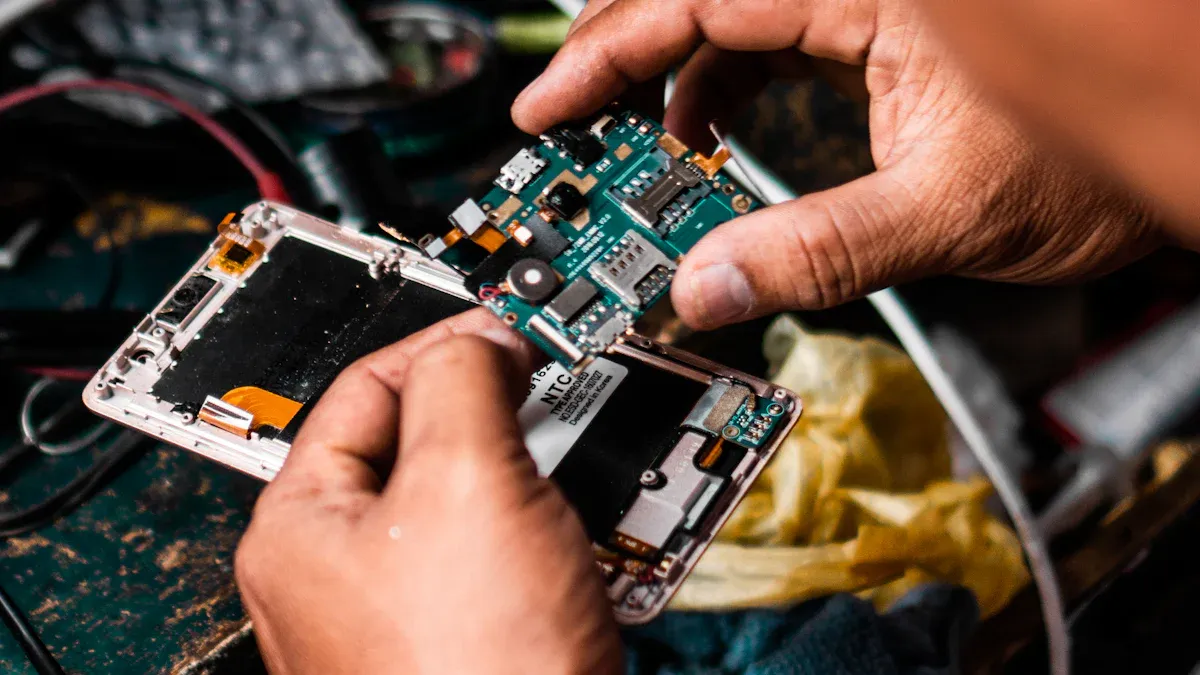
You can fix many led screen problems at home. Use simple tools and follow careful steps. First, look for loose cables or connectors. If you see dead pixels, try moving the pixel by pressing gently with a soft cloth. Keep the screen on while you do this. For tough spots, warm the screen with a hairdryer. Press on the spot for ten seconds. Software like JScreenFix can help with stuck pixels and color problems. If you see backlight bleeding or dim spots, check the power supply and cables. Fixing backlight problems may mean tightening cables or updating drivers. For scratches, use a microfiber cloth and a little petroleum jelly to hide marks. Always adjust your screen settings to fix color problems and stop image burn-in.
Technique | Description |
|---|---|
Gently press on a dead pixel with a cloth while the screen is on. | |
Heat & Pressure | Warm the screen and press for 10 seconds to reset the pixel. |
Software Solutions | Use JScreenFix or UDPixel for stuck pixels and color problems. |
Backlight Troubleshooting | Check power, cables, and update drivers to fix backlight problems. |
Physical Damage Repair | Use a microfiber cloth and petroleum jelly for scratches. |
Color Calibration | Change settings to fix color problems and stop burn-in. |
Tip: Check your warranty before you start any led screen repair. Many screens are covered for 2-3 years.
When to Replace Parts
Sometimes, fixing is not enough. If you see lots of weak or dead pixels, or big color problems, replace the module. A stuck pixel might get better with recalibration. But a dead pixel usually needs a new led or module. If you keep having backlight bleeding or power problems, change the power supply or control card. If the damage is very bad, fixing it may cost as much as a new screen.
Pixel Issue | Repair Feasibility |
|---|---|
Stuck pixel | Try recalibration or update your graphics driver |
Weak pixel | Replace the module if the problem is everywhere |
Fully dead pixel | Change the led or the whole module |
Component Type | Cost Implication |
|---|---|
Minor dead pixel repairs | |
Module replacement | Costs a medium amount |
Control card repair | Costs a medium amount |
Extensive damage | May cost as much as a new screen |
Note: Always use the maker’s manual for led screen repair. Do not open the device if you are not sure what to do.
Preventive Maintenance
Taking care of your led screen keeps it bright and free from color problems and backlight bleeding. Clean the screen and vents every few months to stop dust from blocking air. Use a soft cloth and do not use strong cleaners. Check power and cables for loose connections. Update drivers and adjust the screen to stop color problems and burn-in. For outdoor screens, protect them from weather and dirt. Use surge protectors to stop damage from power spikes.
Maintenance Practice | Description |
|---|---|
Heat Management | Clean vents and heat sinks for better cooling. |
Use surge protectors to stop damage from power surges. | |
Software Updates | Update drivers and adjust settings to fix color problems. |
Cleaning Techniques | Wipe the screen and frame with a microfiber cloth. |
Environmental Control | Protect outdoor screens from bad weather. |
Check your led screen every three months. Look for loose modules, uneven brightness, and color problems. Fixing color problems early stops bigger issues. Fixing backlight problems fast stops more damage. Change what is on the screen often to stop burn-in.
🛠️ Good care makes led screen repair easier and helps your display last longer.
You can keep your LED screen working well if you follow steps.
Look at your screen often and clean it to find problems early.
Learn what dead pixels and flickering look like so you can fix them quickly.
Check your software settings to stop display problems.
If you have hard problems, do not open the screen. Get help from a professional after you check simple things.
Watch cables and power for any damage.
Update your software to make your screen work better.
Doing regular care helps your screen last longer and stops problems. 🛠️
Tips for Troubleshooting LED Screen Issues
LED displays may encounter various problems during daily use. Below are common symptoms and step‑by‑step troubleshooting steps to help you quickly identify issues and take effective action.
1. Screen Completely Dark (No Display)
Possible causes:
Power not connected or power supply failure
Main controller card not started
Main circuit breaker or RCD (residual current device) tripped
Troubleshooting steps:
Check that the power cord is firmly plugged in and the outlet has power (measure with a multimeter).
Observe whether the power indicator (usually a green or red LED) on the power supply is lit.
Check the distribution box – reset any tripped circuit breakers or RCDs.
If still dark, try a different power cord or test another outlet.
2. Partial Area Not Working or Display Abnormal
Symptoms: Black blocks, dead lines (a row or column not lit), colour distortion, garbled screen, etc.
Symptom | Common Cause | Troubleshooting |
|---|---|---|
Full row/column not lit | Loose ribbon cable, faulty driver IC, missing power to module | Re‑seat the corresponding ribbon cable; check for oxidation on cable contacts; replace faulty module. |
Single pixel or small block not lit | Dead LED lamp (single pixel failure) | Acceptable if few; replace module if large area. |
Garbled / wrong colours | Poor ribbon cable contact; wrong controller parameters | Re‑seat ribbon cables; check cable order from receiving card to modules; reload configuration file. |
Full screen flickering | Unstable voltage; low refresh rate; poor grounding | Measure power supply output (should be 5V ±0.2V); adjust refresh rate in controller software; check ground connection. |
Colour cast (e.g., overall reddish/greenish) | Loose data cable; lost colour calibration file | Re‑seat data cables; re‑upload calibration coefficients; check colour settings. |
3. Communication & Control Issues
Symptoms: Cannot send content, controller offline, screen does not respond to commands.
Troubleshooting steps:
Check physical connection – Ethernet cable plugged securely? RJ45 connector loose? Serial or USB cable working?
Check network settings – Is the controller IP address on the same subnet as the PC? Ping the controller IP.
Check software configuration – Correct controller model selected? Sending parameters (scan mode, pixel count) correct?
Check controller status – Indicator lights normal (green blinking = working, red solid = fault). Try rebooting the controller or resetting to factory defaults.
Signal relay – For long distances, check if fibre converters are used or if Ethernet cable exceeds 100m without a repeater.
4. Power Supply & Heat Dissipation Issues
Symptoms: Uneven brightness, flickering in some areas, automatic blackout, overheating of enclosure.
Troubleshooting:
Measure power supply output voltage (+5V or +3.3V). If voltage fluctuates or is too low, replace the power supply.
Check that cooling fans are running and vents are not blocked by dust.
In high‑temperature summer, ensure air conditioning or forced ventilation is working properly.
If the power supply is overloaded, add additional power supply modules in parallel.
5. Environmental Factors
Common environmental issues:
Moisture / water ingress – Outdoor screen seals aged or cabinet joints leaking, causing short circuits or corrosion. Action: power off, dry thoroughly, replace damaged modules.
Lightning strike – No surge protection or poor grounding damages controller or power supplies. Install surge protectors and ensure ground resistance <4Ω.
High temperature – Prolonged operation beyond the rated range (-20°C to 50°C) accelerates LED aging and power supply failure. Improve cooling.
Dust accumulation – Excessive dust impairs heat dissipation and signal contact. Clean internally regularly.
6. Quick Troubleshooting Tool Kit
Tool | Purpose |
|---|---|
Multimeter | Measure voltage, continuity, resistance |
Spare ribbon cables | Quickly replace suspected cables |
Spare power supply | Test if power supply is faulty |
Laptop + control software | Re‑send parameters, test communication |
Voltage tester pen | Confirm presence of power |
Screwdrivers, cable ties, insulating tape | Basic repair tools |
7. Preventive Maintenance Recommendations
Regular cleaning – Clean screen surface quarterly; check outdoor screen seals.
Regular inspection – Monthly check of power supply voltage, ribbon cable contacts, cooling fans.
Software backup – Save controller configuration files and calibration coefficients for quick recovery.
Lightning protection – Check grounding system before each rainy season.
Installation environment – Avoid locations with heavy grease/oil, high humidity, or strong vibrations.
8. When to Call a Professional
Multiple power supplies or controller cards fail simultaneously.
Software cannot resolve parameter issues on the main control PC.
Large‑scale LED failure (>5% of pixels dead).
Burnt smell or visible burned wiring inside the screen.
In these cases, contact the original manufacturer or a professional LED repair team to avoid further damage.
FAQ
What should you do first if your LED screen goes black?
Unplug the screen. Check the power cable and outlet. Plug the screen into another outlet. If it still does not work, look at the power supply for damage or overheating.
How can you fix flickering on your LED screen?
Try a different cable or input. Update your graphics driver. Adjust the refresh rate in your display settings. If flickering continues, check the power supply for steady voltage.
Why do colors look wrong on your LED screen?
Check the display settings for color balance.
Recalibrate the screen using built-in tools.
Make sure you do not mix modules from different batches.
Update your drivers for better color accuracy.
Can you repair dead pixels yourself?
You can try gently pressing the pixel with a soft cloth. Use pixel-fixing software like JScreenFix. If the pixel stays dead, you may need to replace the module.
How often should you clean your LED screen?
Clean your screen every three months. Use a microfiber cloth. Do not spray cleaners directly on the screen. Regular cleaning helps prevent dust buildup and overheating.
See Also
Key Developments in LCD Technology to Watch in 2026
New Trends in Interactive Display Technologies for 2026
Maximizing Advertising Impact with a 3D LED Fan in 2025
