How to Fix an LCD Monitor Damaged by Water
Shenzhen TopAdkiosk Display Technology Co., Ltd.
Add.: 2F, Bldg 10, Changfeng Industrial Park, Dongkeng, Fenghuang, Guangming, Shenzhen, China 518132
Mobile/WHATSAPP: 86-138 25769658
Email: marketing@topadkiosk.com topadkiosk@gmail.com
Skype: pghenry1
Wechat: adkioskhenry
English Web.: https://www.topkioskdisplay.com/
http://www.ad-kiosk.com/
https://www.toplcddisplay.com/
http://www.multitouchdigitalsignage.com/
https://www.youtube.com/channel/UCYVYNJHxLVEcQD8fuUxXNTA/videos?view_as=subscriber
https://www.facebook.com/TOPADKIOSKSHENZHEN/?ref=bookmarks
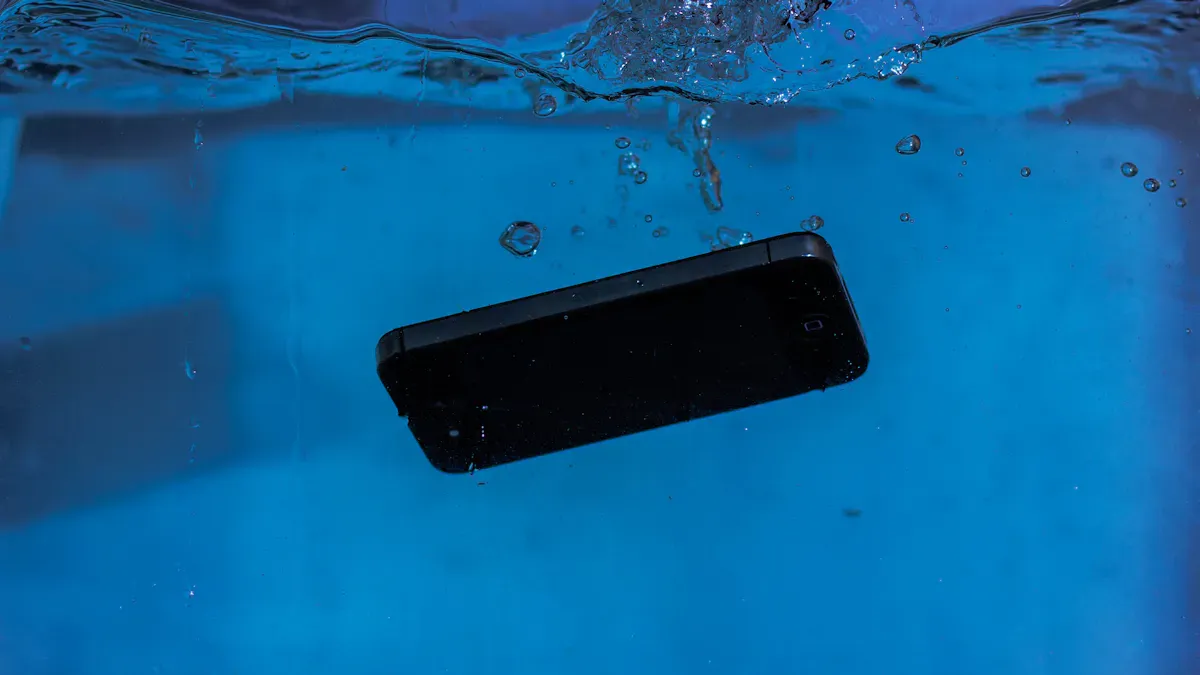
If you see water on your monitor, act quickly. Unplug the monitor right away. Do not turn it on. Water damage can happen fast. This can happen after a spill or when moisture builds up inside. Spills from drinks or other liquids often cause lcd monitor water damage. You might see fog or watermarks on the screen. Follow these steps to protect your monitor. Stay calm and use this guide for each step. The instructions in this guide help you stop more damage. Trust this guide to help you and your monitor during water damage emergencies.
Key Takeaways
Unplug your monitor right away if it gets wet. This keeps you safe and stops more damage.
Use a soft microfiber cloth to blot extra water. Do not rub the screen. Rubbing can push water deeper inside.
Wait until the monitor is totally dry before turning it on. Turning it on too early can ruin it forever.
Dry the monitor with air instead of rice. Put it in a place with good airflow to help it dry faster.
Get help from a professional if you see damage, like weird pictures or rust. If you ignore these signs, the problem can get worse.
Immediate Steps to Take for LCD Monitor Water Damage
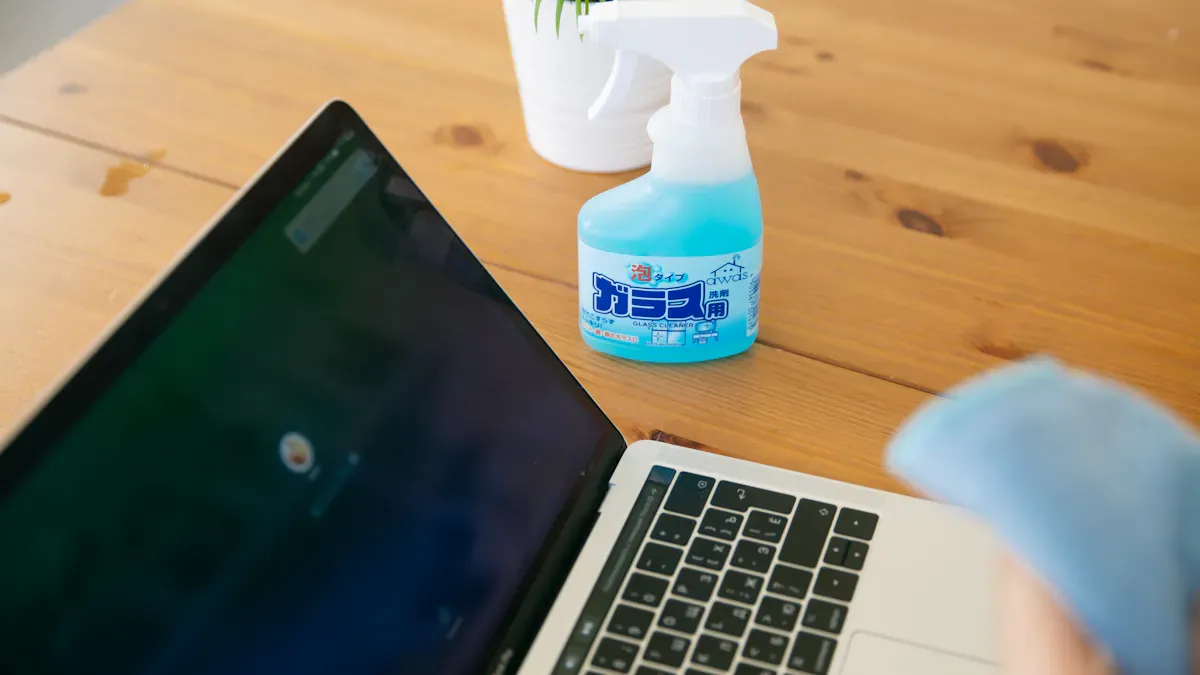
If your monitor gets wet, you must act fast. These steps help protect your device and lower the risk of lcd monitor water damage. Follow each instruction closely so you do not cause more problems.
Unplug and Power Down
Take the monitor out of the wall socket. Remove all cables from the device. Turn off the monitor right away. Water and electricity are dangerous together. If you leave it plugged in, you could get a short circuit or permanent water damage.
Tip: Always unplug the monitor before you touch it or try to fix wet lcd screen issues. This keeps you safe and stops electrical dangers.
Blot Excess Water
Get a soft microfiber cloth. Carefully blot any water you see on the screen or case. Do not rub or press hard. Rubbing can push water deeper or scratch the screen.
Use a microfiber cloth for best results.
If you do not have one, use a clean paper towel.
Gently dab the wet spots.
Do not use rough materials or tissues that leave lint.
Try to remove as much water as you can. Do not cause more lcd monitor water damage. These steps help keep your screen safe.
Avoid Turning On the Monitor
Do not turn on the monitor until it is dry. Water inside can cause dark spots or uneven brightness. It can also stop the touch function from working.
Note: Turning on the monitor too soon can make water damage worse and may ruin the screen forever.
Wait until you finish all drying and fixing steps. If you turn it on too early, you might break the device for good.
By following these steps, you give your monitor the best chance to recover from lcd monitor water damage. Always use this guide to stay safe and protect your device.
Understanding Water Damage Risks
Short Circuits and Hazards
If your monitor gets wet, there are big risks. Water inside can make short circuits happen. This means electricity goes where it should not. Your monitor might turn off by itself or act weird. Sometimes, you can lose your files or the monitor might stop working forever.
Even a little water can make metal parts rust. This can break the circuit boards and connectors. If you turn on wet electronics, you can cause short circuits and damage that cannot be fixed.
If there is even a small bit of water inside, it can make a short circuit. This can make your monitor shut down fast, act strange, or lose all your saved data.
Using a wet monitor is not safe for you.
You could get shocked if you touch it.
The monitor could get too hot and start a fire.
Mold can grow inside and hurt your health or the monitor.
Corrosion and Long-Term Effects
Corrosion starts soon after water gets in your monitor. The metal inside starts to break down. This can cause problems later. You might see colors look wrong, the screen flickers, or buttons do not work. Sometimes, you see water stuck inside the screen. These signs mean your monitor has lcd monitor water damage. They show that short circuits or corrosion are hurting your device.
The IEEE says corrosion can start just minutes after water gets in. It gets worse as time goes on. That is why you need to act fast and get help.
Water can make the parts inside an LCD monitor rust.
Rust can make the screen stop working.
Water inside can cause damage that will not go away and change the way the screen looks.
If you see these signs, follow this guide. Do not wait or ignore them. Acting fast can stop more water damage and keep your monitor safe. Always use these steps to protect your monitor from lcd monitor water damage.
How to Fix Wet LCD Screen: Drying Methods
Air Drying Techniques
You need to start drying your monitor as soon as possible. Place your monitor in a dry room with good airflow. Stand the monitor upright so water can drain out. Open windows or use a fan to move air around the monitor. Do not cover the monitor with anything that traps moisture.
Scientific studies have shown that exposing water-damaged electronics to open air can be more effective than sticking it in rice.
You should avoid the rice method for lcd screen water damage fix. The rice method does not work well for monitors. Air drying gives better results and follows emergency lcd screen drying tips.
Using Silica Gel or Dehumidifiers
You can use silica gel packets to help with drying. Put several packets near the monitor. Silica gel absorbs moisture from the air. If you have a dehumidifier, place your monitor in a room with the device running. The dehumidifier pulls water out of the air and speeds up drying. These detailed repair methods help remove water faster.
Do not use a damp cloth for cleaning. This mistake can cause water to seep deeper into the screen. Always follow instructions for how to fix wet lcd screen.
Sunlight and Fan Use
You can use sunlight to help with drying, but you must cover the monitor with a thin cloth. This protects the screen from direct sunlight. Place the monitor near a window for gentle warmth. Use a fan to blow air across the monitor. This speeds up drying and helps with lcd screen water damage fix.
Do not leave the monitor outside.
Do not use strong sunlight.
These detailed repair methods help you learn how to dry wet lcd monitor safely.
What to Avoid: Heat Sources
You must avoid using hairdryers or direct heat sources.
The issue with hair dryer is the consistency in the heat directly from the hairdryer. It's not always consistent (enough for electronics) and unless you stabilize the distance it's not recommended.
Also, the back of a hair dryer sucks in air to blow through the heat coils like a jet engine. All sorts of dust and elements in the air are slung on the electronic devices.
Do not turn on the monitor to dry it. Leaving it on overnight does not remove moisture. Opening the screen without proper instructions can cause more water damage.
Common mistakes:
Using a damp cloth for cleaning, which can lead to water seeping into the screen.
Attempting to dry the monitor by leaving it on overnight, which may not effectively remove moisture.
Opening the screen without proper knowledge, risking further damage.
Always follow emergency lcd screen drying tips and instructions for drying. Avoid the rice method for monitors. Use air drying, silica gel, and fans for the best results.
When to Seek Professional Help for Water Damage
Signs of Internal Damage
You may not always see all the effects of lcd monitor water damage right away. Some signs show up after the monitor dries. Watch for these problems that mean you need professional help:
Distorted images appear on the screen. Blurry or wavy pictures often mean moisture is trapped inside.
The monitor shuts off by itself or acts strangely. This can happen when water causes a short circuit.
You notice rust or green spots near the ports or buttons. Corrosion weakens the connections inside.
Foggy patches or color changes show up on the display. These signs point to moisture between the layers.
The screen looks dim or less clear. Water can spread and lower brightness.
You lose control of the monitor’s buttons or settings. Damaged circuits can stop them from working.
The monitor will not turn on at all. Long-term water damage can cause total failure.
If you see any of these signs, stop using the monitor. Do not try more repair lcd screen steps at home. You need a professional to check the device. They have the right tools and instructions to open and fix the monitor safely.
If you ignore these signs, you risk making the water damage worse. You could lose your monitor for good.
Warranty and Service Options
Most manufacturer warranties do not cover water damage. Spills and liquid exposure are usually not included. You should check your warranty papers or the company’s website for details. Some extended warranties may cover water damaged lcd screen repair, but you need to read the fine print.
If your warranty does not help, you can still get professional help. Many repair shops offer lcd screen repair for a fee. The average cost to repair lcd screen damage ranges from $50 to $300 for monitors. The price depends on the size, type, and where you live. Sometimes, replacing the monitor costs less than fixing it.
You should always ask for a quote before you agree to any service. A professional can give you clear instructions and tell you if the monitor is worth fixing.
Tip: Save all your warranty and service instructions. Bring them when you visit a professional. This helps you get the right lcd screen repair and protects your investment.
Preventing Future LCD Monitor Water Damage
Protective Covers and Placement
You can protect your monitor from water damage by choosing the right cover. Look for covers made from strong, water-repellent materials. These covers block spills and shield your monitor from rain or splashes. The best covers use UV-resistant fabric and have reinforced seams. This design keeps your monitor safe from sunlight and moisture. Always follow the instructions for installing the cover. A loose cover will not protect your monitor well.
Waterproof enclosures give your monitor even more safety. These cases seal your monitor from liquids and dust. Some enclosures also block UV rays and prevent scratches. You can also ask about OCA bonding. This method adds a layer between the glass and the screen. It helps stop water from reaching the inside of your monitor.
You should check the IP rating when you buy a new monitor or cover. A higher IP rating means better protection from water and dust. For example, an IP rating of 8 means your monitor can handle being underwater for a short time. This rating is important if you use your monitor in a wet place.
Tip: Place your monitor away from windows, sinks, or places where water can spill. Good placement lowers the risk of lcd monitor water damage.
Maintenance and Safety Tips
You can keep your monitor safe by following simple instructions. Clean your monitor with a dry, soft cloth. Do not use wet wipes or sprays. Check your monitor and cover for cracks or holes every month. Replace damaged covers right away.
Make sure you keep drinks and plants away from your monitor. If you must have water nearby, use a cup with a lid. Teach everyone in your home or office the right instructions for using the monitor safely.
Unplug your monitor during storms.
Store your monitor in a dry place if you do not use it for a long time.
Read the instructions from the manufacturer for extra safety steps.
Note: Following these steps helps you avoid water damage and keeps your monitor working for years.
You can protect your monitor from lcd monitor water damage by acting fast. Follow these instructions:
Power off your monitor right away.
Remove all power sources from your monitor.
Dry the outside of your monitor with a soft cloth.
These instructions help you avoid more damage. Always use safe drying methods for your monitor. If you see problems, follow the instructions and ask a professional for help. You can often save your monitor with quick action and the right care.
Remember, your monitor can recover if you follow these steps and instructions.
What Are the Symptoms of Water Damage on LCD Monitors?
When an LCD monitor gets wet or is exposed to high humidity, it does not immediately "burn out", but over time or with power applied, a series of typical symptoms will appear. Below are the most common signs of water damage, divided into physical appearance and display abnormalities.
1. Physical Appearance Symptoms
💧 Water Stains or Fog Inside the Screen
What you see: Irregular water stain marks inside the screen, foggy blurred areas near the edges, or rainbow‑like oily film.
Cause: Liquid seeps through the bezel gaps into the space between the LCD panel and the backlight module, or enters the polariser layers.
💧 Water Pooling in the Backlight Module
What you see: When the screen is on, distinct “bubble‑like” dark spots, or a visible water line along the screen edge.
Cause: Liquid has entered the light guide plate or diffusion sheets of the backlight module, leaving residue and possibly damaging reflective layers.
🔘 Rust or Corrosion on Metal Parts
What you see: White or green corrosion on screws, ports, or metal bezel sections; paint bubbling on the frame.
Cause: Prolonged moisture exposure or residual liquid causes oxidation.
2. Display Abnormalities (Image & Electrical)
🌑 Dark Spots or Bright Spots
What you see: Localised areas that are noticeably darker (dark spots) or abnormally brighter (bright spots) than the rest of the screen; these do not change with the displayed image.
Cause: Water causes short circuits or corrosion in the backlight LED strips, or damages the light guide plate.
🎨 Colour Shift or Discoloration
What you see: The whole screen or parts of it appear red, green, blue, or show colour patches and stripes.
Cause: Liquid attacks the LCD driving circuits or ribbon cables, causing signal errors.
📺 Flickering or Shaking Image
What you see: The screen brightness fluctuates, or the image jumps, shakes, or ripples.
Cause: Water ingress causes capacitor leakage or resistance changes on the logic board or driver board, leading to unstable voltage.
📍 Horizontal / Vertical Lines or Garbled Screen
What you see: Fixed bright lines (white or colour), dark lines, or chaotic patterns across the screen.
Cause: Liquid corrodes the COF (chip‑on‑film) ribbon cables or driver ICs connecting to the LCD panel, causing signal disconnection.
☠️ Black Screen with Power Light On
What you see: The monitor’s power LED is lit (green or blue), but the screen is completely dark with no image.
Cause: Backlight circuit failure (backlight does not turn on) or complete failure of the LCD driving circuit.
🔌 Intermittent Failures
What you see: The monitor works normally for a few minutes, then starts flickering, changing colours, showing garbled images, or shuts down.
Cause: Residual electrolytes from water ingress cause chemical reactions when powered, leading to symptoms that come and go, gradually worsening.
3. Special Symptoms (Touchscreens or Feature Displays)
Touch failure: The touchscreen becomes unresponsive, erratic, or completely dead.
OSD / button malfunction: Menus pop up automatically, controls become unresponsive, or buttons behave incorrectly.
4. What NOT to Do After Water Damage
❌ Do not power it on immediately – Power accelerates circuit corrosion and can cause short circuits that damage more components.
❌ Do not use a hair dryer on hot setting – High heat can warp plastic, cause uneven thermal expansion of the liquid crystal layer, and create permanent damage.
❌ Do not repeatedly turn the monitor on/off to test – Each power cycle spreads moisture further and expands the damage area.
5. What You Can Try (No Guarantee of Repair)
Immediately disconnect power – Unplug the power cord and all signal cables.
Wipe off surface water – Use paper towels to absorb visible water on the housing and screen surface.
Tilt the monitor – Place it with the water‑affected side downward to allow liquid to drain.
Dry for several days – Leave it in a well‑ventilated dry place (or use a dehumidifier / drying cabinet) for at least 3–7 days – do not apply power during this time.
Test carefully – After thorough drying, power it up briefly in a safe environment. If abnormalities persist, seek professional repair.
💎 Summary Table
Symptom Type | Typical Signs | Likely Damaged Component |
|---|---|---|
Physical appearance | Water stains, fog, backlight pooling, metal corrosion | Polariser, backlight module, housing |
Display abnormalities | Dark/bright spots, colour shift, lines, garbled screen, black screen | Backlight strips, driver board, COF cables, LCD panel |
Electrical failures | Flickering, intermittent shutdown, touch failure | Logic board, capacitors, power board |
If symptoms remain after thorough drying, the monitor cannot be repaired by typical end‑user methods. Water damage often contaminates or corrodes multiple layers. Most repair shops will recommend replacing the entire LCD panel, which can cost nearly as much as a new monitor. Therefore, for monitors with poor water resistance, prevention is far more important than repair.
FAQ
Can I use a hairdryer to dry my monitor?
You should not use a hairdryer. The heat can damage your monitor. Air drying works best. Follow the instructions in this guide for safe drying.
How long should I wait before turning my monitor back on?
Wait at least 24 to 48 hours. Make sure your monitor feels completely dry. If you see any water, keep waiting. Always follow the instructions for drying.
What if my monitor shows lines or spots after drying?
Lines or spots mean water may still be inside your monitor. You should not use it. Take your monitor to a repair shop. They can check for damage.
Can I clean my monitor with wet wipes?
Do not use wet wipes. Water can seep into your monitor and cause damage. Use a dry, soft cloth. Read the instructions from your monitor’s manual for cleaning tips.
Is it safe to open my monitor to check for water?
You should not open your monitor by yourself. Opening it can cause more damage. Only a trained expert should open your monitor. Always follow safety instructions.
See Also
Creating A Premium Touch And Non-Touch LCD Mirror Display
Selecting The Ideal LCD Rack Monitor For Your Requirements
Leading LCD Display Screen Brands For Your Upcoming Project
