How to Fix Dead or Stuck Pixels on an LCD Monitor
Add.: 2F, Bldg 10, Changfeng Industrial Park, Dongkeng, Fenghuang, Guangming, Shenzhen, China 518132
Mobile/WHATSAPP: 86-138 25769658
Email: marketing@topadkiosk.com topadkiosk@gmail.com
Skype: pghenry1
Wechat: adkioskhenry
English Web.: https://www.topkioskdisplay.com/
http://www.ad-kiosk.com/
https://www.toplcddisplay.com/
http://www.multitouchdigitalsignage.com/
https://www.youtube.com/channel/UCYVYNJHxLVEcQD8fuUxXNTA/videos?view_as=subscriber
https://www.facebook.com/TOPADKIOSKSHENZHEN/?ref=bookmarks
As long as we have the blueprints, Shenzhen TopAdkiosk Display Technology Co., Ltd no worse than anyone else.
please contact Shenzhen TopAdkiosk Display Technology Co.
You might ask if you can fix a lcd monitor dead pixel at home. Stuck pixels can sometimes be fixed with easy ways. These ways do not take much work. Dead pixels almost never get better, so you need to know the difference before you try to fix them. Most fixes use simple tools and easy steps.
Tip: Always look at your screen carefully to find pixel problems before you start.
Key Takeaways
Find the problem: Stuck pixels look bright. Dead pixels look black or white and do not change.
Try pixel fixing software first: This way is safe. It often works to fix stuck pixels.
Use gentle pressure: If software does not work, press softly on the stuck pixel with a soft cloth. This can help reset it.
Look at your warranty: If you have a dead pixel, talk to the company that made your monitor. They might replace it.
Stop future problems: Keep your monitor cool and clean. This helps stop stuck pixels from coming back.
Can You Fix LCD Monitor Dead Pixel?
Understanding Pixel Problems
You may notice a tiny spot on your screen that does not match the rest. This spot could be a stuck pixel or a dead pixel. Knowing the difference helps you decide what to do next.
A stuck pixel shows a bright color, like red, green, or blue. It happens when one part of the pixel stays on. You might see this more often on older screens. A dead pixel looks black or white and does not light up at all. It means the pixel does not get power.
Here is a table to help you see the main differences:
Feature | Stuck Pixel | Dead Pixel |
|---|---|---|
Appearance | Bright color (red, green, blue) | Black or white spot |
Power | Receives power | No power |
Behavior | May flicker or change | Always stays the same |
Fixability | Often fixable | Rarely fixable |
You can use a magnifying glass or your phone’s camera to look closely. In a dark room, stuck pixels glow with color. Dead pixels stay black and do not shine at all.
Note: Stuck pixels can often be fixed at home. Dead pixels almost never get better with home methods.
When a Pixel Is Truly Dead
A lcd monitor dead pixel happens when the pixel does not get any power. This can happen because of a problem during manufacturing, physical damage, or even electrical issues. Sometimes, extreme heat or bright light can also cause a pixel to die.
Here are some common causes of dead pixels:
Manufacturing defects, like a broken transistor or dust inside the screen
Physical damage from dropping or pressing the screen too hard
Electrical problems, such as power surges or old parts
Environmental factors, like high heat or humidity
Exposure to strong light, such as a laser
If you see a black spot that never changes, you likely have a dead pixel. Most lcd monitor dead pixel problems cannot be fixed at home. You may need to check your warranty or ask for help from the manufacturer.
Tip: Try fixing stuck pixels first. If the spot does not change, it is probably a dead pixel.
You can fix many stuck pixels with simple tools or software. Dead pixels, however, usually stay the same no matter what you try. Always check your screen carefully before you start any fix.
Dead vs. Stuck Pixels
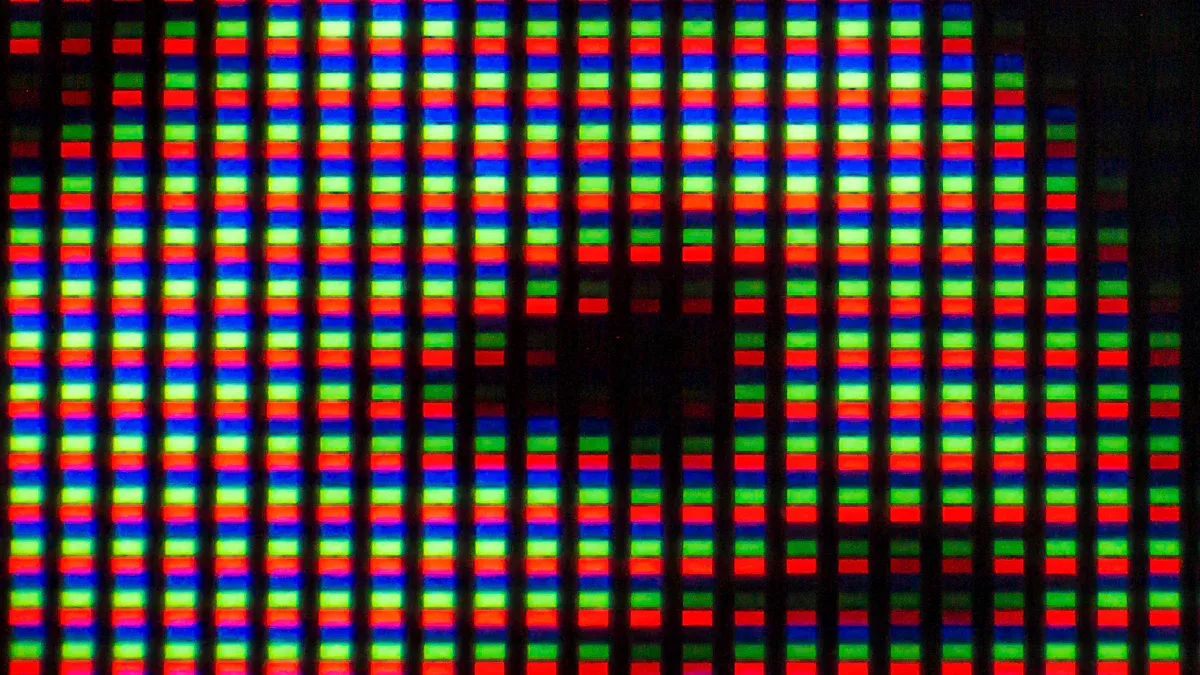
When you spot a strange dot on your screen, you might wonder if it is a dead pixel or a stuck pixel. Knowing the difference helps you decide what steps to take next. Both types can look similar at first, but you can tell them apart by looking closely at their color and behavior.
Signs of a Dead Pixel
A dead pixel usually looks like a tiny black or white spot that does not change, no matter what appears on your screen. You might notice it most when your screen shows a bright color or a white background. Dead pixels do not light up at all. They stay dark and do not respond to anything you do. Sometimes, a dead pixel can also appear as a small white speck if all the subpixels are off.
Tip: If you see a blank spot that never changes, you likely have a dead pixel.
You may also notice that a lcd monitor dead pixel can make images look distorted or discolored. This happens because the pixel does not show any color, which creates a tiny gap in the picture. Over time, these spots can become more noticeable, especially if you use your monitor for work or games.
Signs of a Stuck Pixel
A stuck pixel stands out because it stays on in one color, like red, green, blue, or white. It does not change when the rest of the screen changes. You can spot a stuck pixel by looking for a bright dot that does not match the other colors around it. Stuck pixels often show up best on dark backgrounds.
Here is a simple table to help you compare:
Pixel Type | What You See | Where It Stands Out |
|---|---|---|
Dead Pixel | Black or white spot | Light backgrounds |
Stuck Pixel | Red, green, blue, or white dot | Dark backgrounds |
Stuck pixels do not move or flicker.
You can find them by checking for dots that look different from the rest of the screen.
If you notice a colored dot that never changes, you probably have a stuck pixel. You can try fixing it with simple methods, but dead pixels usually need professional help.
Fixing Stuck Pixels
If you see a colored dot that does not change on your screen, you can try several safe methods to fix it. Many people have success with these techniques. You do not need special tools or advanced skills. You can follow simple steps at home.
Pixel Fixing Software
Pixel fixing software offers a fast and easy way to repair stuck pixels. You can use these tools directly in your web browser. You do not need to install anything. The software works by flashing colors rapidly over the stuck pixel. This process can help the pixel return to normal.
Here is a table that shows the features of pixel fixing software:
Feature | Description |
|---|---|
Repair Time | Can repair many stuck pixels in less than 10 minutes. |
Compatibility | Suitable for LCD and OLED screens. |
Installation | Nothing to install; operates in a web browser using HTML5 and JavaScript. |
Cost | Provided free of charge with help from sponsors. |
Ease of Use | Simply drag the pixel fixer over the stuck pixel. |
Proven Technology | Applied to millions of screens, making it one of the most effective solutions. |
Many users report a success rate of over 60% with pixel fixing software. You can try this method first because it is safe and does not risk damaging your screen.
Tip: Pixel fixing software works best for new stuck pixels. Try running the tool for several minutes.
Manual Pressure Method
You can use the manual pressure method if software does not fix the stuck pixel. This technique uses gentle touch to help the pixel reset. You must be careful to avoid damage.
Follow these steps:
Turn off your screen.
Use a soft cloth and apply gentle pressure with your finger on the stuck pixel.
While pressing, turn the screen back on.
Remove pressure after a few seconds.
You should press lightly and only for a short time. Too much force can cause more problems.
Note: Always use a soft cloth to protect your screen. Never press hard or use sharp objects.
Heat and Tap Techniques
Heat and tap methods can sometimes help with stuck pixels. You must use caution with these approaches.
Warm the affected area gently with a hairdryer on low heat for a few seconds.
Hold the hairdryer about 8–10 inches from the screen.
Massage the area lightly with a cloth after warming.
Avoid overheating and check the temperature often.
The tap technique involves gently tapping the stuck pixel with a soft object, like a cotton swab.
These methods carry risks. Overheating can damage your screen. Using heat may void your warranty. Tapping too hard can cause cracks or new pixel issues.
Alert: Monitor the temperature closely. Stop if the screen feels hot or if you see any changes in the display.
Effectiveness and Risks
Each method has benefits and limitations. You should choose the safest option first.
Method | Benefits | Limitations |
|---|---|---|
Applying Pressure | Simple, non-invasive, inexpensive, can be done at home. | Not always successful, may not fix physically damaged pixels. |
Simple, inexpensive, can be done at home, may dislodge stuck pixels. | May require multiple attempts, risk of screen damage if excessive heat. | |
Pixel Fixing Software | Safe, fast, high success rate, no risk of physical damage. | May not work for older or stubborn stuck pixels. |
Replacing the Screen | Guaranteed fix, improves overall appearance, addresses other screen damage. | Complex, expensive, requires a qualified technician, variable costs. |
Most people find pixel fixing software to be the safest and most effective method. The manual pressure method can help, but you must use gentle touch. Heat and tap techniques work for some users, but you risk damaging your screen if you are not careful.
Success rates vary by pixel color. Red pixels respond best, with a 40-50% success rate. Green pixels have a 30-40% success rate. Blue pixels are harder to fix, with only 20-30% success. Overall, you can expect a 20-60% chance of fixing a stuck pixel at home.
Note: If you try these methods and the pixel does not change, you may have a lcd monitor dead pixel. Dead pixels rarely respond to home fixes. You should check your warranty or contact the manufacturer if you see a lcd monitor dead pixel that does not improve.
When to Seek Help or Use Warranty
Persistent Pixel Issues
You might try different ways to fix stuck or dead pixels. Sometimes, nothing works. It is important to know when to stop and ask for help.
If you have tried everything and the pixel problem stays, you may need to accept it.
If software and careful physical methods do not fix a stuck pixel, it could mean there is a bigger hardware problem. In offices, it is best to stop trying to fix it yourself and ask for official support.
Some signs show you need expert help. Watch for these problems:
Warning Sign | Description |
|---|---|
Persistent lines after software troubleshooting | The issue is probably hardware-related and needs a professional. |
Physical Damage | Dropping or pressing the screen can cause serious damage inside. |
Liquid Exposure | Water or moisture can harm the screen and parts inside. |
Loose or Damaged Internal Connections | Broken cables can make the screen stop working right. |
Failure of Key Internal Components | If the motherboard is damaged, the screen will not work well. |
Lines visible during boot or Safe Mode | This means there is a hardware problem, not just a software one. |
Persistent lines unlikely to disappear | You need a proper check and maybe a repair. |
If you see any of these signs, contact the manufacturer or a skilled technician. This helps keep your monitor safe and stops more damage.
Manufacturer Policies
Most companies have rules for warranty. You need to check how many dead or stuck pixels your monitor has. Each brand lets you have a certain number before they give you a new screen.
Brand | Bright Sub-Pixels Allowed | Dark Sub-Pixels Allowed | Total Sub-Pixels Allowed |
|---|---|---|---|
Acer (FHD) | ≤ 2 | ≤ 5 | ≤ 5 |
ASUS (within 12 months) | 0 | ≤ 5 | N/A |
Gigabyte (within 36 months) | ≤ 3 | ≤ 5 | N/A |
LG (Wide Full HD) | 6 | 6 | N/A |
Samsung | Case-by-case basis | N/A | N/A |
ViewSonic | Zero defective pixels for VP Series | N/A | N/A |
You can see how brands compare in the chart below:
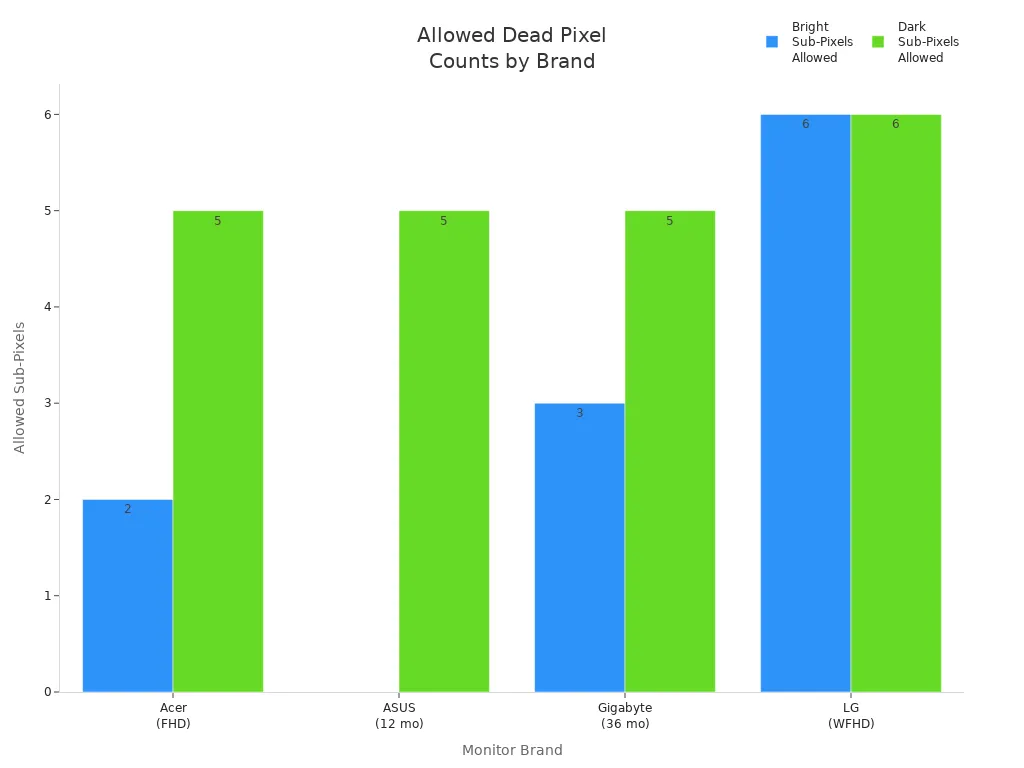
Some brands, like Dell, have a special guarantee. You might get a new screen if you have only one bright subpixel. Other brands need more dead pixels before you can get a replacement.
Manufacturer | Bright Sub-Pixel | Dark Sub-Pixel | Total Sub-Pixel |
|---|---|---|---|
Acer (FHD, UHD) | ≤ 2 | ≤ 5 | ≤ 5 |
Dell (Standard) | 6 or more | 6 or more | Combination of bright and dark subpixel = 6 or more |
Dell (Premium Panel Guarantee) | 1 or more | 6 or more | * Bright subpixel = 1 or more * Dark subpixel = 6 or more |
Tip: Always check your monitor’s warranty rules. You might get a free replacement if your screen meets the pixel limit.
You can try to fix stuck pixels at home with safe ways. Use pixel fixing software or press gently on the spot. Always turn off your monitor before you start. Use a soft cloth and never use anything sharp. Dead pixels almost never get better with home fixes. Check your warranty in the first 14 days after buying your monitor. You might get a replacement if you act fast. Change what is on your screen often and keep the brightness low. This can help stop new problems. Dead pixels do not spread to other parts of the screen. Not every black dot is a pixel problem, so clean your screen first. Keep your monitor safe and do not expect every repair to work.
What Is a Dead Pixel on an LCD Monitor?
A dead pixel is a pixel on an LCD screen that fails to display the correct colour or remains permanently off (black). Pixels are the tiny individual dots that make up the image – a typical 1080p screen has over 2 million of them. When one malfunctions, it appears as a small, fixed spot on the screen.
🔬 Types of Pixel Defects
Not all faulty pixels are the same. There are three main types:
Type | Appearance | What’s Happening |
|---|---|---|
Dead pixel | Black (always off) | The transistor controlling the pixel is stuck “closed” – no light passes through. Often less noticeable on dark backgrounds. |
Stuck pixel | Bright colour (red, green, blue, or white) | The pixel is stuck “open” – one or more sub‑pixels are permanently on. More distracting, especially on dark screens. |
Hot pixel | White (on dark backgrounds) | Similar to a stuck pixel but often appears only when the display warms up. More common on older LCDs or cameras. |
Many people use “dead pixel” loosely to mean any pixel defect, but technically a dead pixel is black, while stuck/hot pixels are coloured.
⚙️ What Causes Dead Pixels?
Manufacturing defects – Microscopic impurities or misaligned transistors during production. Even new monitors can have a few – most manufacturers consider up to 3–5 dead pixels “acceptable” (ISO 13406‑2 standard).
Physical damage – Dropping the monitor or pressing too hard on the screen can crush or disconnect a pixel.
Age / wear – Over years of use, transistors can fail. Hot pixels often appear as the display ages.
Heat or electrical issues – Prolonged overheating or voltage irregularities can kill individual pixels.
🛠️ Can You Fix a Dead or Stuck Pixel?
Pixel Type | Fixable? | Methods |
|---|---|---|
Black dead pixel | Almost never | The transistor is physically broken. No software or pressure can revive it. Only panel replacement works. |
Stuck (coloured) pixel | Sometimes | Pixel‑exercising videos – rapidly flashing colours (red, green, blue, black, white) for 10–30 minutes may reset the stuck sub‑pixel. Gentle rubbing (with a soft cloth) while the screen is on can also help, but be very careful not to damage the screen. |
Hot pixel | Rarely | May disappear after cooling down or running pixel‑exercising cycles. Often permanent over time. |
Important: Warranty policies vary. Some manufacturers replace monitors with any dead/stuck pixels, others only if the count exceeds their threshold (e.g., 5+). Check your warranty before attempting “massage” fixes that could make it worse.
🕵️ How to Check for Dead Pixels
Set your screen to a solid black background – dead pixels show as black spots on white/grey, but easier to see coloured stuck pixels on black.
Cycle through full‑screen solid colours: white, red, green, blue, black.
Use free online tools like Dead Pixel Tester (Windows) or browser‑based test patterns.
Inspect closely – especially near the centre and edges.
📝 Bottom Line
Dead pixel = permanently black. Not repairable.
Stuck pixel = coloured (red/green/blue/white). Sometimes repairable via software or gentle pressure.
If a monitor has a single dead pixel in the centre, many users return or exchange it (check return policy).
For a few peripheral dead pixels, most people learn to ignore them – they’re often invisible during normal use.
If you discover a dead pixel on a new monitor and it bothers you, contact the seller or manufacturer as soon as possible – don’t wait past the return window.
FAQ
Can stuck pixels come back after you fix them?
A stuck pixel can return if your screen gets bumped or overheated. You should handle your monitor gently. Keep the screen cool and clean to help prevent stuck pixels from coming back.
Will dead pixels spread to other parts of my screen?
Dead pixels do not spread. Each pixel works alone. If you see more dead pixels over time, your monitor may have a bigger problem. You should check your warranty if this happens.
Is it safe to use pixel fixing software many times?
Yes, you can use pixel fixing software several times. This method does not harm your screen. If you do not see results after a few tries, you should stop and try another method.
Can I fix a stuck pixel on a laptop screen the same way?
You can use the same methods for laptop screens. Try pixel fixing software first. Use gentle pressure if needed. Always turn off your laptop before touching the screen.
How do I know if my monitor warranty covers dead pixels?
Check your monitor’s warranty card or visit the manufacturer’s website. Look for the pixel policy section. Some brands replace your monitor for just one dead pixel, while others require more.
See Also
Creating A Premium Touch And Non-Touch LCD Mirror Display
Selecting The Ideal LCD Rack Monitor For Your Requirements
Essential OLED Display Tips To Enhance Your Project
