How to Clean a Touchscreen Kiosk Safely and Effectively in 2026
Add.: https://www.youtube.com/watch?v=uQU4vro1Ocs2F, Bldg 10, Changfeng Industrial Park, Dongkeng, Fenghuang, Guangming, Shenzhen, China 518132
Mobile/WHATSAPP: 86-138 25769658
Email: marketing@topadkiosk.com topadkiosk@gmail.com
Skype: pghenry1
Wechat: adkioskhenry
English Web.: http://www.topadkiosk.com/
https://www.topkioskdisplay.com/
http://www.ad-kiosk.com/
https://www.toplcddisplay.com/
http://www.multitouchdigitalsignage.com/
https://www.youtube.com/channel/UCYVYNJHxLVEcQD8fuUxXNTA/videos?view_as=subscriber
https://www.facebook.com/TOPADKIOSKSHENZHEN/?ref=bookmarks
You need to know how to clean a touchscreen kiosk the right way. This keeps your customers and your device safe. If you use the wrong products or methods, you can hurt the screen. You might also spread germs. When you ask how to clean a touchscreen kiosk, use soft materials. Only use solutions that are approved. Many people want to know how to clean a touchscreen kiosk without damage. Cleaning often helps you stay healthy. It lowers health risks like the ones below:
Risk Type | Description |
|---|---|
Infectious Disease Transmission | Touchscreens can hold bad bacteria and viruses. This can make people sick. |
Presence of Staphylococcus | This bacteria can cause infections that are hard to treat. |
Fecal Contamination | Food service kiosks may have tiny bits of feces. This is not safe. |
High Germ Count | Airport check-in screens have lots of germs on them. |
E. faecalis Infections | This can cause serious health problems. |
Spread of Respiratory Illnesses | Touching dirty screens can spread colds and the flu. |
If you want to know how to clean a touchscreen kiosk the best way, follow the steps at http://www.topadkiosk.com/. You will get better results and your device will last longer.
Key Takeaways
Use a microfiber cloth and approved cleaners. This helps protect the touchscreen and cleans it well.
Clean kiosks that many people use more than once a day. This helps stop germs from spreading and keeps people safe.
Always turn off the kiosk before you clean it. This stops electrical problems and wrong commands.
Clean the kiosk on a regular schedule. This keeps the device working well and helps it last longer.
Teach staff the right way to clean the kiosk. This keeps things clean and stops damage to the kiosk.
Why Clean Customer-Facing Touchscreens
Hygiene and Safety
When you use a self-service kiosk, you touch the screen. Many other people touch it too. Germs can spread from person to person this way. Cleaning these screens helps stop the spread of coronavirus disease 2019 and other sicknesses. The coronavirus can stay on surfaces for many hours. If you clean often, you help keep yourself and others safe.
Research shows that public touchscreens can have bad germs and viruses. Here are some study results:
Study | Findings |
|---|---|
Stibich, 2016 | Patients in rooms used by infected people had a 1.5 to 2.5 times higher risk of infection. |
Beckstrom, 2013 | Smartphones had microbes similar to those found on users' hands. |
Tatem, 2011 | Cell phones can spread infectious diseases in public and healthcare settings. |
Ulgar, 2009 | Fecal coliforms and Staphylococcus aureus were found on smartphones, showing high risk. |
The CDC says you should use disposable plastic covers on devices that many people touch. This can help stop germs from spreading. Cleaning public touchscreen kiosks often is a good way to keep everyone safe.
Device Longevity
Touchscreen devices work better and last longer when you clean them right. Dirt, oil, and fingerprints can pile up on the screen. This can make the touchscreen not work as well. Cleaning the screen often keeps it working like new.
If you clean your device often, it will last longer. A cleaning routine keeps the screen clear and sensitive. It also stops damage from sticky dirt. Experts say cleaning habits can change how long your device works.
Use food-safe cleaning solutions and follow the right steps. This helps you follow health department rules for public touchscreen kiosks. Cleaning your touchscreen protects your money and keeps your kiosk working well.
Cleaning Products for Touchscreen Kiosks
Microfiber Cloths and Safe Solutions
Start cleaning with a microfiber cloth. These cloths pick up dust and fingerprints. They do not scratch the screen. Microfiber cloths are soft and can be used again. You can wash them many times. They help keep the screen clear without streaks. Using them is a smart way to clean often.
Property | Benefit |
|---|---|
Gentle cleaning | Removes dust and smudges without scratching the touchscreen. |
Reusable and washable | Reduces waste and saves money. |
Streak-free finish | Keeps the touchscreen clear and easy to read. |
Extra-large size | Cleans more area in less time. |
Soft yet durable | Lasts through many uses and washes. |
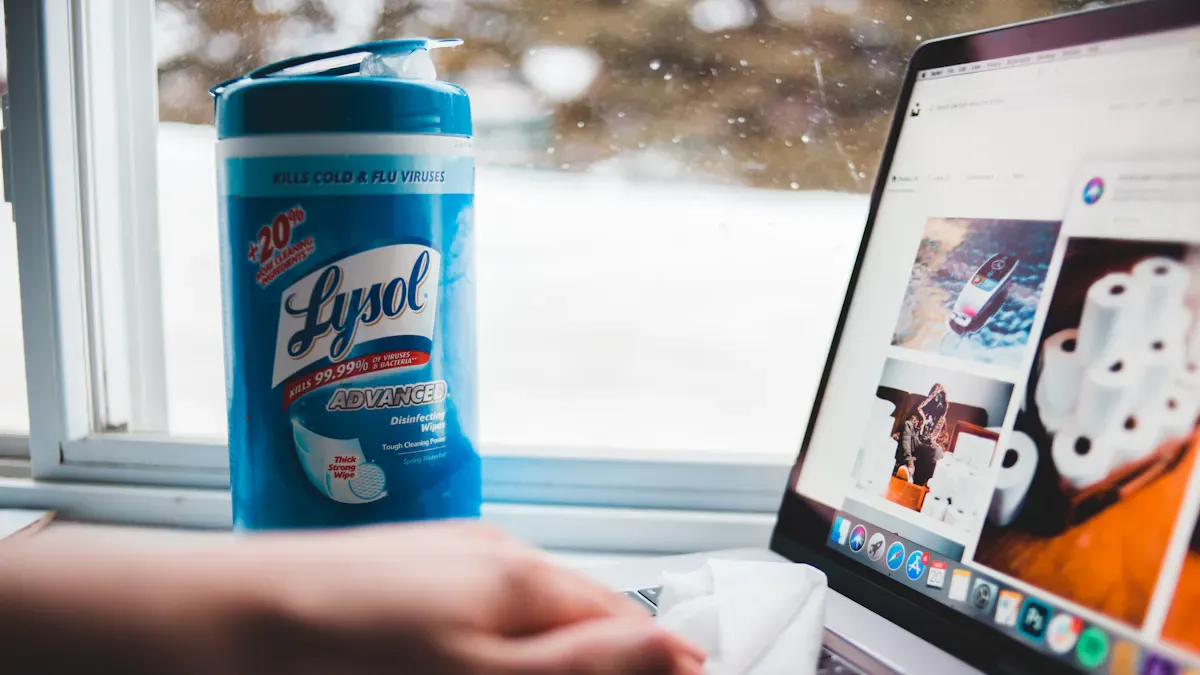
To kill germs, use disinfectants that are safe for touchscreens. Some good choices are isopropyl alcohol (70%), Clorox disinfecting wipes, Lysol Brand Clean & Fresh Multi Surface Cleaner, and Purell Professional Surface Disinfectant Wipes. These products kill germs but do not hurt the screen. Always put the cleaner on the cloth first. Do not spray it on the screen.
Tip: Look at the Material Safety Data Sheet (MSDS) before using any cleaner. This tells you if it is safe and good for the environment.
Products to Avoid
Some cleaners can harm your touchscreen. Do not use paper towels, ammonia-based cleaners, or strong solvents. These can scratch or damage the screen. Never use abrasive cleaners, acetone, polish, or wax. These can make the screen cloudy or less sensitive.
Cleaning Agent | Effect on Touchscreen Surface |
|---|---|
Ammonia-Based Glass Cleaners | Strips protective layers, causes streaking and sensitivity loss |
Abrasive cleaners | Scratches the touchscreen surface |
Acetone or strong solvents | Dissolves important coatings |
Polish and Wax | Leaves cloudy buildup, reduces touch response |
Household disinfecting wipes | Can leave sticky residue and clouding |
Do not use alcohol that is stronger than 70%. Too much alcohol can hurt the screen’s special coating. Always pick wipes that say they are safe for electronics.
If you use the right cleaners and stay away from bad ones, your touchscreen kiosk will stay clean and work well.
How to Clean a Touchscreen Kiosk: Step-by-Step
Preparation and Safety
You must prepare before you start the cleaning steps. This keeps you and your device safe. First, turn off the kiosk and unplug it from the power source. This prevents electrical hazards. Put on disposable gloves to protect your hands from germs and cleaning chemicals. Check the kiosk for any damage or loose wires. If you see any problems, fix them before you continue.
Use a dry microfiber cloth to remove dust, cobwebs, and debris from the outside of the kiosk. Do not use a wet cloth inside the cabinet. Liquids can cause electrical problems. Keep air vents and fans free from dust. You can use a small handheld vacuum for this, but be gentle. Never spray water or cleaner directly onto the monitor or any electronic part. Always apply the cleaner to the cloth first.
Tip: Inspect electrical connections at least once a month. Make sure all wires are secure to avoid equipment failures.
Clean a Touchscreen Surface
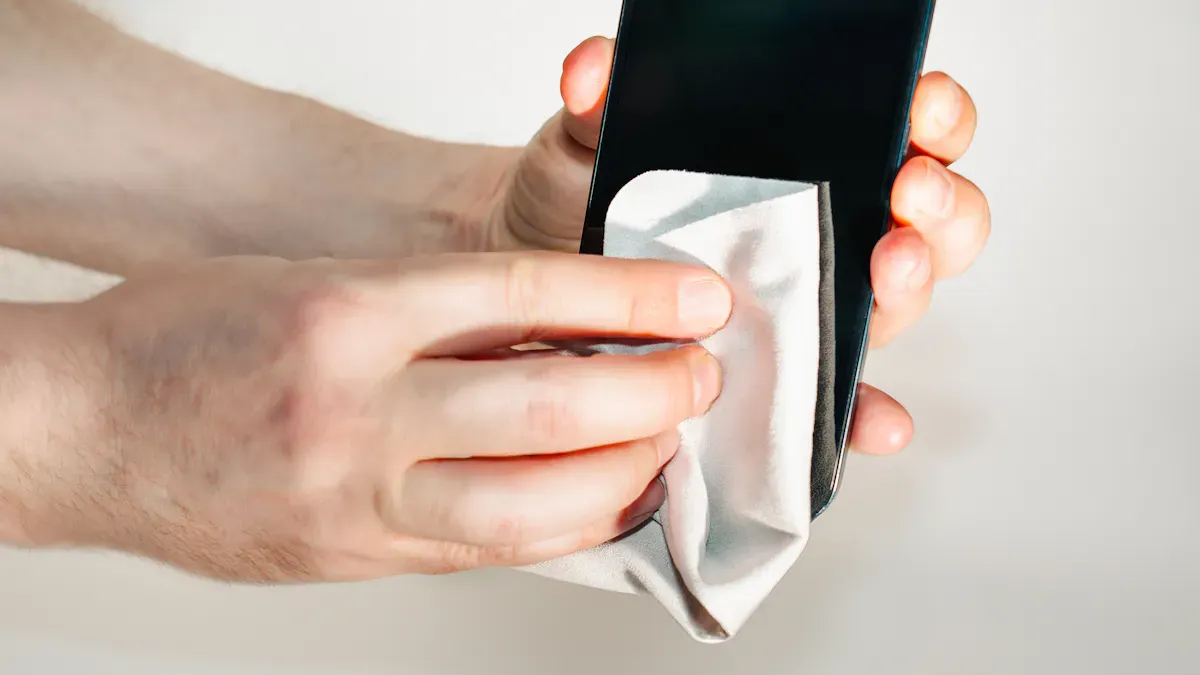
You need to follow the right cleaning steps to protect the touchscreen. Start with a clean, ultra-soft microfiber towel. Wipe the screen gently to remove fingerprints and smudges. If the screen is still dirty, use a small amount of touchscreen-safe cleaner. Apply the cleaner to the cloth, not directly to the screen. Use overlapping strokes to cover the whole surface. Do not use too much liquid. Too much cleaner can cause streaks or damage.
Here are the cleaning steps for the touchscreen:
Turn off the kiosk and unplug it.
Put on disposable gloves.
Use a dry microfiber cloth to wipe away dust and loose dirt.
Lightly dampen the cloth with a touchscreen-safe cleaner (like 70% isopropyl alcohol).
Wipe the screen in gentle, circular motions. Cover all areas with overlapping strokes.
Dry the surface with a fresh, dry microfiber towel.
Wait until the screen is completely dry before turning the kiosk back on.
If you need to disinfect, use alcohol-based disinfectants with at least 70% alcohol. Always check that the disinfectant will not harm the touchscreen or its coatings. For stubborn stains, use a soft cloth with a mild, abrasive-free glass cleaner. Never use ammonia, acetone, or strong solvents.
Different touchscreen types may need special care. For capacitive and resistive screens, use a soft lint-free cloth. You can use it dry or slightly damp with a neutral pH cleaner. Avoid acidic or alkaline cleaners. Wipe gently and follow any surface texture if there is one.
Note: Streaks often happen when you use too much cleaner or a dirty towel. Use a small amount of cleaner and a clean towel for a streak-free finish.
Clean Other Kiosk Components
Touchscreen kiosks have other parts that need cleaning. Card readers, keypads, and barcode scanners can collect dirt and germs. You should include these in your cleaning steps.
Use cleaning cards pre-saturated with cleaning agents for card readers. Insert the cleaning card and swipe as you would with a regular card. This removes grime and dust.
Clean and disinfect card readers, keypads, and barcode scanners daily. This prevents dirt buildup and keeps the kiosk working well.
Use a soft, lint-free cloth with a mild cleaner for surfaces around the touchscreen.
Do not use paper towels or abrasive materials. These can scratch the surfaces.
Sanitizing protocol: Regular cleaning and disinfecting of all kiosk parts helps prevent errors and reduces repair costs.
A good cleaning and disinfecting procedure keeps your kiosk safe and reliable. Follow these cleaning steps every time you clean a touchscreen kiosk. This protects your investment and keeps users healthy.
Common Mistakes and Safety Tips
Preventing Screen Damage
You can keep your touchscreen kiosk working well if you avoid mistakes. Some people use the wrong cleaners or clean the wrong way. This can break the screen or make you pay for repairs. Look at the table to see what not to do and what could happen:
Common Mistakes | Consequences |
|---|---|
Using inappropriate cleaning solutions | Damage to protective coatings and screen surface |
Applying excessive pressure | Damage to electrode layers and potential cracks |
Neglecting to power down the device | Risk of unintended commands during cleaning |
Using sharp objects or abrasive materials | Permanent damage to screen surfaces |
Allowing moisture to penetrate seals | Electrical damage and potential component failure |
Always use a microfiber cloth to clean. This stops scratches from happening. Never use paper towels, rough cloths, or anything sharp. These can scratch the screen and make it look bad over time. Turn off the kiosk before you start cleaning. This helps stop mistakes and keeps the screen safe. Use a dry cloth for dust. For sticky spots, use a cloth that is just a little wet. Wipe gently in circles. Do not push down hard on the screen.
Tip: Make sure your cleaner is safe for electronics. Too much liquid can get inside and cause damage.
Electrical Safety
You need to stay safe from electricity when cleaning. Always unplug the kiosk before you start. Dry your hands first. Keep all liquids away from plugs and wires. Never clean the kiosk if the area is wet. Water and electricity are dangerous together.
Follow these tips to stay safe:
Check the area for dangers before you clean.
Clean the cleanest parts first, then the dirtiest.
Wipe from the top down so you do not spread germs.
Clean up spills right away and use the right tools.
Keep the floor dry so no one slips.
Label any dangerous chemicals nearby.
Make sure emergency gear is easy to find.
Mark places with live wires and keep them clear.
Use waterproof covers if the kiosk is outside.
Check the kiosk’s wires and plugs often. This helps you find problems early. It keeps everyone safe. Never let water touch outlets. Dry work areas help stop shocks and short circuits.
Note: Cleaning the right way and checking for safety keeps your kiosk working and people safe.
Maintaining Clean Touchscreens
Cleaning Schedule
You need a cleaning schedule to keep your touchscreen kiosks safe and working well. High-traffic areas require more frequent cleaning. The table below shows how often you should clean based on how many people use the kiosk each day:
Traffic Level | Quick Wipe-down | Deep Cleaning |
|---|---|---|
High-Traffic (200-500 touches/day) | 4-5 times daily | Daily |
Very High-Traffic (500+ touches/day) | Every 2-3 hours | Twice daily |
A regular cleaning routine gives you many benefits:
You help your kiosk work faster and better.
You save time for staff and users.
You reduce maintenance costs.
You prevent downtime and keep your kiosk running.
You avoid mistakes during transactions.
You keep your kiosk looking clean and welcoming.
You should also clean the kiosk’s body and display often. This keeps the kiosk looking good and working well. Inspect your kiosk for signs of wear and tear. Check for scratches, loose parts, or sticky buttons. Fix problems early to avoid bigger issues.
Tip: Daily cleaning in busy places is important for user safety and device performance.
Staff Training
You need to train your staff to clean kiosks the right way. Good training helps your team use the best cleaning methods and supplies. This keeps your kiosks safe and effective, especially where hygiene matters most.
Evidence | Description |
|---|---|
Importance of Training | Staff training is crucial for understanding proper cleaning techniques and materials. |
Regular Maintenance | Training includes the need for regular maintenance schedules to ensure kiosk safety. |
Train your staff to:
Use the correct cleaning steps every time.
Wear gloves and use safe cleaning products.
Clean without pressing too hard or using too much liquid.
You should also teach your team to check for damage and report problems. Show them how to use monitoring tools to track performance and spot issues early. Regular training keeps your kiosks clean, safe, and ready for use.
Note: Well-trained staff help prevent device damage and keep hygiene standards high.
You can keep your touchscreen kiosk safe and working well by following a few simple steps. Always use a soft microfiber cloth and a screen-safe cleaner. Power off the kiosk before cleaning. Wipe gently to avoid damage. Clean all parts, not just the screen. Stick to a regular cleaning schedule to stop germs and keep the screen clear.
Regular cleaning protects your investment and gives users a better experience. Stay alert and use the right methods every time.
Before you start:
Power off the kiosk and unplug from wall outlet
Gather materials: microfiber cloth(s), approved cleaner (water or 70% IPA max)
Step 1 – Dry wipe
Use dry microfiber cloth
Wipe screen gently from center outward
Remove all visible dust and particles
Step 2 – Dampen cloth
Spray cleaner onto the cloth (never directly on screen)
Cloth should be slightly damp, not dripping
Step 3 – Wet wipe
Wipe screen gently from center outward
Use light pressure – do not scrub
Step 4 – Dry and polish
Use clean, dry section of microfiber cloth
Remove all moisture and streaks
Step 5 – Final check
Screen is completely dry
No residue or streaks visible
Plug in and power on kiosk
⚠️ Never use:
Paper towels, tissues, or rough cloths
Ammonia-based cleaners (Windex)
Bleach or chlorine
Acetone, solvents, or abrasive sponges
Spraying directly on screen
🪪 Quick Reference Card (Print & Stick Near Kiosk)
text
┌─────────────────────────────────────────┐
│     CLEANING TOUCHSCREEN KIOSK          │
├─────────────────────────────────────────┤
│ ✅ DO:                                   │
│ • Power off & unplug first               │
│ • Use soft microfiber cloth              │
│ • Spray cleaner ON cloth, not screen     │
│ • Wipe gently center → outward           │
│ • Dry completely before powering on      │
│                                          │
│ ❌ DON'T:                                 │
│ • Paper towels or tissue                 │
│ • Windex, bleach, or solvents            │
│ • Spraying liquid directly on screen     │
│ • Cleaning while powered on              │
│                                          │
│ 🧴 Approved cleaners:                    │
│ • Water (damp cloth)                     │
│ • 70% isopropyl alcohol (max)            │
│ • Screen-specific spray                  │
└─────────────────────────────────────────┘
FAQ
How often should you clean a touchscreen kiosk?
You should clean high-traffic kiosks several times a day. For low-traffic areas, clean at least once daily. Regular cleaning keeps germs away and helps your device last longer.
Can you use regular glass cleaner on a touchscreen?
No, you should not use regular glass cleaner. Many glass cleaners contain ammonia or harsh chemicals. These can damage the screen’s protective coating. Always use a cleaner made for electronics.
What should you do if liquid spills on the kiosk?
Unplug the kiosk right away. Wipe up the spill with a dry microfiber cloth. Let the device dry completely before turning it back on. If you see damage, call a technician.
Do you need to wear gloves when cleaning?
Yes, you should wear disposable gloves. Gloves protect your hands from germs and cleaning chemicals. Change gloves after each cleaning session.
How can you avoid streaks on the screen?
Use a clean, dry microfiber cloth. Apply only a small amount of cleaner to the cloth, not the screen. Wipe in gentle, circular motions. This method helps you get a streak-free finish.
See Also
Discover 10 Unexpected Applications for Touch Screen Kiosks in 2026
Comprehensive Instructions for Setting Up a Touch Screen Kiosk
Essential Characteristics of Contemporary Touch Screen Kiosks
