How to Choose the Best LCD Rack Monitor for Your Needs
You want the best LCD rack monitor for your setup, so start by thinking about where you’ll install it and how you’ll use it. The right monitor should fit your space and support your workflow. Look at technical specs, application, and smart monitor shopping tips to make your choice easy. With the global LCD monitor market valued at $1.74 billion in 2024 and growing, options like the led-1709hdr lcd rack monitor give you plenty of features to consider.
Key Takeaways
Measure your space first. This helps you pick a monitor that fits. It also makes sure it works for your needs.
Think about how the monitor mounts. Check if it works with VESA. This can help you set up your desk better.
Look at both price and features. A commercial monitor can cost more at first. But it may last longer and save money later.
Check important specs like resolution, brightness, and color accuracy. This makes sure the monitor works for your tasks.
Find good after-sales support and warranties. This keeps your monitor safe and helps you feel happy with your choice.
Key Factors for Choosing a Monitor
Assessing Installation Area
Check your space before picking a monitor. Make sure the monitor fits your rack or desk. It should work well with your setup. Some monitors are made for small spaces and important jobs. You can find monitors that flip up or down. This makes them easy to use or put away. These monitors are good for places like military bases and factories. They also work in office buildings. You can pick from sizes between 15 and 20 inches. Some brands let you choose a special size if you need it.
Here’s a quick look at what to check for your space:
Feature | Description |
|---|---|
Design | Made for hard jobs in small spaces |
Accessibility | Flips up or down for easy use |
Applications | Good for military, factory, and office use |
Size Options | 15" to 20" standard, custom sizes possible |
Mounting Configurations | Rack drawer, ceiling, and wall mounts |
Power Source | Uses +12 Vdc or +24 Vdc power |
Durability | All-metal case for long life |
Resolution | High resolution up to 1920 x 1200 |
Think about how you will mount your monitor. VESA mounting gives you many choices. You can put it on a wall, bench, arm, or ceiling. This helps you set up your space the best way.
Defining Usage Needs
Think about how you will use your monitor. Different jobs need different things. If you work in a server room, you may want KVM options. This lets you control many devices from one place. If you need more screen space, look for single or dual screens. Some monitors have touch screens. These are good for hands-on jobs in factories.
Here’s a table to help you match your needs:
Usage Scenario | Key Features Needed | Example Applications |
|---|---|---|
Outdoor Digital Billboards | Very bright, weatherproof, large size | Highway signs, big displays |
Interactive Displays | Touchscreen, multitouch, easy to use | Maps, product lists, order kiosks |
Rugged Displays | Handles shock, water, dust, and heat | Field work, mobile stations |
High Brightness Displays | Extra bright for sunlight | Medical, marine, airplane use |
Flexible Displays | Bendable, fits curved spaces | Wearables, car dashboards |
You might use your monitor in places like:
Factory controls
Server rooms
Security camera stations
Video studios
Security centers
Dual screens can help you do more work. Touchscreens make jobs faster and easier.
Balancing Cost and Features
You want the best monitor for your money. Try to balance price and features. Commercial monitors cost more at first. They can be two or three times more than home models. But they last longer—up to seven years. You save money because you do not replace them often. This means you pay less over time, even if the first price is high.
Here’s a simple table to compare:
Aspect | Commercial Displays | Consumer Displays |
|---|---|---|
Initial Cost | 2-3x higher | Lower |
Longevity | Up to 7 years | Shorter life |
Total Cost of Ownership | Lower over time | Higher (more changes) |
When you shop, look for the features you need. Do you want one or two screens? Do you need touch or KVM? VESA mounting makes setup easy. Focus on what matters most for your job. You will get the right size, display, and price.
Tip: Always check if the monitor has an all-metal case. This makes it last longer, especially in tough places.
Picking the right lcd monitor means thinking about your space, your work, and your money. When you match these things, you get a monitor that works well and lasts a long time.
Monitor Buying Guide: Essential Specs

Picking a monitor can seem hard at first. But you can make it easier by looking at the most important specs. This guide shows you what to check for lcd rack monitors. These tips help if you need a monitor for creative work, tough jobs, or lcd digital signage. Let’s look at the main features and see why the led-1709hdr lcd rack monitor is special.
Resolution and Color Accuracy
You want your screen to look sharp and show real colors. The resolution tells you how clear the picture is. Higher resolution means you see more details. People who design things need HD, 4K, or 8K resolution. The led-1709hdr lcd rack monitor gives you a sharp picture. Color accuracy is important for art, photos, and medical screens. If colors are wrong, you might miss something important.
Here’s a table to help you compare:
Specification Type | Details |
|---|---|
Resolution | HD (1920×1080), 4K (3840×2160), 8K (7680×4320) |
Color Spaces | sRGB, Adobe RGB, ProPhoto RGB, DCI-P3, Rec 709, Rec 2020 |
Certifications | VESA DisplayHDR, Pantone, Calman |
Calibration Tools | Spyder, other color calibration tools |
ICC Profiles | Standard files for color accuracy across devices |
You need good color for creative work. Monitors with low Delta E values (2 or less) show colors right. You should check your monitor often to keep colors correct. Doctors also need perfect color for their screens. They use color to make safe choices. Wide color gamuts make pictures look better, but you must watch out for color changes. The led-1709hdr lcd rack monitor works with many color spaces and tools. This makes it great for lcd digital signage and creative jobs.
Tip: If you work with photos or videos, look for VESA DisplayHDR certification. This means your monitor can show bright and dark parts well.
Viewing Angles and Brightness
You want your monitor to look good from any spot. IPS panels let you see colors clearly, even if you move. TN panels cost less, but colors change when you look from the side. The led-1709hdr lcd rack monitor uses ips panels for clear views.
Brightness is important in bright rooms or outside. LCDs with over 1,000 nits stay bright in sunlight. Anti-glare screens help you see better with strong lights. Privacy screens keep your info safe by blocking side views. Industrial monitors must meet rules like ISO 13406-2.
Here’s a table to compare panel types and brightness:
LCD Technology | Viewing Angle | Notes |
|---|---|---|
TN panels | 45–70° | Colors shift at angles |
IPS panels | up to 178° | Consistent color |
VA panels | Moderate angles | High contrast |
Ambient Brightness (nits) | Recommended LCD Brightness (nits) | Application |
|---|---|---|
0 | Up to 50 | Marine bridge system |
> 500 | 200 | Dark room |
> 1,000 | Up to 300 | PC desktop monitor |
1,000 ~ 3,000 | 300 ~ 500 | POS terminal |
3,000 ~ 7,000 | 500 ~ 800 | Public area |
7,000 ~ 10,000 | 800 ~ 1,000 | Outdoors kiosk |
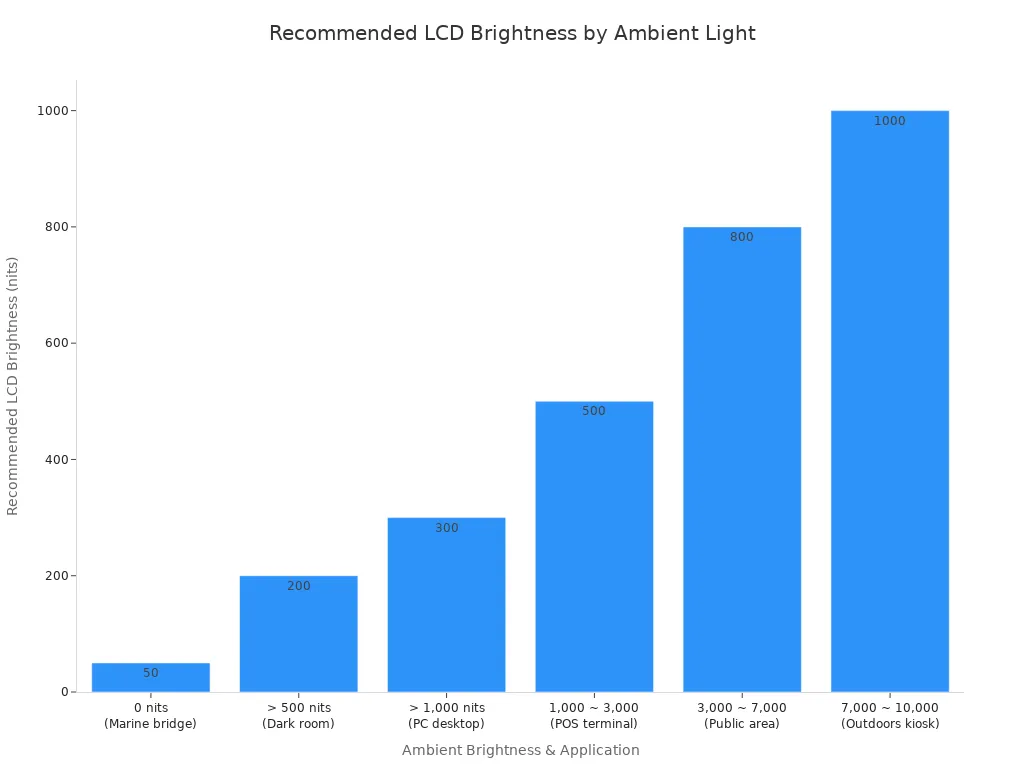
The led-1709hdr lcd rack monitor is bright and has anti-glare. You can use it for lcd digital signage in busy places or factories.
Contrast, Response Rate, and Refresh Rate
Contrast makes pictures stand out. High contrast means dark blacks and bright whites. The led-1709hdr lcd rack monitor gives you strong contrast. Response rate is how fast the screen changes. Fast response rates (1ms GTG for TN, 4-5ms GTG for ips) keep moving images clear. Slow response can make things look blurry.
Refresh rate is how often the screen updates. Most monitors use 60–75 Hz. Industrial monitors need at least 75 Hz for comfort. Higher refresh rates stop blur and motion sickness. The led-1709hdr lcd rack monitor has high refresh rates for smooth pictures.
Here’s what you should know:
High refresh rates make fast action look clear.
Low refresh rates can make things blurry.
Fast response rates keep images sharp.
High contrast makes screens easy to read.
If you use your monitor for fast jobs, like editing videos or watching security, get high refresh and fast response. The led-1709hdr lcd rack monitor is made for these tasks.
Connectivity and Expansion
You want your monitor to connect easily. New lcd rack monitors have many ways to connect. The led-1709hdr lcd rack monitor has HDMI, DisplayPort, USB, and sometimes wireless. IoT lets you control monitors from far away. Modular designs let you change your setup. AI helps with smart fixes and data checks.
Here’s a table of key features:
Feature/Trend | Description |
|---|---|
IoT for remote management and data streaming | |
Customizable and Modular Designs | Flexible setups for data centers |
Wireless Connectivity | Supports modern requirements |
AI and Machine Learning Integration | Improves maintenance and analysis |
Ultra-High-Definition Resolutions | UHD and 8K for critical monitoring |
The led-1709hdr lcd rack monitor stands out because it connects in many ways. You can use it for lcd digital signage, art studios, or control rooms.
Note: Always check if your monitor has the ports you need. HDMI, DisplayPort, and USB are common. Wireless and IoT are good for new setups.
When you pick a monitor, think about how you will use it. Talk to makers early to get the right specs. Think about power use, heat, and how long it lasts. The led-1709hdr lcd rack monitor has good specs and works well for many jobs.
This buying guide helps you match monitor types, features, and comfort to your needs. Pick the right size, resolution, and display for your work. You’ll get a monitor that fits your space, helps you work, and lasts a long time.
Application Scenarios for LCD Rack Monitors
Data Centers and Servers
You need a monitor that fits your rack. It helps keep your server room neat. Rack monitors save space and make things tidy. You use the monitor to check servers and fix problems. It helps you manage devices easily. Many monitors have KVM switches. This lets you control many servers from one screen. You get quick access to important data. The best monitors have clear screens and strong cases. You want a monitor that works all day without stopping. Good display quality helps you find problems fast. You can put your monitor at any height in the rack. This makes your job easier and safer.
Creative and AV Use
You work in places like video studios or broadcast vans. You need a monitor that shows many video sources at once. LCD rack monitors save space in small areas. You can use a foldable monitor in 1U of rack space. This makes it easy to see your display. You can place your monitor anywhere in a 19" rack. You get real-time views for your projects. You see every detail and make changes quickly. Here are some ways you use monitors in creative and AV work: You watch live video feeds for TV or streaming. You check sound levels and video quality. You switch between sources quickly. You keep your area neat with small monitors. You use monitors for edge computing and editing in real time. You want the best monitors for creative jobs. High display quality helps you see colors and details well.
Industrial Environments
You work in tough places like factories or outside. You need a monitor that handles dust, water, and heat. Industrial monitors have strong designs and hard cases. You get bright screens for outdoor use. Some monitors have IP65 or IP67 ratings. These block dust and water. You can use touchscreens with gloves or bare hands. Monitors last long and need little care. You can mount your monitor in many ways to fit your space.
Feature | Description |
|---|---|
Durability | Strong design for dust, moisture, and shaking |
Environmental Protection | IP65/IP67 ratings block dust and water |
Visibility | Bright screens over 1,000 nits for outside use |
Temperature Tolerance | Works in freezing or hot places |
Touchscreen Options | Works with gloves or many fingers |
Long Product Life Cycles | Needs less fixing and lasts long |
Flexible Mounting | Fits many industrial setups |
You want a monitor that works in hard places. Good display and strong build help you finish your work.
Practical Tips for Buying a Monitor
Brand Reputation and Certifications
You want a monitor that works well and lasts long. Start by checking the brand name. Good brands usually make better products. They also help you if something goes wrong. These brands test their monitors for hard jobs. You should look for important certifications. Certifications show the monitor is safe and works right. Some, like Crestron and Cisco, mean the monitor works with big systems. FCC and CE marks show it is safe and legal to use.
Here’s a quick table of common certifications:
Certification Type | Source Link |
|---|---|
Crestron Certified Products | |
Cisco Compatible Displays | |
FCC | |
CE |
Tip: Always look for these marks before you buy. They help you choose the best monitor for your needs.
After-Sales Support and Warranty
You want help if your monitor stops working. Good support makes things easier for you. Brands with strong support answer your questions fast. They will fix or swap your monitor if it breaks. Most companies cover the screen, parts, and cables. You can ask for a repair, a new monitor, or your money back. You get a reply, often in one day. Repairs are usually done in 15 days.
Here’s what you can expect from a good warranty:
Aspect | Details |
|---|---|
Warranty Period | 800 days from buying or 830 days from making the monitor |
Covered Components | Screen, parts, backlight, power, cables, stand |
Claims Process | Contact, check, repair, swap, or refund |
Service Delivery | Answer in 24 hours, repair in 15 days |
Consumer Rights | Free repair or swap, return broken products |
Limitations | No help for lost data or repairs not allowed |
If you pick a monitor with good support, you save time and money. You also feel safe because you can get help when you need it.
Value and Cost-Effectiveness
You want the best deal for your money. Do not just pick the cheapest monitor. Cheap monitors can break and cost more later. You may spend more time fixing them. If you look at the total cost, you get better quality and help. This means you get more for your money and less worry.
Here’s a table to show why value matters:
Procurement Focus | Based On | Potential Outcome |
|---|---|---|
Price Focus | Lowest first price | High long-term costs, bad help, more problems |
Value Focus | Total cost, quality, help, performance | Lower long-term costs, better quality, higher savings |
Purchasing tips: Always check the monitor size, screen quality, and price. Look for ips panels, hdr support, and high refresh rate. These features give you a better experience and help your monitor last longer.
You want a monitor that fits your space, shows clear pictures, and works well for years. Use these tips to make a smart choice.
You can pick the right LCD rack monitor by following a few simple steps. First, measure your space and check your monitor’s size. Next, confirm VESA compatibility and weight. Then, choose a mounting style for your monitor. Install your monitor and adjust it for comfort. Always check the monitor’s resolution, brightness, and color accuracy. Make sure your monitor supports all your devices. Look for a monitor with strong build and long life. Test the monitor for image quality. Trust your choice—you know what you need in a monitor.
Here’s a quick checklist for your monitor:
Measure your workspace for the monitor.
Confirm VESA and weight for the monitor.
Pick a mounting style for the monitor.
Install and calibrate your monitor.
Check monitor resolution, brightness, and color.
Test monitor connections and compatibility.
Review monitor build and warranty.
Make sure the monitor fits your workflow.
You can feel confident choosing a monitor that brings you the best quality and value.
FAQ
How do you choose the right monitor size for your rack?
You should measure your rack space first. Pick a monitor that fits without blocking other equipment. Most racks work well with 17-inch or 19-inch monitors. Always check the specs before you buy.
What features make a monitor good for industrial use?
Look for a monitor with a strong metal case. You want high brightness and clear visibility. Touchscreen options help in tough environments. Make sure the monitor can handle dust and water.
Can you use a monitor for both creative and server tasks?
Yes, you can use a monitor for both jobs. Choose a monitor with high resolution and color accuracy for creative work. For server rooms, pick a monitor with KVM support and easy mounting.
How do you connect multiple devices to one monitor?
You can use a monitor with HDMI, DisplayPort, and USB ports. KVM switches let you control many devices from one monitor. Always check the monitor’s connectivity options before setting up.
What should you check before buying a monitor?
Check the monitor’s warranty and support. Look for certifications like FCC and CE. Make sure the monitor fits your workflow and space. Test the monitor for image quality and connections.
See Also
Selecting The Ideal Gaming Monitor For Your Configuration
Picking The Top LCD Circular Display For Your 2025 Project
Finding The Perfect LCD Digital Signage For Your 2026 Business
