How to Choose the Right LCD Touch Screen Display for Your Project
Shenzhen TopAdkiosk Display Technology Co., Ltd.
Add.: 2F, Bldg 10, Changfeng Industrial Park, Dongkeng, Fenghuang, Guangming, Shenzhen, China 518132
Mobile/WHATSAPP: 86-138 25769658
Email: marketing@topadkiosk.com topadkiosk@gmail.com
Skype: pghenry1
Wechat: adkioskhenry
English Web.: http://www.topadkiosk.com/
https://www.topkioskdisplay.com/
http://www.ad-kiosk.com/
https://www.toplcddisplay.com/
http://www.multitouchdigitalsignage.com/
https://www.youtube.com/channel/UCYVYNJHxLVEcQD8fuUxXNTA/videos?view_as=subscriber
https://www.facebook.com/TOPADKIOSKSHENZHEN/?ref=bookmarks
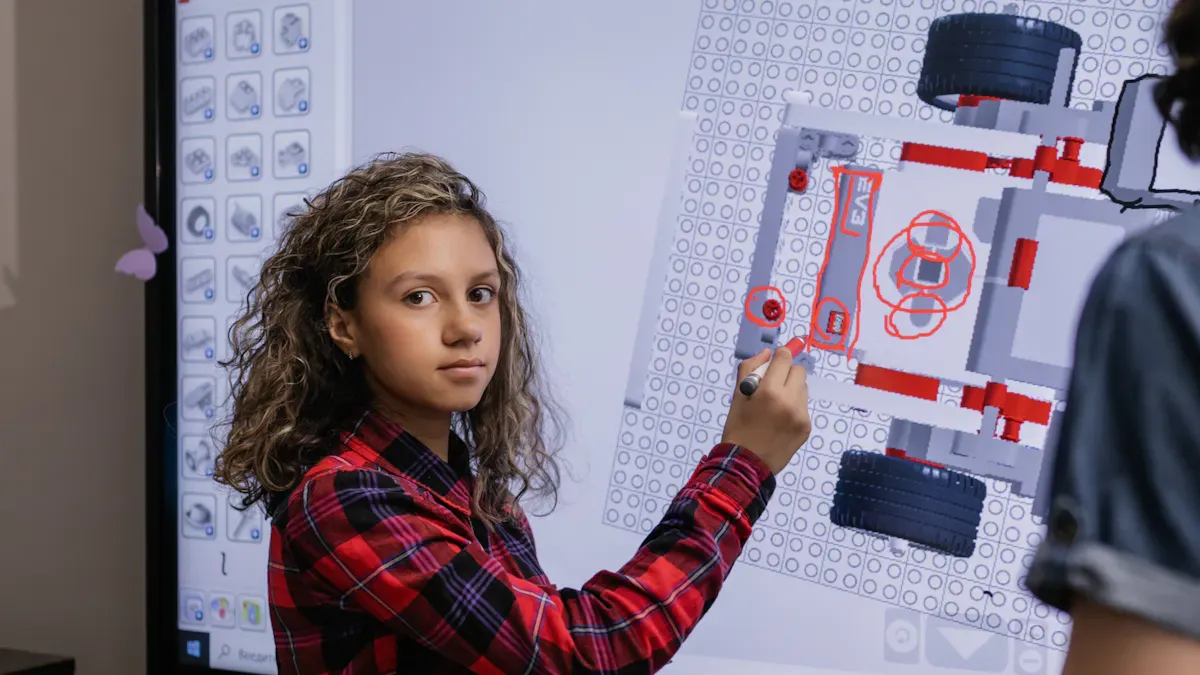
You need to pick an lcd display touch screen that works for your project and makes it easy to use. Every touchscreen display has special features. Knowing what to look for helps you choose the best one. Important things to think about are the kind of touch, how good the screen looks, and how people will use the interactive display. Choosing the right touchscreen for your needs means your display will run well and give a good experience.
Key Takeaways
Think about what your project needs. Look at where it will be used and how people will touch it. Pick displays that can handle hot or cold weather. Make sure they work well inside or outside.
Look at the kind of touchscreen you want. Capacitive screens are easy to use with fingers. Resistive screens are good if you use gloves or tools.
Pick a screen size and resolution that fits your users. Big screens are good for lots of people to see. Small screens are better for things you hold in your hand.
Make sure the touchscreen is strong and can handle tough places. Check for high IP ratings to keep out dust and water.
Always try the touchscreen before you buy it. Make sure it works for your project and feels good to use.
Project Requirements
Define Use Case and Environment
First, you need to know where you will use your digital signage. The place you put it will change what you need. If you want to put your touchscreen outside, you have to think about things like temperature, sunlight, and weather. Outdoor digital signage must work in very hot or cold weather. So, you should pick a display that can handle big changes in temperature. Some industrial monitors work from -30°C to +85°C. Most consumer models only work from 0°C to 40°C. You also need to check if the display can keep out water, dust, or damage from people. Look at the table below to see how industrial and consumer displays are different:
Feature | Industrial Displays | Consumer Displays |
|---|---|---|
-30°C to +85°C | 0°C to +40°C | |
IP65 or higher | Minimal | |
Vibration Resistance | Ruggedized | Not suitable |
Humidity Resistance | Anti-corrosion coatings | Sensitive |
Outdoor digital signage needs to be very bright. It should have more than 1000 candelas so people can see it in sunlight. UV resistance and thick glass help protect the screen from the sun and damage. Indoor digital signage does not need as much protection. But you still need to think about where you will put the touchscreen and how people will use it.
Tip: Always pick display features that fit your environment. This helps your digital signage work well and last longer.
User Interaction and Input Types
Think about how people will use your digital signage. Will they touch it with fingers, gloves, or a stylus? Many touchscreen displays let you use different ways to touch. Some let you use more than one finger at a time. This means you can pinch to zoom or swipe with many fingers. Some displays let you use gestures, like turning or swiping with your hand. Some digital signage does not have buttons. You just touch the screen, which makes it look nice and is easy to clean.
Interaction Type | Description |
|---|---|
Supports gestures like pinch-to-zoom and multi-finger swipes. | |
Gesture Controls | Allows for intuitive actions such as rotation and swiping. |
Button-less Interface | Enables a sleek design without physical buttons, enhancing user experience. |
Pick a touchscreen that fits what your digital signage needs. If lots of people will use it at once, multi-touch is good. If you want a simple look, a button-less interface is best. Always try out the touchscreen to see if it is easy for people to use before you decide.
Is a Touch Screen Necessary?
Before you choose a touchscreen, ask if your digital signage really needs touch. Sometimes, a regular display is enough. Use this checklist to help you decide:
Display Size, Aspect Ratio, and Placement: Think about how big your digital signage should be and where you will put it. If people stand far away, a bigger display is better.
Resolution and Image Quality: High resolution makes pictures look clear. This is important if your digital signage shows detailed things.
Touch Panel Types: There are different kinds of touch panels, like resistive or capacitive. Pick the one that works best for your digital signage.
Durability and Build Quality: If your digital signage is in a public place, it needs to be strong and last a long time.
Connectivity Options: Make sure your digital signage can connect to other devices. It should have HDMI, USB, or wireless options.
If people need to use your digital signage to fill out forms or move through menus, a touchscreen is a good idea. If your digital signage only shows information, a regular display might be enough. Always pick touch features that match what your project really needs.
Touch Screen Technologies
Resistive vs. Capacitive
There are two main touchscreen types: resistive and capacitive. Each one works differently and is good for different uses.
Resistive touchscreens have two thin layers. When you press the screen, the layers touch and send a signal. You can use your finger, a stylus, or gloves. These screens are good for places where people wear gloves or use tools. ATMs and industrial controls often use resistive touchscreens. Resistive screens do not let you use multi-touch gestures. The picture is not as clear because of the extra layers. Heavy use can make the screen wear out faster.
Capacitive touchscreens use your body’s electric charge to sense touch. You only need a light tap with your finger. These screens feel smooth and respond fast. You can use multi-touch gestures like pinch-to-zoom. This makes them great for smartphones, tablets, and digital displays. Capacitive screens show clear images and last a long time. They do not have moving parts, so they resist scratches and impacts better.
Here is a quick comparison of common uses:
Technology Type | |
|---|---|
Capacitive | Smartphones, tablets, digital displays, medical devices, automotive dashboards |
Resistive | ATMs, industrial controls, handheld terminals, outdoor kiosks |
Resistive touchscreens are also found in toys, office electronics, and card payment machines. These uses do not need high performance or special gestures.
Infrared and Other Types
Infrared touchscreens use invisible light beams across the screen. When you touch the screen, your finger breaks the beams. The device senses where you touched. You can use almost any object, even gloves or a stylus. Infrared screens are good for big displays and public kiosks.
Let’s look at the good and bad sides of infrared touchscreens:
Advantages of Infrared Touch Screens | Disadvantages of Infrared Touch Screens |
|---|---|
Good for large displays | Light can cause problems |
Works with many input tools | Bezel design may not look nice |
Supports multi-touch and gestures | Touch is not always very precise |
Durable and needs little care | |
High cost performance |
Infrared touchscreens last a long time and need little care. They may not look as modern because of the bezel. Bright lights can sometimes cause trouble.
Other touchscreen types include surface acoustic wave and optical imaging. These are not used as much but are good for special needs. They work well for very big screens or unique places.
Choosing the Right Touchscreen Display
You want to pick the best touchscreen display for your project. Think about how people will use it and what features matter most.
Capacitive touchscreens are best for most modern devices. They support multi-touch and have a smooth glass surface. The images are clear. You can clean them easily. They stay accurate for a long time. Capacitive screens do not have parts that wear out from pressure. They last longer and need less care. This makes them great for busy places like malls or airports.
If you need a touchscreen for outside or where people wear gloves, resistive or infrared screens may be better. Resistive screens handle rough use and work with many input types. Infrared screens are good for big displays and allow many gestures. They may not look as modern.
Here are some features that make a good touchscreen monitor:
Multi-touch for easy gestures
Smooth surface for natural use
Clear images with nothing blocking the view
Accurate touch with a light tap
Strong build for busy places
You should also check how strong your touchscreen display is. Capacitive screens use tough glass that resists scratches and impacts. They are sealed to keep out dust and water. This protects your touchscreen and helps it last for years.
Tip: Always pick the touchscreen technology that fits your project. The right touchscreen display makes your device easy to use and lasts longer.
Screen Size and Visual Performance
Size, Aspect Ratio, and Layout Fit
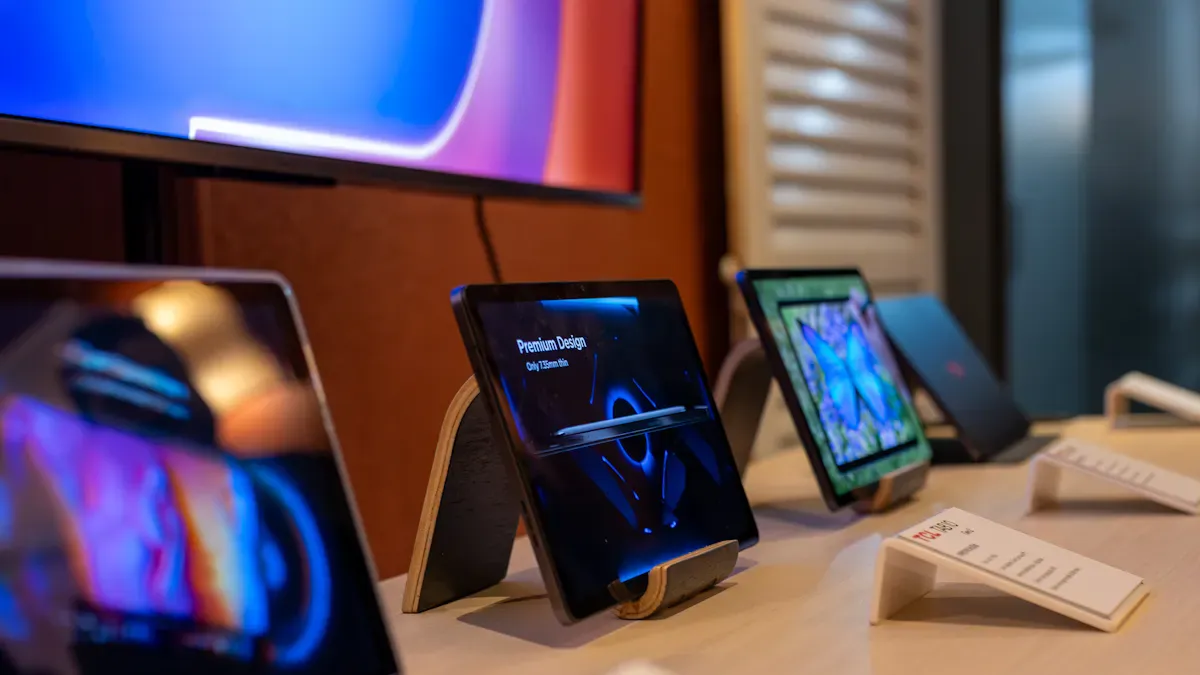
Picking the right screen size is important for your touchscreen. The size you choose changes how easy it is to see and use. Small screens, from 1.3 inches to 10.1 inches, are good for handheld devices. Mid-sized screens, like 13 to 19 inches, work well for control panels and kiosks. Large screens, from 21 to 65 inches, are best for public places and groups.
Size Range | Description |
|---|---|
1.3" - 10.1"+ | Used in industrial and embedded devices for functionality. |
7" - 32" | Compact to large-format touch displays for different applications and viewing distances. |
13" - 19" | Mid-sized industrial monitors with rugged features and customization options. |
21" - 65" | Large industrial LCD monitors, including medical-grade and sunlight-readable options. |
5" - 55" | Touch screen displays for various applications, from small to large sizes. |
Aspect ratio is also something you need to think about. A 16:9 ratio is good for videos and split screens. A 4:3 ratio works better for single columns, like on control panels. You should pick the aspect ratio that fits your project best.
Aspect Ratio | Typical Resolution | Use Case |
|---|---|---|
4:3 | 800×600 | Control panels, POS |
5:3 | 800×480 | Smart thermostats, cars |
16:9 | 1280×720, 1920×1080 | Video systems, tablets |
8:5 | 1024×640, 1280×800 | Industrial HMIs, medical |
Tip: Make sure your touchscreen display fits your space and what users need.
Brightness, Contrast, and Viewing Angle
Brightness is very important, especially if your touchscreen is outside. High-brightness screens, over 1000 nits, help you see in sunlight. For really bright sun, you need at least 1,500 nits so you can see well.
Contrast and viewing angle change how clear the screen looks. High contrast makes colors and details pop out. Good contrast also helps your eyes feel less tired. If you look from the side, colors might look different and the screen can seem dim. Wide viewing angles help everyone see the screen from many spots.
High contrast LCDs make colors and details stand out.
Wide viewing angles stop color shift and brightness loss.
Low contrast or narrow angles make things hard to see.
Backlighting and Clarity
Backlighting is what makes your touchscreen bright and clear. Most new screens use LED backlighting. LED backlights make screens thinner, use less power, and show deeper blacks. Some old screens use CCFL backlighting, which can show more colors but uses more energy.
Backlighting Type | Advantages | Disadvantages |
|---|---|---|
LED | Better contrast, energy-efficient, thinner | N/A |
CCFL | Better color gamut, even-white output | Less efficient, needs costly inverter |
A high-resolution monitor with LED backlighting gives you sharp and clear images. You should always pick a touchscreen with strong backlighting for bright and clear pictures.
Note: The right screen size, resolution, and backlighting make your touchscreen easier to use and look better.
Durability and Mounting
Build Quality and Materials
You want your touchscreen to last for years. The materials inside help it stay strong. Manufacturers use special liquid crystal materials. These materials make the touchscreen work well and stay tough. They must be stable and resist chemicals. They also need to keep their charge. The table below shows what makes a good touchscreen material:
Property | Requirement |
|---|---|
Viscosity at 20 ℃ | Less than 35 mPaos for quick response |
High voltage retention rate | Resistivity of at least 10^12 Ω.cm |
Threshold voltage | Low for less power use |
Optical anisotropy (△n) | 0.07–0.11 for better contrast and no rainbow effect |
Stability | Must be optically, thermally, and chemically stable |
Charge retention | High charge retention and resistance |
Chemical structure | Cyano end groups and fluorine-containing liquid crystals are common |
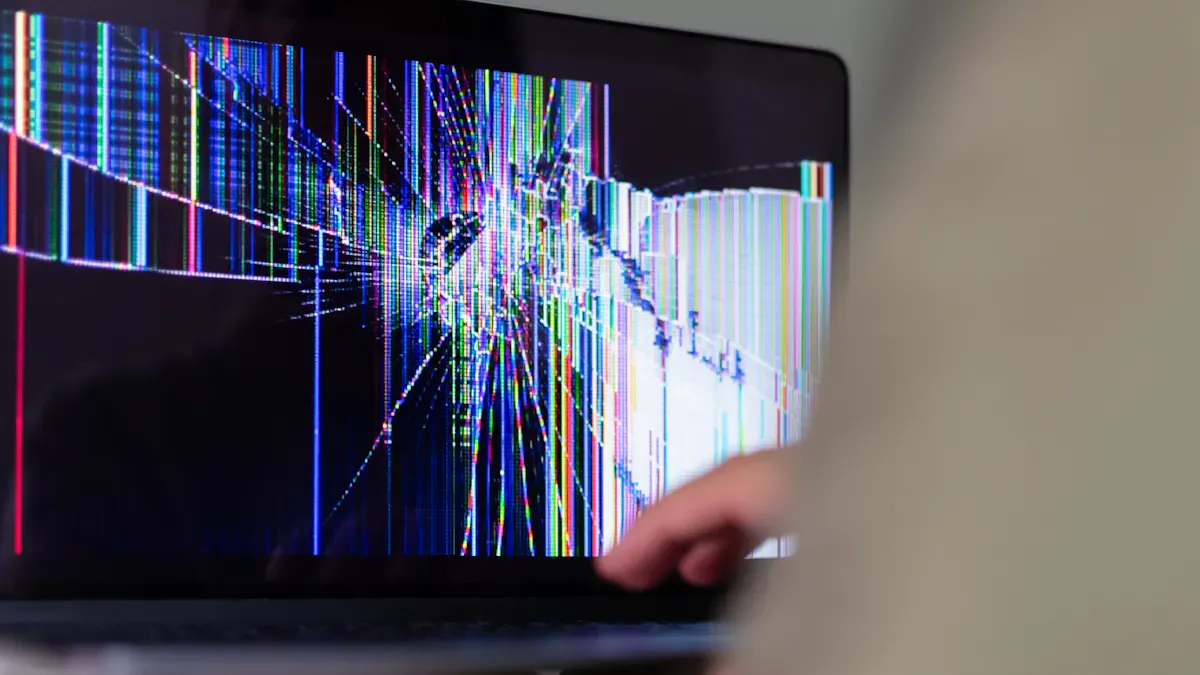
A strong touchscreen uses tough glass and a sturdy frame. This helps it resist scratches and bumps. Always check the build quality before you pick a touchscreen.
Environmental Resistance
Touchscreens often face dust, water, and chemicals. You need to know how well your touchscreen can handle these things. The IP rating system shows how much protection your touchscreen has. Higher numbers mean better protection. Here is a table to help you understand IP ratings:
IP Rating | Dust Protection | Water Protection |
|---|---|---|
IP65 | Dust tight | Protected against water jets |
IP66 | Dust tight | Protected against strong jets |
IP67 | Dust tight | Handles short immersion |
IP69K | Dust tight | Resists steam cleaning |
You may also see NEMA ratings. These match up with IP ratings:
NEMA 4 ≈ IP65: Good for rain, snow, and dust.
NEMA 4X ≈ IP66: Adds protection from corrosion.
NEMA 6P ≈ IP67: Handles short submersion and strong water jets.
If you use your touchscreen in a factory or outside, pick one with a high IP or NEMA rating. This keeps your touchscreen safe from dust and water.
Tip: In places with lots of dust or water, always check the IP rating before you buy a touchscreen.
Mounting Options
You need to mount your touchscreen so it stays safe and easy to use. Some touchscreens come with brackets or frames. Others let you mount them on a wall, desk, or inside a machine. Pick a mounting option that fits your space and keeps the touchscreen steady. Good mounting stops the touchscreen from shaking or moving.
You can use VESA mounts for many touchscreens. These mounts make it easy to attach your touchscreen to different surfaces. Always follow the instructions from the maker to keep your touchscreen secure.
Note: The right mounting keeps your touchscreen safe and helps it last longer.
Connectivity and Compatibility
Controller Chips and Software Support
Check the controller chips before picking a touch screen monitor. The controller chip helps the touchscreen know where you touch. Some chips work better with certain operating systems. Make sure your touch screen monitor supports the software you want to use. Many interactive displays are used in showrooms, offices, and schools. You can use platforms like Intuiface and PandaSuite to make touchscreen projects. These platforms work with many operating systems and have no-code editors. Intuiface lets you change many things and gives you analytics. PandaSuite lets you use it offline and supports multi-touch.
Feature | Intuiface | PandaSuite |
|---|---|---|
Supported Operating Systems | Yes | Yes |
No-Code Editor | Yes | Yes |
Offline Mode | No | Yes |
Multi-Touch Support | Yes | Yes |
Analytics | Yes | No |
Customization | High | Moderate |
Always check if your touch screen monitor works with your software. Make sure it has all the features you need.
Hardware Interfaces
Match the hardware interfaces of your touch screen monitor to your system. Common options are MCU, SPI, RGB, MIPI DSI, and LVDS. Some monitors use TTL or EDP. These interfaces help your touchscreen send and get touch signals. Pick a touch screen monitor with the right connection for your device. If you use the wrong one, your touchscreen might not work.
MCU (CPU)
SPI
RGB (TTL)
LVDS
MIPI DSI
EDP
Always check the connection options before you buy a touch screen monitor. This helps you avoid problems later.
Touch Screen Monitor Integration
Think about how you will connect your touch screen monitor to your hardware. Some problems can happen when you set it up. Noise filtering is important because it keeps touch signals clear. Good hardware design helps your touchscreen stay sensitive, even on big screens. You might need special software to use all the touch features. Not every display can add touch, so pick a touch screen monitor made for your system.
Challenge | Description |
|---|---|
Noise Filtering | Advanced controllers block noise from touch signals. |
Hardware Design | Good electrode patterns keep touch working on large screens. |
Software Development | You may need custom software for all touch features and drivers. |
Device Compatibility | Only some displays can add touch, so choose the right one for your system. |
Always test your touch screen monitor with your hardware and software. This makes sure your connections work and your touchscreen responds as you want.
Tip: Always check controller compatibility, hardware interfaces, and setup steps before you pick a touch screen monitor. This helps your touchscreen work well with your system.
Extra Features and Final Steps
Multi-Touch and Advanced Inputs
You should look for extra features that make your touchscreen simple to use. Multi-touch lets you use more than one finger at once. You can pinch to zoom or swipe with your fingers. These gestures help when you work with friends or use creative apps. Some touchscreens can change how sensitive they are. This helps your touchscreen work in hot, cold, or wet places. You can touch the screen with your finger, a stylus, or gloves. The table below shows some advanced input features you might want:
Feature | Description |
|---|---|
Lets you use many fingers for gestures like pinch-to-zoom and scrolling. | |
Superior Environmental Adaptability | Adjusts sensitivity for different temperatures and humidity. Works well with water and dust. |
Seamless System Integration | Makes it easy to connect to other systems and update the touchscreen remotely. |
Tip: Multi-touch and gesture support make your touchscreen more fun and useful.
Portability and Special Features
If you need to move your touchscreen, check how strong it is. Some touchscreens have high IP ratings for dust and water. For example, IP65 means dust cannot get in and water jets will not hurt it. IP67 means it can go under water for a short time. Some touchscreens meet military standards. This means they can handle shock and shaking. You should also look for fast response time, good touch accuracy, and stylus support. These features help your touchscreen work well outside or in tough places.
Touch accuracy
Fast response time
Good display quality
Multi-touch support
Stylus compatibility
Gesture recognition
Note: A portable touchscreen with a strong case and high IP rating works best for outdoor or field use.
Making the Final Choice
You need to think about a few things before you pick your touchscreen. Ask yourself what you will use it for. Pick the right size for your space. Decide if you want a fixed or portable touchscreen. Make sure your touchscreen works with your computer or operating system. Here is a quick checklist:
Screen size
Mobility options
Computer compatibility
Below is a comparison of top LCD touch screen displays for 2026. This can help you choose the best one for your project:
Model | Key Features | Pros | Cons | Best For |
|---|---|---|---|---|
VisionPro X26 | Multi-touch, IP67, MIL-STD | Rugged, fast response | Heavier, higher cost | Outdoor, field work |
ClearView UltraTab | 10-point touch, seamless integration | Light, easy to install | Lower brightness | Indoor kiosks, offices |
FlexiPanel Pro 2026 | Stylus support, gesture recognition | Flexible mounting, portable | Fewer multi-touch points | Creative, mobile setups |
Tip: Always match your touchscreen features to your project needs. Test the touchscreen before you buy to make sure it feels right.
You should pick lcd display touch screen features that fit your project. Think about what users need and want. Make a checklist to compare things like touch sensitivity, brightness, and compatibility. Check if the screen lets you change brightness. Look for screens with wide viewing angles. Make sure the touch screen responds quickly. What users expect is important. The table below shows what people want most in a touchscreen.
Feature | Consumer Expectation in 2025 | Importance Level (1-5) |
|---|---|---|
Higher Resolution Display | Consumers expect at least 4K resolution | 5 |
Enhanced Touch Sensitivity | More responsive touch surfaces | 4 |
Anti-Glare Coating | Reduction of reflections and glare | 5 |
Greater Durability | Toughened screens resistant to scratches | 4 |
Energy Efficiency | Lower power consumption | 5 |
Multi-touch Capability | Support for multiple simultaneous touch inputs | 4 |
Improved User Interface | More intuitive and user-friendly designs | 5 |
Lightweight and Slim Designs | Thinner monitors easier to mount | 3 |
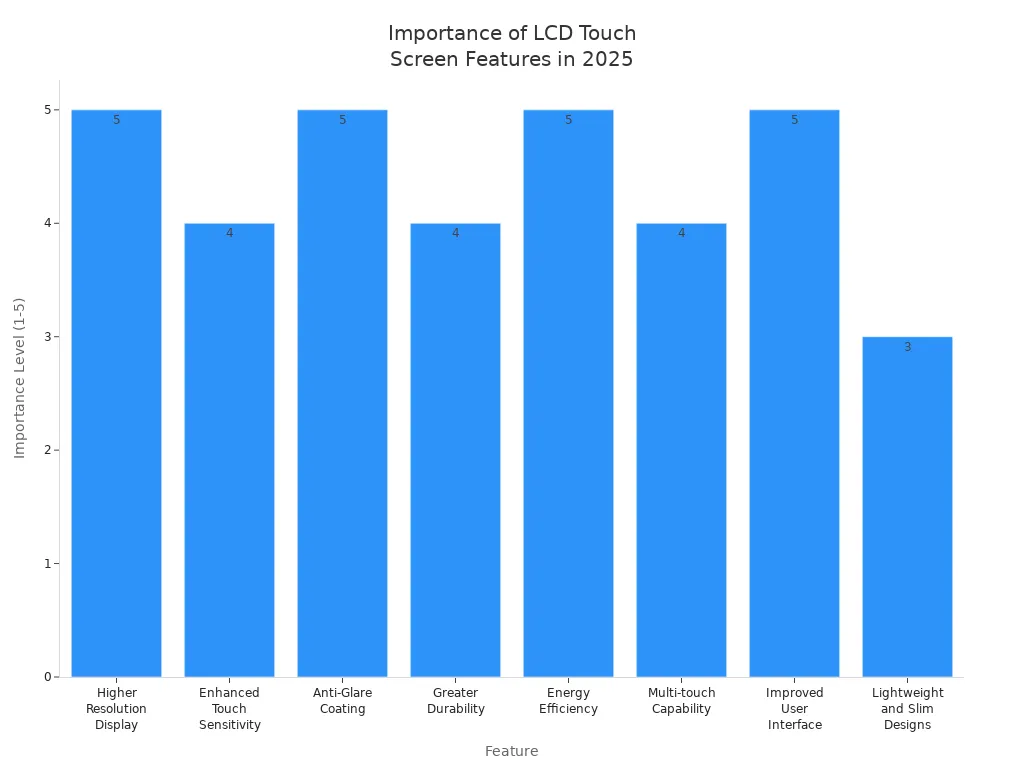
Look at all these things before you buy a touchscreen. This helps you feel sure about your choice. It also makes your lcd display touch screen work well for your project.
Comparison of Top LCD Touch Screen Displays in 2026
The 2026 touch monitor market shows a clear pattern: consumer-grade displays continue to push specs, while commercial displays focus on deep integration and durability.
📊 Top LCD Touch Screen Displays at a Glance (2026)
Category | Recommended Model | Key Highlights / Verdict | Estimated Price | Best For |
|---|---|---|---|---|
All‑Round Performer | ASUS BE24ECSBT | Editor's Choice. 24″ USB‑C hub, eye care, solid build – the complete office monitor. | ~$350 | Corporate office, productivity users who value connectivity and ease of use. |
Visual Flagship | Xiaomi Redmi G Pro 27U | Most Reviewed. Rare 27″ 4K Mini‑LED touch display. 1152‑zone backlight, 160Hz, 1000 nits peak. | ~$410 | Hardcore PC gamers, creators needing both gaming and colour accuracy, visual enthusiasts. |
Best Value | AOC U27B35 | 27″ 4K IPS touch, ΔE<2 colour accuracy, under $200 – ideal for entry‑level creators. | ~$210 | Budget‑conscious students/creators, first‑time 4K touch users. |
Portability Expert | JSAUX FlipGo Dual | Dual 16″ 2.5K portable screens that combine into one large display. Single USB‑C (DP Alt Mode) connection. | $400–600 | Mobile workers needing multi‑screen (traders, programmers, writers). |
Commercial Grade | ViewSonic TD3207 | 32″ open‑frame design, IP54, 7H scratch‑resistant glass. 24/7 cooling and anti‑aging system. | $1,500–2,000 | Self‑service kiosks, industrial control, digital signage – always‑on public environments. |
Industrial Rugged | Cincoze CV‑200/M1101 | Modular industrial displays (10–21.5″). Wide‑temperature operation, excellent protection. | Custom quote | Factory automation, machine vision, outdoor kiosks – extreme durability needed. |
Education & Collaboration | Samsung WAFX‑P | AI‑powered, built‑in 4K camera, up to 50‑point touch. 65–86″ large format. | Enterprise‑quote | Large meeting rooms, modern classrooms, creative studios – team collaboration and remote meetings. |
Specialist: POS | Planar Helium PCT2785 | 27″ widescreen multi‑touch, designed for retail POS systems. Improves checkout efficiency. | $400–600 | Retail stores, restaurants, ticket counters – POS applications. |
Specialist: OLED Portable | Magedok OLED (13.3″) | 13.3″ 2K OLED panel, 100% DCI‑P3, 1ms response. Far superior image quality vs. LCD portables. | $300–450 | Mobile photo/video editing, outdoor colour‑critical work. |
Price note: Portable and specialty display prices vary by region, configuration, and promotions. Always check current quotes.
🗺️ Choosing by Use Case – Smart Picks for Every Scenario
Use these guidelines based on your primary need:
If you need... | Prioritise... | Example |
|---|---|---|
Balanced office / creative work | USB‑C with power delivery, ergonomic stand, eye care, good colour accuracy | ASUS BE24ECSBT |
High‑end visuals on a budget (gaming/entertainment) | Mini‑LED backlight, high refresh rate, HDR | Xiaomi Redmi G Pro 27U |
Entry‑level 4K touch on a tight budget | Affordable 4K IPS with decent colour | AOC U27B35 |
Mobile multi‑screen productivity | Portable dual‑screen, single‑cable connection | JSAUX FlipGo Dual |
24/7 public kiosk or industrial use | IP rating, 7H glass, wide‑temp, anti‑aging design | ViewSonic TD3207, Cincoze series |
Large‑format team collaboration | 50‑point touch, AI camera, big screen (≥65″) | Samsung WAFX‑P |
Retail POS | Wide‑screen, durable, multi‑touch | Planar Helium PCT2785 |
Ultimate colour on the go | OLED panel, wide gamut, fast response | Magedok OLED portable |
⚙️ Key Buying Criteria in 2026
Beyond basic specs, these trends help you identify a truly good touch display:
🔌 Connectivity: USB‑C is Standard; Full‑Feature is Premium
Must‑have: USB‑C port with video input.
Differentiator: Single‑cable solution – USB‑C that carries video, data, and power delivery (PD) to your laptop, plus acts as a USB hub. For industrial use, check for legacy RS232 support.
🛡️ Touch & Reliability: Commercial ≠ Consumer
Touch technology: Projected Capacitive (PCAP) is preferred for responsiveness, multi‑touch, and glove support.
Protection ratings: Look for IK rating (impact resistance) and IP rating (dust/water ingress). For 24/7 operation, ask about cooling systems and anti‑burn‑in/pixel shift technology.
👆 Touch Interaction & Optical Bonding
Multi‑touch points: 10‑point is standard; 20‑point or even 50‑point (Samsung WAFX‑P) enables true group collaboration.
Optical bonding: Laminating the touch sensor to the LCD cover glass significantly reduces glare and improves outdoor readability and touch accuracy.
💎 Summary
The 2026 touch monitor market offers rich choices. The key is to match the display’s strengths to your primary use:
All‑around quality & ergonomics → Office / business models (ASUS BE24ECSBT)
Stunning visuals & gaming performance → Consumer flagship (Xiaomi Redmi G Pro 27U)
Lowest entry price → Value 4K (AOC U27B35)
Portable & multi‑screen → Dual portable (JSAUX FlipGo Dual)
Harsh environment & 24/7 operation → Industrial / commercial grade (ViewSonic TD3207, Cincoze)
Large‑format collaboration → Interactive whiteboard replacement (Samsung WAFX‑P)
If you share your specific use case, screen size preference, and budget, I can narrow down recommendations further.
FAQ
What is the difference between a touchscreen and a regular display?
A touchscreen lets you control the screen by touching it with your finger or a stylus. A regular display only shows images and does not respond to your touch.
How do I clean my LCD touch screen display?
You should use a soft, dry cloth to wipe the screen. Do not use strong cleaners or spray water directly on the display. This keeps your screen clear and safe.
Can I use a touchscreen with gloves?
Yes, you can use some touchscreens with gloves. Check the product details to see if the screen supports glove use. Some screens work better with special gloves.
What size touchscreen is best for my project?
Pick a size that fits your space and how people will use it. Small screens work for handheld devices. Large screens are better for public displays or group use.
How long does a touchscreen last?
Most touchscreens last for many years if you use them carefully. Look for screens with strong glass and good build quality for longer life.
See Also
Selecting the Ideal LCD Round Display for Your 2025 Project
Finding the Perfect LED or LCD Display for Malls
Creating High-Quality Touch and Non-Touch LCD Mirror Displays
Selecting the Best LCD Video Wall for Your 2026 Space
Identifying LCD Display Kiosks with Touch Screen Features for 2026
