How to Choose the Best Kiosk Touch Screen Monitor for Your Business
Shenzhen TopAdkiosk Display Technology Co., Ltd.
Add.: 2F, Bldg 10, Changfeng Industrial Park, Dongkeng, Fenghuang, Guangming, Shenzhen, China 518132
Mobile/WHATSAPP: 86-138 25769658
Email: marketing@topadkiosk.com topadkiosk@gmail.com
Skype: pghenry1
Wechat: adkioskhenry
English Web.: http://www.topadkiosk.com/
https://www.topkioskdisplay.com/
http://www.ad-kiosk.com/
https://www.toplcddisplay.com/
http://www.multitouchdigitalsignage.com/
https://www.youtube.com/channel/UCYVYNJHxLVEcQD8fuUxXNTA/videos?view_as=subscriber
https://www.facebook.com/TOPADKIOSKSHENZHEN/?ref=bookmarks
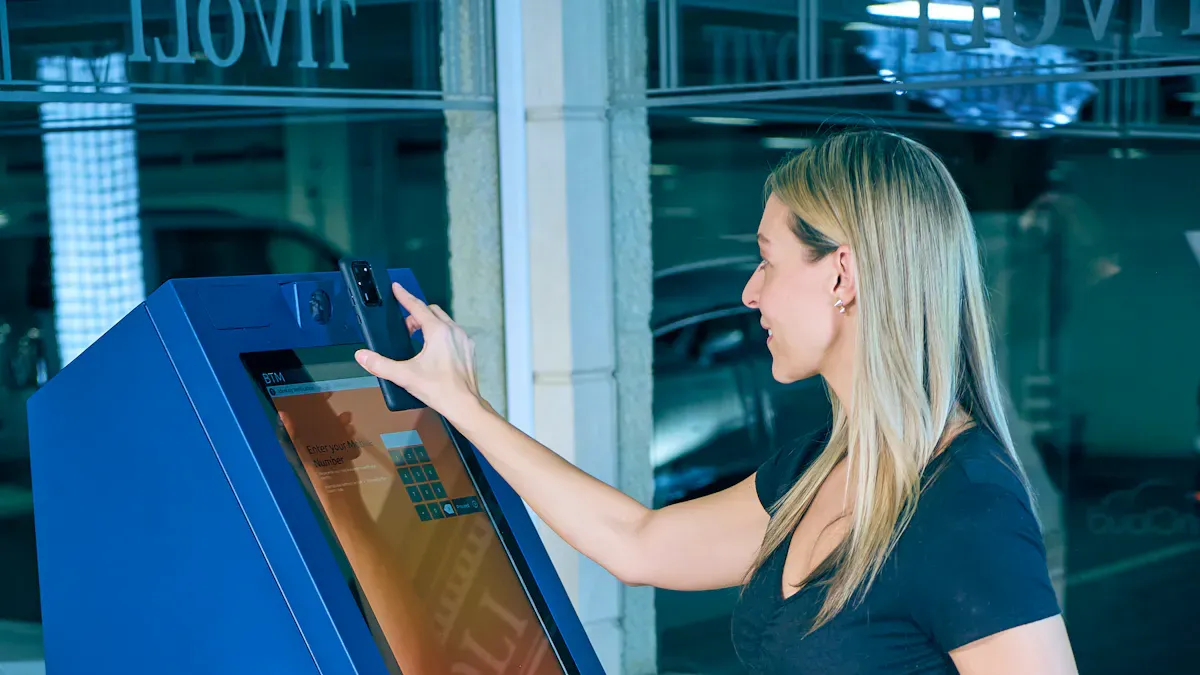
Imagine you set up a kiosk touch screen monitor that looks nice but makes customers upset with mistakes or confusing screens. You want a monitor that works for your business, your space, and your users. If you pick a screen that is too small, users have trouble and it takes longer to finish tasks. A screen that is too big can be hard to use and confusing. Durability is important, especially in busy places, because a strong monitor helps your business run well. You should think about more than just price and focus on how the monitor helps your goals for a long time.
Key Takeaways
First, know what your kiosk will do. Pick a monitor that matches your business, like retail, hospitality, or healthcare.
Think about where the kiosk will be. Get a monitor that can handle the place it will be, like outside weather or busy indoor spots.
Make sure people can use it easily. The monitor should be simple to use, with easy menus and fast touch response. This helps customers feel happy.
Look at how strong the monitor is and its IP rating. A tough monitor with a high IP rating will last longer and need less fixing, especially in busy places.
Check if the vendor gives good help. Pick a vendor with strong technical support and a good warranty. This keeps your kiosk working well.
Identify Your Kiosk Needs
Define Your Interactive Kiosk Application
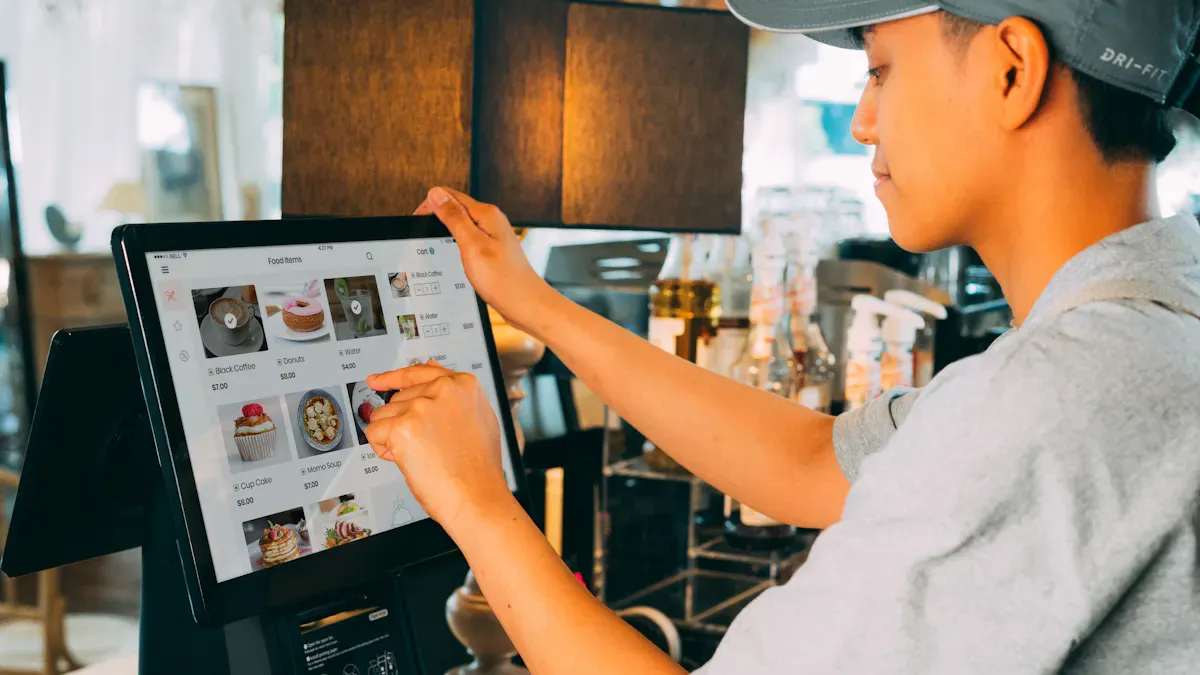
First, think about how your kiosk will help your business. Different businesses use kiosks in different ways. The best kiosk touch screen monitor depends on what you need it to do. Here is a table that shows how retail, hospitality, and healthcare use kiosks:
Industry | Common Applications |
|---|---|
Retail | Self-checkout, click-and-collect pickup |
Hospitality | Self-ordering in restaurants, visitor registration |
Healthcare | Patient registration, digital signage |
If you want a kiosk for self-checkout or patient registration, pick a monitor that is easy to use and shows things clearly. Touch screens make these jobs faster and easier. You should also look for features like accessibility services, language translation, and voice commands. These features help everyone use your kiosk.
Assess Space and Environment
Where you put your kiosk matters when you choose a monitor. Indoor kiosks get used a lot and might get bumped. Outdoor kiosks need to be strong to handle weather. Bright screens, about 2,000 nits, help people see the screen in sunlight. Strong cases with high IP ratings keep out dust and water. You also need to think about temperature and humidity. Changes in temperature can make the touch screen not work well. High humidity can cause water problems, so good sealing is needed. These things help you pick the right kiosk touch screen monitor for your space.
Understand User Expectations
People want your kiosk to be simple and quick to use. They want information right away and features that are easy to reach. You should design your kiosk with comfortable and easy-to-use options. People like feedback tools and easy navigation. Good content and fast touch screens make users happy. When you give users what they want, your kiosk touch screen monitor helps your business do better.
Key Factors When Choosing a Touchscreen
When picking a touch screen for kiosk use, you should check some important features. These features help your kiosk work well in your business. You want your kiosk touch screen monitor to be clear, strong, and easy for everyone to use. Let’s talk about the main things to look for when choosing a touchscreen.
Screen Size and Resolution for Kiosk
Pick a screen size that fits your space and matches your needs. Small screens are good for simple jobs or tight spaces. Large screens help when you need to show more information or want users to see details clearly. The table below shows common screen sizes and resolutions for different uses:
Screen Size Range | Resolution Range | Application Type |
|---|---|---|
12-19 inches | XGA to WXGA | Industrial Monitoring and Control |
15-17 inches | WXGA or HD | Retail Applications |
13-17 inches | Various | Medium Format Displays |
18+ inches | Full HD and above | Large Format Displays |
You need to match the resolution of the touch controller with the display. This gives you clear images and accurate touch. In busy places, high resolution helps people finish tasks quickly and without mistakes. If you use a touch screen for kiosk in a store, customers can see prices and products clearly. If you use it in a hospital, patients can read instructions without confusion.
Tip: Think about your space and budget. Bigger screens cost more, but they can help users see and touch better.
Touch Technology Types
Touch screens come in different types. Each type works best for certain jobs. The table below shows the main types and their good and bad points:
Touch Technology | Pros | Cons |
|---|---|---|
Capacitive | High touch sensitivity, multi-touch support, durability, clarity | Sensitive to conductive objects, not glove-friendly, higher cost, scratches |
Resistive | Affordable, durable, works with gloves, accessible | Lower sensitivity, less clear image, single touch, wears out faster |
Infrared | High accuracy, works if dirty, multi-touch, frameless | Not good in bright light, higher cost, needs calibration, not glove-friendly |
SAW | Sensitive, durable, clear image, multi-touch | Gets dirty easily, not for button-less use, higher cost, not for bright places |
Optical | Very sensitive, durable, clear, multi-touch | Not glove-friendly, glare, higher cost |
Pick a touch screen for kiosk that fits your needs. If you want multi-touch and fast response, capacitive screens work well. If you need a screen for outdoor use or with gloves, resistive screens are better. Many businesses now use projected capacitive touch screens because they let people use more than one finger and work even in cold weather.
Durability and IP Ratings
Durability is very important for a kiosk touch screen monitor. You want your screen to last a long time, even if many people use it every day. Look for strong materials like tempered glass and metal frames. Outdoor kiosks need extra protection from rain, dust, and even vandalism.
Here are common IP ratings and what they mean:
IP Rating | Description |
|---|---|
IP65 | Dust-tight, protected from water jets, good for most outdoor use |
IP66 | Stronger water protection, handles heavy rain |
IP67 | Can handle short submersion, good for flood-prone areas |
IP68 | Can stay underwater, used in special places |
Higher IP ratings mean better protection from dust and water.
Monitors with IP65 or higher last longer and need less fixing.
Strong screens and cases help your kiosk work well for years.
Note: For outdoor kiosks, pick a touch screen for kiosk that can handle big changes in temperature and lots of moisture. This keeps your kiosk running in all weather.
Brightness and Visibility
You want everyone to see your kiosk touch screen monitor, even in bright sunlight. Brightness is measured in nits or cd/m2. For outdoor kiosks, you need at least 1,000 nits. For the best results, 2,500 nits gives you clear images in direct sun. Most sunlight-readable screens start at 800 nits.
Optimization Approach | Description |
|---|---|
Adaptive Brightness Control | Changes brightness based on the light around the kiosk |
Content Design Guidelines | Uses high-contrast colors and big text for better visibility |
User Experience Testing | Checks touch accuracy in different lighting conditions |
A study shows that high-brightness displays can make screens up to 300% easier to see in sunlight. This helps users finish tasks faster and with fewer mistakes. If you want multi-touch and fast response, you need a screen that stays clear in all lighting. This makes your kiosk touch screen monitor easy to use, day or night.
Tip: Choose a touch screen for kiosk with adaptive brightness if your kiosk will be in places with changing light.
Compatibility and Integration
Hardware and Software Compatibility
You need to make sure your system works before you set up a kiosk touch screen monitor. The hardware and software must work together for everything to run smoothly. Some common problems are with touch mapping, calibration, and drivers. If you do not set up the touch controller right, the screen will not work as you want. Every touchscreen needs its own calibration so you do not get mistakes. You have to keep your drivers up to date because old drivers can cause trouble. Some programs will not see touch inputs unless you set them up the right way.
Touch mapping makes sure the screen knows where you touch.
Calibration helps the touch stay correct.
Driver management stops software from fighting.
Application settings let your kiosk use the right programs.
Connectivity Options
When you pick a touch screen, you need to check how it connects. New kiosk touch screen monitors give you many ways to connect to other devices and the internet. You can use USB ports for things like printers or card readers. HDMI and DisplayPort send video to other screens. RJ45 lets you use wired internet. Wireless options like Wi-Fi and 4G help you update software and go online without wires.
Connectivity Option | Description |
|---|---|
USB Ports | Connects printers, scanners, or card readers |
HDMI | Sends video to external displays |
DisplayPort | Alternative video output |
RJ45 | Wired network access |
You can also use LAN for network access. Wi-Fi lets you update wirelessly. 4G gives you mobile internet. These choices help your kiosk touch screen monitor stay ready for what your business needs.
Built-in PC vs. External PC
You have to choose between a built-in PC or an external PC for your kiosk touch screen monitor. Each one has good and bad points.
Type of Solution | Advantages | Disadvantages |
|---|---|---|
Reliable, easy to set up, full OS integration, no calibration drift | Higher cost, limited size choices | |
Infrared overlay kits | Works with any HDMI display, low entry cost, supports multi-touch | Needs a host PC, fragile frame, not always compatible |
Smart TV ‘touch’ claims | N/A | Not true touch, limited features |
A built-in PC is easy to use and works well right away. You get multi-touch and stylus support with no calibration drift. It costs more and you do not get many size choices. An external PC with an overlay kit costs less and works with lots of screens. You need to line up the frame right and check if it works with your system. Smart TVs that say they have touch do not really have true touch features.
Tip: Pick a built-in PC if you want easy setup and fewer problems. Choose an external PC if you want more choices and a lower price.
User Experience in Interactive Kiosks
Interface Responsiveness
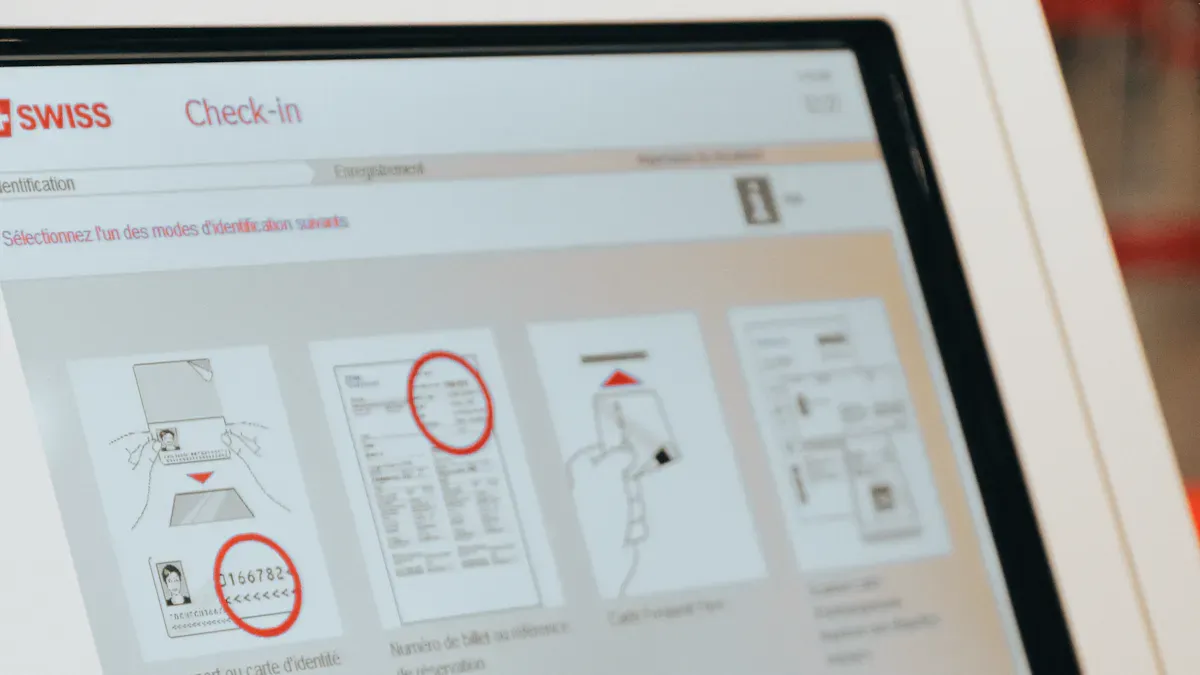
You want your kiosk touch screen monitor to react fast when touched. Quick response helps people feel sure and keeps them interested. If the screen reacts right away, users finish tasks faster and make fewer mistakes. A good interface design can make things easier to use by up to 60%. When the screen is simple, people do better by 40%. Personal touches make people want to use the kiosk 20% more. The table below shows how these things help users:
Source | Finding | Impact |
|---|---|---|
Nielsen Norman Group | Good interface design improves usability | Enhances satisfaction and efficiency |
National Institutes of Health | Lower cognitive load increases performance | Makes kiosks more user-friendly |
Deloitte | Personalization boosts engagement | Increases repeat usage |
Tip: Pick a kiosk touch screen monitor that reacts fast and is easy to use. This makes people feel good and want to use your kiosk again.
Accessibility Features
Your kiosk touch screen monitor should be easy for everyone to use. Accessibility features help people with different needs use your kiosk. Important things are the right height for wheelchair users, enough space, and simple words. Bright colors and big letters help people read the screen. Text-to-speech and speech-to-text help people who have trouble seeing or typing. Other ways to use the kiosk, like buttons and voice commands, help more people. Sound with volume control helps in loud places. Clear error messages help people fix mistakes.
Accessibility Feature | Description |
|---|---|
Height and reach | Easy access for seated and standing users, including wheelchair users |
Clear floor space | At least 30" by 48" for wheelchair access |
Clear and concise language | Plain instructions for better understanding |
Screen readability | High-contrast colors and large fonts |
Text-to-speech/speech-to-text | Helps users with vision or typing difficulties |
Alternative input methods | Touchscreens, buttons, voice commands |
Audio output | Adjustable volume for auditory signals |
Error handling | Clear messages to correct mistakes |
Note: Adding these features to your kiosk touch screen monitor lets everyone use your kiosk without trouble.
Ease of Use
Your kiosk touch screen monitor should be simple and easy to understand. Easy kiosks help people finish tasks without getting confused. Different brands have special features. Novisign lets you plan and change playlists easily. Touchpros gives you templates you can change and tracks what people do. Arreya lets you add more users and grow your system. The table below shows how easy each one is to use:
Model | Ease-of-Use Features | Limitations |
|---|---|---|
Novisign | Intuitive scheduling, easy playlist management | Basic interactive capabilities |
Touchpros | Customizable templates, analytics tracking | Higher costs for custom development |
Arreya | Scalability, advanced user management | Interactive features are secondary |
Tip: Choose a kiosk touch screen monitor with features that fit your business. Simple menus and clear steps make your kiosk better and more fun to use.
Vendor Selection and Cost Considerations
Comparing Vendors for Kiosk Touch Screen Monitors
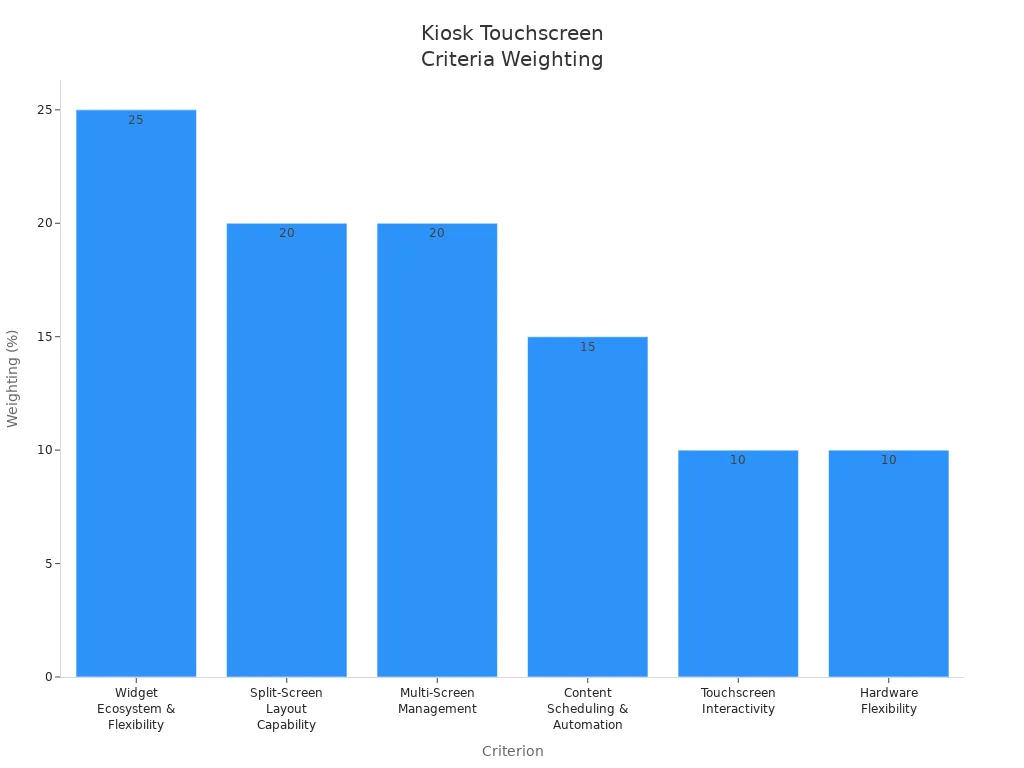
You should look at different vendors before you buy a kiosk touch screen monitor. Check what features each vendor gives and how they help your business. The table below shows what is important and how much it matters when you compare vendors:
Criterion | Weighting (%) |
|---|---|
Widget Ecosystem & Flexibility | 25 |
Split-Screen Layout Capability | 20 |
Multi-Screen Management | 20 |
Content Scheduling & Automation | 15 |
Touchscreen Interactivity | 10 |
Hardware Flexibility | 10 |
You should also look at warranty and support. Vendors who give technical help and maintenance can fix problems fast. Service contracts give you expert help and quick answers. If you keep a list of problems, you can plan upgrades and stop failures. Cleaning and checking your kiosk often helps it work well.
Budget and Total Cost of Ownership
You need to think about your budget and how much the kiosk touch screen monitor will cost over time. The first time you buy it, you pay more than you do for yearly care. For example, a license can cost $500 to $2,500 for each device, but yearly care is only 15-20% of that price. In five years, the total cost can be $4,000 to $15,000 for each kiosk. Warranty rules change the price. A one-year warranty gives basic help. Longer warranties or service deals add 10-25% each year, but they can be good if your business needs the kiosk touch screen monitor. Always try to get the best features for your money so you get good value.
Tip: Plan for cleaning and upgrades. This helps you avoid problems and keeps your kiosk touch screen monitor working well.
Common Mistakes to Avoid
Many businesses make mistakes when they pick a kiosk touch screen monitor. If you choose cheap hardware, you may pay more to fix it and lose time. This makes customers unhappy and slows your business. Do not forget to make your kiosk easy to use. Your kiosk needs a simple screen so people can use it without trouble. If you pick a monitor that looks nice but does not work well, you will have problems. You must think about security and remote checks to keep your kiosk safe. Do not use home displays in busy places. Always check the place where you put your kiosk and plan for extra parts. Make good connections with suppliers so you can get new parts when you need them.
Note: If you choose carefully and take care of your kiosk touch screen monitor, it will last longer and work better.
You can choose the best kiosk touch screen monitor by following a clear process. Start with these key steps:
Consideration | What to Do |
|---|---|
Budget and Pricing | Check costs and plan for the future. |
Intended Use and User Needs | Match the monitor to your business and your customers. |
Integration and Scalability | Make sure the monitor works with your systems and can grow. |
Vendor Reputation and Support | Pick a vendor who helps you succeed. |
When you align your kiosk touch screen monitor with your business goals, you help your team and customers. You can see fewer problems and better results.
Look for features like accessibility, data integration, and easy customization.
Start your search today. Use these steps to find a kiosk touch screen monitor that fits your needs and helps your business grow.
🧼 1. Implement a Regular Cleaning Protocol
This is the single most important and frequent task. Dirty screens are the primary cause of loss of touch sensitivity and poor hygiene.
Frequency: Establish a routine that matches your traffic volume.
Daily: Perform a basic wipe-down for fingerprint and dust removal. Many sources suggest this could even be done once every hour or two in the busiest areas.
Weekly: Conduct a more thorough, deep cleaning, paying extra attention to the screen edges and bezels where grime accumulates.
Technique:
Power Down: Always turn off and unplug the kiosk before cleaning to prevent accidental inputs or electrical hazards.
Wipe: Use a soft, lint-free microfiber cloth. Gently wipe the screen in circular motions.
Avoid Pressure: Do not apply excessive force, as this can damage the delicate screen surface.
Cleaning Solutions: Using the correct solution is critical to avoid damaging the screen's coating.
Do Use: Distilled water, a mixture of 70% isopropyl alcohol and distilled water, or a manufacturer-approved screen cleaner.
NEVER Use: Harsh chemicals like ammonia (found in some glass cleaners) or bleach, as these can strip protective coatings. Avoid abrasive cleaners or paper towels, which can scratch the surface.
Method: Apply the cleaning solution to the cloth first, never directly onto the screen, to prevent liquid from seeping into the device's internal components.
🛡️ 2. Invest in Proactive Physical Protection
Prevention is far more cost-effective than repair.
Screen Protectors: A high-quality screen protector is the best defense against scratches and micro-abrasions from fingernails, rings, and other objects. These are relatively inexpensive and are easily replaced when worn.
Rugged Displays: For extremely harsh environments, consider displays specifically built for public use. These often feature antimicrobial coatings, enhanced durability, and sealed enclosures to keep out dust and moisture.
Enclosure Integrity: Regularly inspect the kiosk's outer casing for dents, rust, or cracks. Also, check that the bezel is properly sealed to prevent dirt from accumulating around the screen's edges.
🧑🔧 3. Perform Core Hardware Preventive Tasks
In high-traffic locations, internal components wear down faster. A structured maintenance checklist will help you catch problems early.
Component | Preventive Action | Frequency |
|---|---|---|
Touchscreen | For resistive screens, run a quick diagnostic to prevent misalignment. This is often found in the system settings; a USB mouse can be used to navigate if the touch function is unresponsive. | Monthly |
Ventilation System | Use a vacuum or compressed air to clean air vents and fans free of dust to prevent system-killing overheating. | Monthly |
Connections | Inspect and re-seat all internal and external USB, HDMI, and power cables to ensure they are secure, as loose connections are a common cause of intermittent failures. | Monthly |
Printer & Scanner | Clean thermal print heads with a specialized kit. Wipe the scanner glass to prevent misreads and clear debris from paper paths to prevent jams. | Weekly |
Cash/Coin Mechanisms | Clear debris from bill paths and check for wear on the validator and coin mechanism components. | Weekly (for high-cash use) |
Software & OS | Install the latest OS and application updates with security patches and performance fixes. Ideally, automate updates if possible or set regular reminder. | As needed |
🧰 4. Master the Art of Rapid Troubleshooting
When a problem arises, a systematic approach will minimize downtime.
The First Step: Restart (Power Cycle): Many software glitches are temporary. Unplug the kiosk for 30-60 seconds to drain all residual power, then plug it back in. This is one of the most effective fixes for unresponsive screens.
The "Fix-It" Flowchart: Follow these steps in order when a screen is unresponsive:
Clean the Screen: Most common fix.
Restart the Kiosk: Clears temporary glitches.
Check Connections: Ensure all cables are firmly seated.
Recalibrate: Adjust touch alignment via system settings.
Check for Overheating: Verify vents are clear.
Manage Surroundings: Heat is a silent killer for electronics. Ensure kiosks have proper airflow and are not placed in direct sunlight or near other heat sources. For kiosks in areas with unreliable power, surge protectors and a UPS can prevent serious damage.
By transforming maintenance into a systematic, proactive practice, you not only reduce costly repairs but also ensure your kiosks deliver the fast, reliable, and hygienic service that modern users expect.
FAQ
What screen size works best for a kiosk touch screen monitor?
You should pick a screen size that fits your space and matches your application. Small screens work well for simple tasks. Large screens help users see more information. Always check your kiosk’s location and user needs before choosing.
How do I keep a kiosk touch screen monitor clean and working?
You can clean the screen with a soft cloth and approved cleaner. Avoid harsh chemicals. Regular cleaning stops dirt and germs. Check the monitor for damage often. This keeps your kiosk touch screen monitor working well.
Can a kiosk touch screen monitor handle outdoor conditions?
Many kiosk touch screen monitors have high IP ratings and strong cases. These features protect against rain, dust, and sunlight. You should choose a monitor with at least IP65 for outdoor use. Bright screens help users see in sunlight.
What touch technology should I use for my kiosk?
Capacitive touch screens give fast response and multi-touch support. Resistive screens work with gloves and cost less. Infrared screens handle dirt well. You should match the touch technology to your business needs and user expectations.
How do I make a kiosk touch screen monitor easy for everyone to use?
You can add accessibility features like large fonts, high-contrast colors, and voice commands. Place the monitor at the right height. Use simple menus. These steps help all users interact with your kiosk touch screen monitor.
