How to Build an Interactive Touch Screen Kiosk for Your Business
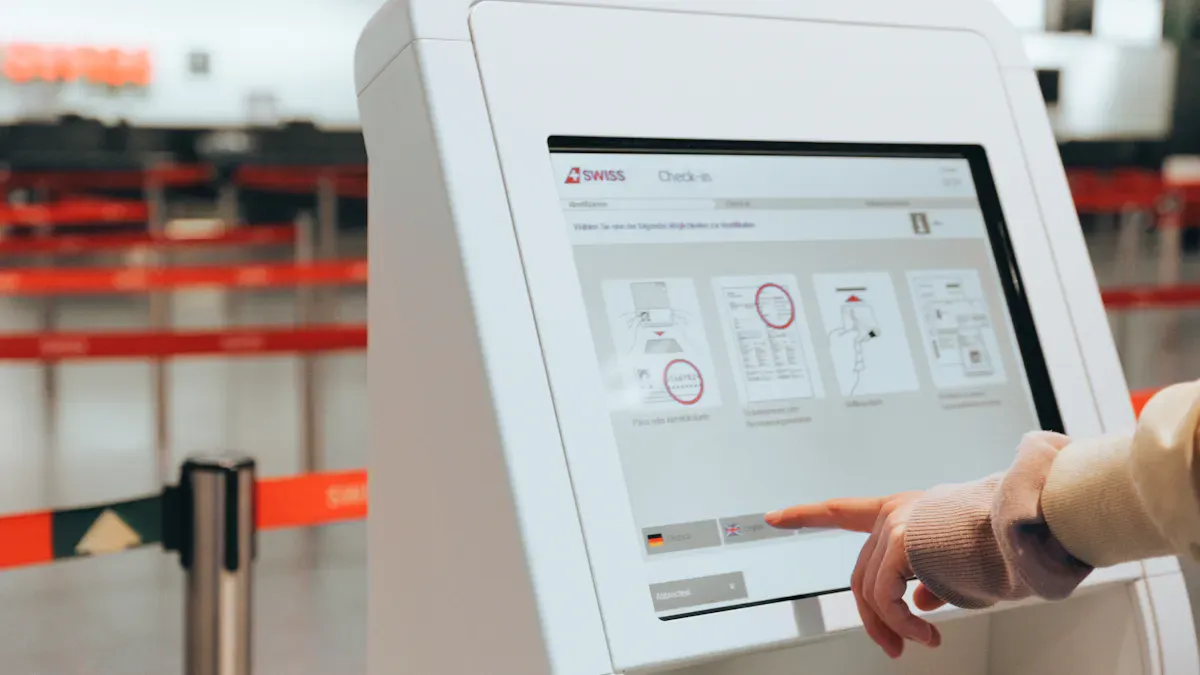
You can make an interactive touch screen kiosk by picking good hardware, choosing easy-to-use software, and planning for simple upkeep. In 2026, these kiosks have clearer screens and better analytics, so they work better for businesses. Touch screens help people wait less, spend more money, and save on costs. You do not need to be a tech expert to build a kiosk. No-code tools let you change layouts and content with easy steps. Always make sure your kiosk fits your business goals and what your customers want.
Shenzhen TopAdkiosk Display Technology Co., Ltd.
Add.: 2F, Bldg 10, Changfeng Industrial Park, Dongkeng, Fenghuang, Guangming, Shenzhen, China 518132
Mobile/WHATSAPP: 86-138 25769658
Email: marketing@topadkiosk.com topadkiosk@gmail.com
Skype: pghenry1
Wechat: adkioskhenry
English Web.: http://www.topadkiosk.com/
https://www.topkioskdisplay.com/
http://www.ad-kiosk.com/
https://www.toplcddisplay.com/
http://www.multitouchdigitalsignage.com/
https://www.youtube.com/channel/UCYVYNJHxLVEcQD8fuUxXNTA/videos?view_as=subscriber
https://www.facebook.com/TOPADKIOSKSHENZHEN/?ref=bookmarks
Key Takeaways
Figure out what you want your kiosk to do by looking at what your business needs. Try to make customer service better, sell more, and let people help themselves.
Pick the kiosk type that works best for your business and customers. Think about how it will work with the tools you already use to make things easier.
Make a plan for how much money and time you will need. Find out what everything costs and make sure your goals for setting up the kiosk are possible.
Choose hardware and software that are easy for people to use. Make sure the touch screen is easy to see and works well. Use no-code tools so you can change things easily.
Take care of your kiosk and keep it up to date. Check it every day and clean it well once a month so it works well and people like using it.
Define Your Kiosk Goals
Identify Business Needs
Start by knowing what your business wants from a kiosk. Many businesses use kiosks to make things faster and easier for customers. Kiosks help people find info, place orders, or check in without waiting. They also let you collect data to make your services better. Here are some usual goals:
Make customer service better by giving quick info.
Get more sales with good customer help.
Save time by letting kiosks do jobs.
Give self-service so people wait less.
Before you spend money, look at how your business works every day. This helps you choose a kiosk that fits your real needs and gives you the best value.
Select Kiosk Type
Pick a kiosk type that matches your business and customers. Different industries need different kiosks, so find one you can change. Kiosks can work with systems like POS, CRM, or inventory management to help your business grow. Here are some common types and what they do:
Type of Kiosk | Use Case |
|---|---|
Corporate | Access control, digital receiving |
Retail | Self-ordering, self-checkout |
Hospitality | Self-check-in, point-of-sale |
Healthcare | Patient registration, amusement |
Education | Library self-service, cafeteria payments |
Government | Visitor management, queue management |
The type you choose will affect how customers use your kiosk and how your business gets better. For example, self-service kiosks can make visits quicker and help sales go up.
Set Budget and Timeline
Plan your budget and timeline before you begin. One interactive touch screen kiosk can cost $4,000 to $15,000 or more over five years. Hardware is about half the price. Software, setup, and support are the rest. Think about these steps:
Set your goals.
Pick hardware and software.
Try a pilot program.
Launch the full solution.
Project time depends on how hard your kiosk is. Simple kiosks can be ready in weeks. Custom kiosks may take months. Planning helps you avoid delays and extra costs.
Choose Interactive Touch Screen Kiosk Hardware
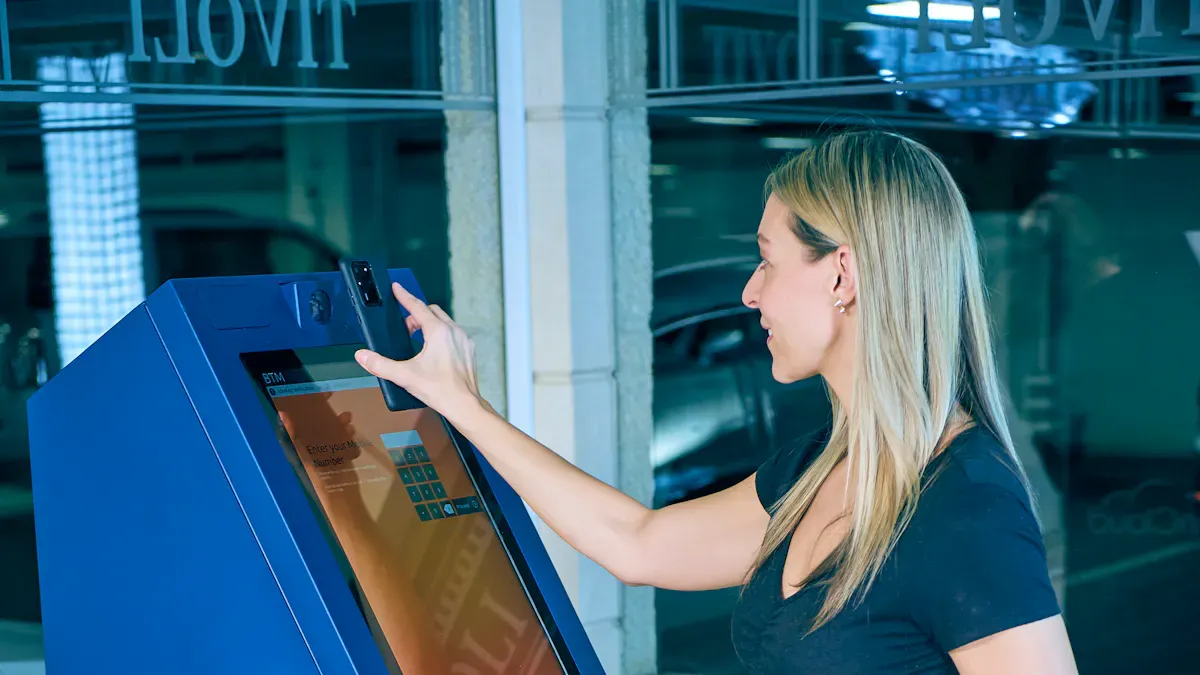
Picking the right hardware is very important. It helps your interactive touch screen kiosk work well. The hardware you pick changes how people use your kiosk. It also affects how well it fits in your business. You should choose hardware that matches your business goals. Think about what kind of kiosk you want to use. Hardware needs to work together and be easy for everyone to use. This is true if your kiosk is inside or outside.
Pick a Touch Display
The touch display is the most important part. It is the first thing people see on your interactive touch screen kiosk. You want a screen that is clear and easy to use. It should also respond quickly when touched. In 2026, most kiosks use new touch technology. This makes them last longer and work better.
Here are some popular touch display types:
Resistive Touch Screens: These have two layers that sense touch when pressed. You can use your finger, gloves, or a stylus. They last a long time and do not cost much. But, they are not as clear and can break if scratched.
Projected Capacitive (PCAP) Touch: This uses a glass layer to keep it safe. It reacts fast and has features like palm rejection. PCAP screens are easy to clean and look nice. Many people pick them for interactive kiosks.
When you pick a screen size, think about how people will use it. Bigger screens help people see better. This is good in bright places or for people with vision problems. Fast-food kiosks use big screens so people can order easily. Information kiosks use smaller screens to save space. Multi-touch screens need to be big enough so people do not get upset. Make sure your screen is easy for everyone to use. Use big fonts and buttons.
Tip: The screen is how people use your kiosk. Pick a size and type that fits your business. Make sure it is easy for everyone to use.
Select Enclosure and Peripherals
The enclosure keeps your kiosk’s parts safe. It also makes your kiosk look nice. You can pick a simple indoor case or a strong outdoor one. The right enclosure keeps your kiosk safe from weather and damage.
Here is a table with common enclosures and peripherals:
Type of Evidence | Description |
|---|---|
Enclosures | The kiosk enclosure keeps all the hardware safe. It can be a simple indoor case or a tough outdoor one. |
Payment Peripherals | These help with payments, like card readers and NFC readers for contactless pay. |
Barcode Scanners | These let people scan items or codes to get info or use coupons. |
Receipt Printers | These give printed records of sales, which help with returns. |
You can also add:
Barcode and QR code scanners for fast check-ins or coupons.
Cameras and microphones for video calls or safety.
Mounts to put your kiosk in different places.
A strong case helps your kiosk last longer, especially in busy spots. Metal cases are harder to break than plastic ones. For outdoor kiosks, pick ones that do not rust and are weatherproof. Look for IP or NEMA ratings. Use strong glass to protect the screen. Good design makes fixing and caring for your kiosk easier.
Note: Protecting things like printers and card readers helps your interactive touch screen kiosk last longer and work better.
Address Compatibility and Accessibility
Make sure all your hardware works well together. Use commercial-grade capacitive touchscreens for good touch response. Your computer should be strong enough for your software. This is important if you use videos or graphics. Design your case so you can fix parts easily. Pick mounts that fit your space.
Check that things like printers and scanners work with your kiosk software. Some businesses use Windows-based software for the best match with devices. Others use Android or web-based platforms to save money and update easily. Each choice changes how flexible your kiosk is.
Accessibility is important for everyone. Add things like:
High-contrast colors and big fonts for people with vision problems.
Audio output for people who need to hear instructions.
Tactile buttons or keypads for people with motor challenges.
Screens that can move up or down for people of different heights or wheelchairs.
Clear feedback, like sounds or lights, so people know their actions worked.
Making your interactive touch screen kiosk easy for everyone helps more people use it. It also follows the law and shows you care about your customers.
Remember: A kiosk that is easy for everyone to use helps your business reach more people and give better service.
Select and Set Up Kiosk Software
Choosing the right software is just as important as picking the right hardware for your interactive touch screen kiosk. Good software helps you control your kiosks, update content, and keep everything running smoothly. You want software that is easy to use, safe, and fits your business needs.
Evaluate Software Platforms
When you look at kiosk software platforms, you should check a few key things. These help you find software that works well for your business and keeps your kiosks running without problems.
Support and Maintenance: Make sure the software company offers good support. You want help when you need it, both online and in person.
Technology and Integrations: Check if the software works with your other business tools. This includes payment systems, printers, and your website.
Customizability: Pick software that lets you change how your kiosk looks and works. This helps you match your brand and meet your goals.
Supply Chain Scalability: Choose a company that can grow with you. If you need more kiosks, they should be able to deliver on time.
Compliance and Industry Regulations: Make sure the software follows the rules for your industry. This keeps your business safe and legal.
Software platforms can also affect how well your kiosks work and how easy it is to manage many kiosks at once. The table below shows some features and their impact:
Feature | |
|---|---|
Centralized Administration Dashboards | Lets you watch and control many kiosks from one place. This saves time and helps you fix problems fast. |
Remote Configuration and Updates | You can update kiosks without going to each one. This makes it easy to manage lots of kiosks. |
Device Health Monitoring and Alerts | The software checks if kiosks are working well. It warns you if something is wrong, so you can fix it quickly. |
Scheduled Maintenance Windows | You can plan updates when kiosks are not busy. This keeps them working for your customers. |
The right software gives you more control and helps you grow your business. Stable and secure software keeps your kiosks working well for a long time.
Use No-Code Builders
No-code builders make it easy for anyone to create and update kiosk content. You do not need to know how to code. These tools let you drag and drop items, change layouts, and add new features with just a few clicks.
No-code platforms like Intuiface help you build interactive apps fast. You can launch your kiosk in days or weeks, not months.
You save money because you do not need to hire a developer or a big tech team.
These platforms come with ready-made features. You can use them right away, which speeds up your project.
No-code solutions let you change your kiosk anytime. You can update menus, add new info, or change the look to match your brand.
Many no-code tools work well with other business systems. This helps you connect your kiosk to things like payment systems or customer databases.
Tip: No-code builders are great for businesses that want to move fast and keep costs low. You can make changes yourself and keep your interactive touch screen kiosk up to date.
Ensure Security and Privacy
Keeping your kiosk software safe is very important. You want to protect your business and your customers. Here are some steps you should take:
Operating System Hardening: Turn off things you do not need. Set up firewalls to block bad traffic.
Network Segmentation: Put kiosks on their own network. This stops problems from spreading if something goes wrong.
Physical Security: Use strong cases and place kiosks in safe spots.
Access Control: Use strong passwords and change them often.
Monitoring and Logging: Keep track of what happens on your kiosks. This helps you spot problems early.
Minimize Data Collection: Only collect what you need. This lowers the risk if data gets lost.
Secure Data Transmission: Use encryption when sending data between kiosks and your main system.
Data Retention Policies: Delete personal data as soon as you do not need it.
Privacy Notifications: Tell users what data you collect and how you use it.
Compliance Requirements: Follow rules like GDPR or CCPA if they apply to your business.
You should also keep your software updated. Regular updates fix security holes and add new features. Many businesses update their kiosk software every week or month. This keeps your interactive touch screen kiosk safe from hackers and other risks.
Note: Security and privacy are not just about following rules. They help you build trust with your customers and keep your business running smoothly.
Design Kiosk Layouts and Content
Create User-Friendly Interfaces
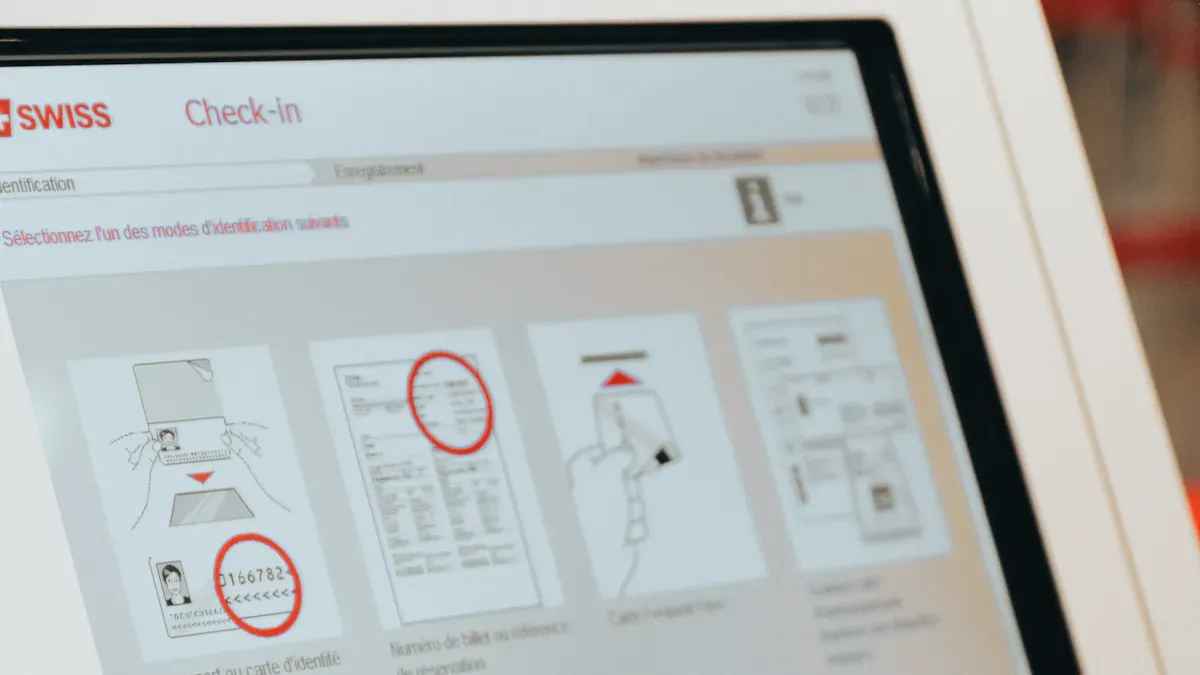
You want your interactive touch screen kiosk to feel easy for everyone. Start by making on-screen instructions clear and short. Use icons that people recognize. Show only the most important information on each screen. This helps users focus and makes choices simple. Plan each step so users do not get lost or confused. Remove extra steps to help people finish tasks quickly. Place buttons and screens where users can reach them without stretching. Make sure all parts, like card readers or printers, are easy to find and use. Add features that help people with different needs, such as adjustable screens or audio guides.
Use clear and simple prompts with familiar icons.
Show only what users need to see.
Map out steps so users feel confident.
Place all parts within easy reach.
Add features for people with disabilities.
Tip: A simple and clear design helps everyone use your kiosk without stress.
Customize for Brand and Audience
You should match your kiosk’s look and feel to your business and your customers. Learn about your audience. Think about their age, needs, and what they like. This helps you pick colors, images, and words that connect with them. Use your business logo and colors to make the kiosk feel like part of your brand. Make sure the design feels welcoming and easy to use for everyone. Plan what your kiosk will do based on what your customers want most.
Study your audience to create content that fits them.
Use your brand’s colors, logos, and style.
Focus on making the design easy for all users.
Decide what features matter most to your customers.
Note: A kiosk that matches your brand and audience builds trust and keeps people coming back.
Plan for Content Updates
Keep your kiosk content fresh and interesting. Use a content management system (CMS) to make updates easy. Plan updates ahead of time with a calendar. Change your content often to keep users engaged. Add new themes for holidays or special events. Share daily specials or local news to make your kiosk feel current. Check how people use your kiosk by looking at data. Use this information to decide what to update next.
Use a CMS for quick updates and scheduling.
Update content often to keep users interested.
Plan updates with a content calendar.
Add seasonal themes and local highlights.
Track user data to guide future updates.
Tip: Regular updates show your business cares about giving users the best experience.
Test, Deploy, and Maintain
Usability Testing
You need to make sure your kiosk works well for everyone. Usability testing helps you find problems before you launch. Start by asking people to use your kiosk and answer questions about their experience. Ask if they know how to use touchscreens, if the information is clear, and if they can move through the screens easily. Test with both new users and people who use kiosks often. This helps you see if your design works for all skill levels. Always include people with disabilities in your tests. Give them different ways to use the kiosk and check if they get clear feedback. A simple and accessible interface helps everyone have a better experience.
Include people with disabilities.
Make sure the interface is consistent and easy to use.
Tip: Usability testing helps you fix problems early and makes your kiosk better for all users.
On-Site Deployment
You must follow clear steps to set up your kiosk at your business. Start by getting all approvals and finishing contracts. Prepare the space and make sure the network is ready. Install the software and add your branding. Check that your kiosk meets accessibility rules. Test the kiosk with real users and listen to their feedback. Train your staff so they know how to help customers and fix small issues. Tell people about your new kiosk through signs, emails, or social media.
Prepare the space and network.
Install software and branding.
Check accessibility.
Test with users.
Train staff.
Announce your kiosk.
Note: Careful deployment helps your interactive touch screen kiosk work well from day one.
Regular Maintenance and Updates
You need to check your kiosk often to keep it running. Do daily checks to clean the screen, sanitize touch areas, and make sure everything works. Look at the printer and payment system each day. Every week, inspect cables, reboot the system, and check for software errors. Review logs and update software if needed. Once a month, clean inside the kiosk, run system tests, and back up data. Test all input devices to catch problems early.
Weekly: Inspect hardware and review software.
Monthly: Deep clean and run diagnostics.
Stay updated with new trends in kiosk technology. Many users now want self-service because it is faster and less stressful. Focus on making your kiosk easy and comfortable for everyone. Use data from your kiosk to learn what users like and improve their experience. Regular checks and updates prevent downtime and keep your business running smoothly.
Reminder: Ongoing maintenance and learning about new trends help your kiosk stay reliable and user-friendly.
You can make an interactive touch screen kiosk for your business by taking simple steps. First, figure out what your business needs and make a plan. Learn who will use the kiosk and check where you want to put it. Pick strong hardware with bright screens and sturdy mounts. No-code tools help you change and add content without coding. Keep learning about new kiosk technology and rules in your industry. If you want to keep going, talk to vendors or look for guides to find the best kiosk for your business.
Plan what you need
Learn about your users
Check the place and hardware
Use no-code tools for easy changes
Ask vendors for help
Tip: Put your kiosk where lots of people go and take care of it often so more people will use it.
FAQ
What is an interactive touch screen kiosk in 2026?
You use an interactive touch screen kiosk in 2026 to get information, order products, or check in. These kiosks have clearer screens, faster touch response, and better data tools. They help you finish tasks quickly and make your visit easier.
How do I keep my kiosk secure?
You set strong passwords and update software often. You use firewalls and limit who can access the kiosk. You also check logs for problems. These steps protect your business and your customers.
Can I update kiosk content without coding?
Yes! You use no-code tools to change menus, images, or information. You drag and drop items or use templates. This makes updates fast and easy for anyone.
What should I do if my kiosk stops working?
First, check the power and network. Clean the screen and restart the system. If it still does not work, contact your support team. Regular checks help prevent most problems.
How do I make my kiosk easy for everyone to use?
You use big buttons, clear text, and simple steps. Add audio guides and high-contrast colors. Make sure people in wheelchairs can reach the screen. Test your kiosk with different users to find and fix issues.
See Also
A Comprehensive Tutorial For Setting Up Touch Screen Kiosks
6 Essential Tips For Selecting Interactive Kiosks For Your Space
Discover The Essential Features Of Today's Touch Screen Kiosks
Uncover 10 Unexpected Applications For Touch Screen Kiosks In 2026
Evaluating Business Touch Screen Kiosks For Value And Efficiency
