Everything You Need to Know Before Setting Up a Miniature PC
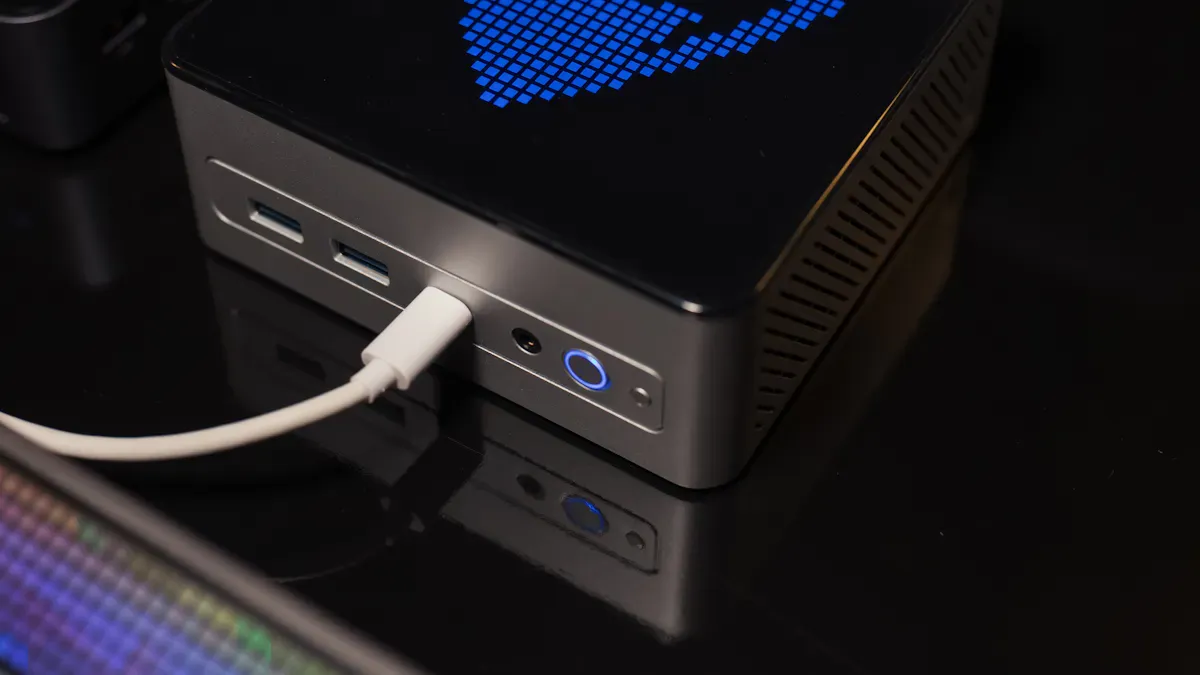
Getting started with a miniature pc can seem hard at first, but you can do it! A miniature pc is a small computer that is strong and fits in many places. It is quiet and does not take up much space. It also uses less energy than a big desktop. You can use it for work, watching videos, or playing simple games.
Shenzhen TopAdkiosk Display Technology Co., Ltd.
Add.: 2F, Bldg 10, Changfeng Industrial Park, Dongkeng, Fenghuang, Guangming, Shenzhen, China 518132
Mobile/WHATSAPP: 86-138 25769658
Email: marketing@topadkiosk.com topadkiosk@gmail.com
Skype: pghenry1
Wechat: adkioskhenry
English Web.: http://www.topadkiosk.com/
https://www.topkioskdisplay.com/
http://www.ad-kiosk.com/
https://www.toplcddisplay.com/
http://www.multitouchdigitalsignage.com/
https://www.youtube.com/channel/UCYVYNJHxLVEcQD8fuUxXNTA/videos?view_as=subscriber
https://www.facebook.com/TOPADKIOSKSHENZHEN/?ref=bookmarks
Key Takeaways
Miniature PCs are small, use less power, and are quiet. They are good for small rooms and simple jobs like work and watching videos. Before you start, decide why you want a mini PC. This helps you pick the best parts and setup for what you need. Think about buying a ready-made mini PC if you want it to be easy. You can build your own if you want to change things. Each choice has good points based on what you know and what you need. Make sure you have important parts like SSD storage, enough RAM, and the right ways to connect. This will help your mini PC work well. Clean your mini PC and update drivers often. This keeps it working smoothly and helps it last longer.
What Is a Miniature PC?
A miniature PC is a small computer that works like a regular computer. It fits inside a tiny box. Experts say these devices are also called mini PCs or box PCs. They use laptop parts and smart cooling. This helps them fit in places where big computers cannot go. You can put one on a shelf or behind a monitor. You can even carry it in your bag. These PCs are usually quiet. They do not need much space.
Key Features and Benefits
There are many good things about a miniature PC:
Space-saving design: You can put it almost anywhere.
Low noise: Many models do not have fans, so they are very quiet.
Energy efficiency: Miniature PCs use less power than a mini desktop computer.
Easy setup: You only need to plug in a few cables to start.
Tip: If you want a computer that does not use much electricity, a miniature PC is a smart choice.
Here is a simple chart to show how much energy you can save:
System Type | Typical Idle Power | Annual Cost (@ $0.17/kWh) |
|---|---|---|
Mainstream Mini PC | 8W – 12W | |
Mid-Range Desktop | 50W – 80W | $59.50 – $85.00 |
Mini PC vs. Mini Desktop Computer
You may wonder how a miniature PC is different from a mini desktop computer. Both are smaller than a regular desktop. But there are some important differences.
A mini desktop computer lets you upgrade parts like memory or storage.
In a miniature PC, most parts cannot be changed. You cannot swap the graphics card or add more drives easily.
If you want better performance later, you might need to buy a new miniature PC.
A mini desktop computer uses more power and takes up more space than a miniature PC.
Feature | Mini PC | Mini Desktop Computer |
|---|---|---|
Upgradability | Extensive upgrade options |
So, if you want a computer that saves space and energy, a miniature PC is a good choice. If you like to upgrade your computer often, a mini desktop computer may be better for you.
Beginner's Guide: What to Consider Before Setup
So, you want to get started with a mini pc but feel a bit lost? This beginner's guide will help you figure out what you need before you start setting up your mini pc. You will learn how to match your mini pc to your needs, understand the key components of a mini pc, and decide if you want to buy a prebuilt system or try building your own mini pc.
Define Your Purpose
First, think about how you want to use your mini pc. Are you planning to use it for work, watching movies, or maybe as a small server? Your purpose will help you choose the right components and make your setup easier.
Here are some common ways people use mini pcs:
Use Case | Description |
|---|---|
Durably Fanless Mini PCs | These work well in tough places because they have no moving parts. |
Passive-Cooling PC Cases | These keep cool without fans, so they stay quiet and last longer. |
Fanless Cryptocurrency Mining PCs | These use less power and run quietly while mining digital coins. |
You can also use a mini pc for media streaming, digital signs, or basic office work. Many people use them for web browsing, writing, and checking email. Some use them as media centers for movies and music. If you need a computer for a shop or factory, a mini pc is a smart pick because it is small and tough.
Tip: Write down your main goal for your mini pc. This will help you focus on the most important factors to consider.
Essential Components Overview
Now, let’s look at the key components of a mini pc. These are the parts that make your computer work. You need to know about them before building your own mini pc or buying one.
Component | Description |
|---|---|
Storage | SSDs make your mini pc faster. Get at least 256GB for basic use, or 512GB if you need more space. |
Connectivity | Make sure you have enough ports (USB, HDMI, Ethernet) and wireless options (Wi-Fi, Bluetooth). |
Graphics | Integrated graphics are fine for simple tasks. For games or design, look for a dedicated GPU. |
Operating System | Pick a mini pc that works with your favorite OS, like Windows or Linux. |
Expandability | Some mini pcs let you add more RAM or storage later. |
You should also pay attention to the CPU and RAM. A strong processor helps your mini pc run smoothly. For daily tasks, 8GB of RAM is enough. If you want to do more, like edit videos, go for 16GB. SSD storage makes everything load faster.
Here’s how mini pcs compare to standard desktops:
Feature | Mini PCs | Standard Desktops |
|---|---|---|
CPU | Intel Core i7/i9, AMD processors | More advanced CPUs with more cores |
RAM | 6GB to 32GB, often non-expandable | More RAM options for heavy tasks |
Storage | SSDs, external hard drives | Traditional hard drives, SSDs |
Mini pcs use less power and stay cool, but they may slow down with heavy work like video editing. Desktops are better for big jobs, but mini pcs are perfect for simple tasks.
Note: When setting up your mini pc, always check if you can upgrade the components later. This is one of the key components of a mini pc that can save you money in the future.
Prebuilt vs. Build a Mini PC
Now, you need to decide if you want to buy a prebuilt mini pc or try building your own mini pc. Both choices have good points and some things to watch out for.
Prebuilt Mini PC:
Easy to set up. You just plug it in and start using it.
Good for beginners who want a simple setup.
Saves time because you do not have to choose the parts.
May cost more than building your own mini pc.
Fewer options to change or upgrade components.
Building Your Own Mini PC:
Lets you choose the best mini desktop computer for your needs.
You can pick every part, like the CPU, RAM, and storage.
Great for people who want to learn about computers.
You can save money by picking only what you need.
Takes more time and you need to know how to put the components together.
Here are some factors to consider when making your choice:
Space-saving: Both options are small and fit anywhere.
Energy efficiency: Mini pcs use less power, so you save on bills.
Portability: You can move your mini pc easily.
Customization: Building your own mini pc lets you choose the right components for your needs.
If you are a beginner, a prebuilt mini pc is a safe choice. If you want to learn and enjoy building your own mini pc, go for it! This guide will help you with both options.
Remember: The best mini pc for you depends on your needs, your budget, and how much you want to learn. Take your time and enjoy the process of setting up your mini pc.
Miniature PC Setup Guide
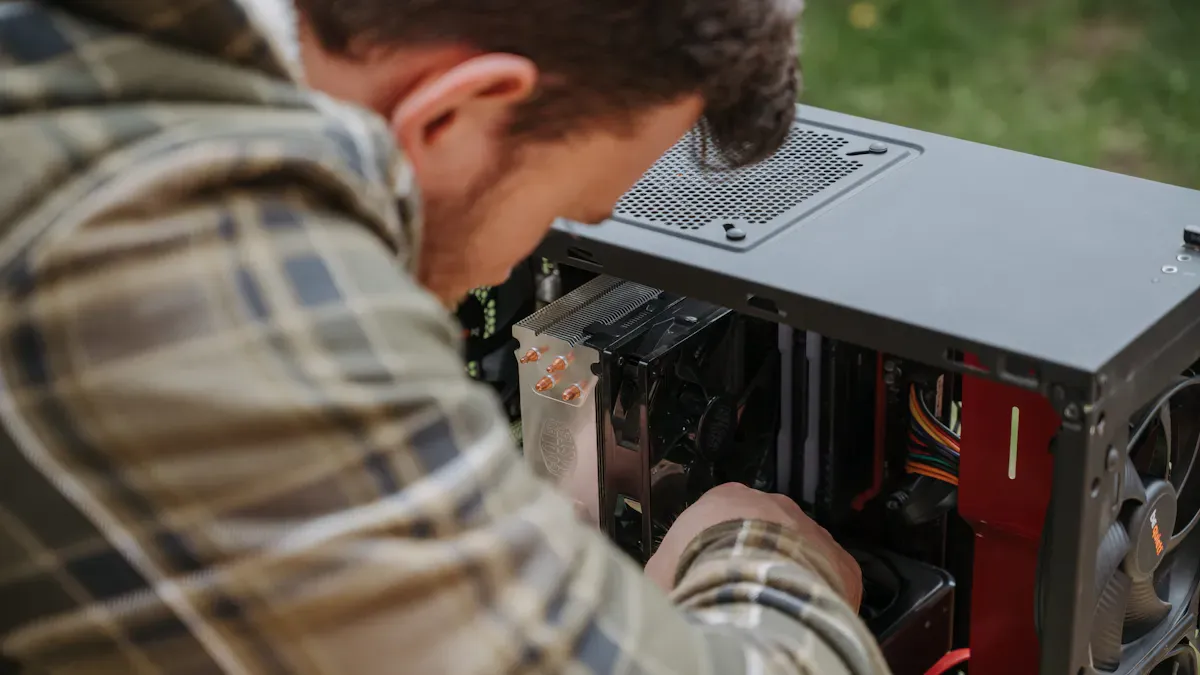
Setting up your mini pc can feel exciting and a little overwhelming. You have a compact device that promises big performance in a small package. Let’s walk through each step so you can get your miniature pc running smoothly.
Unboxing and Connecting Hardware
You want your mini pc to work right from the start. Follow these steps to safely unbox and connect everything:
Check the package for any signs of damage before you open it.
Open the box carefully. Keep all the packaging in case you need it later.
Make sure all parts are inside. Look for the processor, RAM, storage, and cables.
Confirm that all cables are connected tightly, especially the power cable.
Set the power supply switch to "on." Press the power button to start your mini pc.
Your mini pc usually comes with usb and hdmi ports. These ports let you connect monitors, keyboards, mice, and speakers. Most mini pcs work with HDMI, RCA video out, and audio jacks. You can use USB for your keyboard and mouse. If you want more ports, some docking stations like the GPD G1 eGPU add extra USB and HDMI or DisplayPort outputs. This makes your compact size mini pc even more flexible.
Tip: Place your mini pc in a spot where it gets good airflow. Avoid stacking things on top of it.
Installing the Operating System
Now you need to install the operating system. Most mini pcs support popular operating systems like Windows or Linux. Here’s how you do it:
Plug the power supply into a wall socket and your mini pc.
Connect your monitor using HDMI or DisplayPort.
Attach your keyboard and mouse to the USB ports.
Turn on your mini pc. You should see the welcome screen for Windows or another OS.
Follow the prompts. Set your country, keyboard layout, and user details.
Connect to the internet using Ethernet or Wi-Fi. This helps you download updates during installation.
Let your mini pc reboot if the setup asks for it.
Log in once the installation finishes.
You can assemble the mini pc and install the operating system in less than an hour if you follow these steps. The compact size makes it easy to move and set up anywhere.
Note: If you want to change the boot order, go to the BIOS or UEFI settings. Set USB as the first boot device if you need to install the OS from a flash drive.
Updating Drivers and Software
After you finish the installation, you need to update drivers and software. This step keeps your mini pc running fast and safe. You can use tools like AIO Driver Update to scan for outdated drivers and update them quickly. Here’s a table with reliable sources for driver updates:
Source Name | Description |
|---|---|
AIO Driver Update | Scans for outdated drivers and updates them for better performance. |
Helps you find drivers not listed on the manufacturer’s website. |
Some users worry about viruses in original drivers. Always download drivers from trusted sites. Updating your software, drivers, and firmware protects your mini pc from digital threats and improves performance.
Alert: Never skip driver updates. Outdated drivers can cause problems with your mini pc.
Initial Configuration Steps
You want your mini pc to work its best. Here are the first things you should do:
Make sure you have the latest software, drivers, and firmware.
Check for security updates to protect your mini pc.
Connect your mini pc to the internet for updates.
Adjust boot device priority in BIOS or UEFI. Set USB first if you plan to reinstall the OS.
Enable hardware virtualization if you want to use VirtualBox or VMware.
Turn on Secure Boot for Windows 11 compatibility.
If you need to access advanced settings, follow these steps:
Press the right key (like F2 or Delete) right after you turn on your mini pc.
Go to Settings, then System.
Find Recovery options.
Click Restart Now under Advanced startup.
Select Troubleshoot after restart.
Choose Advanced options.
Click UEFI Firmware Settings.
Confirm the restart.
Tip: Always update your mini pc before you start using it. This keeps your compact device safe and ready for anything.
Your mini pc’s compact size makes it easy to set up and move. You can connect it to almost any monitor or TV. The usb and hdmi ports give you lots of choices for peripherals. With these steps, your mini pc will be ready for work, play, or anything else you need.
Common Mini PC Use Cases
Home Office and Productivity
You can turn mini pcs into powerful tools for your home office. Many people use mini computers for writing, video calls, and web browsing. You get a quiet workspace because mini pcs make little noise. You can fit them on a small desk or even behind your monitor. If you want to save energy and space, mini pcs work better than big desktops. You can use mini pcs for spreadsheets, emails, and online meetings. Some mini desktop pcs let you add more RAM or storage if you need more speed. You will find that the best mini computers for work have fast processors and enough memory for multitasking.
Media Center and Entertainment
Mini pcs shine as media centers. You can connect your mini pc to your TV with HDMI and enjoy movies in Full HD. Here’s a quick look at what you need for a great media center:
Component | Requirement |
|---|---|
DVD Player | Must have a DVD player |
HDMI Output | Must have HDMI output |
Resolution | |
Form Factor | Small and quiet |
Operating System | Minimum Linux install |
You should pick mini pcs with Intel Core i7 or AMD Ryzen processors for smooth streaming. Go for 8-16 GB of RAM so you can run many apps at once. SSDs make your mini computers load videos and music quickly. Most types of mini pcs use integrated graphics, but some have dedicated cards for better video quality. You do not need TV recording features, so setup stays simple.
Tip: Mini pcs stay cool and quiet, so you can watch movies without fan noise.
Light Gaming and Emulation
Do you love classic games? Mini pcs are perfect for emulation and light gaming. You can play old favorites from 8-bit consoles or try more advanced systems like PS3 and Xbox 360. Mini pcs use less power and cost less than big gaming desktops. You get a compact system that handles retro games with ease. Many mini computers come with integrated graphics, which work well for simple games. If you want better graphics, look for mini pcs with dedicated cards. You can enjoy smooth gameplay and quick loading times.
Home Server and IoT Projects
Mini pcs also work well as home servers or for IoT projects. You can use mini computers to store files, run smart home devices, or host a website. Here are some popular models for these jobs:
Particle Photon 2
BeagleBone® Green Gateway
You can set up these mini pcs to control lights, cameras, or sensors in your house. Many people choose mini computers for these projects because they use little power and fit anywhere. You get the benefits of mini pcs—quiet, small, and reliable—while building something cool at home.
Note: Mini pcs make it easy to start your own tech projects without spending much money.
Troubleshooting and Optimization Tips for Mini PCs
Common Setup Issues
You might have some problems when you set up your miniature pc. Many people see these problems with their computer:
Sometimes Bluetooth devices do not connect well.
Audio stacks in Linux can be hard for your computer to find.
Some software does not work because of different package formats.
If your computer cannot find hardware, try these steps:
Go into the BIOS settings on your computer.
Pick Load Defaults or Restore Factory Settings to reset it.
Look for a CMOS reset button or jumper pins if your computer has them.
Tip: If Bluetooth keeps dropping, update drivers or use another USB port.
Performance Optimization
You want your miniature pc to work fast and smooth. Here are some ways to make your computer better:
Get a modern processor. Quad-core or higher helps your computer do more things at once.
Use 8GB of RAM for normal tasks. If you play games or edit videos, 16GB is better.
Pick SSD storage. SSDs help your computer start up and open files quickly.
Component | Recommendation | Impact on Performance |
|---|---|---|
Processor | Quad-core or higher | Helps your computer run faster and do more |
RAM | 8GB for normal use, 16GB for gaming | Stops your computer from slowing down |
Storage | SSD instead of HDD | Makes your computer start and load files faster |
For hard jobs, use CPUs like Intel Core i5/i7 or AMD Ryzen 5/7. If you use windows mini pcs, make sure you have enough RAM and SSD space for updates and apps.
Note: Adding more RAM or using an SSD can really help your computer.
Maintenance Basics
Keeping your miniature pc clean and cool is important. Dust inside your computer can make it too hot. Clean the vents and fans every few months.
Thermal paste helps keep your computer’s processor cool. Here is how often you should change it:
Type of Thermal Paste | Recommended Replacement Frequency |
|---|---|
Standard Thermal Paste | Change every 2 to 3 years |
High-Performance / Premium Paste | Change every 3 to 5 years |
Factory-Applied Paste (Pre-built PCs) | Change after 2 years |
If your computer gets hot or the fan is loud, change the paste sooner. For gaming computers, change the paste every 1–2 years. For high-performance computers, check every 6–12 months.
Alert: Cleaning and taking care of your computer stops problems and keeps it working well.
You can use windows mini pcs for work, fun, or projects. If you take care of your computer, it will work well and last longer. Your miniature pc will stay fast and quiet for a long time.
You have learned the main steps for setting up a miniature pc. Think about what you want to do with your computer. Choose a model that fits your needs. Make a list of things to check, like RAM, storage, ports, and operating system. Look up different models and see how they are different. Miniature pcs help you use many apps, connect devices, and save space. You can use them for work, fun, or projects. It is easy to start with a mini pc. Anyone can set one up!
FAQ
What is a miniature pc?
A miniature pc is a small computer that fits in your hand or on a shelf. You can use it for work, streaming, or light gaming. It saves space and uses less power than a big desktop.
Can I upgrade parts in my miniature pc?
Most miniature pcs have limited upgrade options. You can often add more RAM or storage, but you cannot change the processor or graphics card. Always check the specs before you buy.
Do miniature pcs work for gaming?
You can play simple games on a miniature pc. If you want to play modern games, look for a model with a dedicated graphics card. Integrated graphics work best for retro or light games.
How do I connect a miniature pc to my monitor?
You connect your miniature pc to a monitor using HDMI or DisplayPort. Plug in the cable, then turn on both devices. Most miniature pcs also support USB for keyboards and mice.
Is a miniature pc good for schoolwork?
Yes! You can use a miniature pc for homework, online classes, and research. It runs office apps and web browsers smoothly. You save space on your desk and keep things quiet.
See Also
Current Trends in Android Motherboards You Must Understand
A Comprehensive Guide to Configuring Local Server Digital Signage
Step-by-Step Instructions for Creating a Raspberry Pi Smart Mirror
