Essential Tips for Maintaining and Troubleshooting 3x3 Video Walls
Shenzhen TopAdkiosk Display Technology Co., Ltd.
Add.: 2F, Bldg 10, Changfeng Industrial Park, Dongkeng, Fenghuang, Guangming, Shenzhen, China 518132
Mobile/WHATSAPP: 86-138 25769658
Email: marketing@topadkiosk.com topadkiosk@gmail.com
Skype: pghenry1
Wechat: adkioskhenry
English Web.: https://www.topkioskdisplay.com/
http://www.ad-kiosk.com/
https://www.toplcddisplay.com/
http://www.multitouchdigitalsignage.com/
https://www.youtube.com/channel/UCYVYNJHxLVEcQD8fuUxXNTA/videos?view_as=subscriber
https://www.facebook.com/TOPADKIOSKSHENZHEN/?ref=bookmarks
If you want your 3x3 video wall to look good and work well, you need to take care of it often. If you skip regular care, you might get problems like screens that are not bright and pixels that do not work. This can make your display look worse and not last as long. Many studies show that simple care helps stop sudden problems, especially in places with lots of people. You do not need to be a tech expert to keep your video wall working. For more help and guides, visit https://www.topkioskdisplay.com/.
Key Takeaways
Regular maintenance helps your 3x3 video wall stay bright and work well. Dust the screens every week. Clean the frames every two weeks.
Always turn off and unplug your video wall before you clean it. This keeps you safe from electric shock. It also protects the system.
Use a microfiber cloth to clean. Do not use strong chemicals or paper towels. These can scratch the screens.
Check the cables and connections often. Replace any cables that are damaged. This keeps the display stable and stops signal problems.
If problems do not go away after simple troubleshooting, ask a trained technician for help. This stops more damage from happening.
Routine Maintenance for 3x3 Video Walls
Power Safety Before Cleaning
You always want to stay safe when you clean your 3x3 video wall. Start by turning off the power. Unplug the system from the wall. This step keeps you safe from electric shock. It also protects your video wall from damage. Never skip this step, even if you are in a hurry.
Tip: Wait a few minutes after unplugging. This lets any leftover electricity leave the system.
Cleaning Methods and Materials
You do not need fancy tools to clean your 3x3 video wall. Use a soft, dry microfiber cloth. This cloth picks up dust without scratching the screen. If you see fingerprints or smudges, you can dampen the cloth with a little water. Do not spray water or cleaner right on the screen. Always wipe gently. Stay away from paper towels, rough fabrics, or strong cleaners. These can scratch or damage the panels.
Use a microfiber cloth for dust.
Dampen the cloth with water for tough spots.
Never use glass cleaner, alcohol, or ammonia.
Clean the frame and edges, too.
Note: If you see dust in the vents, use a can of compressed air. Hold the can upright and spray short bursts.
Maintenance Schedule and Frequency
Set up a regular cleaning and check-up plan for your 3x3 video wall. You can make a simple table to keep track:
Task | How Often |
|---|---|
Dust screens | Weekly |
Clean frames/edges | Every 2 weeks |
Check ventilation | Monthly |
Inspect for damage | Monthly |
You should look for loose cables, dust buildup, or any signs of wear. Write down each time you clean or check the system. This helps you spot problems early. If you use your video wall in a busy place, you might need to clean it more often.
Keeping up with these steps helps your 3x3 video wall look bright and last longer.
Hardware Checks and Care
Inspecting and Replacing Modules
You want your 3x3 video wall to stay sharp and bright. Start by looking at each panel. Check for dead pixels, flickering, or color issues. If you spot a problem, mark the module. You can swap out faulty panels with new ones. Keep spare modules handy so you can fix issues fast. If you see loose panels, tighten them gently. Regular checks help you catch problems before they get worse.
Tip: Use a flashlight to spot tiny defects. Sometimes, small issues hide in plain sight.
Securing and Replacing Cables
Cables play a big role in keeping your video wall running smoothly. Look behind the wall and check every cable. If you see frayed or bent cables, replace them right away. Choose certified HDMI cables for the best signal. Poor-quality cables can cause flickering or lost images. Make sure cables are not tangled or pinched.
Replace damaged cables.
Use certified HDMI cables.
Keep cables neat and untangled.
Checking Input Connections
Input connections link your video wall to computers, media players, or controllers. Check each input port for dust or loose plugs. Push each connector in firmly. If you notice a weak signal, try another port or cable. Secure connections stop glitches and keep your display steady.
Input Type | What to Check | Action |
|---|---|---|
HDMI | Loose or dirty ports | Clean and secure |
DisplayPort | Bent pins | Replace cable |
Power | Firm connection | Tighten plug |
Choosing the Best Video Wall Controller
Picking the right controller makes your 3x3 video wall easier to use. Look for a controller that matches your wall’s size and resolution. Check if it works with your devices and software. You want features like remote control, easy setup, and flexible layouts. If you plan to expand your wall, choose a scalable controller. Set your budget and compare options. Sometimes, spending a bit more gives you better performance and support.
Note: Ask vendors about compatibility and warranty. Good support helps you solve problems faster.
Software Maintenance
Firmware Updates
You want your video wall to run smoothly. Firmware updates help fix bugs and add new features. Check the manufacturer's website for updates every few months. Download the latest version and follow the instructions. Always read the update notes before you start. Some updates need you to use a USB drive or connect your computer. If you feel unsure, ask your IT team or a trusted technician for help.
Tip: Update firmware when the room is not busy. This keeps your display safe if something goes wrong.
Recalibrating Color and Brightness
Over time, you might notice colors look different on each panel. Brightness can fade too. You can fix this by recalibrating your 3x3 video wall. Most systems have a built-in menu for color and brightness. Use the remote or control panel to open the settings. Adjust each panel until the colors match. You can use a test pattern or a white image to check your work. If you want perfect results, use a color calibration tool.
Check colors every three months.
Match brightness across all panels.
Save your settings after you finish.
System Restarts and Settings Backup
Restarting your video wall can solve many small problems. Turn the system off, wait a few seconds, then turn it back on. This clears out glitches and refreshes the software. You should also back up your settings. Most controllers let you save your setup to a file. Store this file on a USB drive or computer. If you ever need to reset your system, you can restore your favorite settings fast.
Task | How Often |
|---|---|
Restart system | Monthly |
Backup settings | After changes |
Note: Regular backups save you time if something goes wrong.
Troubleshooting 3x3 Video Wall Issues

Pixel and Panel Failures
You might notice a spot on your screen that stays black, flashes, or shows the wrong color. These are signs of pixel or panel failures. You can find these problems early if you know what to look for.
Show a solid red, green, or blue image on your 3x3 video wall. This is called an RGB pattern test. It helps you spot dead or stuck pixels.
Try a uniform white or gray screen. This makes it easy to see dark spots or color problems.
If you find a bad pixel, check if your system has a calibration tool. Sometimes, you can fix stuck pixels with a quick calibration.
For bigger problems, like a whole panel not working, you may need to swap out the module. Keep a spare panel ready for fast replacement.
Tip: Use a flashlight to check for tiny defects. Small issues can hide until you look closely.
Connectivity and Input Source Problems
Sometimes, your video wall might not show the right picture or loses the signal. This can happen for many reasons, but you can fix most issues with a few simple checks.
Look at all cables and connectors. Make sure nothing is loose, bent, or damaged.
Try using a capture card to test the output from your computer, camera, or other video source. Plug it in with HDMI, DVI, or SDI.
Use multi-display software like Dataton Watchout or AvStumpfl Wings Platinum. These programs help you manage signals and fix display problems.
Check if your graphics card works well with your capture card and software. Sometimes, a mismatch can cause trouble.
If you still see problems, restart your system. A fresh start can clear up many glitches.
If you change cables or sources, label them. This makes it easier to find the problem next time.
Power and Display Glitches
Power and display glitches can make your video wall flicker, lose sync, or show nothing at all. You can solve many of these problems by checking a few key things.
Important Note | Description |
|---|---|
Supports up to 4K 30Hz in and 1080P 60Hz out | |
Cable Quality | Use qualified HDMI cable with all 19 pins wired/shielded |
Sync Issues | Most sync issues come from poor cables |
Always use high-quality HDMI cables. Make sure all 19 pins are wired and the cable is shielded.
If your display loses sync or flickers, swap out the cable for a new one.
Check your input signal. Some video walls only support certain resolutions or refresh rates.
Make sure your power plugs are tight and your outlets work well.
Note: Most display glitches come from bad cables or weak connections. Start with the simple fixes before you worry about bigger problems.
If you follow these steps, you can solve most issues with your 3x3 video wall on your own. For problems that do not go away, you may need to call a professional.
When to Call a Professional
Persistent or Complex Problems
Sometimes, you do everything right, but your 3x3 video wall still acts up. Maybe you see lines across the screen, or a whole row of panels goes dark. You might notice the display keeps flickering, or the system will not turn on at all. If you try all the basic fixes and nothing works, it is time to call a professional.
You should also get help if you see problems that keep coming back. For example, if you replace a cable and the issue returns next week, something bigger might be wrong. Do not try to fix electrical faults or open up the main control box yourself. You could make things worse or even hurt yourself.
Tip: If you feel unsure or nervous about a repair, trust your gut. A trained technician can solve the problem safely and quickly.
Choosing Qualified Service Providers
Picking the right service provider makes a big difference. You want someone who knows video walls inside and out. Here are a few things to look for:
Ask if they offer service contracts. These agreements promise fast help when something breaks.
Check if the company plans for easy access during repairs. Good installers use pop-out mounts or leave space behind the wall. This makes fixing problems much faster.
Look for providers with experience on 3x3 video walls. Ask for references or reviews from other customers.
Make sure they use real parts and follow the manufacturer's rules.
See if they offer support for both hardware and software issues.
You can also make a quick checklist:
What to Ask | Why It Matters |
|---|---|
Service contracts | Fast repairs and less downtime |
Easy access planning | Quicker, safer maintenance |
Real parts | Longer-lasting repairs |
Good reviews | Trustworthy service |
Remember, a good service provider keeps your video wall running smoothly and helps you avoid bigger headaches down the road.
You can keep your 3x3 video wall working well with regular care and fast fixes. Doing easy things like cleaning and checking wires helps you stop big problems:
Cleaning keeps dust and dirt away so your wall stays bright and cool.
Checking often helps you find loose wires or bad LEDs early.
Taking care of temperature and humidity makes your system last longer.
Aspect | Details |
|---|---|
Upfront Cost | |
Long-Term Cost Efficiency | Saves money later because it lasts longer |
Maintenance Needs | Needs less fixing, so you save money |
If you get hard or repeat problems, ask an expert for help. Watch both the hardware and software to keep your video wall working its best and save money over time.
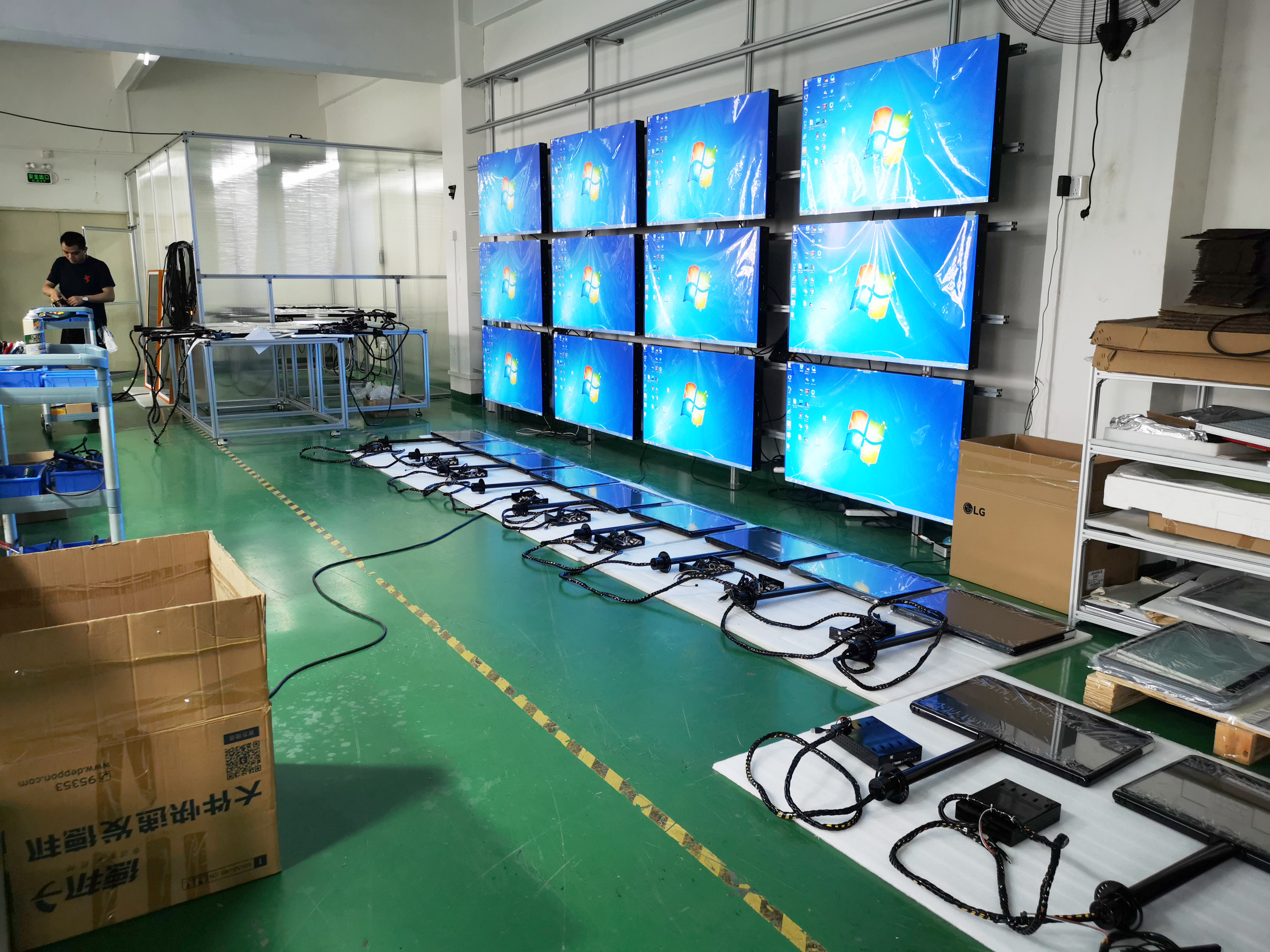
How to Choose the Best 3×3 Video Wall Controller for Your Needs
Choosing a 3×3 video wall controller is about ensuring that the nine individual screens work together as one unified, seamless visual canvas.
The decision flowchart and guide below will help you step by step – from understanding the different types of controllers to selecting the perfect one for your project.
🤔 Step 1: Define Your Application & Core Requirements
Before looking at controllers, ask yourself these questions. Your answers will directly determine which direction to go.
What is the primary use case?
Corporate lobby or conference room – Typically needs high‑definition promotional videos and presentations, with flexible content management and remote access.
Security / surveillance control room – Needs to handle multiple live camera feeds simultaneously, requiring ultra‑low latency, 24/7 stability, and flexible layout switching.
Retail or exhibition display – Needs eye‑catching ads or interactive content, with good image quality and remote content updates.
How many signal sources do you need to support?
Only one 4K source (e.g., a single PC) → a basic "1‑in, 9‑out" controller is enough.
Multiple different sources (multiple PCs, cameras, media players) → need a multi‑window controller or a software‑based solution.
What are your resolution and image quality requirements?
Input resolution – 4K support is recommended to keep source signals sharp.
Output resolution – Mainstream is 1080p (1920×1080) per screen. For extreme detail, choose a higher‑end model that supports 4K output.
🛠️ Step 2: Understand the Three Core Controller Types
Knowing the differences between controller types is key to making an informed choice. The table below compares the features and typical use cases of the three main options.
Aspect | Dedicated Hardware Controller | PC‑Based Software Controller | Network (AV‑over‑IP) Controller |
|---|---|---|---|
Core principle | Specialised hardware device that processes video signals independently | Software running on a standard PC/server, relying on the graphics card output | Video signals transmitted over standard IP networks; each screen needs a receiver |
Advantages | Extremely stable, ultra‑low latency, plug‑and‑play | Highly flexible, scalable, relatively low cost | Simple cabling, long‑distance transmission, highly scalable |
Disadvantages | Limited scalability, harder to upgrade, fixed feature set | Stability depends on the PC – risk of crashes or driver conflicts | Depends on a high‑quality network; potential latency and configuration complexity |
Best for | Mission‑critical environments like surveillance control rooms, broadcast studios | Corporate digital signage, conference rooms, creative displays where flexible layout is needed | Large campuses, retail chains, remote monitoring centres – long distance, multiple locations |
Budget & Cost Considerations
Prices vary widely by brand and features. Entry‑level basic controllers may cost a few hundred dollars, while a high‑end flagship model like the NovaStar MX40 Pro is around $5,833 USD.
📋 Step 3: Essential Specification Checklist for a 3×3 Controller
When evaluating specific products, use this checklist:
Resolution – Confirm input and output resolutions. Most 3×3 controllers support 4K input and 1080p output.
Refresh rate – 60Hz is standard and ensures smooth motion.
Ports – Check that the number of inputs (HDMI/DVI/USB‑C) and outputs (HDMI) matches your sources and screens.
Bezel compensation – This feature eliminates the visual gap caused by the physical bezels of the displays.
Control methods – RS232, IR remote, web interface, mobile app, etc.
Image rotation – If you need portrait or angled installations, confirm that the controller supports 180° rotation.
Scene presets – Save multiple display layouts for one‑click switching, improving efficiency.
Cooling & reliability – For 24/7 operation, check whether the device has active cooling (e.g., fans).
🏆 Step 4: Quick Overview of Popular Brands & Products
Here are some well‑known 3×3 video wall controller brands and products, covering different market segments.
Entry‑level / High value
UniQue 3×3 – HDMI/DVI input, 9×1080p@60Hz output, RS232/IR control, plug‑and‑play.
Professional / Feature‑rich
Amoonsky HVS‑C9 – 4K@30Hz input, 9×1080p@60Hz output, wireless remote, 32 scene presets, 180° rotation, designed for 24/7 operation.
TP‑LINK TL‑SDC6009S – Embedded hardware, 4K@30Hz input/output, network/buttons/web control, edge masking, cascading support.
iSEMC VK‑L series – 10G base‑station switching chip, fast processing, low latency, supports up to 4×4 or more.
High‑end / Flagship
NovaStar MX40 Pro – Flagship all‑in‑one design, supports up to 9 megapixels, HDR, frame‑rate adaptation, near‑zero latency. Proven stability at international events like the Paris Olympics. Price around $5,833 USD.
Datapath series – Designed for mission‑critical control rooms, offering high stability, modularity, and hot‑swappable fans.
🎬 Step 5: Scenario‑Based Recommendations
Let's see how different controller types fit real‑world needs.
Scenario 1: Large corporate conference room
Needs – Display high‑quality PPTs and videos, occasional video conferencing.
Recommended – PC‑based software controller – flexible, easy to integrate with conferencing software, cost‑effective.
Scenario 2: 24/7 security control room
Needs – Continuous display of multiple camera feeds, zero latency, high stability.
Recommended – Dedicated hardware controller (e.g., Datapath VSN series) – designed for 24/7 operation with industrial reliability.
Scenario 3: Immersive exhibition in a science museum
Needs – Play high‑resolution, visually stunning custom content.
Recommended – High‑end hardware controller (e.g., NovaStar MX40 Pro) – supports HDR and wide colour gamut for realistic, detailed images.
Scenario 4: Multi‑city retail chain
Needs – Remote management and unified content updates across many stores.
Recommended – Network (AV‑over‑IP) controller – centralised management and content distribution, ideal for geographically dispersed deployments.
💎 Summary
Choosing the best 3×3 video wall controller is about matching the solution to your needs. Start by defining your core application, then evaluate options against three key dimensions: stability, flexibility, and scalability. Make your initial choice among hardware, software, or network controllers, then filter further using the specification checklist.
To help you narrow down to a specific model, would you mind sharing your use case, budget, and display quality expectations? For example, is it for a surveillance control room, a corporate lobby, or an exhibition? please contact Shenzhen TopAdkiosk Display Technology Co.
FAQ
How often should you clean your 3x3 video wall?
You should dust your screens every week. Clean the frames and check for damage every two weeks. If your wall is in a busy place, clean it more often.
What should you do if a panel stops working?
Try restarting your system first. If the panel stays dark, swap it with a spare module. If you still see problems, call a professional for help.
How do you choose the best 3x3 video wall controller?
Look for these features:
Matches your wall’s size and resolution
Works with your devices
Easy setup and remote control
Ask about support and warranty before you buy.
Can you fix stuck or dead pixels yourself?
Sometimes, yes! Run a color test pattern to spot the pixel. Use your system’s calibration tool to try and fix it. If the pixel stays stuck, you may need to replace the panel.
See Also
Selecting The Perfect LCD Video Wall For Your 2026 Needs
Best 10 Digital Signage Solutions For Video Walls In 2026
Key Distinctions Between LED And LCD Video Walls Explained
