Essential Advice for Choosing the Right Interactive Screen For Meeting
Shenzhen TopAdkiosk Display Technology Co., Ltd.
Add.: 2F, Bldg 10, Changfeng Industrial Park, Dongkeng, Fenghuang, Guangming, Shenzhen, China 518132
Mobile/WHATSAPP: 86-138 25769658
Email: marketing@topadkiosk.com topadkiosk@gmail.com
Skype: pghenry1
Wechat: adkioskhenry
English Web.: http://www.topadkiosk.com/
https://www.topkioskdisplay.com/
http://www.ad-kiosk.com/
https://www.toplcddisplay.com/
http://www.multitouchdigitalsignage.com/
https://www.youtube.com/channel/UCYVYNJHxLVEcQD8fuUxXNTA/videos?view_as=subscriber
https://www.facebook.com/TOPADKIOSKSHENZHEN/?ref=bookmarks
You want your meetings to be fun, helpful, and simple to run. Here’s a quick tip: pick an Interactive Screen For Meeting that fits your room and how your team works. This tool makes any meeting more hands-on. Interactive screens let everyone join in by touching and moving things. This makes talks more interesting. People will pay more attention and share more ideas. Today, work moves fast. The right screen helps your team stay connected and focused, even in online meetings.
Key Takeaways
Pick an Interactive Screen that matches your room size and team needs. This will help everyone join in and work together better.
Find screens that react quickly to touch and have clear displays. This helps everyone pay attention and take part in meetings.
Make sure the screen works with meeting platforms like Zoom and Microsoft Teams. This makes it easy to set up and use.
Choose screens with tools for sharing and note-taking in real time. These tools help your team work together and get more done.
Think about how much the screen will cost over time and what support you can get. This helps make sure the screen works for you now and later.
Interactive Screen For Meeting: Key Features
Touch Performance
Touch performance is very important for an Interactive Screen For Meeting. The screen should react fast and be correct when you touch it. If the screen is slow, people lose focus. A smooth touch lets you draw and move things right away. Some brands like BenQ and SMART Board have special touch technology. These screens know when your palm touches and ignore mistakes. You can use your fingers to zoom or swipe. This makes meetings more fun and active.
Here are the most important touch metrics:
Metric | Importance |
|---|---|
Makes using the screen feel natural and stops frustration. | |
Precision and Accuracy | Helps you write and move data without making mistakes. |
Palm Rejection and Gesture Support | Lets you work better by telling real touches from accidents. |
When the screen reacts fast, people work together better. Smart tools and smooth touch help you share ideas easily. A good display helps everyone see and hear well.
Feature | Benefit |
|---|---|
Intelligent tools | Makes meetings more interesting and helps people join in. |
Makes it easy to use and share things on the screen. | |
High-quality display performance | Gives clear pictures and sound, so meetings are better. |
Screen Size & Resolution
Screen size and resolution help your team see and share things. Big rooms need bigger screens. Small rooms can use smaller screens. Ultra HD (4K) screens show sharp pictures and bright colors. Anti-glare keeps the screen easy to see, even if the room is bright. Multi-touch lets many people use the screen at once.
Feature | Description |
|---|---|
Resolution | Ultra HD (4K) shows clear pictures and bright colors. |
Anti-Glare Technology | Keeps the screen easy to see in different lights. |
Multi-Touch Capabilities | Lets many people work together on the screen. |
Good data pictures help your team understand hard ideas.
You can zoom in to see details better.
Fun presentations keep people interested.
Compatibility & Connectivity
Your Interactive Screen For Meeting should connect to all your devices. It is important that it works with your apps. Some screens work with Microsoft Teams, Zoom, Google Meet, and Cisco Webex. You can connect laptops, tablets, and phones. Brands like Samsung and Ricoh have many ports and wireless ways to connect. Make sure your screen works with the software your team uses.
Connectivity Option | Description |
|---|---|
Lets you use Microsoft, Google, and Cisco tools with Zoom. | |
Interoperability with SIP/H.323 | Works with Polycom and Cisco for easy calls. |
Microsoft Teams Integration | Works with Zoom Rooms without extra hardware. |
Google Meet Integration | Works with Zoom Rooms without extra hardware. |
Cisco Webex Integration | Connects with SIP/H.323, no extra hardware needed. |
Sometimes, you might have problems with compatibility. You may need special drivers or have trouble with software. Test your screen before meetings to stop problems. Make sure your apps work with the screen so everyone can join.
Collaboration Tools
Collaboration tools turn your Interactive Screen For Meeting into a teamwork space. You can write on shared screens, draw, and highlight important things. Save your notes right away. Connect to cloud services like Google Drive, OneDrive, Box, and Dropbox. Get and save files quickly. Built-in apps let you use tools and make presentations fast.
Write on shared screens during talks.
Draw, highlight, and underline important things.
Save your notes right away.
Connect to cloud services for easy file use.
Use built-in apps for teamwork and presentations.
Advanced touch boards let many people work together.
These features help your team get more done. Scheduling and real-time tools make work faster. When working from home, these tools keep everyone together and working well.
Audio & Video Integration
Audio and video features make your Interactive Screen For Meeting great for remote teams. You want clear sound and sharp pictures. Multi-touch lets many people use the screen at once. Virtual participant integration brings remote people into the meeting. You can record meetings and watch them later. Good data pictures show graphs and charts in a way everyone understands.
Feature | Description |
|---|---|
Simultaneous Multi-Touch Support | Lets many people use the screen at the same time. |
Virtual Participant Integration | Brings remote people into meetings with video and sharing. |
Session Recording and Playback | Lets you record meetings and watch them later. |
Enhanced Data Visualization | Shows hard data in easy graphs and charts. |
Always make sure the sound is clear. Good audio keeps people listening.
Bad sound makes people stop paying attention. Get a good microphone.
Poor sound makes remote people feel left out.
If you pick an Interactive Screen For Meeting with good audio and video, your team stays connected. Everyone can share, listen, and learn together.
Comparing Leading Brands
Brand Overview
There are many brands to pick from. Each brand has something special. Samsung has great display quality and strong help. Promethean ActivPanel gives teamwork tools and cloud workflow. ViewSonic ViewBoard lets you cast easily and has good touch. iSLate is simple to use and easy to connect. These brands make meetings smooth and fun.
Tip: Think about what your team needs most. Do you want the best display, easy teamwork, or strong help?
Feature Comparison
Let’s see how these brands are different. Here is a table to compare them:
Brand | Unique Selling Points | Best For |
|---|---|---|
iSLate | Seamless integration, durable design, user-friendly interface, enterprise support | IT managers seeking dependable solutions |
Samsung | Premium display quality, multi-touch support, strong post-purchase support | Corporate environments prioritizing display quality |
Promethean ActivPanel | Multi-user collaboration tools, integrated annotation software, cloud workflow support | Organizations valuing interactive collaboration |
ViewSonic ViewBoard | Versatile casting, reliable touch performance, good support for multiple ecosystems | Teams needing flexible connectivity |
Each brand is good for different things. Promethean is best for teamwork. Samsung is best for display quality.
Pros & Cons
Here is a quick list to help you choose:
Samsung: Great display and help. It may cost more.
Promethean ActivPanel: Good for teamwork. Needs cloud setup.
ViewSonic ViewBoard: Flexible and reliable. Some features depend on your devices.
iSLate: Easy to use and strong. Best for IT teams.
Support & Warranty
Support and warranty are important when buying tech. BenQ gives a 5-year warranty and special service. SMART has software for learning. ClearTouch gives software and a 1-year warranty. Boxlight has basic help.
Brand | Warranty Length | Support Capabilities | Additional Services |
|---|---|---|---|
BenQ | 5 years | Extensive logistics | White glove service |
SMART | N/A | N/A | Subscription-based software |
ClearTouch | 1 year | N/A | Bundled software solutions |
Boxlight | N/A | N/A | N/A |
BenQ is best for strong help. ClearTouch gives software with the screen. SMART helps with learning tools. Pick the right Interactive Screen For Meeting by matching features and help to your needs.
Practical Considerations
Budget & Value
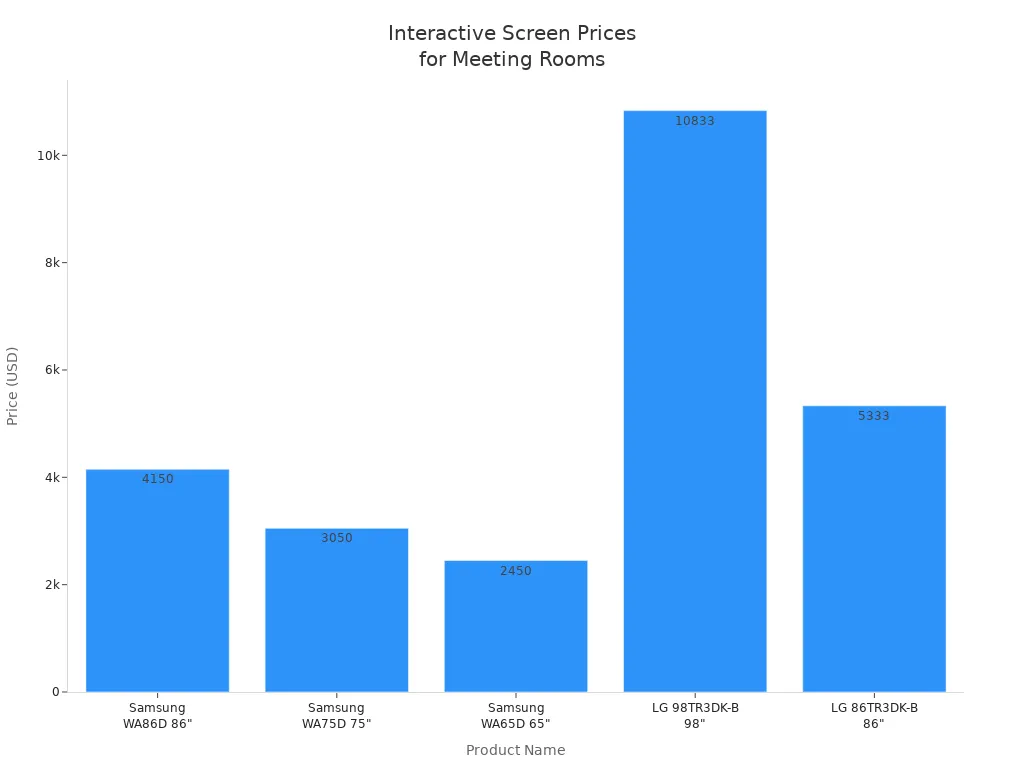
You want to get the most out of your investment. Prices for interactive screens can vary a lot. Some models cost less, while others offer more features and support. Here’s a quick look at what you might pay for different sizes:
Product Name | Price |
|---|---|
Samsung WA65D 65" | $2,450.00 |
Samsung WA75D 75" | $3,050.00 |
Samsung WA86D 86" | $4,150.00 |
LG 86TR3DK-B 86" | $5,333.00 |
LG 98TR3DK-B 98" | $10,833.00 |
Commercial displays usually cost more at first, but they last longer and come with better support. Consumer displays might seem cheaper, but you could end up paying more over time if you need to replace them often.
Type of Display | Initial Cost Range | Key Features | Long-term Cost Implications |
|---|---|---|---|
Commercial Displays | ~$2,000+ | Longer warranties, greater longevity, higher processing power | More cost-effective over time due to durability and support |
Consumer Displays | $500 - $1,500 | Lower durability, less processing power | Higher long-term costs due to potential replacements and failures |
Room Size & Layout
The size and shape of your meeting room matter a lot. If your screen is too small, people in the back can’t see. If it’s too big, it might take up too much space. Make sure everyone can see the screen and hear clearly. Good seating and smart placement of your Interactive Screen For Meeting help everyone stay focused.
Place the screen where everyone has a clear view.
Watch out for glare from windows or lights.
Keep the screen away from noisy spots.
Tip: A well-placed screen makes meetings smoother and keeps everyone engaged.
User Experience
You want your team to enjoy using the screen. Easy-to-use features help everyone join in. People like screens that respond quickly to touch and let many users work together. When the screen is simple, your team will use it more often.
Description | |
|---|---|
Placement | Put the screen where people can see and reach it easily. |
Accessibility | Look for features like adjustable text and voice support. |
Engagement | Choose screens that let people draw, write, and interact together. |
If you give your team a screen that’s easy to use, they’ll feel more confident and meetings will run better.
Scalability
Think about the future. Will your team grow? Will you need more screens? Pick tools that can grow with you. Look for features that make it easy to add more screens or connect with new software. Automation and smart tools can help your meetings stay fast and organized as your needs change.
Choose screens that work well with your current setup.
Make sure you can add more screens if your team gets bigger.
Look for updates and support to keep your tech fresh.
A good Interactive Screen For Meeting should fit your needs now and be ready for what comes next.
Integration with Meeting Platforms

Teams & Zoom Compatibility
You want your Interactive Screen For Meeting to work smoothly with Microsoft Teams and Zoom. Most modern screens make this easy. Here’s what you should look for:
Flexible hardware that works with both Teams and Zoom.
One-touch join buttons so you can start meetings fast.
Integration with scheduling tools like Outlook or Google Calendar.
High-quality displays for clear visuals.
Good camera setups to help remote teammates feel included.
Strong microphones so everyone hears each other clearly.
Tip: When your screen connects well with Teams and Zoom, you spend less time setting up and more time working together.
Setup & Configuration
Setting up your Interactive Screen For Meeting with popular platforms is simple if you follow the right steps. Here’s a quick guide:
Sign in to your Zoom or Teams account after you get your software subscription.
Add your meeting room from the platform’s dashboard and adjust your settings.
Connect your screen to the computer, then plug in your camera, microphone, and speakers.
Make sure your tablet or control device is on the same network.
Download and install the meeting room app for your device.
Test everything before your first meeting.
Note: A good setup means you can join meetings with just one tap.
Security & Privacy
Keeping your meetings safe is important. Leading Interactive Screens For Meeting come with strong security features. Here’s a quick look:
Security Feature | What It Means |
|---|---|
ISO 27001 Certification | Shows the company cares about information security. |
GDPR Compliance | Protects your data and privacy. |
No-download Software | Lowers the risk of viruses or unsafe apps. |
Automatic Security Updates | Keeps your system safe from new threats. |
Role-Based Access Control | Lets you control who can do what in meetings. |
End-to-End Encryption | Secures all your calls, messages, and files. |
You can also keep meetings private by using one-time codes, waiting rooms, and limiting who can share screens. Always follow your company’s rules for virtual meetings. This way, your team’s ideas stay safe and private.
Picking the right Interactive Screen For Meeting helps your team work better. It also makes your job easier. You should check how much it costs to own. Look for screens that make meetings smarter. Choose screens that work well and are fast. Here’s a simple table to help you remember:
Factor | Why It Matters |
|---|---|
Saves money on cleaning and fixing | |
Smarter Meeting Spaces | Helps your team work together and manage time |
High Performance | Makes meetings run smoothly and clearly |
Think about how big your room is. Think about how your team works. Check which platforms you use. Compare different screens. Pick the one that fits your needs best.
FAQ
What is an Interactive Screen For Meeting?
An Interactive Screen For Meeting is a smart display you use in your meeting room. You can touch, write, and share ideas right on the screen. It helps your team work together and makes meetings more fun.
How do I connect my devices to the screen?
You can connect your laptop, tablet, or phone using HDMI, USB, or wireless options. Most screens support popular apps like Teams and Zoom. Just follow the on-screen instructions and you’re ready to go.
Can I use the screen for remote meetings?
Yes! You can use an Interactive Screen For Meeting for video calls. The screen works with platforms like Zoom and Teams. You can see everyone, share files, and write notes together.
What size screen should I choose?
Pick a screen size based on your room. Small rooms need smaller screens. Big rooms need larger screens. Make sure everyone can see and reach the Interactive Screen For Meeting easily.
Is it easy to clean and maintain?
You can clean the screen with a soft cloth. Avoid harsh cleaners. Most Interactive Screens For Meeting need little maintenance. Check for software updates to keep everything running smoothly.
See Also
Essential Guidelines for Selecting Interactive Kiosks in Various Environments
Selecting the Perfect LCD Video Wall for Your Venue in 2026
New Developments in Interactive Screen Tech for 2026
Evaluating Touch Screen Kiosks for Business: Performance and Cost Analysis
