Digital Signage
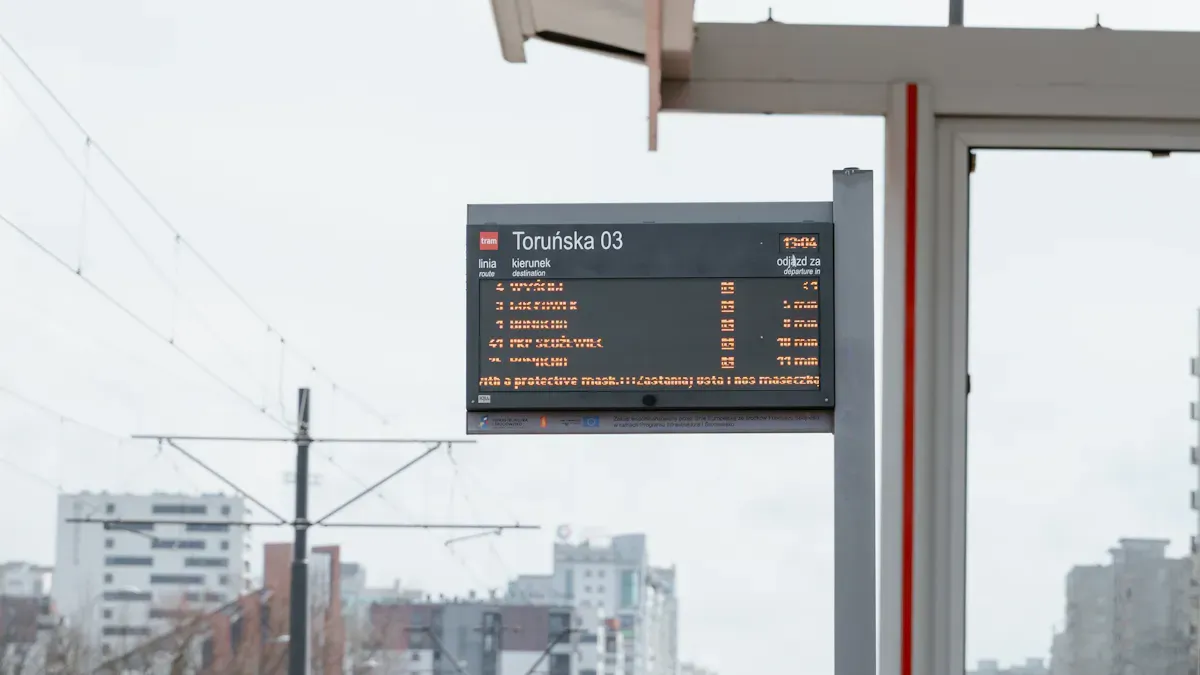
When you think about digital signage for your business, you have many hardware choices to consider. Each one has its advantages and disadvantages. For example:
Retail businesses account for 40% of the digital signage market, and nearly 94% of stores utilize some form of digital signage.
Video walls, kiosks, and digital posters are commonly found in airports, lobbies, and retail environments.
Choosing the right hardware is crucial. A smart choice can encourage people to buy more, speed up service, and enhance brand recall. The table below illustrates how your hardware choice can impact your results:
Impact of Digital Signage | Description |
|---|---|
Increase in Purchases | Quick ads prompt immediate purchases. |
Enhanced Service Efficiency | Reduces wait times and increases customer satisfaction. |
Improved Brand Recall | Engages customers, leading to better brand recognition. |
AI-driven Personalization | Tailors messages to individual preferences, boosting marketing results by 10-30%. |
By discussing digital signage hardware choices, you can determine what works best for you and achieve optimal results.
Key Takeaways
Pick digital signage hardware that matches your business needs and budget. This helps you get better results.
Digital signage players work well for flexible setups. They can control many screens at once.
SoC displays are a cheaper choice for simple content. They are easy to install quickly.
Commercial displays last longer and are strong. They can be used in busy places and are a good investment.
Touchscreen displays let customers interact more. Video walls look amazing in big spaces.
What Is Digital Signage?

Definition And Purpose
You see digital signage almost everywhere. It is a screen that shows videos or pictures. Businesses use it to give information, show ads, or entertain people. You can change what is on the screen right away. You do not have to be near the sign to do this. This is not like old signs, which stay the same until you take them down.
There are two main kinds of digital signage systems. Some work by themselves. Others connect to a network. Networked systems use a central content management system (CMS). You can update many screens at the same time. This helps keep your messages new and the same everywhere.
Digital signage has many uses in businesses. Here is a quick list of what it can do for you:
Purpose | Description |
|---|---|
Communication at scale | You can show clear messages to lots of people at once. |
Instant content updates | You can change what is shown fast without printing new signs. |
Consistent messaging | You keep your message the same in every place. |
Improved visibility | You get people’s attention faster than with regular signs. |
Reduced long-term costs | You save money because you do not need to print signs often. |
Enhanced brand perception | You make your business look modern and professional. |
Operational efficiency | You can manage information easily in many places. |
Revenue opportunities | You can make more money by showing ads and products. |
Video
Paste the video link you want to display.
Insert from URL
Common Use Cases
You can find digital signage in lots of places. Each way it is used helps with a different need. Here are some common ways people use it:
Use Case Type | Best For | Common Locations |
|---|---|---|
Menu Boards | Showing food, drinks, prices, and deals | Restaurants, cafés, food courts, lobbies |
Corporate Dashboards | Keeping workers informed and on the same page | Offices, warehouses, break rooms |
Advertising and Environmental Displays | Getting attention and showing products | Stores, malls, hotels, gyms, lobbies |
Interactive Digital Signage | Helping people find their way or help themselves | Airports, clinics, stores |
💡 Tip: Picking the right digital signage helps your messages get noticed and reach more people.
Main Hardware Options
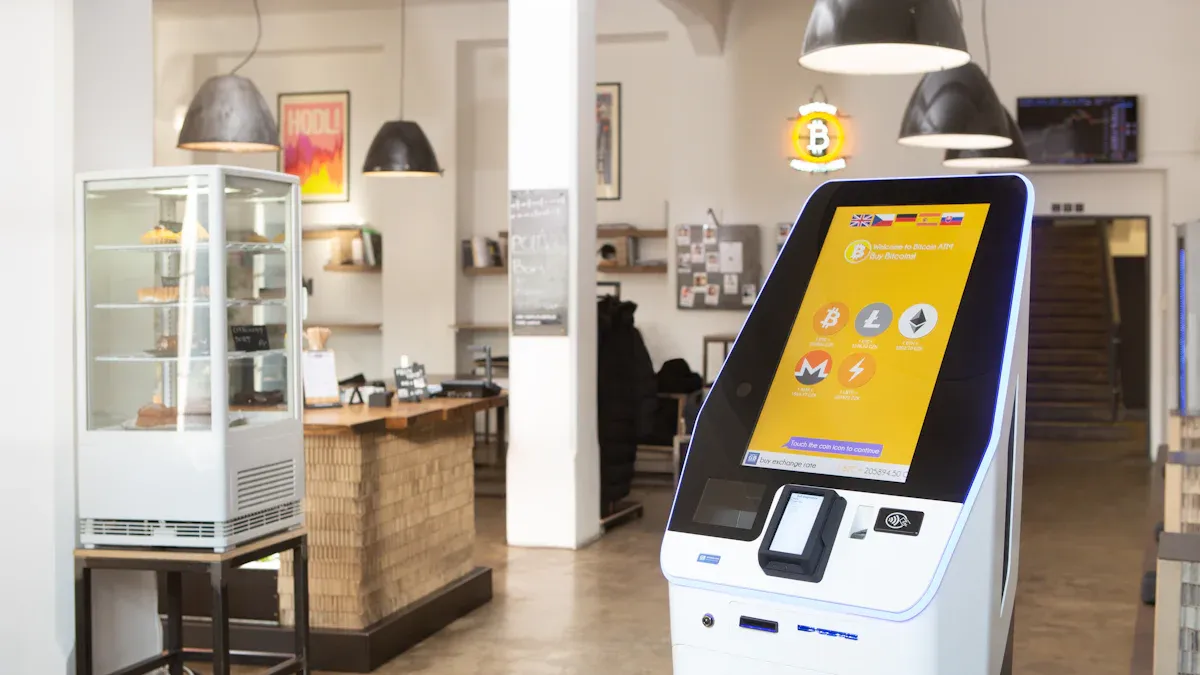
Digital Signage Players
Digital signage players help you show things on screens. These devices can be cheap or expensive. Some are built strong and stay cool. They do not use much power. Many can run more than one screen. They show clear pictures and work fast. You can connect them with Wi-Fi, Ethernet, HDMI, or USB. Some use Power over Ethernet, so one cable does everything.
Category Type | Description |
|---|---|
Entry level commercial media players | Basic players for business use ($100-$200) |
Mid-range commercial media devices | Good for most business needs ($200-$400) |
High-end digital signage devices | Best for advanced needs ($400+) |
Tip: Pick a player that fits your content and how many screens you want.
System-on-a-Chip (SoC) Displays
SoC displays have a media player inside. You do not need extra devices. They are simple to set up and cost less money. They are good for easy content and work well most of the time. But they might not work as well for hard jobs or lots of screens.
Feature | SoC Devices | Traditional Players |
|---|---|---|
Performance | Good for basic content | Best for demanding content |
Cost | Lower | Higher |
Flexibility | Limited | Very flexible |
Commercial Displays
Commercial displays are made for businesses. They can run for 16 hours each day. They use strong parts and last longer. You get a longer warranty, about 2 to 3 years. These screens work well in tough places and last longer than home screens.
Type | Warranty Duration | Operational Hours | Construction Quality |
|---|---|---|---|
Commercial Displays | 2-3 years | 16 hours/day | Superior-quality parts |
Consumer Displays
Consumer displays are cheaper but made for homes. They usually run for 6 to 8 hours a day. They use normal parts and have a short warranty, about one year. These screens can break if you use them all day at work.
Not made for long use
Do not last as long
Touchscreen Displays
Touchscreen displays let people touch and use the screen. You can use them to find your way, look at products, or help yourself. They make customers happier and waiting feels shorter. People can use them at their own speed.
Help people like your brand more
Let customers do things themselves
Video Walls
Video walls use many screens to make one big picture. You need special mounts and a strong wall. Indoor video walls need tiny pixels and quiet fans. Outdoor video walls need bright screens and must handle weather. You need to plan for repairs and sometimes check the wall strength.
Need experts to set up
Must think about sun, weather, and weight
Look great in big places
Pros And Cons Of Each Option
Digital Signage Players: Pros & Cons
Digital signage players are strong and flexible. You can use them with many screens. It is easy to control what shows on each screen. These devices have special operating systems for digital signage. They work better than normal computers. You get more ways to connect to the internet or other devices.
Pros:
They work well and do not break often.
You can show different things on each screen.
You can connect many displays at once.
They are light and easy to move.
They save energy.
Cons:
They cost more at first than some other choices.
You might need help from someone who knows technology.
If you have a lot of devices, it can be hard to keep them working.
Some models do not show very clear pictures.
Tip: Clean and check your devices often. This stops them from getting too hot or breaking. Cheap players can freeze or slow down. Pick good hardware for smooth use.
Advantages | Disadvantages |
|---|---|
Cheaper than PCs | Cost more at first |
Light and easy to move | Need tech skills sometimes |
Made for digital signage | Harder to take care of many devices |
Save energy | May not show super clear pictures |
SoC Displays: Pros & Cons
SoC displays put the screen and player together. You do not need extra parts. This makes setting up fast and simple. They use less power and have fewer things that can break.
Pros:
All-in-one means less stuff to buy.
You can set them up quickly.
Fewer parts means they break less.
They save money because they use less power.
Cons:
They are not as strong for hard or interactive jobs.
They may not work with all software.
Upgrading or adding more can be harder and cost more.
Evidence Description | Cost Impact |
|---|---|
SoC displays do not need outside players, so they are simpler and cheaper. | |
You only need a power cord to set them up. | Makes installation cheaper |
The built-in player means you do not buy more hardware. | No extra hardware costs |
They can use built-in software, so you pay less for licenses. | Software costs go down |
Fixing them is easier, so you pay less for repairs. | Maintenance costs are lower |
SoC displays save 48% on total cost compared to old ways. | Big cost savings |
They last three times longer than outside players. | You do not replace them as much |
Note: SoC displays are best for simple jobs and fast setups. If you want more features or a bigger network, check if SoC can do what you need.
Commercial Displays: Pros & Cons
Commercial displays are made for business. You can use them all day. They last longer and have better help if something goes wrong. These screens are strong and can handle dust and water.
Pros:
You can use them all day and night.
The picture looks bright and clear.
You get better help and a longer warranty.
They have cool features like remote control and touch.
They use less power for long use.
Cons:
They cost more than home screens.
You might need a pro to set them up.
They are heavy and not easy to move.
Feature | Commercial Displays | Consumer Displays |
|---|---|---|
Reliability | Made for all-day use, always works well | Made for short use, can get too hot |
Durability | Strong parts, safe from dust and water | Normal parts, not good for tough places |
Image Quality | Very clear and bright pictures | Not as good for business use |
Energy Efficiency | Saves power for long use | Not made to save power all day |
Advanced Features | Has media player, touch, remote control | Only basic features |
Tip: Commercial displays cost more at first, but you save money later. They last longer and do not break as much.
Consumer Displays: Pros & Cons
Consumer displays are cheaper and easy to buy. They seem like a good deal, but they have problems. These screens are for homes, not busy places.
Pros:
They cost less to buy.
You can find and replace them easily.
Good for short use or places with few people.
Cons:
They do not last long in busy places.
You get less help and a short warranty.
They are not made to run all day and can break.
You need to fix them more in busy spots.
They can be unsafe if not set up right.
Type of Display | Size | Price Range |
|---|---|---|
Commercial-grade | 55-inch | $800 - $2,500+ |
Consumer-grade | 55-inch | $400 - $1,500 |
Note: Consumer TVs are cheap, but you might pay more later. You may need to buy new ones or fix them a lot.
Touchscreens: Pros & Cons
Touchscreen displays let people use the screen. You can use them for maps, info, or self-help. They make your business look cool and help customers faster.
Pros:
People like using them.
You can do many things, like find your way or shop.
They make customers happy and like your brand.
Cons:
They cost more and are harder to set up.
You must clean them often, especially in busy places.
They can break or have tech problems.
Advantages | Disadvantages |
|---|---|
Fun for users | Cost more and need cleaning |
Good for many jobs | Harder to set up |
Make customers happy | Can break or have tech issues |
Tip: Clean touchscreens every day with a soft cloth. Turn them off before deep cleaning so you do not touch things by mistake.
Video Walls: Pros & Cons
Video walls use many screens to make one big display. You can show huge, bright pictures that get attention. They are great for big rooms and important shows.
Pros:
The picture looks smooth and covers a big area.
The screen is bright and clear for lots of people.
You can show many things at once.
You can make them big or small.
They make your brand stand out and people notice.
Cons:
They cost a lot to buy and set up.
You need experts to put them together and fix them.
It is harder to control what shows on them.
They use more power.
You need a lot of space to put them up.
Pros of Video Walls | Cons of Video Walls |
|---|---|
Big, smooth picture | Cost more to buy and set up |
Good for big crowds | Need experts to install and fix |
Show many things at once | Harder to control content |
Very clear and bright | Use more power than one screen |
Look good in any light | Need lots of space |
Make your brand stand out | Need special software and tools |
Note: Video walls need special mounts and strong processors. They cost more, but they look amazing and get lots of attention.
Comparing Digital Signage Hardware
Quick Comparison Table
The table below shows how each digital signage hardware is different. This makes it easier to pick what works best for you.
Hardware Type | Best Use Case | Pros | Cons | Cost Range |
|---|---|---|---|---|
Digital Signage Player | Multi-screen setups | Flexible, reliable | Higher upfront cost | $100-$400+ |
SoC Display | Simple, single screens | Easy setup, low cost | Limited features | $300-$1,200 |
Commercial Display | Busy environments | Durable, long warranty | Heavy, expensive | $800-$2,500+ |
Consumer Display | Low-traffic areas | Cheap, easy to replace | Short lifespan, less support | $400-$1,500 |
Touchscreen Display | Interactive kiosks | Engaging, user-friendly | Needs cleaning, costly | $500-$3,000+ |
Video Wall | Large spaces | High impact, scalable | Complex install, pricey | $3,000+ |
Tip: Use this table to compare your choices fast when talking about digital signage.
Key Takeaways
Pick hardware that matches what your business wants and what you want to show.
Digital signage players are good for many screens and work well.
SoC displays are best for simple jobs and help you save money.
Commercial displays last a long time and can handle busy places.
Consumer displays are cheaper but do not last as long and have less help.
Touchscreen displays let people touch the screen and have fun, but you need to clean them a lot.
Video walls stand out in big rooms, but they cost more and need experts to set up.
Remember: The right hardware makes your digital signage work better and saves you money in the long run.
Discussing Digital Signage: Choosing The Right Hardware
Budget And Cost Factors
When you start discussing digital signage, you need to look at your budget. Hardware prices can change a lot. For example, a standard indoor display costs between $800 and $2,500. Outdoor displays can cost $4,000 or more. Touch-enabled screens add $1,000 to $3,000 per screen. Media players range from $200 to $1,200. Installation also adds to your costs. A basic wall mount costs $300 to $800, but custom installs can go over $3,000.
Hardware Type | Price Range |
|---|---|
Standard indoor displays | $800–$2,500+ |
Outdoor-rated displays | $4,000–$10,000+ |
Touch-enabled displays | +$1,000–$3,000 |
External media players | $200–$1,200+ |
If you pick the wrong hardware, you may spend more later on repairs or upgrades. Plan your budget with both short-term and long-term costs in mind.
Content And Performance Needs
Think about what you want to show on your screens. If you want to play videos or animations, you need strong media players. For simple messages or images, basic hardware works fine. High-traffic areas need bright screens. If you want to show detailed art or data, pick high-resolution displays.
Videos and animations need powerful hardware.
Simple messages work on basic screens.
Bright places need high-brightness displays.
Detailed content looks best on high-res screens.
Choosing the wrong hardware can make your content look bad or not work at all.
Installation And Environment
Where you put your digital signage matters. Wet or hot places need special displays. Public spaces need tough screens that can handle bumps or damage. Sunlight can make screens hard to see, so you may need brighter displays.
Environmental Factor | Description |
|---|---|
Water and Moisture | |
Heat Management | Pick hardware tested for high temperatures. |
Accidental Damage | Choose strong displays for public spaces. |
You should also check local rules before installing. If you ignore these factors, your screens may break or not last long.
Scalability And Future-Proofing
When discussing digital signage, think about the future. Pick hardware that can grow with your business. Choose modular systems that let you add more screens or upgrade parts. Make sure your hardware works with new technology.
Best Practice | Description |
|---|---|
Use displays that work with your CMS and run 24/7. | |
Select Reliable Media Players | Make sure they can handle your content and connect to your system. |
Plan for Future Expansion | Pick systems that let you add more screens or locations easily. |
If you do not plan for growth, you may need to replace everything later. This costs more and takes more time.
Tip: Always think ahead when discussing digital signage. The right choice now saves money and trouble later.
Common Mistakes To Avoid
Compatibility Issues
Trying to save money by using different brands can cause trouble. Some screens and media players do not work well together. Your content might not show up right. Sometimes, software updates can break your system. Always check if your hardware and software work together before buying. Pick displays and players that use the same formats and tools. Old software can cause security risks and miss new features. Use modern, cloud-based platforms for better results.
Tip: Write down all devices and software you want to use. Make sure they work together before you set up anything.
Underestimating Total Cost
Buying the cheapest hardware may seem smart, but it can cost more later. Cheap or weak devices can freeze or stop working. You might have to replace them sooner. Do not forget about the cost of setup, mounts, and cables. Touchscreens and outdoor displays are more expensive. Repairs and upgrades add up over time. Plan for what you pay now and what you will spend later.
Good, commercial-grade media players last longer.
Quality hardware means less downtime and fewer repairs.
Plan for setup, software, and future upgrades.
Note: Spending more at first can save you money later.
Ignoring Maintenance
You cannot just set up digital signage and leave it alone. Dust, heat, and heavy use can hurt your screens and players. If you skip cleaning and checks, your system may slow down or stop. Make a schedule to clean and check all hardware. Clean screens and fans often. Update your software to keep things safe. This keeps your displays bright and your content working well.
Regular care stops breakdowns.
Cleaning helps your hardware last longer.
Software updates keep your system safe.
🛠️ Keep a log of cleaning and repairs. This helps you find problems early and avoid big issues.
Decision Guide For Different Scenarios
Small Business Solutions
You may run a small shop, café, or local office. You want digital signage that is easy to use and does not cost too much. SoC displays work well for you. These screens have built-in players. You do not need extra devices or cables. You can set them up fast. If you want to save even more, you can use a consumer display for short hours. Pick a simple media player if you want to show videos or slides.
Tip: Start small. You can add more screens as your business grows.
Best Choices for Small Business:
SoC displays for easy setup
Entry-level media players for basic content
Consumer displays for low-traffic spots
Enterprise Solutions
Large companies need strong and flexible systems. You may have many locations or want to show different things on each screen. Commercial displays and high-end digital signage players work best for you. These options last longer and handle heavy use. You can control all screens from one place. Video walls help you make a big impact in lobbies or meeting rooms.
Hardware Type | Why Choose It? |
|---|---|
Commercial Displays | Reliable for long hours |
High-End Players | Manage many screens easily |
Video Walls | Impress in large spaces |
Note: When discussing digital signage for enterprises, plan for future growth and easy upgrades.
Interactive And High-Impact Needs
You may want to grab attention or let people interact with your screens. Touchscreen displays help customers find information or shop by themselves. Video walls create a wow effect in big spaces like malls or airports. Choose hardware that supports touch and high brightness. Make sure your system can handle many users at once.
Touchscreens for self-service and wayfinding
Video walls for events and large crowds
Bright, durable displays for outdoor or busy areas
Remember: Good planning helps you get the most from your digital signage investment.
You have many digital signage hardware options. Each one has strengths and weaknesses.
Digital signage players work well for flexible setups.
SoC displays save money and time for simple needs.
Commercial displays last longer in busy places.
Consumer displays fit small budgets but break faster.
Touchscreens and video walls create impact but cost more.
Shenzhen TopAdkiosk Display Technology Co., Ltd.
Add.: 2F, Bldg 10, Changfeng Industrial Park, Dongkeng, Fenghuang, Guangming, Shenzhen, China 518132
Mobile/WHATSAPP: 86-138 25769658
Email: marketing@topadkiosk.com topadkiosk@gmail.com
Take time to match your hardware to your goals. The right choice helps your business grow and saves money over time.
Digital signage can be fully customized across hardware, software, content, interactivity, and system integration to align with a business’s brand, industry, location, audience, and operational goals. Below is a structured breakdown of key customization methods:
1. Hardware Customization (Physical & Environmental Fit)
Display Form & Size
Standard screens (wall-mounted, freestanding) or custom shapes: circular, curved, rectangular, ultra-wide, or even 3D/irregular panels.
Any size: from small desk displays to large video walls.
Enclosure & Aesthetics
Custom materials, colors, finishes (metal, wood, matte/gloss) to match brand interiors.
Branded logos, bezels, or hidden integration into furniture/walls.
Environmental & Durability
Outdoor: high-brightness (sunlight-readable), waterproof, dustproof, temperature-resistant.
Industrial: 24/7 rated, shock/vibration proof, vandal-resistant.
Peripherals Integration
Add touchscreens, cameras, sensors (motion/heat), microphones, speakers, NFC/RFID readers, QR scanners, printers.
2. Software & CMS Customization (Control & Functionality)
Branded UI/UX
Custom back-end dashboard for staff (matching company colors, logos, workflows).
Custom front-end templates/layouts for displays.
Role-Based & Group Management
Multi-level permissions (e.g., headquarters vs. store managers).
Zone/group scheduling: different content per screen/location/time.
API & System Integration
Connect to POS, CRM, inventory, ERP, reservation systems, social media, live data feeds (weather, stocks, queues).
Sync with mobile apps, Wi-Fi analytics, or loyalty programs.
Automation & Rules
Time-based triggers (breakfast/lunch menus, holiday sales).
Sensor-based triggers (motion, occupancy, time of day).
AI-driven dynamic content (audience demographics, real-time promotions).
3. Content Customization (Brand & Audience Targeting)
Brand Identity
Strictly follow brand colors, fonts, logos, tone (luxury, casual, tech, family-friendly).
Custom templates for promotions, menus, announcements.
Audience & Context Targeting
Demographic-based: content by age/gender (via cameras/analytics).
Location-based: floor-specific promotions in malls, regional offers.
Behavioral: personalized recommendations based on past interactions.
Media Types
Mix videos, images, live TV, social walls, countdowns, tickers, 3D models, interactive apps.
4. Industry-Specific Custom Solutions
Retail: interactive kiosks, digital menus, price tags, fitting-room mirrors, queue displays.
Restaurants: timed menus, kitchen display integration, loyalty offers.
Corporate: meeting room booking, internal comms, KPI dashboards.
Hospitality: hotel directories, concierge, event schedules.
Healthcare: patient check-in, wait times, clinical displays.
Transportation: timetables, gate changes, wayfinding.
5. Interactive & Smart Customization
Touch, Gesture, Voice
Self-service: product lookup, ordering, check-in.
Games, quizzes, AR experiences.
Mobile Sync
QR codes for coupons, app downloads, sign-ups.
Beacon/LBS for proximity offers.
Analytics & Feedback
Track views, interactions, dwell time; optimize content.
6. Deployment & Maintenance Customization
Network: cloud, on-prem, hybrid, PoE, wireless.
Remote control: bulk updates, monitoring, troubleshooting.
Scalability: grow from 1 to 1,000+ screens.
Summary
Customization lets businesses turn digital signage from a generic screen into a tailored tool that:
Reflects brand identity
Fits physical environment
Delivers relevant content
Integrates with operations
Boosts engagement and ROI
Would you like a 1-page checklist for planning a custom digital signage project?
quick creator
Digital Signage Customization (Quick Version)
Digital signage can be fully customized to meet a business’s unique needs in these key ways:
Brand matching
Use company colors, logos, fonts and visual style to keep a consistent look.
Content tailored by audience & time
Show different messages for different locations, times of day, or customer groups.
Industry-specific layouts
Menus for restaurants, schedules for hotels, dashboards for offices, promotions for retail.
Hardware fit
Choose screen size, shape, touchscreens, outdoor/indoor type, and custom enclosures.
System integration
Connect to POS, inventory, CRM, social media, live data (weather, queues, prices).
Interactive features
Add touch, QR codes, wayfinding, self-service, or feedback tools.
Remote & scheduled control
Automate when and what plays across multiple screens from one dashboard.


Shenzhen TopAdkiosk Display Technology Co., Ltd.
Add.: 2F, Bldg 10, Changfeng Industrial Park, Dongkeng, Fenghuang, Guangming, Shenzhen, China 518132
Mobile/WHATSAPP: 86-138 25769658
Email: marketing@topadkiosk.com topadkiosk@gmail.com
Skype: pghenry1
Wechat: adkioskhenry
English Web.: http://www.topadkiosk.com/
FAQ
What is the best digital signage hardware for a small business?
You should choose a System-on-a-Chip (SoC) display or an entry-level media player. These options cost less, set up quickly, and work well for simple content. You can upgrade later if your needs grow.
Can you use a regular TV for digital signage?
You can use a consumer TV for light use in low-traffic areas. However, it may not last long if you run it all day. Commercial displays work better for busy places and offer longer warranties.
How do you keep digital signage hardware running smoothly?
You should clean screens and fans often. Update your software when needed. Check cables and connections every month. Regular care helps your hardware last longer and keeps your content looking good.
What hardware do you need for interactive digital signage?
You need a touchscreen display and a media player that supports touch input. Make sure the hardware works with your software. Touchscreens help customers find information or shop by themselves.
How do you choose between a video wall and a single large display?
Use a video wall if you want a big, eye-catching display in a large space. Choose a single large display for smaller rooms or lower budgets. Video walls cost more and need expert setup.
See Also
Step-by-Step Guide to Setting Up Digital Signage
Top Digital Signage Players Gaining Popularity in 2026
In-Store Digital Signage Solutions: A Detailed Comparison

