Comparison of the Best Touch Screen Kiosks for 2026
Shenzhen TopAdkiosk Display Technology Co., Ltd.
Add.: 2F, Bldg 10, Changfeng Industrial Park, Dongkeng, Fenghuang, Guangming, Shenzhen, China 518132
Mobile/WHATSAPP: 86-138 25769658
Email: marketing@topadkiosk.com topadkiosk@gmail.com
Wechat: adkioskhenry
English Web.: http://www.topadkiosk.com/
https://www.topkioskdisplay.com/
http://www.ad-kiosk.com/
https://www.toplcddisplay.com/
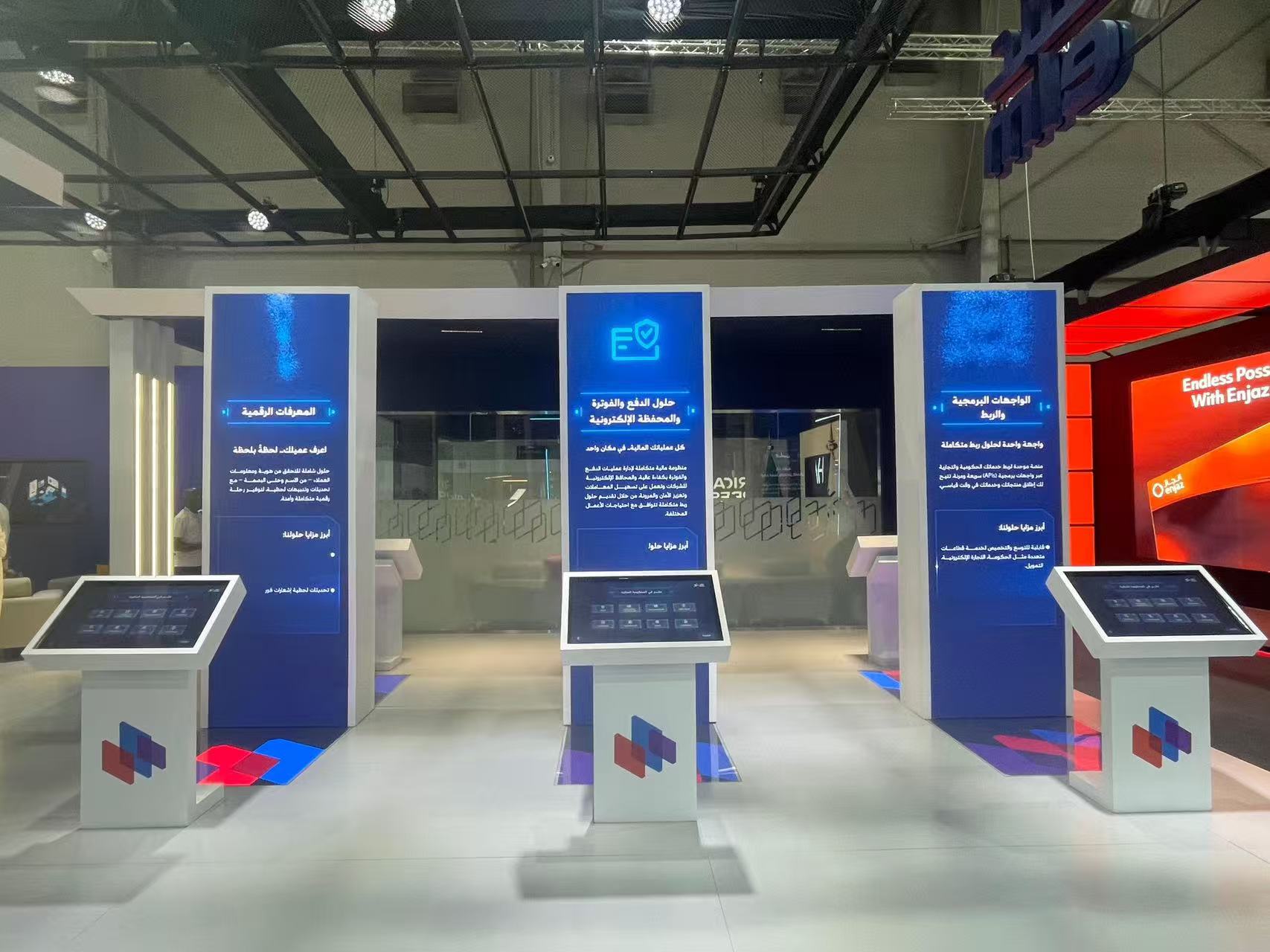
Choosing the best touch screen kiosk or interactive touchscreen kiosk software in 2026 can help your business a lot. You get better speed and more trust in your devices. You also get more people interested and make fun experiences for users in stores, hospitals, and schools. Digital kiosks make self-service easier, help people make interactive content, and give a simple interface for mobile-first use. With things like cloud-based management, digital signage, recognition displays, and wayfinding systems, your signs and interactive screens give a great user experience design. Top brands like https://www.topkioskdisplay.com/ set new rules for what interactive touchscreen kiosks can do.
Kiosks cut wait times by up to 40%. They let users look around or order when they want.
Self-service kiosks work all the time. They let staff do other jobs and help you move workers to more important tasks.
Key Takeaways
Touch screen kiosks help people wait less. They can make wait times shorter by up to 40%. This makes customers happier and helps things run smoother.
Pick kiosk hardware that works for your business. Look for strong parts, clear screens, and if it works with your software.
Choose interactive kiosk software that lets you change content from far away. It should also show you how people use the kiosk.
You need to keep kiosks working well. Train staff and fix problems often so people have a good time using them.
Think about how your kiosks can grow with your business. Make sure they work with what you already have. This will help your kiosks last longer and make work easier.
Top Touch Screen Kiosk Solutions 2026
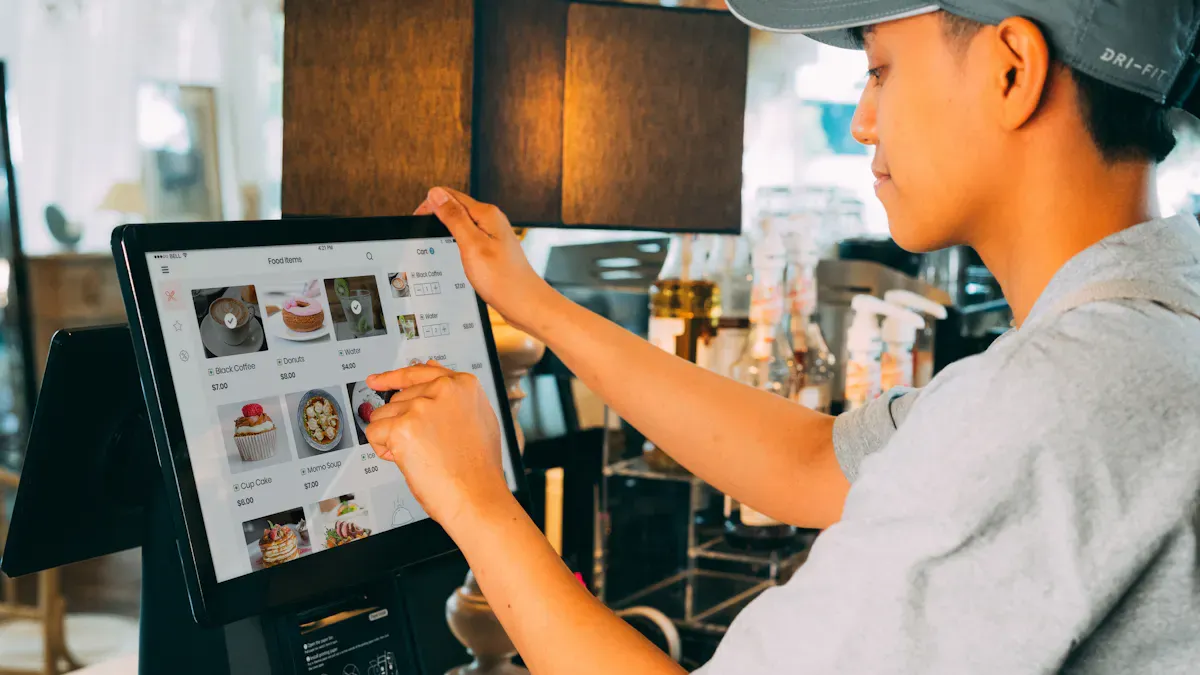
Leading Kiosk Hardware Brands
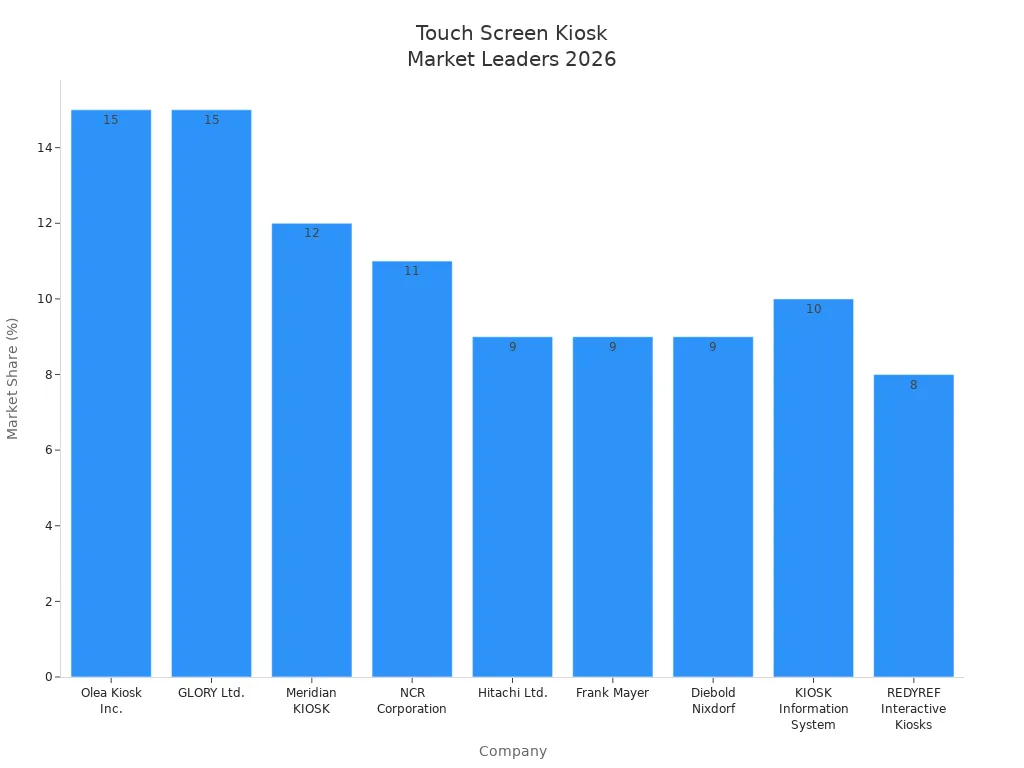
You want a kiosk that works well and lasts long. In 2026, some companies are the top choices for interactive touchscreen kiosk hardware. The table below lists the best brands and how much of the market they have:
Company | Market Share |
|---|---|
Olea Kiosk Inc. | 15% |
GLORY Ltd. | 15% |
Meridian KIOSK | 12% |
NCR Corporation | 11% |
Hitachi Ltd. | 9% |
Frank Mayer | 9% |
Diebold Nixdorf | 9% |
KIOSK Information System | 10% |
REDYREF Interactive Kiosks | 8% |
You can also check out brands that get good reviews for their digital kiosk features. These brands are:
DynaTouch: Makes safe public access kiosks for the military.
Jassway: Sells touch POS terminals in Europe and America.
Acrelec: Works on customer experience in stores and restaurants.
KIOSK: Has made custom self-service kiosks since 1993.
LamasaTech: Wins awards for digital engagement and new ideas.
Tip: Pick kiosk hardware that fits your business. Think about how tough it is, how clear the display looks, and if it works with interactive touchscreen kiosk software.
Best Interactive Touchscreen Kiosk Software
You need interactive touchscreen kiosk software that is simple to use and easy to control. The best touchscreen kiosk software in 2026 helps you manage content, keeps things safe, and works with many devices. You can choose software that helps you do things like:
Make digital menus or directories for stores and hotels.
Run interactive touchscreen kiosk content for schools or hospitals.
Control digital signs and wayfinding with cloud-based touchscreen kiosk software.
You get more when you pick interactive touchscreen kiosk software that lets you update content from far away, see how people use it, and use different types of digital media. Find touchscreen kiosk software that matches your hardware and grows with your business. This helps you give fun digital experiences and make your interactive touchscreen kiosk better.
What Makes a Quality Interactive Touchscreen Kiosk
A touch screen kiosk is a machine you use by touching the screen. You can find these machines in malls, airports, hospitals, and schools. The screen reacts when you touch it. You can get info, order things, or check in without asking staff for help. Most kiosks have special software and hardware to make things easy and safe for you.
Essential Features and Performance
When you pick a good interactive touchscreen kiosk, you want it simple and dependable. Experts say you should look for these important things:
Easy navigation so you do not get lost.
User testing often to find problems and make it better.
Good spot with bright lights and easy for all to reach.
Safe mounting and tidy cables.
Parts that stop people from breaking or stealing them.
Strong safety for your data and the network.
Training for workers to handle content and fix problems.
Instructions to help keep the kiosk working well.
Follows safety and quality rules like ISO and UL.
How well the kiosk works is important too. Here is how top brands do:
Brand | Key Features | Performance Metrics |
|---|---|---|
KIOSK Information Systems | Custom cases, printers, tough against damage | 22% more ticket sales, 15% ROI in first year |
Elo Touch Solutions | Accurate touch, parts you can swap | 20% faster use, 18% more people using it |
NCR | Scanners, ways to pay, loyalty programs | 35% less work for staff, 25% faster buying |
Diebold Nixdorf | Many ways to pay, RFID, strong against weather | 99% success in sales, 40% shorter lines |
Tip: Put your kiosk where lots of people walk and make sure anyone can use it, no matter their height.
Durability and Lifespan
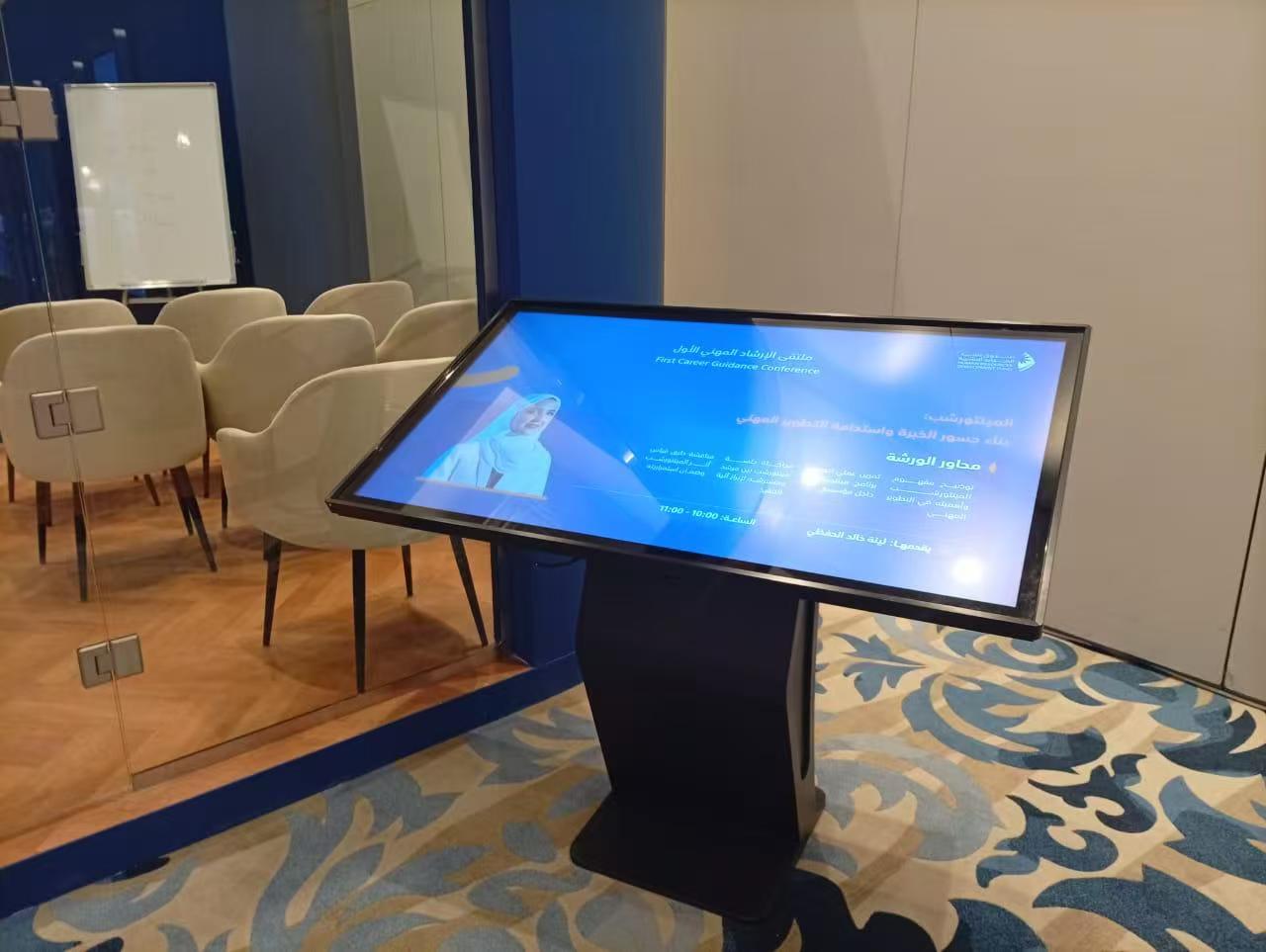
You want your kiosk to last a long time. Most touch screen kiosks work well for five to seven years or more. You can make them last longer if you buy from trusted makers and follow care tips. Pick kiosks with strong cases and weather shields if you use them outside. Tamper-resistant parts also keep your kiosk safe.
Note: Choosing a kiosk that follows industry rules helps you save money on repairs and keeps your business working well.
Kiosk Comparison: Hardware and Software
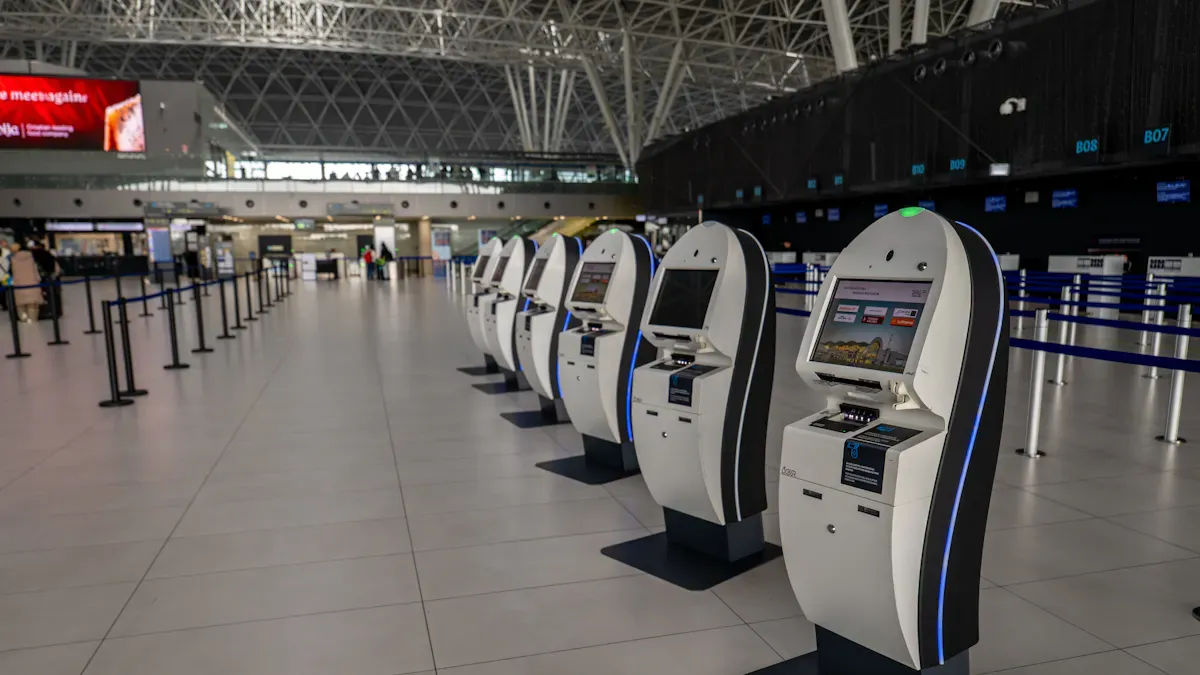
Picking the right interactive touchscreen kiosk and touchscreen kiosk software helps your business do better. You need to check both hardware and software to get good results. The review below shows top brands and software side by side. This helps you find what fits your needs.
KIOSK Information Systems
KIOSK Information Systems makes strong hardware for many jobs. Their kiosks work for ticketing, stores, and self-service info. Their interactive touchscreen kiosk hardware is known for custom cases and tough builds. You get printers, scanners, and payment tools that work together.
Strengths:
Custom designs for your company
Strong cases for busy places
Works with many add-ons
Ideal Use Cases:
Selling tickets at events
Store checkout
Airports and bus stations
Limitations:
Custom builds can take more time
Extra features cost more
Unique Features:
Tamper-resistant parts
Easy to use with interactive touchscreen kiosk software
Olea Kiosks
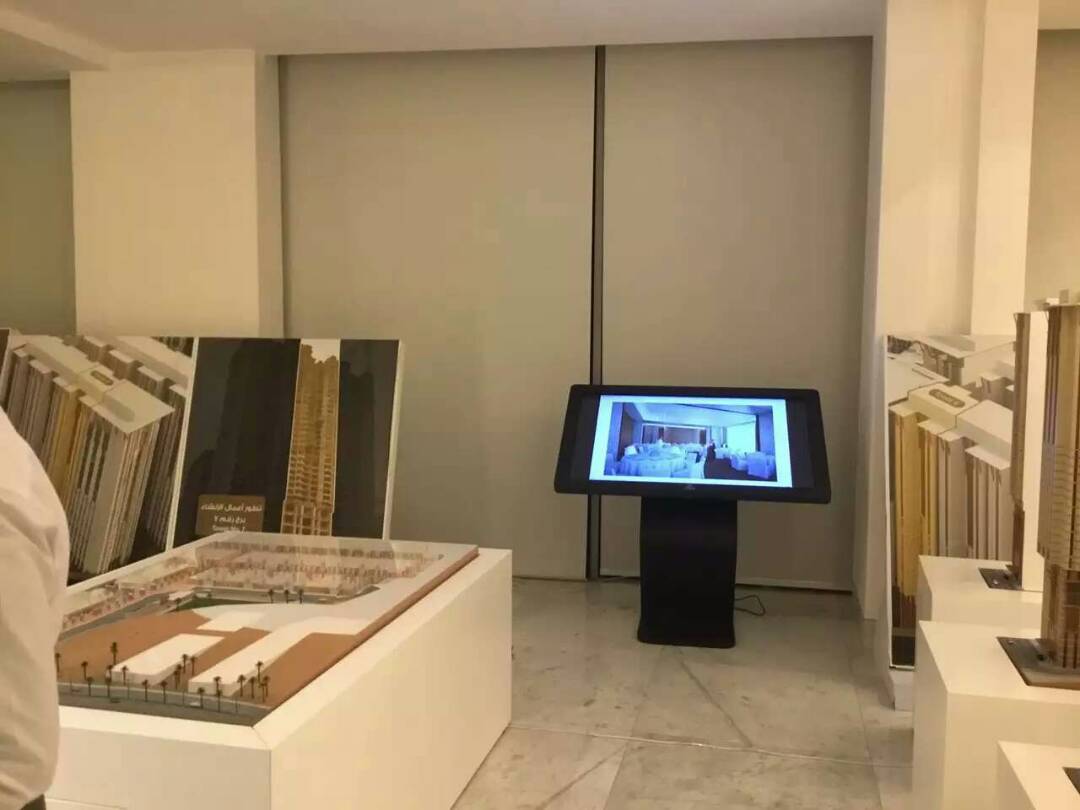
Olea Kiosks makes flexible interactive touchscreen kiosk solutions for many places. You see their kiosks in hospitals, government offices, casinos, and stores. They help with patient check-in, wayfinding, and food orders. Their recognition displays help users find what they need.
Industry | Unique Features/Applications |
|---|---|
Healthcare | |
Government | Self-service kiosks for different uses |
Financial Services | Bill payment kiosks |
Casinos & Resorts | Hotel check-in, Food ordering, Wayfinding |
Movie Cinemas | Ticketing, Food ordering |
Theme Parks | Ticketing, Food ordering, Wayfinding |
Retail | Ticketing, Food ordering, Wayfinding |
Strengths:
Many ways to use them
Easy-to-use recognition displays
Trusted in busy places
Limitations:
Some models need extra setup for special jobs
Unique Features:
Focus on interactive displays for self-service info
Pyramid Computer
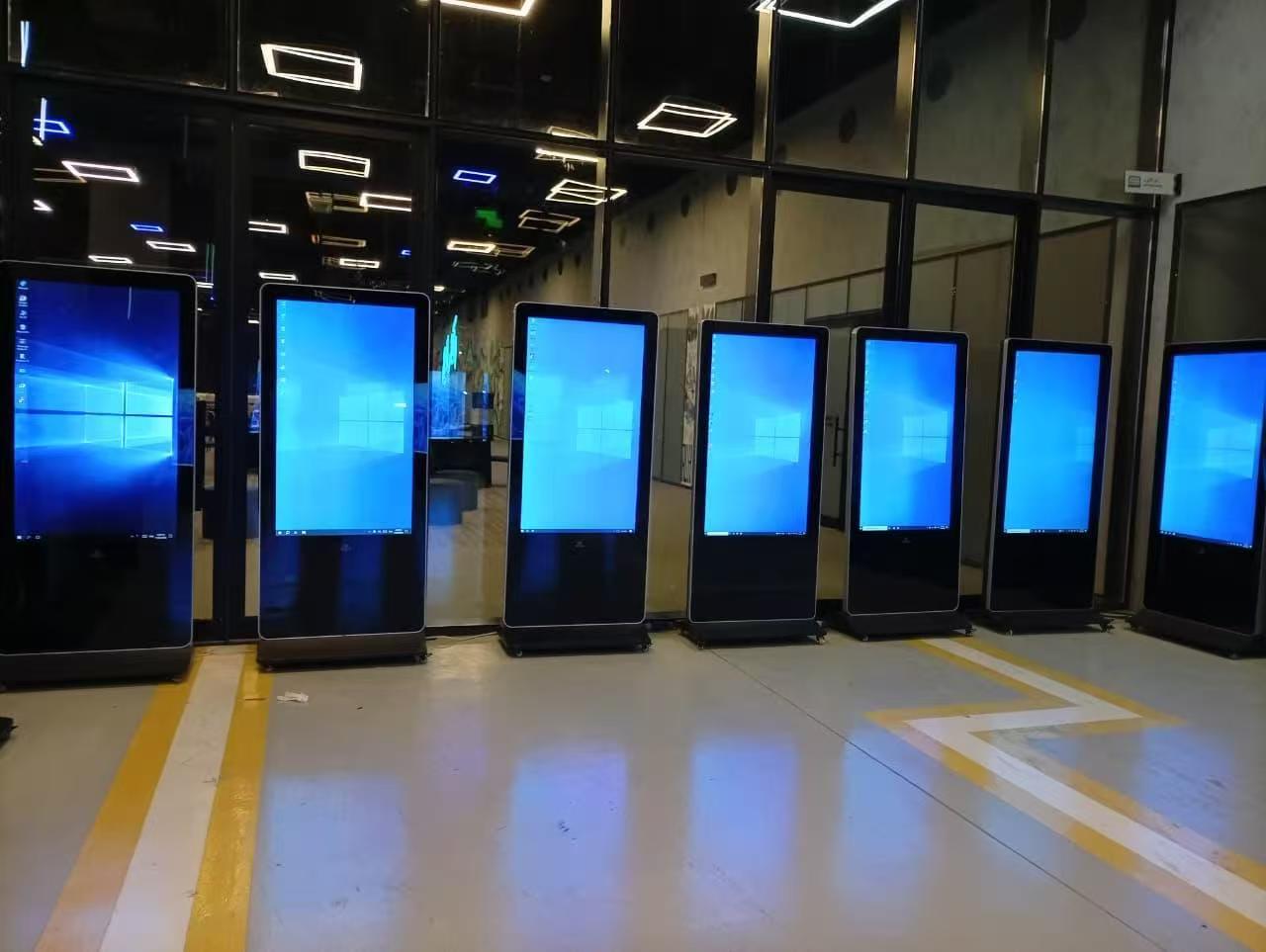
Pyramid Computer makes interactive touchscreen kiosk hardware for stores and hotels. Their kiosks look modern and work well. The hardware is fast and gives a smooth user experience.
Strengths:
Modern look for digital spaces
Fast for busy places
Good for interactive touchscreen kiosk software
Ideal Use Cases:
Quick-service restaurants
Hotel check-in
Store product finders
Limitations:
Not as many custom options as others
Unique Features:
Surfaces are easy to clean
Made for lots of use
Intuiface
Intuiface gives you touchscreen kiosk software for interactive displays. You can use drag-and-drop tools to make custom experiences. It supports multi-touch and works on many devices. You get analytics to see how people use your kiosks.
Usability Features | Customization Features | Limitations |
|---|---|---|
Drag-and-drop design tools | Needs more work for special designs | Takes time to learn |
Use Case | Description |
|---|---|
Content Flexibility | You can make interactive experiences with many media types. |
Technical Support | You get same-day help, guides, and training. |
Interconnectivity | You can control interactive parts over networks for better recognition displays. |
Strengths:
Good analytics and support
Works with many hardware types
Limitations:
Takes time to learn
Some features cost extra
Unique Features:
Advanced interactivity for recognition displays
OptiSigns
OptiSigns is a digital signage platform for interactive touchscreen kiosk software. You get over 140 app integrations and ready-made templates. Cloud management lets you update content from anywhere.
Usability Features | Customization Features | Limitations |
|---|---|---|
App integrations with 140+ apps | Not as customizable as other platforms | Mostly for content display |
Easy to connect with your digital signage systems.
Real-time data helps you make quick changes.
You save money by using your current systems.
Strengths:
Easy to set up and manage
Good for showing digital content
Works with many apps
Limitations:
Few analytics
Not made for deep interactivity
Unique Features:
Fast integration with digital signage and recognition displays
Google Slides
Google Slides is a simple choice for touchscreen kiosk software. You can use it for basic interactive displays and presentations. It is free with Google Workspace and uses cloud storage.
Usability Features | Customization Features | Limitations |
|---|---|---|
Easy interface | Not made for touch | Not touch-ready |
Not made for touch, so links must be placed carefully.
No security, so users can exit full-screen mode.
No analytics or content management.
Hard to make it look professional.
Strengths:
Free and simple to use
Good for basic digital presentations
Limitations:
Not safe for public kiosks
Lacks advanced features for interactive touchscreen kiosk software
Unique Features:
Real-time collaboration for quick updates
SiteKiosk
SiteKiosk gives you strong security and remote control for interactive touchscreen kiosk setups. You can lock down devices and control USB ports to keep kiosks safe. SiteRemote lets you manage many kiosks from one place.
Feature | Description |
|---|---|
Advanced security lockdown | Controls USB and devices to stop unwanted access. |
Powerful remote management | Uses SiteRemote to manage many devices from one spot. |
Flexible content creation tools | Has browser isolation and scripting for custom content. |
Strengths:
High security for public kiosks
Easy remote management
Good for digital and recognition displays
Limitations:
May need tech skills to set up
Unique Features:
Browser isolation for safe web use

KioWare
KioWare is touchscreen kiosk software for big companies. You can host it on your own servers or in the cloud. It runs full-screen and blocks users from changing settings. You can connect printers, payment devices, and more.
Feature | Description |
|---|---|
Customizable Hosting Options | Host on your own servers or in the cloud. |
Full-Screen Operation | Stops access to device settings or other apps. |
Peripheral Compatibility | Works with printers and payment devices. |
Strengths:
Flexible hosting
Strong device control
Works with many add-ons
Limitations:
Setup can be hard for new users
Unique Features:
Full-screen lock for secure interactive touchscreen kiosk use
Scalefusion
Scalefusion helps you manage many devices in big groups. You can lock devices into single-app or multi-app modes. It works with Android, Windows, and iOS. You can use it for stores, hospitals, schools, and more.
Feature | Description | Application Areas |
|---|---|---|
Kiosk Mode Management | Set devices to single-app or multi-app modes. | |
Device Lockdown | Lock devices into special kiosks. | POS systems, self-service kiosks |
Multi-App Kiosk Mode | Let users use only a few apps. | Shared devices in retail, healthcare |
You can use Scalefusion for store counters, hospital workstations, school labs, and front-line jobs.
Strengths:
Easy device lockdown
Good for big groups
Works with many device types
Limitations:
May not have deep custom options for interactive touchscreen kiosk software
Unique Features:
Multi-app mode for shared interactive displays
Tip: When you compare interactive touchscreen kiosk hardware and touchscreen kiosk software, think about your business goals. Look for features that fit your needs, like security, device control, and support for recognition displays. The right mix helps you give better digital experiences and keeps your kiosks working well.
Interactive Touchscreen Kiosk Software: Content and User Experience
Content Management Capabilities
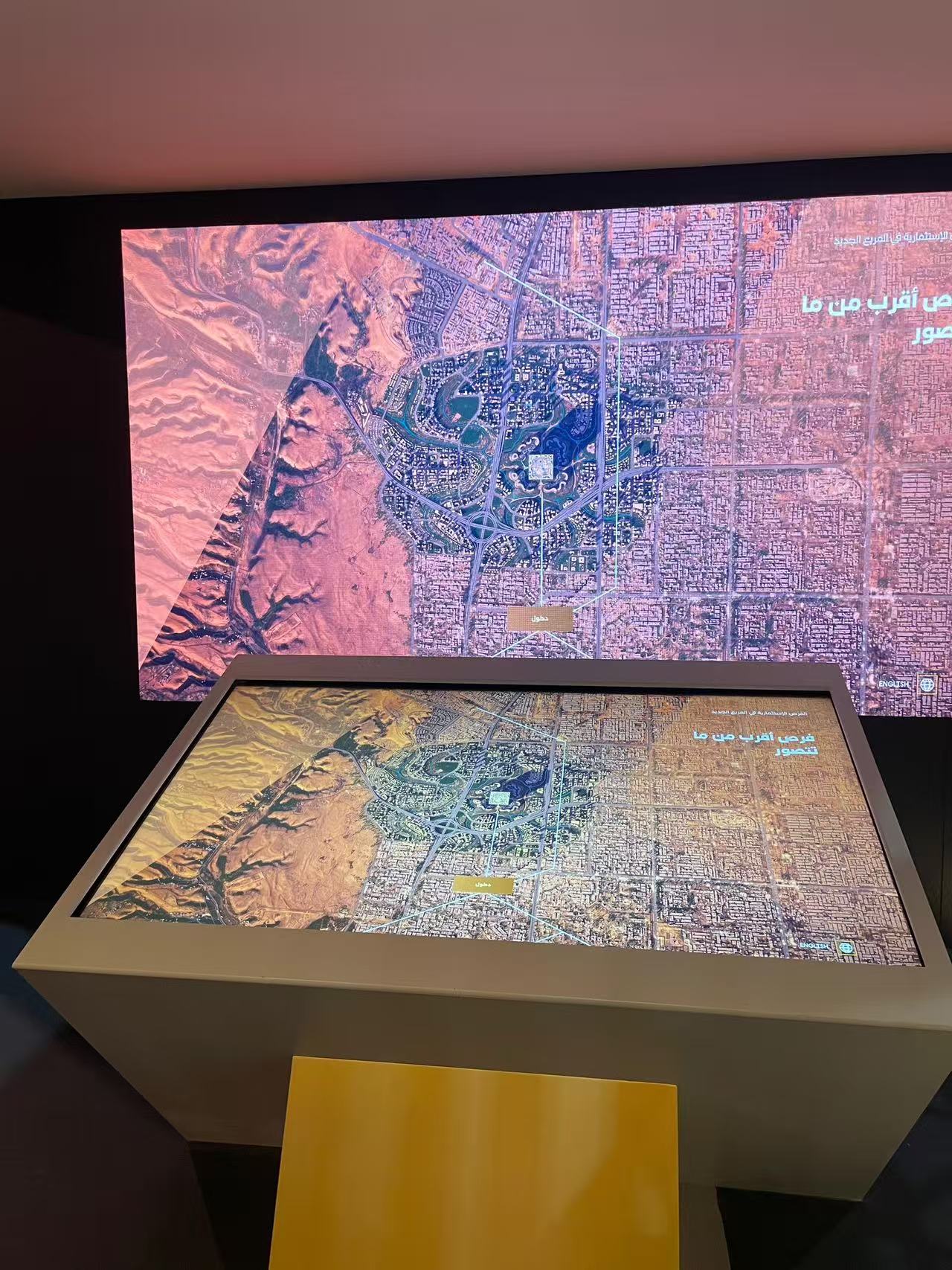
You need flexible content management to keep your interactive touchscreen kiosk software working well. The best platforms give you tools to make, change, and control interactive content without needing to be a tech expert. You can use visual editors to build displays and digital signage for your touch screen kiosk. These tools let you add cool pictures, videos, and other media. You can also plan updates and make the kiosk feel special for each user in schools, stores, and hotels.
Capability | Description |
|---|---|
Intuitive Content Creation Tools | Visual editors help you make and change content easily. |
Rich Media Support | You can use high-resolution images, videos, and interactive elements to boost user engagement. |
Dynamic Content and Personalization | Content adapts to user actions and context, creating tailored interactive experiences. |
Content Scheduling and Automation | You plan updates ahead of time, so your kiosk always shows fresh digital content. |
Version Control and Approval Workflows | Review and approve content before it goes live, keeping your interactive touchscreen kiosk accurate. |
Tip: Flexible content management helps you save time and keep your interactive touchscreen kiosk software updated. You can spend more time making fun digital experiences that fit your business needs.
Enhancing Customer Engagement
You can use interactive touchscreen kiosk software to get people more interested and happy. When you add recognition displays and interactive content, your kiosk stands out. At Hilton hotels, feedback kiosks made guests happier by 22%. At Dodger Stadium, kiosks for food made people spend 20% more. You can see how well your kiosk works by checking sales and orders. These features show how interactive touchscreen kiosk software helps your business do better.
You make displays that grab attention and keep users interested.
You use recognition displays to make each visitor’s experience special.
You check how many people use your kiosk and how it helps your business.
Note: Interactive touchscreen kiosk software gives you tools to make digital signs and mobile-friendly experiences. You can use these tools in schools, stores, and hotels to make your kiosk work better.
Key Criteria for Choosing a Kiosk or Signage Solution
Matching Features to Business Needs
You need to pick kiosk features that fit your business. First, decide what you want the kiosk to do. Maybe you want faster checkouts or a better user experience. Think about who will use the kiosk. If you work at a school, you may need simple screens for students. If you own a store, you may want digital payments. Write down what you need and see if the kiosk can do those things. Look for touch screens that work well and are easy to use. Make sure the kiosk can show digital signs too. Pick features that help your business grow and make customers happy.
Decide what you want the kiosk to do.
Check how much you can spend and what it will cost later.
Think about who will use the kiosk and design for them.
Tip: Always let real people try the kiosk before you buy it. This helps you know if the features work for your business.
Budget and ROI Considerations
You need to think about the price and what you get back. Figure out how much money you save and spend. Watch how many people use the kiosk and how many sales you make. For example, if you spend $50,000 and save $62,400 in six months, your ROI is 24.8%. Use these numbers to see if the kiosk helps your business. Look for digital tools that cut staff costs and help you sell more. Pick features that give you the most for your money.
Compare how much you save to what you spend.
Watch how many people use the kiosk and how many sales you get.
Pick digital features that help you earn more money.
Scalability and Signage Integration
You want your kiosk to grow with your business. Cloud-based kiosks let you control many kiosks from one place. You can change digital signs and update content everywhere. Remote control helps you fix problems fast and keeps kiosks working. Pick features that let you add lots of kiosks easily. This helps as your business gets bigger. Connecting to digital signage networks makes things run smoother and helps people talk better.
Key integration benefits include:
Easier work because everything is connected.
Saving money by using systems you already have.
Make sure your kiosk lets you use mobile devices and fix problems from far away. This helps your business stay ready for the future and keeps things running well.
Implementation Tips for Touch Screen Kiosks
Planning and Deployment
You need a good plan to set up kiosks in busy places. First, pick spots where lots of people walk by. Make sure people can see and reach the kiosk. Check if there is power and internet nearby. The kiosk should be easy for everyone to use. If you put kiosks outside, think about weather and sunlight. Use strong hardware that is hard to break or steal. Mount the kiosk so it cannot fall or be moved. Turn on kiosk mode and clear sessions after each use. This keeps your system safe. Update software often and check for problems. Use input checks to stop errors. Cameras can help stop theft and damage. The table below shows the best ways to plan and set up kiosks:
Category | Best Practices |
|---|---|
Installation | Put kiosks where many people go, make sure there is power and internet, follow rules for everyone, think about weather. |
Security Configuration | Use kiosk mode, clear sessions, update software, check input, keep networks safe. |
Physical Security | Use strong hardware, mount kiosks well, add cameras. |
Ongoing Maintenance | Change content, clean screens, watch how kiosks work, ask for feedback. |
Tip: Update your kiosks often so they stay new and fun.
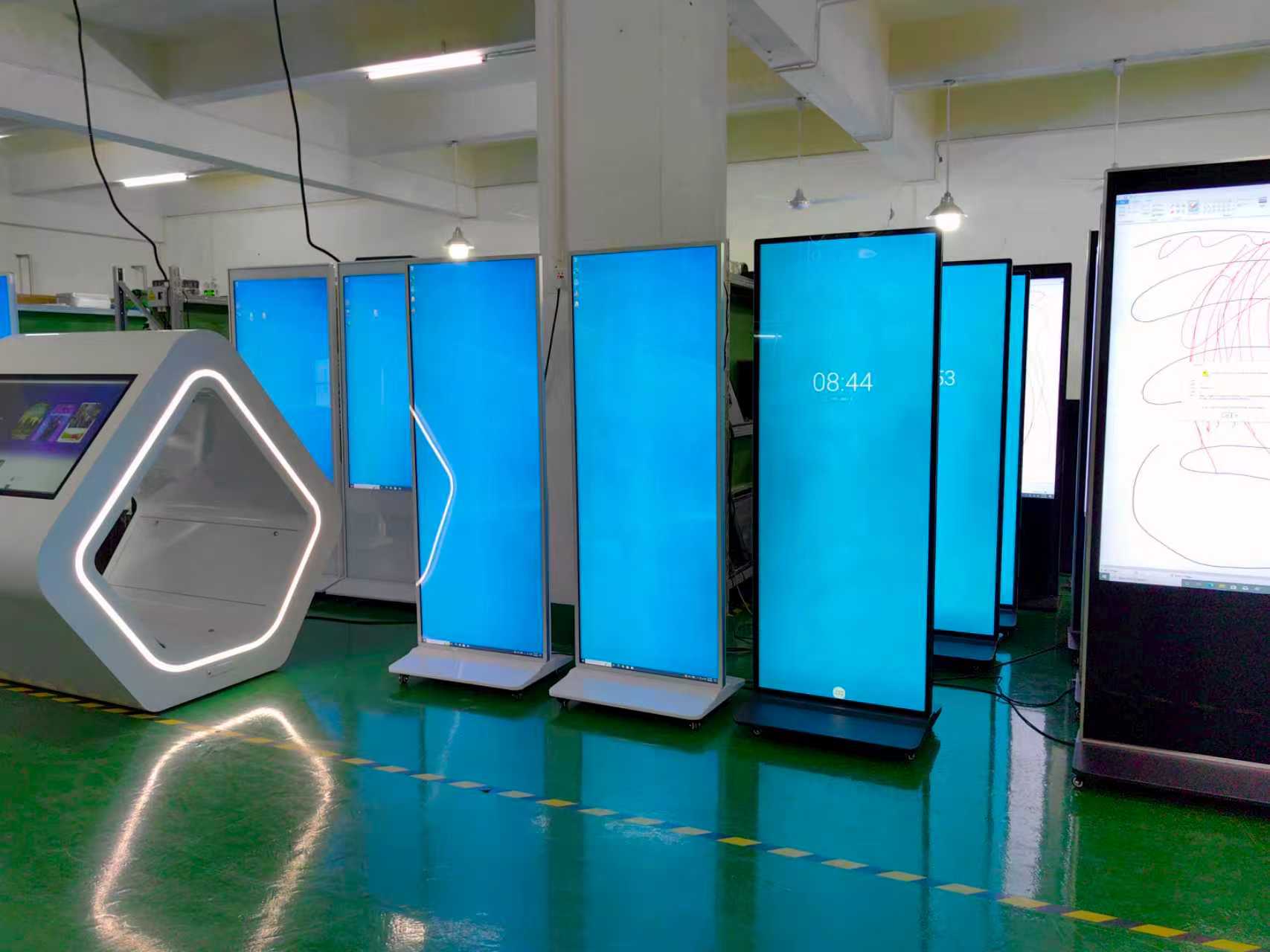
Staff Training and Support
Your staff needs training to use all kiosk features. Give them lessons on how to set up and use the kiosks. Teach them how to fix simple problems and do repairs. Show them how to update software and keep kiosks working. Let them practice with real kiosks in a safe place. Give them books, quick guides, and online videos. You can give certificates to staff who finish training and pass tests. Offer more lessons and new guides to help them remember. Make training fit your business and what your workers need. Training helps your team use kiosks well and get the most out of them.
Note: Learning all the time helps your staff get better and makes customers happy.
Maintenance Best Practices
You need a plan to keep kiosks working well. Clean screens and touch parts often to get rid of dirt and germs. Check printers for jams and clean inside every week. Look at power and network cables every month for damage. Change filters so kiosks do not get too hot. Use remote tools to find problems early. Oil moving parts and change old pieces before they break. Check all hardware every few months for damage. The table below lists the main jobs for maintenance:
Maintenance Task | Purpose |
|---|---|
Regular cleaning | Gets rid of fingerprints, dust, and germs so the screen works well. |
Software updates | Keeps kiosks running right and stops software problems. |
Periodic inspections | Finds broken parts so you can fix them fast. |
Preventive maintenance tasks | Oils parts and changes old pieces to stop breakdowns. |
Inspect printers and internal components | Stops jams and makes sure everything works. |
Secure and inspect power and network cables | Stops shutdowns and screen problems from bad cables. |
Clean outdoor kiosks regularly | Protects from weather and keeps kiosks looking good. |
Tip: Doing regular checks helps kiosks last longer and keeps all features working.
You can pick the best touch screen kiosk for 2026 by thinking about what you need. The table below helps you see which display is good for each goal. Screen size and how tough it is are important for how people use it and how easy it is to take care of. Use digital signs and interactive tools to get people more interested. Look for digital features like content control, checking data, and keeping things safe.
Priority | Recommended Technology |
|---|---|
Best user experience | PCAP |
Large format (55"+) | IR |
Any input/gloves | IR or Resistive |
Outdoor/harsh environment | Through-glass PCAP |
Multi-user collaboration | Optical or IR |
Lowest cost | Resistive or IR |
Highest durability | PCAP |
To get the most from your kiosk and digital signs, do these things: Plan where you will put the kiosk and decide what you want it to do. Choose hardware and software that have the right digital features. Try it out with real people and look at the data you get. Talk to sellers and test a few kiosks before you use them everywhere.
These tips help you match digital features to your goals and make things better for everyone.
What Is a Touch Screen Kiosk and How Does It Work?
A touch screen kiosk is a self‑service, interactive terminal that allows users to input commands, access information, complete transactions, or navigate a system simply by touching the screen. These kiosks are widely used in retail, healthcare, transportation, hospitality, and public spaces to improve efficiency and user experience.
Unlike a traditional computer or a simple display, a touch screen kiosk combines a touch‑sensitive panel, a display, and a built‑in computer (or media player) into a single, often rugged, enclosure. Some kiosks also integrate peripherals such as printers, card readers, barcode scanners, cameras, or payment terminals.
🧱 Core Components of a Touch Screen Kiosk
Component | Function |
|---|---|
Touch screen panel | Detects touch input and converts it into digital signals. |
Display (LCD / OLED) | Shows the user interface, graphics, and content. |
Computer / media player | Runs the kiosk software, processes touch input, and drives the display. Often uses Windows, Android, or Linux. |
Enclosure | Houses and protects all internal components; often designed for vandal resistance, dust/water protection (IP rating), and 24/7 operation. |
Peripherals (optional) | Receipt printer, credit card reader (EMV), barcode scanner, camera, NFC reader for contactless payments, microphone, etc. |
Connectivity | Ethernet, Wi‑Fi, 4G/5G for remote management and data exchange. |
Power supply | Provides stable power, sometimes with battery backup for outdoor or mobile kiosks. |
🔍 How Does a Touch Screen Kiosk Work?
The working principle can be broken down into four simple steps:
User touches the screen – The touch panel detects the location and pressure (or capacitance change) of the touch.
Controller interprets the touch – A dedicated touch controller chip converts the analogue touch signal into digital coordinates (X, Y) and sometimes pressure (Z).
3 Computer processes the input – The operating system receives the touch event as a mouse‑click or gesture (tap, swipe, pinch). The kiosk software (often locked down in “kiosk mode”) responds by updating the screen, fetching information, or triggering a peripheral action.Feedback is displayed – The screen updates immediately, providing visual feedback. Some kiosks also give audio or haptic feedback.
🖐️ Main Touch Screen Technologies
The accuracy, durability, and cost of a kiosk depend heavily on the touch technology used.
Technology | How It Works | Pros | Cons | Best For |
|---|---|---|---|---|
Resistive | Two flexible layers separated by air gap; pressure causes layers to touch, completing a circuit. | Low cost, works with any stylus or glove, resistant to dirt/water. | Poor clarity (more reflections), only single‑touch, less durable (scratch‑prone). | Industrial controls, outdoor kiosks where gloves are needed. |
Capacitive (Projected – PCAP) | A grid of electrodes creates an electrostatic field; finger distorts the field, detected at intersections. | Excellent clarity, high sensitivity, multi‑touch, durable (glass front). | More expensive, requires conductive touch (bare finger or special stylus), can be affected by water droplets. | Most modern kiosks, smartphones, indoor public kiosks. |
Infrared (IR) | IR LEDs and photodetectors form an invisible grid across the bezel; touch blocks the beams. | Very durable (no film on glass), works with gloves and any object, high clarity. | Bezel can collect dust; parallax error possible; can be fooled by debris. | Outdoor kiosks, large‑format displays, anti‑vandalism applications. |
Surface Acoustic Wave (SAW) | Transducers send ultrasonic waves across the glass surface; touch absorbs some wave energy. | Very clear, durable glass surface. | Cannot be used with thick gloves; water/moisture can cause false triggers. | Indoor information kiosks, clean environments. |
Optical (Camera‑based) | Two or more cameras detect the touch point (usually via frustrated total internal reflection or stereo vision). | Supports multi‑touch and object recognition; works on very large screens. | Expensive; affected by strong ambient light. | Large video walls, specialty installations. |
For public, outdoor, or high‑traffic kiosks, PCAP (glass‑over‑glass) and IR are the most common choices because of durability and glove‑compatibility.
💻 Software & “Kiosk Mode”
A touch screen kiosk runs specialised software that typically locks the device into kiosk mode – a restricted environment where users cannot exit the application, access system settings, or browse the file system. Kiosk software often includes:
Touch‑optimised UI – Large buttons, simple gestures, clear feedback.
Content management system (CMS) – For remote updates of content, menus, or wayfinding maps.
Session management – Resetting to home screen after a period of inactivity.
Peripheral integration – Drivers for printers, card readers, payment terminals.
Remote monitoring – Health status, error reporting, content usage analytics.
Common kiosk software platforms include KioWare, SiteKiosk, Scala, Raydiant, and many custom‑built applications for Android or Windows.
🔄 Typical Workflow Example – Airport Check‑in Kiosk
User approaches – The screen displays a welcome message and language options.
User touches – Selects language, then enters flight details or scans a passport.
Kiosk processes – Communicates with the airline’s backend to retrieve booking information.
User confirms – Selects seats, adds bags, and agrees to the terms.
Payment (if needed) – The user inserts a credit card or taps a contactless reader.
Output – The kiosk prints boarding passes and bag tags.
Session ends – After timeout, the screen resets to the welcome screen.
All of this happens without a staff member – the kiosk handles the entire transaction.
📍 Common Applications
Industry | Use Case |
|---|---|
Retail | Self‑checkout, product lookup, digital signage with ordering. |
Healthcare | Patient check‑in, wayfinding, prescription refill kiosks. |
Transportation | Airport check‑in, train ticket vending, parking payment. |
Hospitality | Hotel self check‑in/out, restaurant ordering, event registration. |
Education | Campus wayfinding, library book checkout, student information. |
Government | Vehicle registration renewal, permit applications, public information. |
Quick Service Restaurants (QSR) | Self‑ordering kiosks (McDonald’s, etc.) – reduce queue times and increase average order value. |
✅ Advantages of Touch Screen Kiosks
24/7 availability – No need for staff to be present.
Reduced wait times – Multiple kiosks handle high volumes in parallel.
Increased average transaction value – Interactive upselling works effectively.
Lower labour costs – Staff can focus on complex tasks.
Consistent user experience – Same interface every time.
Data collection – Usage patterns, popular selections, dwell times.
Multilingual support – Easy to switch language without hiring multilingual staff.
⚠️ Important Considerations When Deploying
Durability – Public kiosks must resist vandalism (IK rating) and weather (IP rating for outdoor).
Brightness – Outdoor kiosks need high‑brightness displays (≥2500 nits) for sunlight readability.
Accessibility – Must comply with ADA or local regulations (height, reach range, audio output for visually impaired).
Remote management – Essential for software updates, content changes, and troubleshooting.
Security – Physical locks, anti‑tamper software, encrypted communications, and secure payment modules (PCI compliance).
Network connectivity – Reliable Ethernet or 5G/4G for real‑time data exchange.
Maintenance – Regular cleaning, spare parts availability, and a service contract.
💎 Summary
A touch screen kiosk is an interactive, self‑service terminal that detects touch input using technologies such as capacitive (PCAP), resistive, infrared, or surface acoustic wave. It integrates a display, computer, and optional peripherals inside a durable enclosure. The kiosk runs specialised software in “kiosk mode” to guide users through tasks like checking in, paying, ordering, or finding information. Touch screen kiosks are widely used to reduce wait times, lower costs, and provide 24/7 service in retail, healthcare, transportation, hospitality, and many other industries.
Would you like a detailed comparison of PCAP vs. IR touch technology for outdoor kiosks, or a list of leading kiosk manufacturers?please contact Shenzhen TopAdkiosk Display Technology Co.
FAQ
What is a touch screen kiosk?
A touch screen kiosk is a digital device you use by touching the screen. You can get information, order products, or check in without help from staff.
How do you keep kiosks secure?
You can use kiosk mode, lock down settings, and update software often. Strong passwords and regular checks help protect your devices from misuse.
Can you update kiosk content remotely?
Yes, you can update content from anywhere using cloud-based software. This lets you change menus, signs, or information quickly and easily.
What industries use touch screen kiosks the most?
You see kiosks in retail, healthcare, education, hospitality, and transportation. These industries use kiosks for self-service, check-in, and information.
How long does a typical kiosk last?
Most kiosks work well for five to seven years. Regular cleaning and maintenance help your kiosk last longer and perform better.
See Also
Leading 10 Firms Focused on Touchscreen Kiosks in 2026
Discover LCD Kiosks with Touch Screen Features in 2026
Uncover 10 Unexpected Applications for Touch Screen Kiosks in 2026
Evaluating Business Touch Screen Kiosks for Quality and Cost
Essential Characteristics of Contemporary Touch Screen Kiosks
