Common Video Wall Processor Issues and How to Fix Them
Shenzhen TopAdkiosk Display Technology Co., Ltd.
Add.: 2F, Bldg 10, Changfeng Industrial Park, Dongkeng, Fenghuang, Guangming, Shenzhen, China 518132
Mobile/WHATSAPP: 86-138 25769658
Email: marketing@topadkiosk.com topadkiosk@gmail.com
Skype: pghenry1
Wechat: adkioskhenry
English Web.: http://www.topadkiosk.com/
https://www.topkioskdisplay.com/
You know it is annoying when your video wall processor stops working. Many people have problems like signal loss, configuration mistakes, overheating, compatibility troubles, and power supply issues. Quick fixes and easy solutions help you keep your video wall working. Fast help means you worry less about video problems.
Key Takeaways
First, check all cable connections to fix most signal loss problems. Many issues happen because cables are loose or broken.
Regular maintenance is important. Clean your video wall and look at the settings every month. This helps stop overheating and setup mistakes.
Use monitoring tools to find problems early. Smart tools can warn you about signal loss or overheating before they get worse.
Signal Loss in Video Wall Processor
Causes
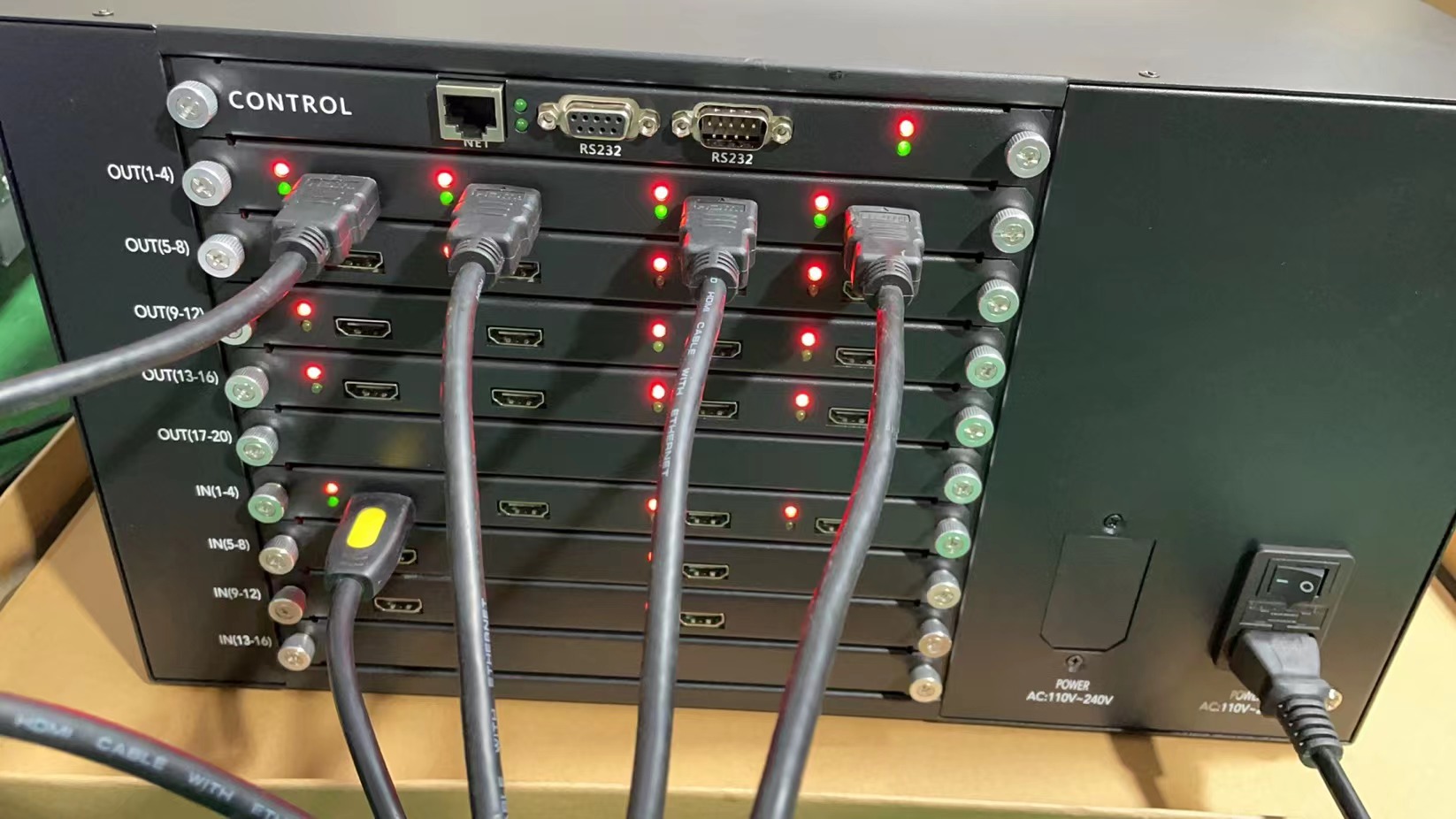
You might run into signal loss with your video wall processor for a few reasons. Most of the time, the problem comes from the cables. If you use cables longer than 10 feet, you can lose signal integrity. Sometimes, firmware gaps or thermal shutdowns also cause trouble. Here’s a quick look at the main causes and how often they happen:
Cause of Signal Loss | Percentage Impact |
|---|---|
85% | |
Firmware gaps causing artifacts | 30% |
Thermal shutdowns leading to failures | 73% |
Symptoms
How do you know if you have signal loss? You may notice these common issues with your video wall controllers:
No display or a black screen, even when the video wall is on.
Unstable picture, like flickering, ghosting, or jittering.
Colors look wrong or shift unexpectedly.
Video or content does not sync or lags.
Only part of the screen shows content, or some sections are missing.
The screen does not connect to the control software.
Troubleshooting Steps
You can fix most signal loss problems with a few simple steps. Try these solutions for your video wall controllers:
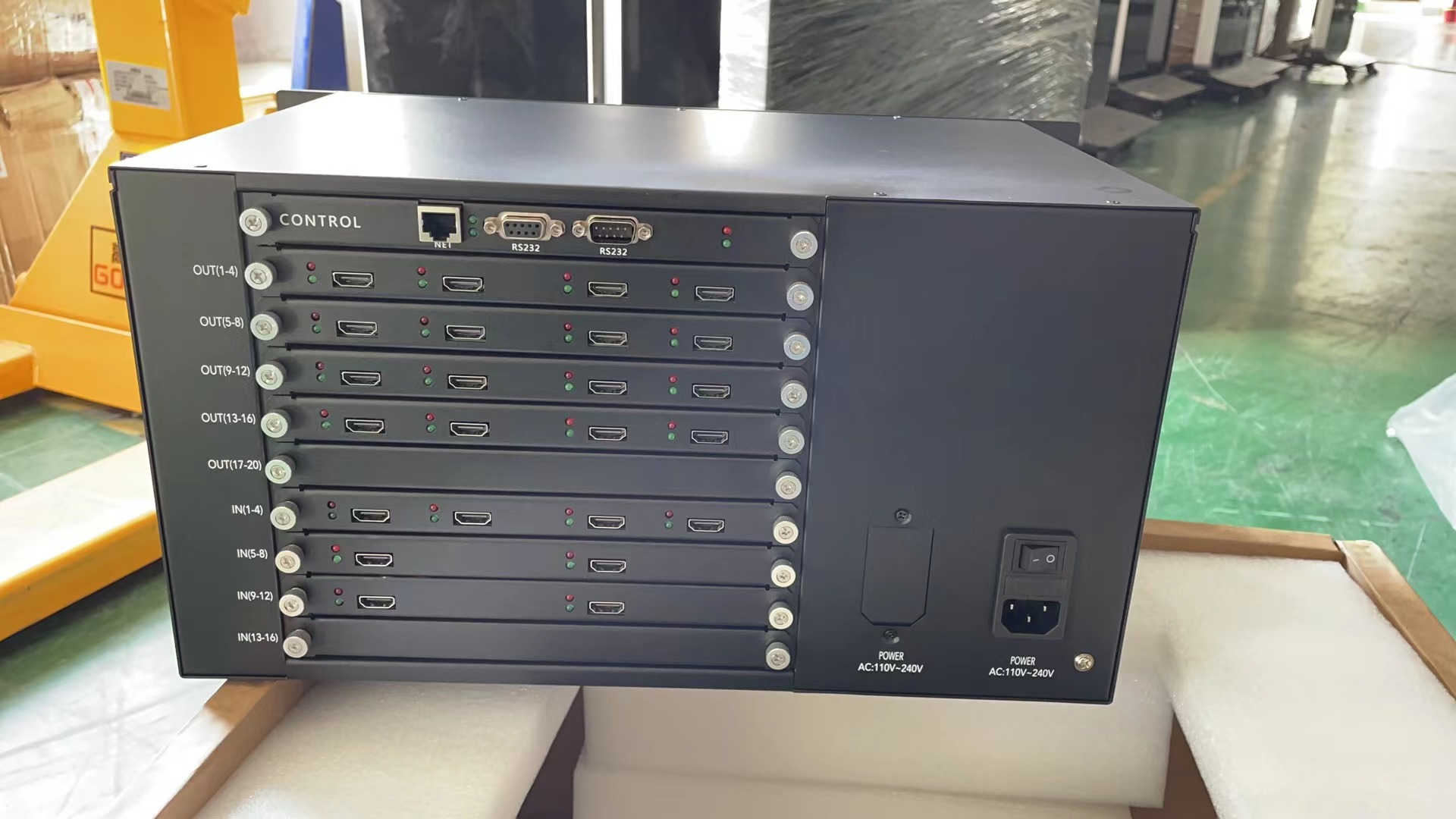
Check cable connections. Replace the signal cable and verify source and input selection.
Inspect network cables and HDMI/DVI connections for damage.
Make sure all connections on the receiving end are secure and settings are correct.
Restart your video wall controllers in order and check the software settings.
Tip: Always start with the easiest step. Many users solve signal loss by just checking cables and making sure the source is set right.
If you follow these troubleshooting steps, you can quickly get your video wall working again. If the problem continues, reach out to technical support for more help.
Configuration Errors
Common Mistakes
You might run into configuration errors with your video wall processor more often than you think. These common issues can cause a lot of problems for your video wall controllers. Here are some mistakes you should watch out for:
Poorly mapped display layouts
Unmatched refresh rates
If you set the wrong resolution or map the displays incorrectly, you can experience signal loss or see parts of your video wall not working right. Unmatched refresh rates can also lead to flickering or lag. These mistakes often happen when you set up new video wall controllers or change the source.
Error Signs
How do you know if you have configuration errors? You can spot them by looking for these signs:
Error Sign | Description |
|---|---|
Signal Loss | You might see a black screen or missing sections. This often means signal loss. |
Configuration Errors | Visuals look wrong. Double-check your resolution settings and refresh rates. |
Overheating | Your video wall controllers may slow down or shut off. Check for airflow. |
If you notice signal loss or strange visuals, you probably have configuration errors. These signs help you find the source of the issues fast.
Fixing Configuration
You can fix configuration errors with a few simple steps. Try these solutions to get your video wall controllers back on track:
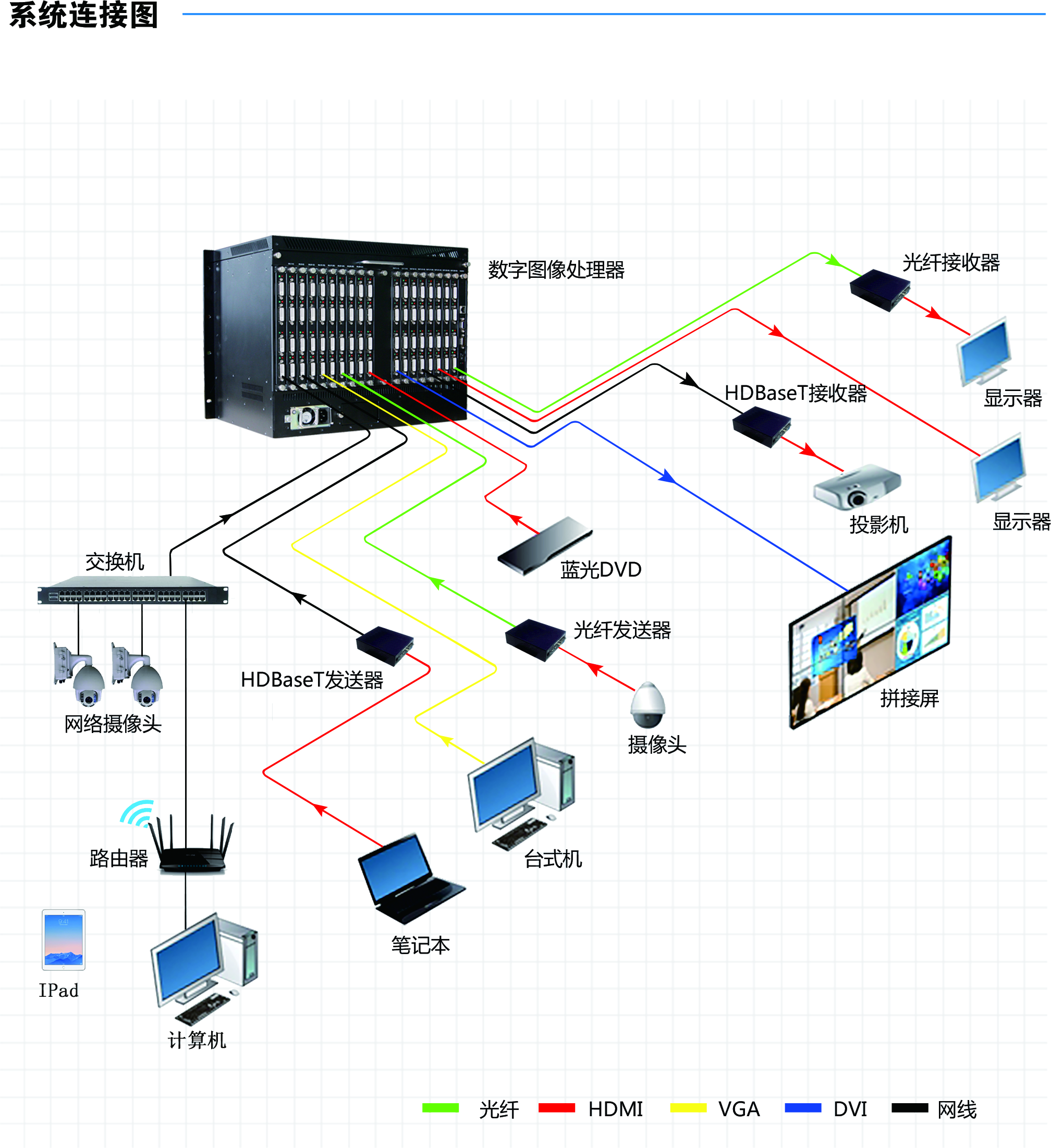
Set the column and row numbers for your receiving cards to match your video wall structure.
Choose the right Ethernet port and connect your cabinets.
After making changes, send the configuration to the hardware.
Check the signal connection. If you use an adapter board, make sure there are no connection errors.
Adjust the output width and height to match your screen’s pixel size.
Make sure all receiving cards use the same version. Upgrade or downgrade if needed.
Tip: Always double-check your resolution settings and signal connections before you finish. This step can prevent most configuration errors and signal loss.
If you still have problems, reach out to support for more help. Quick action keeps your video wall running smoothly and avoids common issues with video wall controllers.
Overheating Issues
Causes
You might not think about heat when setting up your video wall processor. But too much heat can cause big problems. The area around your video wall controllers matters a lot. If the room is very humid, water can get inside the panels. This can make the parts rust and break. When this happens, you may lose signal or have errors. Dust and dirt can block the air from moving. This makes it hard for your video wall controllers to cool down. If there is not enough air moving, some spots get very hot. These hot spots can make your video wall controllers wear out faster. If you put your video wall in a small space, you might lose signal more often. You could even damage the source or the panels.
Humidity can cause short circuits and make things work worse.
Dust and dirt block air, which leads to overheating.
Bad airflow and poor vents make some places hotter than others.
Warning Signs
You can notice overheating before it gets really bad. Look for these warning signs in your video wall controllers:
Warning Sign | Description |
|---|---|
The panels feel hot when you touch them. | |
Excessive Fan Activity | The fans are loud or never stop running. |
Performance Issues | The video slows down or lags, especially when used a lot. |
Inadequate Cooling Mechanisms | The fans or vents do not work right. |
Insufficient Maintenance | Dust builds up and blocks air, causing signal loss. |
Electrical Issues | You see flickering or the power is not steady. |
Manufacturing Defects | Some panels get too hot because of design problems. |
Solutions
You can fix overheating with a few easy steps. Put your video wall processor in a cool, shady spot. Use fans or special cooling systems to move air around your video wall controllers. Air conditioning helps if the room is hot. For the best results, use custom boxes with built-in cooling. Clean dust off your panels and check for blocked vents. These steps help stop signal loss and other errors. If you still have trouble, ask support for help before your video wall stops working.
Tip: Clean your video wall controllers often and put them in a good spot. This stops most overheating problems before they start.
Compatibility Problems
Typical Issues
You can have compatibility problems when setting up your video wall processor. These problems can cause signal loss or errors. Sometimes, panels do not match the resolution settings. You may see errors if your source uses a format the processor cannot handle. Using different panels or displays can cause signal loss or errors. Compatibility issues often make video disappear or show strange artifacts.
Detection
You can find compatibility issues by checking how your controllers handle input and output. Look at the table below to see what features help you spot problems:
Feature/Consideration | Implication for Compatibility |
|---|---|
Accurate input detection | Makes sure your processor finds the right signal format and resolution. This stops visual errors. |
Custom input management | Lets you change signal settings for non-standard formats. This helps prevent signal loss and errors. |
Multiple output formats | Supports displays with different resolutions. This keeps your panels working together without loss or errors. |
If your controllers cannot find the signal or adjust settings, you may have compatibility issues. You might notice signal loss, errors, or overheating if panels do not match the processor.
Solutions
You can fix compatibility problems with easy steps. Try these ideas to keep your video wall working:
Pick a controller that handles many input sources. This helps stop signal loss and errors.
Make sure your controller supports high resolution and works with your panels.
Choose a good video wall controller. This helps manage input sources and stops signal loss or overheating.
Check your settings often. Update your processor if you see errors or loss.
Tip: If you still have compatibility issues, ask support for help. Acting fast stops signal loss and keeps your panels safe.
Power Supply Troubles
Causes
You might not notice power supply problems right away. Sometimes your video wall processor shuts off without warning. These problems can cause signal loss or even hurt your video wall controllers. Here are some common things that can go wrong:
Power failures can stop your video wall controllers from working.
Your panels might flicker or turn off if the power is not steady.
Sometimes your video wall controllers will not start at all.
Cables that are broken can make you lose signal or get errors.
Power surges can make things too hot or cause signal loss.
You can stop many of these problems by using a surge protector or a UPS. Always check your power supply and change broken cables right away.
Symptoms
You can find power supply troubles if you know what to look for. Your video wall controllers might show these signs:
You might see the signal go away or the screen turn black.
Sometimes your video wall controllers restart without warning.
The panels or the source can get too hot.
The signal might flicker or you might see strange errors.
You might get configuration errors after a power problem.
If you see these signs, you probably have power supply problems. Fixing them fast can help you stop more damage or loss.
Troubleshooting
You can fix many power supply problems with a few easy steps. Use this table to help you:
Step | Description |
|---|---|
1 | Check the power supply connections. Make sure they fit tight. |
2 | Look at Diagnostic LED 2 to check trickle power. It should be yellow if power is there. |
3 | Check Diagnostic LED 8 for main power. It should be green. |
4 | If LEDs 5 and 6 are on, check all the power supply cable connections. |
If you do these steps, you can fix most power supply troubles. If your video wall controllers still do not work, ask support for more help. Keeping your video wall processor in good shape means less time fixing and fewer errors.
Preventive Maintenance for Video Wall Processor
Routine Checks
Doing regular checks can stop most problems before they happen. If you look at your video wall controllers every day, you can find signal loss, flickering, or dead pixels early. Try this easy routine:
Frequency | Maintenance Task | Description |
|---|---|---|
Daily | Visual Inspection | Check for flickering, dead pixels, and make sure content shows. |
Daily | Touch Responsiveness Testing | Make sure all panels respond to touch correctly. |
Weekly | Network Connectivity Assessment | Run tests to stop signal loss and errors. |
Monthly | Hardware Component Inspection | Look at power supply, cooling, and cables for heat or signal loss. |
You should also wipe the screens and frames every week. Clean the fans and filters once a month. Update firmware when there is a new version. These steps help you stop configuration errors, compatibility problems, and power supply troubles.
Staff Training
Your team should know how to use video wall controllers. Teach them to spot signal loss, configuration errors, and overheating. Show them how to fix compatibility problems and errors quickly. Good training should include:
How to fix signal loss and errors
Steps for regular care of video wall controllers
Ways to find and fix compatibility problems
If you want expert help, visit Top Kiosk Display for training and support.
Monitoring Tools
You can use smart tools to watch your video wall processor. Tools like Command Client send alerts if there is signal loss, overheating, or errors. Remote Monitoring & Management lets you see all your video wall controllers and panels all the time. These tools help you find configuration errors, compatibility problems, and power supply troubles before they get worse.
Tip: Use monitoring tools from trusted companies like Top Kiosk Display to keep your video wall working well.
You can fix many problems with your video wall processor by looking for signal loss, configuration errors, overheating, compatibility, and power supply issues. Try to check the screen and test the signal. Use software tools to find problems. Doing regular checks helps stop errors, signal loss, and overheating. These steps help your video wall controllers keep working. If you still have problems or signal loss, ask support for help.
FAQ
What are the most common issues with a video wall?
You often see signal loss, configuration errors, overheating, compatibility problems, and power supply troubles. These common issues can stop your video wall from working right.
Why does my video wall show a black screen or no video?
You might have loose cables, wrong input settings, or power supply problems. Check your connections and restart your video wall to fix these issues.
How can I prevent problems with my video wall?
You should clean your panels, check cables, and update software often. Regular checks help you catch issues early and keep your video wall running smoothly.
See Also
Best Digital Signage Video Wall Solutions to Consider in 2026
Selecting The Perfect LCD Video Wall For Your Area in 2026
Exploring The Main Distinctions Between LED And LCD Video Walls
Effective Ways To Resolve Common Kiosk Problems Seamlessly
Finding The Ideal Video Wall Digital Signage In Singapore For 2026
