Best Touch Screen Monitors for Every Budget in 2026
You use touch screens on your phone or tablet every day. In 2026, a touch screen monitor gives your desktop the same easy experience. The best touch screen monitor depends on what you need and how much you want to spend. If you want to save money, look at the Dell P2418HT or ASUS VT229H. If you want something in the middle, try the Dell 24 Touch USB-C Hub Monitor. For top quality, the Alogic Clarity Pro Touch 27" and ASUS ProArt Display are the best. Touch screen monitors today have multi-touch and gesture recognition. They let you interact easily. These monitors are great for creative work and smart home control. They help you talk, work together, and stay interested. You can use them in an office, a classroom, or at home.
Shenzhen TopAdkiosk Display Technology Co., Ltd.
Add.: 2F, Bldg 10, Changfeng Industrial Park, Dongkeng, Fenghuang, Guangming, Shenzhen, China 518132
Mobile/WHATSAPP: 86-138 25769658
Email: marketing@topadkiosk.com topadkiosk@gmail.com
Skype: pghenry1
Wechat: adkioskhenry
English Web.: http://www.topadkiosk.com/
https://www.topkioskdisplay.com/
http://www.ad-kiosk.com/
https://www.toplcddisplay.com/
http://www.multitouchdigitalsignage.com/
https://www.youtube.com/channel/UCYVYNJHxLVEcQD8fuUxXNTA/videos?view_as=subscriber
https://www.facebook.com/TOPADKIOSKSHENZHEN/?ref=bookmarks
Key Takeaways
Pick a touch screen monitor that fits your budget. Budget monitors like the ASUS VT229H are good for simple jobs. Premium monitors like the Alogic Clarity Pro Touch 27" are better for creative work.
Find important features. Choose high resolution and good color accuracy. Make sure there are many ways to connect devices. These features make your experience better.
Think about how you will use the monitor. Budget monitors work well in schools and stores. Mid-range monitors are good for homes and offices. Premium monitors are best for artists and designers.
Look at the touch technology. Capacitive screens give better multi-touch support and clearer images. Most people like these screens more.
Always check if the monitor is compatible. Make sure it works with your operating system. It should support the drivers you need for best performance.
Comparison of Best Touchscreen Monitors
Budget, Mid-Range, Premium Overview
It can be hard to pick the right touch screen monitor. There are three main types: budget, mid-range, and premium. Each type has different features and prices. The table below shows how they compare.
Price Range | Screen Size | Resolution | Color Accuracy | Refresh Rate | Connectivity Options |
|---|---|---|---|---|---|
Under $300 | 27-inch | 1440p | 100% sRGB | 60Hz | DisplayPort, HDMI, USB Hub |
$300 to $600 | 27-inch | 4K | Wide gamut (Adobe RGB, DCI-P3) | 60Hz | DisplayPort, HDMI, USB Hub |
$600 to $1,000 | 4K | 4K | Advanced color features | 120Hz | Thunderbolt, DisplayPort, HDMI, USB Hub |
$1,000 to $2,000 | Varies | 4K | Professional calibration | 120Hz | Thunderbolt, DisplayPort, HDMI, USB Hub |
$2,000+ | Varies | 4K | Built-in colorimeters | 120Hz | Thunderbolt, DisplayPort, HDMI, USB Hub |
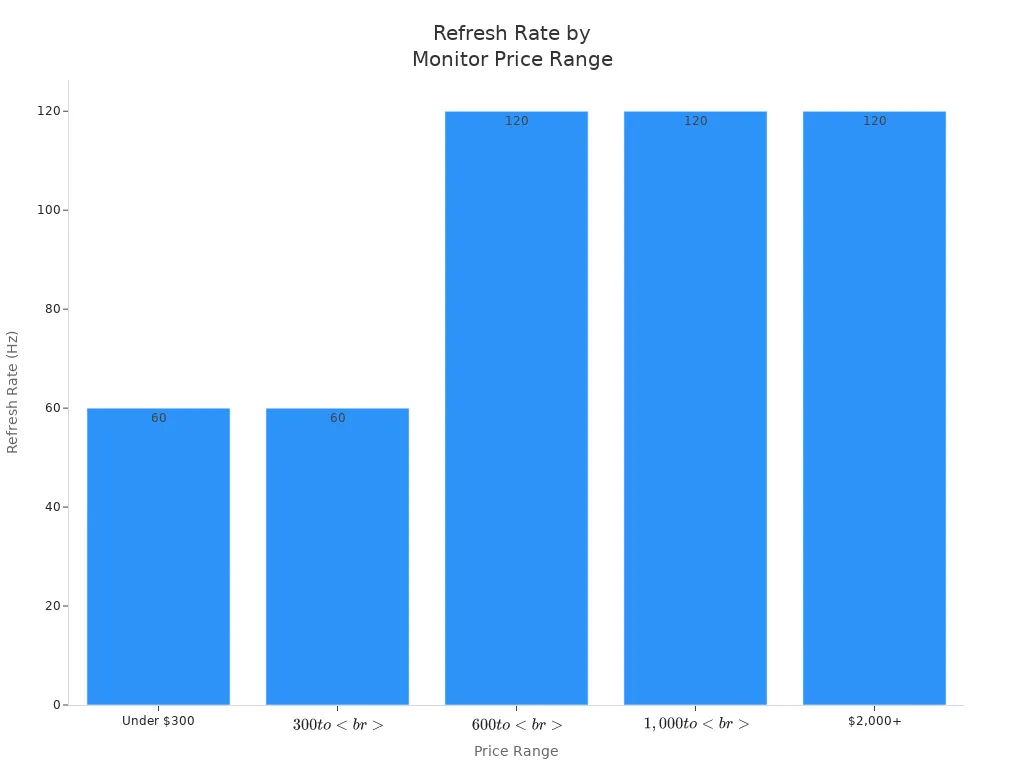
Budget touch screen monitors are easy to use and simple. They are good for schools and stores. These monitors are best for people who want something basic. Mid-range monitors have better screens and colors. You get more features but do not pay too much. Premium monitors have the best screens and colors. They also have fast refresh rates and many ways to connect. These are great for artists and people who edit videos.
Budget monitors like the ASUS ProArt PA278QGV have a 27-inch 1440p screen. They show 100% sRGB and refresh at 120Hz. You get DisplayPort, HDMI, and a USB hub.
Premium monitors like the Dell UltraSharp U3226Q have a 32-inch 4K QD-OLED screen. They show many colors, have a built-in colorimeter, and use Thunderbolt 4.
Tip: If you draw or design, premium monitors are best. They have pro calibration and built-in colorimeters. You get the best colors and smooth touch.
Pick a touch screen monitor that fits your needs and money. Budget monitors are good for simple jobs. Mid-range is good if you want more features. Premium monitors are best for creative work.
Budget Touch Screen Monitor Picks
Top Budget Monitors
If you want the best touch screen monitor without spending a lot, you have some great options in 2026. The ASUS VT229H stands out as the best budget touch screen monitor this year. It comes with a 21.5-inch screen, full hd resolution, and an IPS panel. This means you get wide viewing angles and colors that look good from any side. The ASUS VT229H also has eye care features that help reduce flicker and filter blue light, so your eyes feel less tired after long hours. You can use all ten fingers on the screen at once because it supports 10-point multi-touch.
The Dell P2418HT is another top pick. It has a slightly larger screen and also offers full hd resolution. You get a flexible stand that lets you tilt and adjust the monitor for drawing or writing. Both monitors are easy to set up and work well for most basic tasks.
Features
When you look for the best budget touch screen monitor, you want to make sure it covers the basics. Here’s a quick table to help you see what matters most:
Feature | Description |
|---|---|
Touch Technology | Responsive touch, like 10-point touch, gives you a smooth and easy experience. |
Display Quality | A high-resolution screen (at least full hd resolution) makes everything look sharp and clear. |
Connectivity Options | Multiple ports let you connect to different devices and setups. |
Ergonomics | Eye care features help you use the monitor longer without feeling tired. |
You should always check for these features when you shop for touch screen monitors. They make a big difference in how much you enjoy using your monitor every day.
Pros and Cons
Budget touch screen monitors give you a lot for your money, but they do have some downsides. Here are some things you might notice:
Touch latency can be higher, so you might see a small delay when you write or zoom.
Sometimes you need to set up the monitor in Windows before it works right.
You may need to calibrate the screen to avoid errors, especially if the glass is thick.
If the monitor sits too high, your shoulders can get tired from reaching up.
Most budget monitors come with a basic stylus, but it may not have pressure sensitivity.
Tip: If you want to draw or write a lot, you may want to look for a monitor with a better stylus or lower touch latency.
Use Cases
You can use budget touch screen monitors in many places. Here are some of the most common ways people use them:
Retail: Great for kiosks, digital signs, and self-service stations. Customers can get information or check out quickly.
Healthcare: Helps with patient check-in, health questions, and easy access to information.
Public Spaces: Useful in airports, museums, and libraries for maps and information screens.
You can also use these monitors at home for simple tasks, like browsing the web or watching videos. They work well in classrooms and small offices, too.
If you want the best touchscreen monitors for a low price, the ASUS VT229H and Dell P2418HT are smart choices. They give you the features you need without breaking the bank.
Mid-Range Touch Screen Monitors
Best Mid-Range Picks
If you want a touch screen monitor that is not too expensive, you have good choices in 2026. The Dell 24 Touch USB-C Hub Monitor (P2424HT) is one of the best for most people. It has a 24-inch screen with full hd resolution. The stand is strong and you get a USB-C hub for easy connections. The Acer T272HL is great if you want a bigger 27-inch screen. If you need something you can carry, the ASUS ProArt Display PA148CTV is a top pick for portable use.
Model Name | Description |
|---|---|
Dell P2418HT | |
Acer T272HL | Best 27" touch screen monitor |
ASUS ProArt Display PA148CTV | Best portable touch screen monitor |
Features
Mid-range touch screen monitors give you more than just basic features. They have fast touch response, so taps and swipes feel smooth. Many models show bright colors and wide viewing angles. The USB-C hub lets you connect your laptop, phone, or tablet with one cable. Some monitors let you link more screens together. You also get better build quality and stands that move in different ways.
Pros and Cons
Let’s see what is good and what is not so good:
Pros:
Touch response is quick and accurate.
You get many ports, like USB-C and HDMI.
The build is strong and stands can be adjusted.
Colors and brightness are good for most uses.
Cons:
Colors are not as perfect as premium monitors.
Some do not support advanced stylus features.
Big screens can take up a lot of desk space.
Tip: If you want a monitor for both work and fun, mid-range touch screen monitors are a great value.
Use Cases
You can use a mid-range touch screen monitor in many ways. Graphic designers use touch gestures to edit their work. Data analysts move through charts and tables fast. Healthcare workers tap to get patient info quickly. Retail workers can process sales faster. These monitors also help people with disabilities, like arthritis, do tasks more easily.
User Type | Benefits |
|---|---|
Graphic Designers | More control with touch gestures for design tasks |
Data Analysts | Quick data manipulation and analysis |
Healthcare Workers | Fast access to patient data |
Retail Employees | Streamlined sales and order processing |
Users with Disabilities |
If you want a touch screen monitor for daily use, mid-range models like the Dell P2418HT or Acer T272HL are smart choices. They give you good features, speed, and value.
Premium Best Touch Screen Monitor
Top Premium Monitors
If you need a touch screen monitor for art or work, look at the Alogic Clarity Pro Touch 27" and ASUS ProArt Display. These monitors are the best in 2026. You can also pick the Dell UltraSharp U3226Q or Lenovo ThinkVision P32p-30. These monitors show colors very well and have advanced touch features. You get a smooth experience for drawing, designing, or editing photos.
Features
Premium touch screen monitors give you more than just a big screen. You get 4k desktop displays with sharp details and bright colors. The Alogic Clarity Pro Touch 27" uses mini-LED backlighting. This makes blacks deep and highlights bright. The ASUS ProArt Display shows wide color gamuts. Your reds, blues, and greens look real. These monitors have fast refresh rates and low touch latency. You can connect with Thunderbolt, HDMI, or USB-C. Some monitors have built-in colorimeters for perfect color.
Feature | What You Get |
|---|---|
Color Accuracy | Wide color gamuts, pro calibration, true colors |
Touch Technology | Advanced multi-touch, low latency, smooth gestures |
Connectivity | Thunderbolt, HDMI, USB-C, DisplayPort |
Screen Quality | 4k desktop displays, mini-LED, QD-OLED |
Size Options | Large screens for better workspace |
Pros and Cons
You get a lot from the best touch screen monitor, but there are some things to think about. Here’s a quick look:
Pros | Cons |
|---|---|
High costs | |
Creative efficiency | Potential compatibility issues |
User satisfaction due to advanced tech |
You can work faster and finish more tasks.
Artists and designers like the advanced display technology.
These monitors cost a lot, so you pay more.
Note: If you want the best large touch screen monitor for your studio or office, you need to plan for the cost.
Use Cases
You can use premium touch screen monitors in many ways. Designers use them for drawing, editing, and color grading. Video editors see every detail in 4k desktop displays. Architects and engineers zoom in on blueprints with the best large touch screen monitor. These monitors make presentations look sharp and professional. You also get full hd resolution for apps that do not need 4k.
If you want the best touch screen monitor for creative work, these premium models give you everything you need.
Best Touch Screen Monitor for Drawing & Design
Drawing Monitors
If you like art or design, you need a good touch screen monitor for drawing. In 2026, creative pen displays have changed how artists work. You can choose from top models like the Alogic Clarity Pro Touch 27", ASUS ZenScreen MB16AMT, and XPPen Artist Pro 16TP. The Alogic Clarity Pro Touch 27" has 4K UHD resolution and covers almost all of Adobe RGB. This means your colors look bright and real. The ASUS ZenScreen MB16AMT is a portable monitor with high resolution and a built-in battery. You can bring it to meetings with clients. The XPPen Artist Pro 16TP is great for digital drawing and covers most of the Adobe RGB colors.
Features for Artists
You want features that make drawing simple and fun. Here’s what matters most for artists:
Feature | Description |
|---|---|
Touch Technology | 10-point touch lets you use many fingers at once. |
Resolution | Full hd is the least you need, but 4K gives you sharp lines. |
Color Accuracy | Bright and true colors help your art look great. |
Ergonomics | Anti-glare screens and adjustable brightness keep you comfy for hours. |
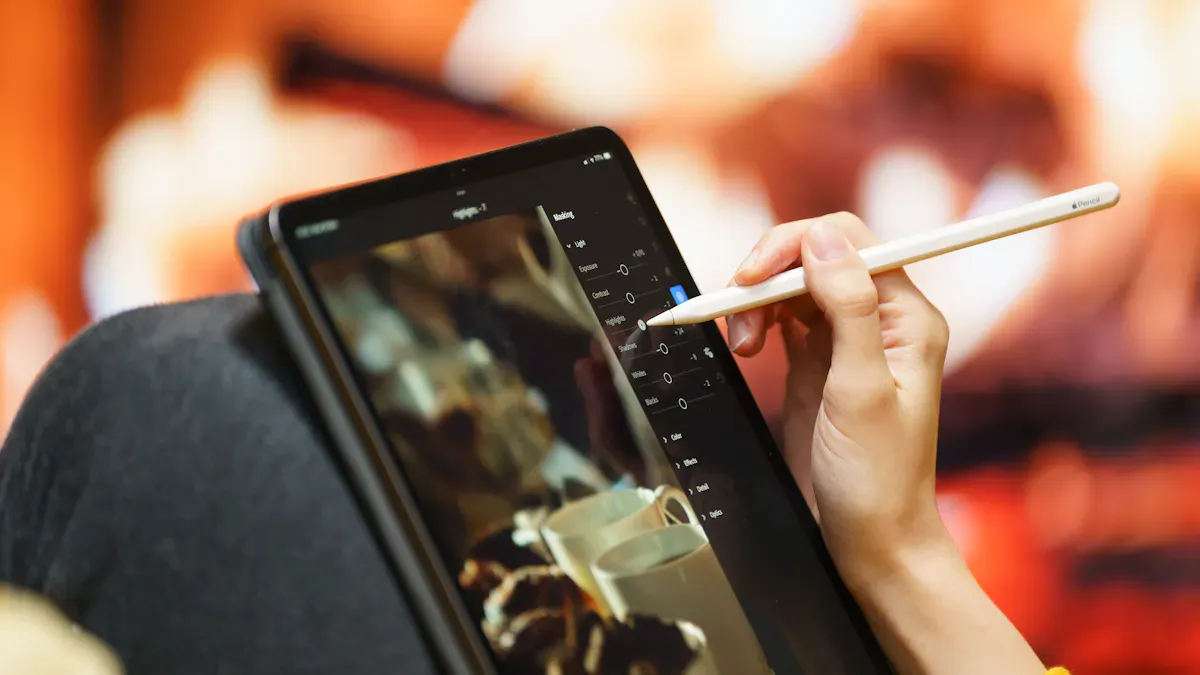
Creative pen displays also work with a stylus. You can sketch, shade, and paint with more control. The touch screen lets you zoom, turn, and move your art with your fingers.
Pros and Cons
You get many good things with the best touch screen monitor for drawing, but there are a few downsides.
Advantages | Disadvantages |
|---|---|
Easy to use touch screen | Can be sensitive to interference |
Helps you work faster | May need a special stylus |
Clear and sharp images | You might touch the screen by accident |
Lets you use many fingers | Water drops can make the screen react |
Creative pen displays help you work faster and feel more natural. Sometimes you might touch the screen by mistake, but you will get used to it.
Use Cases
You can use these monitors for many creative jobs:
Drawing and painting digital art
Graphic design and photo editing
Animation and storyboarding
Showing your work to clients with a portable monitor
If you want the best touch screen monitor for drawing, these models help you do your best work. You get smooth touch, bright colors, and tools that make art easy.
Portable Touch Screen Monitors
Portable Picks
If you travel a lot or work from different places, you need the best portable touch screen monitor. In 2026, you have more choices than ever. The ASUS ZenScreen is a favorite for many people because it is light and easy to carry. You can also check out the 2026 New 14 Inch IPS Portable Monitor, which gives you a sharp 1920x1200 display and a USB Type-C port. For bigger screens, the Ultra Thin Touch Screen Monitor 15.6inch and the 2026 New Gaming Monitors 16 Inch FHD Portable Screen are great picks. Some models, like the 2026 15.6inch Portable Triple Screen Monitor, let you set up more than one screen for meetings or multitasking.
Product Name | Key Features |
|---|---|
ASUS ZenScreen | Lightweight, USB-C, Full HD, built-in stand |
2026 New 14 Inch IPS Portable Monitor | 1920x1200, 60Hz, USB-C, business/gaming |
Ultra Thin Touch Screen Monitor 15.6inch | Capacitive touch, Type-C, LED, slim design |
2026 15.6inch Portable Triple Screen Monitor | FHD, ergonomic stand, triple display setup |
Features
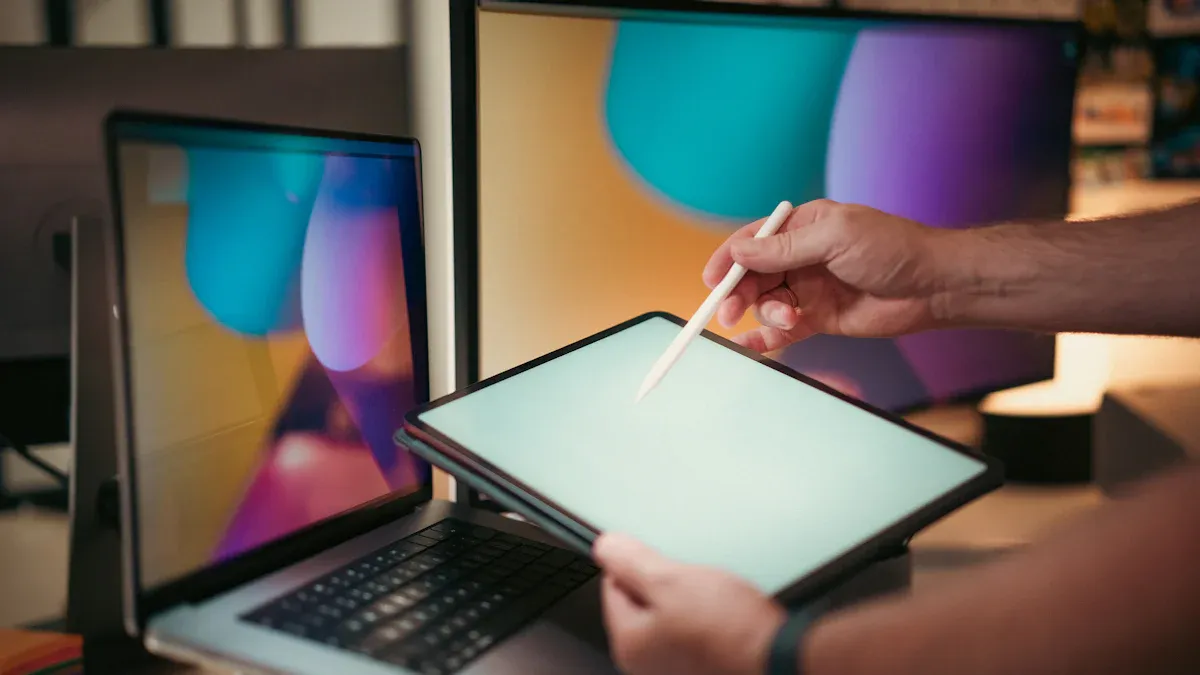
You want a best portable touch screen monitor that fits your lifestyle. Most portable touchscreen monitors have adjustable stands, so you can set the screen at the best angle for your eyes and hands. Many models use USB-C, which means you only need one cable for power and video. This keeps your desk neat and makes setup fast. High-resolution screens, like Full HD or even 4K, help you see text and pictures clearly. Some monitors also support wireless connections, so you can link your phone or tablet without any cables.
USB-C and HDMI for easy connections
Full HD or 4K screens for sharp images
Wireless options for more flexibility
Pros and Cons
Every best portable touch screen monitor has good points and some things you should know before you buy.
Pros:
You can take it anywhere—perfect for travel or remote work.
Most have fast response times, some as low as 1 ms.
60Hz refresh rate works well for games and videos.
Easy to connect with just one cable.
Cons:
Touch response can be slow on cheaper models.
Most need power from your laptop or phone, so no built-in battery.
Some do not work with wall mounts.
You may need to recalibrate after updates.
Tip: If you want the best touch screen monitor for travel, look for one with a sturdy stand and USB-C support.
Use Cases
You can use portable touchscreen monitors in many ways. They help you work better by giving you more screen space for multitasking. Creators use them as preview screens for photos and videos. In meetings, you can share your screen and work together with others. You can also turn your phone into a bigger computer or watch movies and play games anywhere. Some people use them to upgrade the display on special devices, making everything easier to see and use.
If you want the best portable touch screen monitor, these options make your work and play much easier, no matter where you go.
How to Choose the Best Touch Screen Monitor
Choosing the right monitor can feel tricky, but you can make it easy if you know what to look for. Let’s break down the main things you should check when you ask yourself how to pick the best touch screen monitor.
Key Features
You want a monitor that fits your needs. Look for color accuracy, screen size, resolution, and durability. Here’s a quick table to help you compare:
Feature | What It Means |
|---|---|
Color Accuracy | Shows colors true to life. IPS screens do this best. |
Connectivity | Lets you plug in devices. HDMI is common, DisplayPort is rare. |
Angle | Adjustable stands help you find a comfy position. |
Touch Points | Most monitors let you use ten fingers at once. |
Screen Size | Most screens are between 21.5” and 27”. Bigger screens can be harder to use. |
Durability | Scratch-proof glass keeps your monitor safe. |
Price | Balance your budget with the features you need. |
Touch Technology
Touch screens use different types of technology. You might see resistive, capacitive, infrared, or SAW (Surface Acoustic Wave). Projected capacitive is the most modern. It lets you use many fingers at once and gives clear images. Infrared screens have the best picture but can react to dust or light. Resistive screens are tough but don’t support multi-touch well. If you want to know how to pick the best touch screen monitor, check for capacitive or infrared touch.
Tip: Capacitive screens work with gloves and are great for multi-touch. Resistive screens are better for rough environments.
Resolution & Color
Resolution means how sharp your screen looks. Full HD is good for most tasks, but 4K is best for art and games. Color accuracy matters if you edit photos or design. IPS panels show colors well and keep images clear from every angle. If you zoom in on a photo or play games, higher resolution helps you see every detail.
Full HD: Good for office work and web browsing.
4K: Great for drawing, gaming, and watching movies.
Compatibility
You need your monitor to work with your computer and software. Some monitors need special drivers. Make sure your operating system supports touch. Check for calibration tools and multi-touch support. If you use Windows or Mac, look for monitors that list them as compatible.
Compatibility Issue | What to Watch For |
|---|---|
Operating System | Works with Windows, Mac, or Linux |
Touch Calibration | Easy setup and troubleshooting |
Multi-Touch Conflicts | Handles many touches without errors |
Power Management | Works well with laptops and battery settings |
Portability
If you travel or work in different places, portability matters. Look for monitors that weigh less than five pounds. USB-C makes setup fast and easy. Battery life is important if you don’t want to plug in all the time. Portable monitors help you work anywhere and boost productivity.
Note: Lightweight monitors with long battery life are perfect for remote work or travel.
Now you know how to pick the best touch screen monitor. Think about your needs, compare features, and choose what fits your lifestyle.
You can pick from many touch screen monitors. If you want a cheap one, try ASUS VT229H or Dell P2418HT. The Dell P2424HT is good if you want something in the middle. Artists and designers should look at Alogic Clarity Pro Touch 27". Think about how big the screen is, how well it shows colors, and if you can carry it easily. Check the “How to Choose” part for more tips. Make sure to find the best deals before buying.
Feature | Recommendation |
|---|---|
Screen Size | |
Color Accuracy | IPS panel for design work |
Portability | Lightweight for travel |
FAQ
What is the difference between a touch screen monitor and a regular monitor?
A touch screen monitor lets you tap, swipe, and pinch right on the screen. You control things with your fingers or a stylus. A regular monitor only shows images. You need a mouse or keyboard to interact.
Can I use a touch screen monitor with any computer?
Most touch screen monitors work with Windows and Mac computers. You just plug them in with USB and HDMI or USB-C. Some features may need special drivers. Always check the monitor’s compatibility before you buy.
Do touch screen monitors work for gaming?
You can play games on a touch screen monitor. Some games feel more fun with touch controls. Fast-paced games may work better with a mouse and keyboard. Look for a monitor with a high refresh rate for smoother gameplay.
How do I keep my touch screen monitor clean?
Use a soft, dry microfiber cloth to wipe the screen. For smudges, lightly dampen the cloth with water. Never spray cleaner directly on the screen. Avoid harsh chemicals. Clean your monitor often to keep it looking clear.
See Also
Best OLED Monitors To Enhance Your Visual Experience
LCD Kiosks With Touch Screen Features Available In 2026
Top LCD Kiosks Ideal For Retail Spaces In 2026
