Tiny OLED Display Picks for Easy DIY Wins
Shenzhen TopAdkiosk Display Technology Co., Ltd.
Add.: 2F, Bldg 10, Changfeng Industrial Park, Dongkeng, Fenghuang, Guangming, Shenzhen, China 518132
Mobile/WHATSAPP: 86-138 25769658
Email: marketing@topadkiosk.com topadkiosk@gmail.com
Skype: pghenry1
Wechat: adkioskhenry
English Web.: https://www.topkioskdisplay.com/
http://www.ad-kiosk.com/
https://www.toplcddisplay.com/
http://www.multitouchdigitalsignage.com/
https://www.youtube.com/channel/UCYVYNJHxLVEcQD8fuUxXNTA/videos?view_as=subscriber
https://www.facebook.com/TOPADKIOSKSHENZHEN/?ref=bookmarks
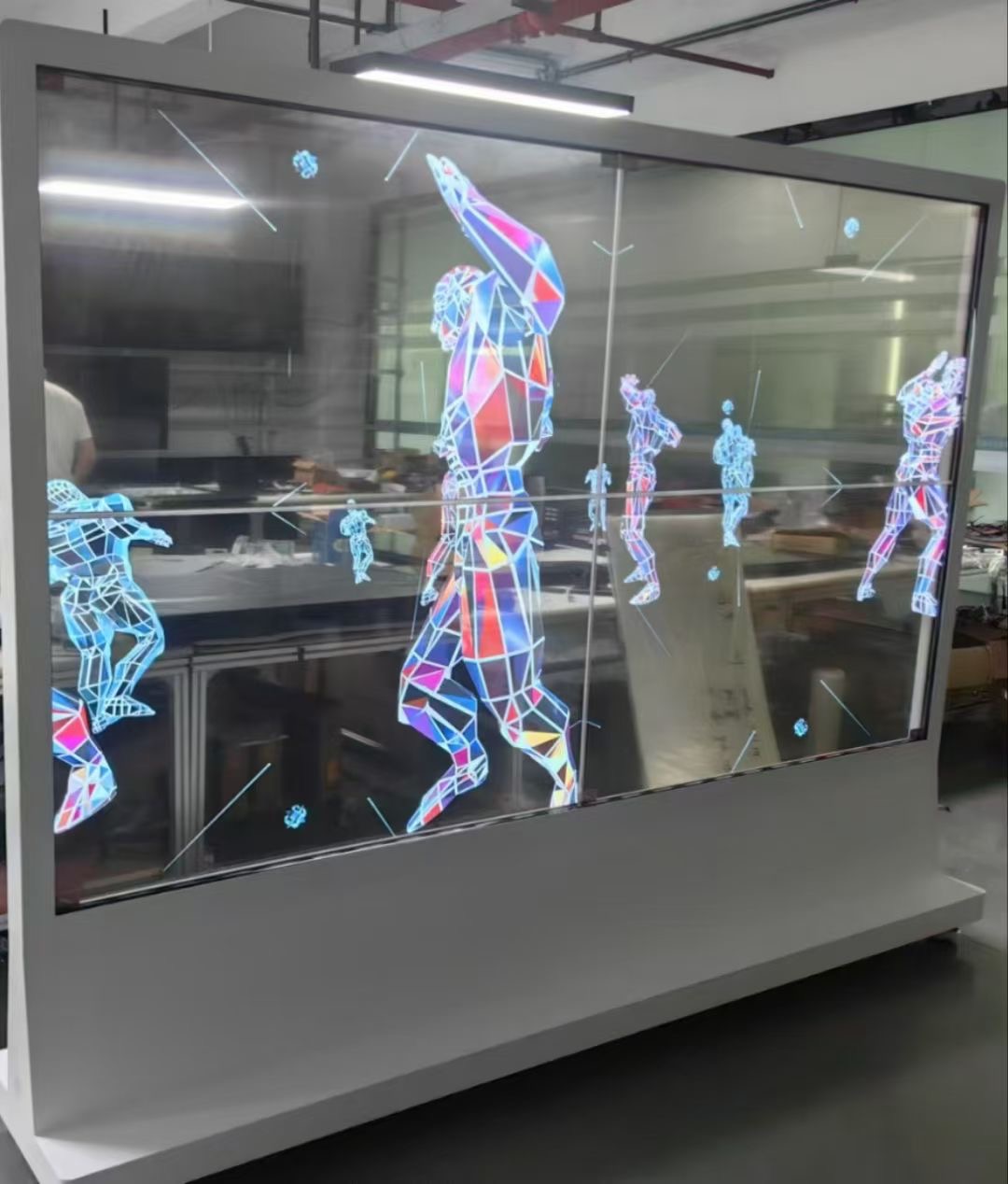
Looking for a tiny OLED display for your next DIY project? The Mini Transparent Cube OLED Display Screen is special in 2026. It is a 1cm clear cube with a 0.42" OLED screen inside. The screen shows images and words inside the cube. This cool tiny OLED display is great for creative projects. It gets attention because it looks amazing.
Model | Size | Design | Popularity |
|---|---|---|---|
Mini Transparent Cube OLED Display Screen | 1cm cube, 0.42" OLED | Shows images and words inside the clear cube | People love its cool look |
If you want something cheap, are new to this, or need more features, you can find the right tiny OLED display for your needs. Think about your project, how much room you have, and what you know before you choose.
Key Takeaways
Pick the right tiny OLED display for your project. Think about the size, resolution, and interface you need. The SSD1306 I2C OLED is the best choice for most DIY projects. It works with many things and uses little power. If you want to save money, try the 0.49" OLED Resin Lens. It works well and costs less, so it is good for wearables. Beginners should use the SSD1306 OLED first. It is easy to connect and has lots of help online. Advanced users can try Micro OLED and Flexible OLED displays. These are good for special projects that need clear pictures and bending screens.
Tiny OLED Display Comparison
Specs at a Glance
When you look for tiny oled displays, you want to see the main specs side by side. This helps you pick the right display for your project. Here’s a quick table to help you compare some of the most popular oled screens for DIY in 2026:
Model | Size | Resolution | Interface | Price (USD) | Best For |
|---|---|---|---|---|---|
SSD1306 | 0.96" | 128x64 | I2C, SPI | $2–$5 | Beginners, IoT |
0.49" Resin Lens | 0.49" | 64x32 | I2C | $2–$4 | Budget, wearables |
0.32" Micro OLED | 0.32" | 64x48 | I2C, SPI | $4–$8 | Space-limited, gaming |
Flexible OLED | 0.96" | 128x64 | I2C, SPI | $7–$12 | Wearables, curved |
1.33" | 128x64 | 6800, 8080, SPI, I2C | $10–$15 | High-end, IoT | |
WEO012864ABX | 0.96" | 128x64 | 6800, 8080, SPI, I2C | $8–$12 | Compact, IoT |
WEO012864MX | 0.96" | 128x64 | 6800, 8080, SPI, I2C | $8–$12 | Flexible, visible |
WEA012864MX | 0.96" | 128x64 | I2C | $8–$12 | Durable, easy power |
Tip: If you want a display that works with many microcontrollers, look for one with both I2C and SPI interfaces.
Best Use Cases
You might wonder which oled display fits your project best. Here are some ideas to help you decide:
Wearables: The 0.49" resin lens and flexible oled displays fit small spaces and curved surfaces. You can use them in smart rings, badges, or fitness bands.
IoT Devices: SSD1306 and WEO012864ANX work well for sensors, smart home gadgets, and data loggers. They use little power and show clear text.
Gaming Accessories: The 0.32" micro oled display is perfect for tiny game consoles or custom controllers. It gives sharp images in a small space.
Advanced Projects: If you want more features, try the WEO012864MX or WEA012864MX. These displays offer flexible interfaces and strong designs for long-term use.
You can match your needs to the right oled display by checking the size, resolution, and interface. Each model brings something special to your DIY project.
Why Pick a Small OLED Display for DIY?
OLED Advantages
Many makers like small oled displays for their projects. These screens show clear words and pictures in small spaces. You can see them from different sides. They do not use much power, so batteries last longer. You can put a small oled display almost anywhere. It works in smart rings, badges, or tiny robots.
Monochrome and flexible displays are popular in 2026. You see them in new gadgets and wearables. Flexible screens can bend around curves. Monochrome displays are simple and save energy. Look at this table to see what helps these trends:
Trend Description | Impact on Monochrome and Flexible OLED Displays |
|---|---|
Advancements in TN and VA panel tech | Better performance and more uses for small oled display |
Flexible and transparent integration | New ideas for wearables and retail screens |
Miniaturization for IoT | Small oled display fits in more devices |
Rugged and low-power demand | Great for outdoor and tough projects |
Now you have more choices. You can pick a screen that bends, shines bright, or fits in a tiny space.
Popular DIY Uses
A small oled display can make your diy project special. You can use it to show numbers, icons, or easy games. Many people use these screens in smart home sensors, fitness trackers, or custom controllers. You also find them in art and science projects.
Let’s look at how monochrome and color displays compare for diy:
Feature | Monochrome OLED Displays | Color OLED Displays |
|---|---|---|
Cost | More expensive for small sizes | Cheaper in bigger sizes |
Ease of Use | Simple wiring and coding | Needs more connections |
Durability | Can break from static or moisture | Stronger but needs care |
Use Cases | Best for compact, low-power builds | Good for bright, large projects |
You can see why small oled displays are a top choice. They give you options, save power, and fit almost any project. You get to choose what works best for your idea.

Top Tiny OLED Display Picks 2026
Best Overall – SSD1306 I2C OLED
You want a tiny oled display that just works. The SSD1306 I2C OLED is your best bet in 2026. This display fits almost any build. You can use it with Arduino, raspberry pi, or even ESP32. It comes in two main resolutions: 128x64 and 128x32 pixels. You get sharp graphics and clear text. The SSD1306 supports both I2C and SPI, so you can connect it to many boards. You can power it with 3V or 5V, which makes it easy to add to your pi build.
Here’s a quick look at why this display stands out:
Feature/Metric | Description |
|---|---|
Resolution | 128 × 64 or 128 × 32 pixels |
Communication Protocols | I2C and SPI for easy raspberry pi and Arduino integration |
Voltage Input | 3V–5V, works with most pi and microcontrollers |
Power Consumption | Low, perfect for battery-powered builds |
Visual Clarity | Sharp bitmap graphics, great for icons and text |
Applications | Smartwatches, medical gear, pi projects, and more |
Pros:
Works with many boards, including raspberry pi
Easy to wire and code
Low power use for long battery life
Great for both text and graphics
Cons:
Monochrome only (no color)
Can show burn-in if you leave the same image too long
Best for:
You can use this display in smartwatches, pi-based sensors, and portable gadgets. It shines in any build where you want clear info and low power use.
Tip: Add a screen saver to your pi project to make your tiny oled display last longer.
Best Budget – 0.49" OLED Resin Lens
If you want to save money, the 0.49" OLED Resin Lens is a smart pick. This tiny oled display costs less but still gives you good performance. It fits in small builds like smart rings or badges. The resin lens makes the screen look bright and sharp. You can use I2C to connect it to your raspberry pi or Arduino.
Pros:
Very affordable for pi and microcontroller builds
Small size fits tight spaces
Bright display with resin lens
Cons:
Lower resolution (64x32 pixels)
Only I2C interface, so less flexible than SSD1306
Best for:
You can use this display in wearables, pi-based badges, or any build where space and cost matter most.
Note: Lower brightness can help your tiny oled display last longer in your pi project.
Best for Beginners – SSD1306 OLED
Are you new to DIY? The SSD1306 OLED is the easiest tiny oled display to start with. You only need two wires (SDA and SCL) to connect it to your raspberry pi. You can find many guides and libraries for this display. Coding is simple, so you can focus on your build.
Feature | Description |
|---|---|
Communication | I2C makes wiring simple for raspberry pi and Arduino |
Wiring | Only two wires needed (SDA, SCL) |
Programming | Easy with ready-made libraries for pi and Arduino |
Pros:
Super easy wiring for your first pi build
Lots of tutorials and code examples
Reliable for most DIY uses
Cons:
Monochrome only
Not as bright as some newer models
Best for:
You can use this display in your first pi project, a simple sensor, or a basic game. It helps you learn fast and see results right away.
Tip: Try the SSD1306 with a raspberry pi Pico for a quick and fun build.
Best for Advanced DIY – Micro OLED & Flexible OLED
Do you want to push your build further? Micro OLED and Flexible OLED displays give you new options in 2026. The 0.32" micro OLED is tiny but sharp. It fits in small pi-based game consoles or custom controllers. Flexible OLEDs can bend and wrap around surfaces. You can use them in smart bands or curved pi projects.
The latest models use Hyper Radiant Color technology. You get better color and brightness. Some displays now have a reflection-free surface, so you can see your pi project even in bright light. Gaming support is better too, with fast response times.
Feature | Description |
|---|---|
Hyper Radiant Color technology | Brighter, more accurate colors for pi and gaming builds |
Peak brightness | Four times brighter than old models, easy to see outdoors |
Reflection-Free Premium surface | No glare, even under direct light |
Gaming support | Fast response, great for pi-based games |
Flexible design | Bendable for wearables and curved pi builds |
Pros:
Super sharp and bright for advanced pi builds
Flexible OLEDs fit curved or wearable designs
Great for gaming and art projects
Cons:
Costs more than basic displays
Flexible OLEDs need careful handling and special build steps
Best for:
You can use these displays in high-end pi projects, custom controllers, or wearable tech. They also work well in art builds and advanced transparent oled display ideas.
Note: Flexible OLEDs use thin-film encapsulation. This keeps out moisture and oxygen, but you need to handle them with care.
Longevity Tips for All Picks:
Use a screen saver in your pi build to prevent burn-in.
Lower the brightness to make your tiny oled display last longer.
Keep your display away from moisture for better reliability.
You can also try transparent oled panels for futuristic builds. These panels use transparent oled technology to show images that float in mid-air. The waveshare 1.5" rgb oled is another cool option if you want color in your pi project.
No matter which tiny oled display you pick, you can find one that fits your build, your budget, and your skills. Raspberry pi makes it easy to get started, and you can always upgrade as you learn more.
Choosing a Tiny OLED Display
Size & Resolution
You want your display to fit your project. Small displays are best for tight spots like smart rings or badges. High pixel density means you see clear pictures, even on tiny screens. If you need sharp images or lots of info, pick a display with higher resolution. Flexible displays use a very thin polyimide film. You can bend them around curves. Always check the size and weight before you put in your display. Here’s a table to help you compare:
Feature | Description |
|---|---|
Flexible Substrate Layer | Ultra-thin, bends easily |
Size and Weight | Lightweight, fits compact designs |
Resolution and Color | High pixel density, clear visuals |
Tip: Pick a display that fits your space and gives you clear images.
Interface & Compatibility
You need the right interface for your controller. Most tiny displays use SPI or I2C. SPI is faster but needs more pins. I2C uses fewer pins, so it is easier to wire. Make sure your microcontroller works with the display interface. Here’s a quick look:
Interface Type | Description | Compatibility Impact |
|---|---|---|
SPI | Fast, needs more pins | Works with advanced boards |
I2C | Simple, fewer pins | Easy for beginners |
SPI is fast and good for gaming displays.
I2C is simple and great for basic projects.
Guidance: Check your board’s specs before you add your display.
Power & Integration
Tiny displays use very little power. Most small displays need less than 1mA. A 128x64 0.96" display uses less than 5mA. Static displays use even less, about 630uA. If you want your project to last longer on batteries, pick a display that uses less power. Make sure the display fits in your project’s space. Good integration means your display works well with your build.
Display Type | Power Consumption |
|---|---|
Small OLED | Less than 1mA |
128x64 0.96" OLED | Less than 5mA |
Static Display | 630uA |
Guidance: Lower the brightness to save power and make your display last longer.
Community & Support
You get better results when you have help and advice. Many displays come with libraries and example code. Online guides show you how to set up and use your display. Community support makes your project easier and more fun.
Look for help in forums and blogs.
Use example code to set up fast.
Find wiring diagrams and install tips.
Here is a simple guide to install a tiny OLED display with Arduino:
#include <Adafruit_SSD1306.h>
#define SCREEN_WIDTH 128
#define SCREEN_HEIGHT 64
Adafruit_SSD1306 display(SCREEN_WIDTH, SCREEN_HEIGHT, &Wire, -1);

void setup() {
  display.begin(SSD1306_SWITCHCAPVCC, 0x3C);
  display.clearDisplay();
  display.setTextSize(1);
  display.setTextColor(SSD1306_WHITE);
  display.setCursor(0,0);
  display.print("Hello OLED!");
  display.display();
}

void loop() {}
Guidance: Connect the SDA and SCL pins, use ready-made libraries, and follow the install steps for your display.
You can always find help and support from the community. This makes your display project easier to finish and more fun.
Where to Buy OLEDs & Price Tips
Trusted Retailers
You want to find a reliable place to buy your tiny OLED display. In 2026, you have many options. Some trusted online stores include Digi-Key, Mouser, SparkFun, and Adafruit. These sites offer genuine display models and clear product details. You can also check the official websites of display manufacturers like Waveshare or Seeed Studio. Buying directly from the manufacturer gives you peace of mind about the display’s authenticity.
If you shop on big marketplaces like Amazon or AliExpress, you need to be careful. Always check the seller’s reviews and look at the product page reviews. Sometimes, the display you get may not match the images. Approach purchases from sellers with strange names or no history like you would at a flea market. You want to avoid disappointment and get the right display for your project.
Tip: When you buy a display, look for sellers with lots of positive feedback and clear return policies.
Price Ranges
Tiny OLED displays come in many price ranges. You can find basic models for $2 to $5. These displays work well for simple projects and beginners. Mid-range displays cost $7 to $12. They offer better resolution and extra features. High-end displays, like flexible or transparent models, can cost $15 or more.
Here’s a quick table to help you compare display prices:
Display Type | Typical Price (USD) |
|---|---|
Basic SSD1306 | $2–$5 |
Resin Lens OLED | $2–$4 |
Micro OLED | $4–$8 |
Flexible OLED | $7–$12 |
Transparent OLED | $15+ |
You can save money by watching for sales or buying in bulk. If you want to avoid counterfeits, stick to trusted retailers or buy from the manufacturer’s site. You get a real display and better support.
Note: If a display price seems too low, it might be a fake or a used part. Always check before you buy.
You have lots of great tiny OLED displays to choose from. The SSD1306 works best for most projects. The 0.49" resin lens saves money. Micro and flexible OLEDs fit advanced or small builds.
Quick Picks:
Beginners: SSD1306
Budget: 0.49" resin lens
Advanced: Micro or flexible OLED
Space-limited: Micro OLED
Tip: Check your board’s compatibility and read user reviews before you buy. Pick the display that matches your project and skill level.
How to Use a Tiny OLED Display with Arduino
Using an Arduino to drive a tiny OLED screen is a great project for learning electronics. The process is usually straightforward: just 4 wires and a few lines of code can light up the screen, making it an ideal first embedded project.
Unlike LCDs that require a backlight, OLED screens are self‑emissive, offering high contrast (especially deep blacks) and very low power consumption.
🛠️ Step 1: Hardware Connections
First, you need to correctly connect the OLED module to your Arduino board. Most tiny OLED modules use the I2C communication protocol, requiring only 4 wires.
Below is a general wiring guide. Adjust based on your specific development board.
OLED Pin | Arduino UNO / Nano | Arduino Mega 2560/Leonardo | ESP8266 / ESP32 | Description |
|---|---|---|---|---|
VCC | 3.3V or 5V | 3.3V or 5V | 3.3V or 5V | Power positive (3.3V preferred) |
GND | GND | GND | GND | Ground |
SCL (CK) | A5 or SCL | 21 or SCL | Usually D22 (SCL) or designated pin | Clock line |
SDA (DTA) | A4 or SDA | 20 or SDA | Usually D21 (SDA) or designated pin | Data line |
🤖 Step 2: Prepare the Programming Environment
After wiring, install the necessary libraries in the Arduino IDE.
Install driver libraries: Open Arduino IDE, go to Sketch > Include Library > Manage Libraries. Search for and install the following two libraries:
Adafruit GFX LibraryAdafruit SSD1306(other libraries likeU8g2also work)
💡 Choosing a driver library:
Adafruit_SSD1306is specifically for SSD1306‑based displays – simple and well‑supported.U8g2supports a wider range of display controllers and is more feature‑complete. For common 0.96‑inch OLEDs,Adafruit_SSD1306is enough for basic needs and easier to start with.
Verify and upload: After installing the libraries, select your board via Tools > Board (e.g., Arduino/Genuino Uno) and the correct COM port via Tools > Port. Click the right‑arrow icon in the top‑left corner to upload.
📝 Step 3: Write and Upload Test Code
This step brings the screen to life. Below is a simple example that displays "Hello, World!".
cpp
#include <Wire.h>
#include <Adafruit_GFX.h>
#include <Adafruit_SSD1306.h>

// Define screen width and height - adjust according to your display
#define SCREEN_WIDTH 128
#define SCREEN_HEIGHT 64

// Declare an OLED object. -1 indicates no reset pin is used.
Adafruit_SSD1306 display(SCREEN_WIDTH, SCREEN_HEIGHT, &Wire, -1);

void setup() {
  // Attempt to initialise the OLED. 0x3C is a common I2C address. If it fails, try 0x3D.
  if(!display.begin(SSD1306_SWITCHCAPVCC, 0x3C)) {
    // Initialisation failed – enter infinite loop
    for(;;);
  }
  // Clear the display buffer
  display.clearDisplay();

  // Set text properties: size and colour
  display.setTextSize(1);       // 1 -> 8x8 pixels, 2 -> 16x16 pixels, etc.
  display.setTextColor(SSD1306_WHITE);

  // Set cursor start position
  display.setCursor(0, 10);     // (x, y) in pixels

  // Text to display
  display.println("Hello, World!");

  // Actually render the buffer to the screen
  display.display();
}

void loop() {
  // Usually empty, or code that runs repeatedly
}
💡 Code details:
#include <Wire.h>– I2C communication library.#include <Adafruit_GFX.h>– Core graphics library (providesdrawLine,fillRect, etc.).#include <Adafruit_SSD1306.h>– SSD1306‑specific driver that uses the GFX library.Adafruit_SSD1306 display(SCREEN_WIDTH, SCREEN_HEIGHT, &Wire, -1);– Creates adisplayobject. Parameters: width, height, I2C bus (&Wire), and reset pin (-1= none).display.display();– Very important! Drawing commands are stored in a buffer; only callingdisplay.display()sends the buffer to the screen.I2C address:
0x3Cis common. To confirm your display’s address, you can run a scanner sketch. If it’s0x3D, replace the address in the code accordingly.
🔍 Step 4: Troubleshooting Common Issues
If the screen doesn’t work as expected, check the following:
Not lighting up:
Verify all connections are secure.
Check the I2C address – try
0x3C,0x3D,0x78, or0x7A.Ensure the supply voltage (VCC) matches your board’s output (3.3V or 5V).
Garbled display:
Check that the defined width/height in the code matches the screen’s actual resolution.
Verify the SCL/SDA pin assignments match your wiring.
Compilation errors:
Confirm the Adafruit GFX and SSD1306 libraries are installed.
Ensure the correct board is selected under Tools > Board.
💎 Summary
Connecting a tiny OLED display to an Arduino involves three main steps: wiring the hardware, installing the libraries, and uploading the test code. This guide should help you light up your first screen and start your journey into fun electronics projects. If you want to take the next step – for example, displaying sensor readings – feel free to ask.
FAQ
How do you connect a tiny OLED display to your microcontroller?
You connect the display using I2C or SPI pins. Most guides show you where to plug in SDA and SCL wires. You can use ready-made libraries for fast setup.
Can you use a tiny OLED display for battery-powered projects?
Yes! Tiny OLED displays use very little power. You can run them for hours or days on small batteries. Lowering brightness helps your battery last longer.
What is the difference between monochrome and color OLED displays?
Monochrome displays show only one color, usually white or blue. Color OLEDs show full images and icons. Monochrome screens are easier to use and cost less.
Where can you find help if you get stuck?
You can check forums, blogs, or video tutorials. Many people share wiring diagrams and code examples. You will find answers fast if you search for your display model.
See Also
Enhance Your Project With These OLED Display Tips
A Beginner's Guide to Using Transparent OLED Displays
Trends in Transparent OLED Technology for 2025 Displays
