Best OLED Display Modules for Raspberry Pi Reviewed in 2026
Shenzhen TopAdkiosk Display Technology Co., Ltd.
Add.: 2F, Bldg 10, Changfeng Industrial Park, Dongkeng, Fenghuang, Guangming, Shenzhen, China 518132
Mobile/WHATSAPP: 86-138 25769658
Email: marketing@topadkiosk.com topadkiosk@gmail.com
Skype: pghenry1
Wechat: adkioskhenry
English Web.: https://www.topkioskdisplay.com/
http://www.ad-kiosk.com/
https://www.toplcddisplay.com/
http://www.multitouchdigitalsignage.com/
https://www.youtube.com/channel/UCYVYNJHxLVEcQD8fuUxXNTA/videos?view_as=subscriber
https://www.facebook.com/TOPADKIOSKSHENZHEN/?ref=bookmarks
You can find raspberry pi display oled modules in 2026 that work well with new raspberry pi models. If you use an oled display in your raspberry pi projects, you will see brighter colors and darker blacks than other displays. These modules are special because they show bright colors, have high contrast, and can be used in many ways.
Each oled display can control each pixel by itself for better color.
Real black colors make pictures look sharp and easy to see.
Pick your display module by looking at the interface type (I2C or SPI), size, and how clear the screen is. Many people use oled displays for DIY and work projects because they work well and are simple to set up. If you want to know more, you can read reviews from the raspberry pi community.
Key Takeaways
OLED displays show bright colors and deep blacks. This makes Raspberry Pi projects look better.
Pick the right display by thinking about size and resolution. Also check the interface type, like I2C or SPI, to make sure it works.
OLED displays use little power. This is good for projects that use batteries. It helps batteries last longer.
Many people help and share libraries. This makes setup and programming easier for beginners.
Change images often and keep brightness low. This stops burn-in and keeps the display looking good.
Raspberry Pi Display OLED Comparison
Key Specs Table
It is important to choose the right raspberry pi display oled for your project. The table below shows the main features of the best oled display modules. You can see the size, resolution, interface, and which devices each display works with.
Display Module | Size | Resolution | Interface | Compatibility |
|---|---|---|---|---|
SSD1306 OLED | 0.96 inch | 128×64 pixel resolution | I2C/SPI | Raspberry Pi, Arduino |
Waveshare 0.96" OLED | 0.96 inch | 128×64 | I2C/SPI | Raspberry Pi, STM32 |
1.5" RGB OLED | 1.5 inch | 128×128 | SPI | Raspberry Pi, Jetson |
Seeed Studio Grove OLED | 0.96 inch | 128×64 | I2C | Raspberry Pi, Grove |
Tip: Make sure you check the interface type before buying a display. I2C is easy to connect. SPI lets you move data faster.
Selection Criteria Overview
There are a few things to think about when picking an oled display. First, look at the screen size and resolution. Small screens are good for portable projects. Bigger screens are easier to read. Higher resolution makes pictures look clearer, but it can use more power.
Think about the interface type. I2C is simple for beginners. SPI is faster and works well for displays with more pixels. You should also check how much power the display uses. If you use batteries, pick a display that uses less power.
Check if the display has good software support. Many oled modules come with drivers and guides. This makes setup and programming easier. You want a display with strong community reviews and support. This helps you fix problems quickly.
Make sure the display works with your raspberry pi model. Some displays work with many boards. Others need special adapters. Always check the specs before buying.
If you only need to show text or icons, a 128×64 pixel resolution oled is a good choice. For colorful images, try a bigger RGB oled. Each display module is best for different kinds of projects.
Top OLED Display Modules
SSD1306 OLED Display Module
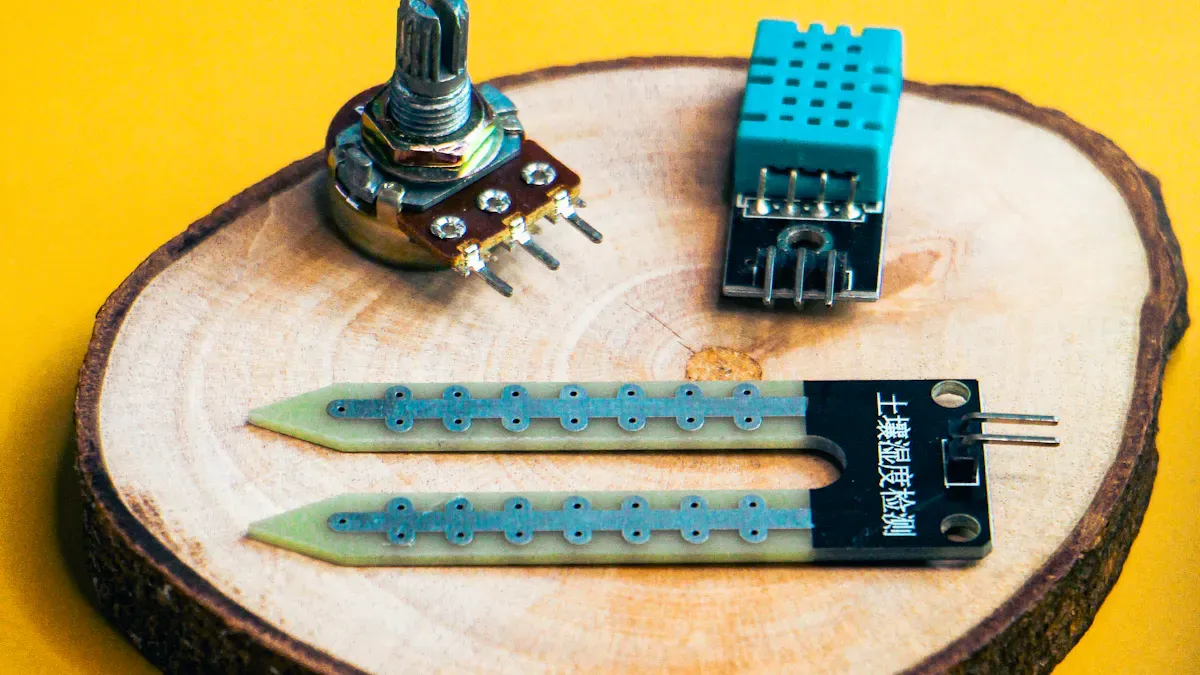
You will find the SSD1306 OLED display module very popular for raspberry pi display oled projects. This module uses a 128 x 64 pixel screen. You can connect it using I2C, SPI, or a parallel interface. Most Raspberry Pi models, including Raspberry Pi 3 Model B and Raspberry Pi Pico, support this display. The supply voltage ranges from 3V to 5V, and the default I2C address is 0x3C.
Raspberry Pi Model | Compatibility with SSD1306 | Communication Protocols | Supply Voltage Range | Default I2C Address |
|---|---|---|---|---|
Raspberry Pi 3 Model B | Yes | I2C, SPI, Parallel | 3V - 5V | 0x3C |
Raspberry Pi Pico | Yes | I2C, SPI, Parallel | 3V - 5V | 0x3C |
You only need two wires for I2C communication. This makes wiring simple. You can use Python or MicroPython libraries to program the display. The SSD1306 OLED works well for IoT projects and real-time data visualization.
Key Features and Best Uses:
Low power consumption helps you save battery life.
High contrast makes the screen easy to read, even in bright light.
Simple wiring is great for beginners.
The compact form fits wearables and small devices.
Wide library support lets you use Arduino IDE or MicroPython.
You can use it for wearables, IoT dashboards, and educational projects.
Tip: If you want to build a battery-powered project, this oled display module is a smart choice.
How to Connect and Program:
Connect VCC to 3.3V or 5V on your Raspberry Pi.
Connect GND to a ground pin.
Connect SDA to the Pi’s SDA pin.
Connect SCL to the Pi’s SCL pin.
Install the
Adafruit_SSD1306andAdafruit_GPIOPython libraries.Use example code to display text or graphics.
import Adafruit_SSD1306
from PIL import Image, ImageDraw, ImageFont

disp = Adafruit_SSD1306.SSD1306_128_64(rst=None)
disp.begin()
disp.clear()
disp.display()
image = Image.new('1', (disp.width, disp.height))
draw = ImageDraw.Draw(image)
draw.text((0, 0), 'Hello OLED!', font=ImageFont.load_default(), fill=255)
disp.image(image)
disp.display()
Waveshare 0.96" OLED
The Waveshare 0.96 inch oled display module stands out for its easy installation and strong driver support. You can use it with any Raspberry Pi model that has GPIO access. The display uses SPI or I2C interfaces. It operates at 3.3V and uses less than 10mA during active display. This makes it a good choice for battery-powered or always-on systems.
Feature | Description |
|---|---|
Interface | SPI |
Color Depth | 16-bit |
Size | 0.96 inch |
Refresh Rate | 60Hz |
Viewing Angle | Wide |
Power Consumption | Low |
Operating Voltage | 3.3V |
Resolution | 128x64 |
PCB Type | Flexible PCB |
Brightness | High |
Installation Steps:
Make sure your Raspberry Pi supports GPIO access.
If you use an Argon ONE V5 case, install the OLED mounting bracket.
Align the module’s pins with the 40-pin GPIO header.
Press the module into place until it clicks.
Secure it with the two M2 screws.
Install drivers using the terminal.
Run the demo script to test the display.
Waveshare provides ready-to-use scripts for Raspberry Pi OS. You do not need to set up drivers manually. You can find working examples for Python, C++, and Node-RED on their GitHub.
Best Uses:
Use this module for system monitors, clocks, or sensor readouts.
The high brightness and wide viewing angle make it easy to see from different positions.
The flexible PCB lets you fit the display into tight spaces.
Note: The 0.96 inch oled display module is perfect for compact projects that need clear text and graphics.
1.5" RGB OLED Display Module
The 1.5 inch RGB oled display module gives you a bigger screen and color graphics. It uses a 128 x 128 pixel resolution and connects through SPI. You can use it with Raspberry Pi and Jetson boards. This module works well for showing both text and graphics.
Unique Features:
The RGB color lets you display colorful images and icons.
The compact size fits small projects.
The 128 x 128 resolution gives you more detail than smaller displays.
Best Use Cases:
Show text and graphics for programming displays.
Use it in small projects that need color, like mini dashboards or game consoles.
How to Connect and Program:
Connect VCC to 3.3V or 5V on your Raspberry Pi.
Connect GND to a ground pin.
Connect SCL (clock) and SDA (data) to the correct SPI pins.
Install the
luma.oledPython library.Use example code to draw shapes or display images.
from luma.core.interface.serial import spi
from luma.oled.device import ssd1351

serial = spi(device=0, port=0)
device = ssd1351(serial)
device.text("Hello RGB OLED!", 0, 0, fill="white")
Tip: The 1.5 inch oled display module is great for projects that need color and more screen space.
Seeed Studio Grove OLED
The Seeed Studio Grove OLED module is easy to use with the Grove Base Hat for Raspberry Pi. It supports both I2C and SPI interfaces. The display uses the SH1107 Dot Matrix OLED Driver and has a 128 x 128 pixel resolution.
Feature | Description |
|---|---|
Interface | I2C and SPI |
Driver | SH1107 Dot Matrix OLED Driver |
Resolution | 128x128 pixels |
Compatibility | Grove Base Hat for Raspberry Pi |
Installation Steps:
Plug the Grove Base Hat into your Raspberry Pi.
Connect the Grove OLED display to the I2C port on the Base Hat.
Connect your Raspberry Pi to a PC with a USB cable.
You can find Python libraries and guides from Seeed Studio. The display works well for sensor readouts, simple graphics, and text.
Best Uses:
Use this module for quick prototyping and educational projects.
The Grove system makes wiring simple and safe.
The 128 x 128 resolution gives you enough space for icons and data.
Note: The 0.96 inch oled display module from Grove is a good choice if you want plug-and-play setup with your raspberry pi.
OLED Performance in Raspberry Pi Projects
Resolution and Pixel Density
When picking an oled for your raspberry pi, check the resolution and pixel density. These things decide how clear your pictures and words look. For example, a 128×64 pixel screen has about 130 pixels per inch. This gives you sharp lines and less blocky images, which is great for small screens. The SSD1306 oled display often uses this size. Oled screens have pixels that light up by themselves. This makes colors bright and the contrast strong. You do not need a backlight, so the screen stays bright even in dim rooms.
Specification | Detail |
|---|---|
Resolution | 128×64 pixels |
Pixel Density | ~130 PPI |
Image Quality | Sharp edges, reduced pixelation, clarity |
The 128×64 pixel screen is good for showing words, icons, and simple pictures.
Oled screens make pictures pop with deep blacks and bright colors.
Viewing Angle and Response Time
Oled displays let you see the screen from almost any side. This is helpful if your raspberry pi project moves or is in a busy place. Oled screens also change fast when you update them. You will see smooth changes with no delay. This is important for clocks, sensors, or real-time data. You do not get blurry images or lag, so your project looks neat.
Tip: If you want your screen to look good from the side or change fast, oled is a good pick.
Power and Durability
Oled screens use less power than LCDs. They do not need a backlight, so they save energy. This is great for raspberry pi projects that use batteries. How much power you use depends on how bright the screen is and what you show. If you keep the screen dim and do not show bright, still pictures, you save more energy.
Oled screens help your battery last longer because they use less power.
LCDs usually use more power since they need a backlight.
Oled screens can last about 3 to 5 years. Some people have used them for 6 years or more if they take care of them. You can help your oled last longer by turning down the brightness and changing what is on the screen. This stops burn-in. Most warranties last about 3 years. Over time, the oled screen can fade or change color because of the materials inside. For most raspberry pi projects, this is long enough, but you may need to replace the screen if you use it all day in tough places.
Oled screens can last 3 to 6 years if you take care of them.
Lower brightness and moving pictures help stop burn-in.
Most raspberry pi oled screens are strong enough for home or school use.
Choosing the Right OLED for Your Project
User Feedback and Community Picks
Pros and Cons Summary
You can learn a lot from what other users say about each oled display. Many people like the bright colors and sharp text these screens offer. You will find that most users enjoy the easy setup process. They also like the low power use, which helps with battery projects. Some users say the small size makes it hard to read from far away. Others mention that oled screens can show burn-in if you leave the same image for a long time.
Here is a simple table to help you see the main pros and cons:
Pros | Cons |
|---|---|
High contrast and brightness | Small size can limit readability |
Easy to connect and program | Risk of burn-in with static images |
Low power consumption | Limited color on some models |
Good community support | Shorter lifespan than LCD |
Note: You can avoid burn-in by changing the image often and lowering the brightness.
Community Favorites
You will see that the SSD1306 oled display is a top pick in many forums. People like it because it works with many Raspberry Pi models and has strong library support. The Waveshare 0.96" display is also popular for its clear text and simple wiring. If you want color, the 1.5" RGB oled is a favorite for small games and dashboards. Many users choose the Seeed Studio Grove display for quick projects because it connects fast with the Grove system.
SSD1306: Best for beginners and simple data projects.
Waveshare 0.96": Great for system monitors and clocks.
1.5" RGB: Good for colorful graphics and games.
Seeed Studio Grove: Top choice for plug-and-play setups.
You can find many guides and code examples in the Raspberry Pi community. These resources help you connect and program your oled display with ease.
You have many great OLED display options for your Raspberry Pi projects. The SSD1306 works well for simple data. The Waveshare 0.96" gives you clear text. The 1.5" RGB OLED adds color for graphics. The Seeed Studio Grove makes setup easy.
When you choose a display, remember these tips:
Use good power management for longer life.
Change images often to avoid burn-in.
Keep your display clean for best results.
You can join Raspberry Pi forums to share your projects, ask questions, and learn from others.
How to Connect and Program an OLED Display on Raspberry Pi
Connecting a small OLED screen to a Raspberry Pi is a classic and fun beginner project. The process is straightforward: a few simple circuit connections, a couple of software configuration steps, and a short Python script.
The project focuses on driving a common 0.96‑inch, 128×64 resolution SSD1306‑based OLED display, which typically uses the I2C interface.
🔌 Step 1: Hardware Connection (I2C Interface)
Most small OLED modules communicate via the I2C protocol, requiring only 4 wires. Connect them according to the table below:
OLED Module Pin | Raspberry Pi GPIO Pin | Description |
|---|---|---|
VCC | Pin 1 (3.3V) | Power positive (prefer 3.3V) |
GND | Pin 6, 9, 14, 20, 25, etc. | Ground |
SCL (clock) | GPIO 3 (physical pin 5) | I2C clock line |
SDA (data) | GPIO 2 (physical pin 3) | I2C data line |
Safety tip: Pay attention to pin numbering (physical pin vs. BCM numbering) – incorrect wiring may damage the device.
⚙️ Step 2: Configure Raspberry Pi Software
After wiring, you need to enable I2C and install the necessary libraries.
1. Enable I2C Interface
Open a terminal and run sudo raspi-config. Navigate to Interface Options → I2C and select <Yes> to enable it. The system will then prompt you to reboot the Raspberry Pi for the change to take effect.
2. Install Required Tools
Update the system and install the i2c-tools package:
bash
sudo apt update
sudo apt install i2c-tools python3-smbus python3-pip
3. Verify the Connection
Run the following command to scan the I2C bus and confirm communication with the OLED:
bash
sudo i2cdetect -y 1If everything is correct, you will see a hexadecimal address in the output – typically 0x3c.
text
     0  1  2  3  4  5  6  7  8  9  a  b  c  d  e  f
00:          -- -- -- -- -- -- -- -- -- -- -- -- --
10: -- -- -- -- -- -- -- -- -- -- -- -- -- -- -- --
20: -- -- -- -- -- -- -- -- -- -- -- -- -- -- -- --
30: -- -- -- -- -- -- -- -- -- -- -- -- -- 3c -- -- Note: If
0x3cdoes not appear, double‑check your wiring and ensure I2C is enabled.
🐍 Step 3: Write Python Test Code
We will use the powerful Adafruit_CircuitPython_SSD1306 library to drive the screen, and Pillow (PIL) to create and draw images.
1. Install the Driver Library and Dependencies
Run the following commands in the terminal:
bash
sudo pip3 install adafruit-circuitpython-ssd1306
sudo pip3 install pillow
2. Write the Test Script
Create a new Python file, e.g., oled_test.py, and paste the code below.
python
import board
import busio
from PIL import Image, ImageDraw, ImageFont
import adafruit_ssd1306

# Define screen width and height (adjust for your display)
WIDTH = 128
HEIGHT = 64

# Initialise I2C communication using the Raspberry Pi's I2C bus
i2c = board.I2C()   # uses board.SCL and board.SDA
oled = adafruit_ssd1306.SSD1306_I2C(WIDTH, HEIGHT, i2c, addr=0x3C)

# Clear the display buffer
oled.fill(0)
oled.show()

# Create a new image in mode "1" (1‑bit pixels, black and white)
image = Image.new("1", (oled.width, oled.height))

# Get a drawing object
draw = ImageDraw.Draw(image)

# Optional: draw a white background
draw.rectangle((0, 0, oled.width, oled.height), outline=255, fill=255)

# Load the default font
font = ImageFont.load_default()

# The text to display
text = "Hello, World!"

# Calculate text position to centre it
bbox = draw.textbbox((0, 0), text, font=font)
text_width = bbox[2] - bbox[0]
text_height = bbox[3] - bbox[1]
x = (oled.width - text_width) // 2
y = (oled.height - text_height) // 2

# Draw the text on the image
draw.text((x, y), text, font=font, fill=0)

# Display the image on the OLED screen
oled.image(image)
oled.show()
3. Run the Script
Save the file and run it with:
bash
python3 oled_test.pyIf everything works, you will see "Hello, World!" displayed on your OLED screen.
🔍 Step 4: Troubleshooting
If the display does not work as expected, check the following:
Driver IC mismatch: The code assumes an SSD1306 driver. If your display uses SH1106, you may need to use a different library (e.g.,
luma.oled) – otherwise the image may be shifted.I2C address: Run
sudo i2cdetect -y 1again. If the address is0x3dinstead of0x3c, changeaddr=0x3Ctoaddr=0x3Din theSSD1306_I2C()call.Wiring: Double‑check that SDA, SCL, VCC, and GND are correctly connected to the right GPIO pins.
🚀 Step 5: Advanced Ideas
Once you have the basics working, here are some fun projects to try:
Display Chinese text: Download a Chinese font file (e.g.,
msjh.ttf) and load it with Pillow.Read sensors: Display temperature, humidity, or pressure readings from sensors on the OLED.
System information panel: Show the Raspberry Pi’s IP address, CPU temperature, and memory usage.
Drive multiple displays: Use libraries like
rpi-display-coreto control several screens simultaneously.
I hope this guide helps you get started. If you run into specific issues – code errors or wiring questions – feel free to ask.
FAQ
How do you connect and program an OLED display on Raspberry Pi?
You connect the display’s VCC, GND, SDA, and SCL pins to your Raspberry Pi. Install libraries like Adafruit_SSD1306. Use Python code to show text or images.
Tip: Always check your display’s datasheet for correct wiring.
Can you use multiple OLED displays with one Raspberry Pi?
Yes, you can use more than one OLED display. Use different I2C addresses or connect displays to separate SPI pins.
Make sure each display has a unique address.
Check your code for correct device selection.
What causes OLED burn-in, and how can you prevent it?
OLED burn-in happens when the same image stays on the screen for a long time. You can prevent it by lowering brightness and changing the display often.
Note: Use screen savers or rotate content to help avoid burn-in.
Which interface is better for beginners: I2C or SPI?
I2C is easier for beginners. You only need two data wires. SPI is faster but needs more connections.
Start with I2C for simple projects.
Try SPI if you need higher speed.
Do OLED displays work with all Raspberry Pi models?
Most OLED displays work with all Raspberry Pi models. Check the display’s voltage and interface. Some older models may need adapters.
Always read the compatibility list before buying a display.
See Also
Key Transparent OLED Display Market Insights for 2026
Top Transparent OLED Display Models to Compare in 2025
Top Reviewed Outdoor LCD Kiosks for 2026
