Best LCD Monitor Guide for Work, Gaming, and Everyday Use
Choosing the best lcd monitor can feel tricky. You want clear images, smooth gameplay, or easy reading at your desk. Many people miss important details when selecting the right monitor. Take a look at this table to see common mistakes:
Mistake | Description |
|---|---|
Viewing Angles | Many forget that regular monitors lose color if you look from the side. |
Longevity | Some do not check how long a basic monitor lasts—often just 5-6 years. |
Think about your space, how you use your screen, and what you want to spend before you buy.
Key Takeaways
Pick a monitor size that fits your needs. For work, 22 to 27 inches is best. For gaming, try 24 to 34 inches for a better time.
Find features that make you more comfortable. Monitors with height adjustment and blue light filters help your eyes. These features are good for long use.
Choose the right panel type. IPS panels show colors well for work. TN panels are good for fast gaming.
Look at the ways you can connect your monitor. USB-C and DisplayPort make it easy to plug in. These also help keep your desk neat.
Think about refresh rates and response times for gaming. Try to get at least 144Hz refresh rate and 1ms response time. This makes games look smooth.
LCD Monitor Quick Picks
Best for Work
You want a monitor that helps you stay focused and comfortable during long hours. Here are some top monitor recommendations for work:
BenQ GW2790QT: This monitor gives you Type-C connectivity, 99% sRGB color, and eye-care features. You get clear text and less eye strain.
MSI Modern MD272QXP: If you work with photos or design, this monitor offers 115% sRGB color and easy adjustments for height and tilt.
Dell S2722DC: This monitor balances style and performance. It has 99% sRGB color, Type-C ports, and a modern look for any desk.
Tip: Choose a monitor size between 22 and 27 inches for most office desks. Look for features like height adjustment and low blue light modes to keep your eyes comfortable.
Best for Gaming
You want fast action and smooth graphics when you play games. Many gamers love these monitors:
ASUS ROG Swift OLED PG27UCDM
AOC Q27G3XMN
LG 27GX790B-B
Dell Alienware AW3425DW
Samsung Odyssey OLED G60SD S27DG602S
These monitors offer high refresh rates and quick response times. You get less blur and more fun in every game. Some models also have curved screens for a more immersive experience.
Best for Everyday Use
If you need a monitor for web browsing, streaming, or homework, check out these best-sellers:
Monitor Name | Resolution | Size | Price Range | Key Features |
|---|---|---|---|---|
Asus ProArt Display PA278CGV | 2560×1440 | 27" | $279 - $399 | Good color, USB-C, fast refresh, KVM switch |
Dell UltraSharp U2725QE | 4K | 27" | $629 - $800 | Great contrast, USB hub, charges MacBook Pro, sharp details |
These monitors give you a good balance of features, value, and reliability. You can use them for almost anything, and they fit most home setups.
Note: Always check the monitor size and resolution to match your desk space and needs. A good lcd monitor can make every task easier.
Monitor Buying Guide
Choosing the right monitor can feel overwhelming, but this monitor buying guide will make things simple. You want a screen that fits your space, matches your needs, and keeps you comfortable. Let’s break down the most important specs and features so you can pick the best monitor for work, gaming, or creative projects.
Panel Types
The panel type affects how your monitor looks and feels. Each type has its own strengths. Here’s a quick comparison:
Panel Type | Color Accuracy (ΔE) | Response Time | Contrast Ratio |
|---|---|---|---|
IPS | ~4-5ms | 1000:1 | |
TN | > 6 (Poor) | 1ms | 600:1 |
VA | Moderate | Slower than TN | Moderate |
IPS panels give you bright colors and wide viewing angles. You see clear images even if you move around your desk. These are great for creative work and everyday use.
TN panels respond very fast. Gamers love them for quick action, but the color and contrast are not as strong.
VA panels offer deeper blacks and better contrast. They work well for watching movies or multitasking, but the response time is slower.
If you want the best color and image quality, go with IPS. If you care about speed, TN is your friend. For a balance of contrast and multitasking, VA is a solid choice.
Monitor Size and Resolution
Monitor size and resolution matter for comfort and productivity. The right size depends on what you do most:
Activity Type | Recommended Size |
|---|---|
Everyday Use / Web Browsing | 22~27 inches |
Design / Content Creation | 27~32 inches |
Gaming | 24~34 inches |
Multitasking / Wide-Angle | >32 inches or Ultrawide |
The best monitor sizes for most desks are between 22 and 27 inches. If you design or edit, you might want a bigger screen.
For multitasking, ultrawide monitors give you more space to open many windows at once.
Higher resolution means sharper text and images. Go for at least Full HD (1920x1080). If you want more detail, try QHD (2560x1440) or 4K (3840x2160).
Tip: Sit at the right distance from your monitor. Keep the top of the screen at or just below eye level. Tilt the monitor so you look down at a 15°-25° angle. This setup helps you avoid neck and eye strain.
Refresh Rate & Response Time
Refresh rate and response time affect how smooth your screen looks, especially for gaming.
For gaming, look for a refresh rate of 144Hz or 165Hz and a response time under 4ms. This gives you fast, smooth action.
Competitive gamers need at least 144Hz and 1ms response time.
Casual gamers do well with 100Hz and up to 5ms.
For office work, a 100Hz refresh rate is enough for smooth scrolling and less flicker.
A higher refresh rate means less blur and a more enjoyable experience, whether you’re playing games or just moving windows around.
Connectivity Options
Modern monitors come with many ways to connect your devices. Here’s what to look for:
Connectivity Option | Description | Benefits |
|---|---|---|
Offers easy connectivity and can boost productivity with a USB-C hub. | Facilitates quick connections and reduces cable clutter. | |
DisplayPort | Essential for daisy-chaining multiple monitors. | Allows connection of multiple high-resolution displays with one cable. |
Thunderbolt 3 | Supports daisy-chaining and high-speed data transfer. | Enhances productivity by connecting multiple devices efficiently. |
USB-C lets you connect laptops, tablets, and phones with one cable. It can even charge your device.
DisplayPort and Thunderbolt 3 are great for connecting more than one monitor. You get a clean desk and fewer cables.
Ergonomics
You want to stay comfortable during long hours at your desk. Good ergonomics make a big difference.
Choose a monitor with adjustable height and tilt. You can set the screen at the perfect angle for your eyes.
Pick the best monitor sizes for your desk so you don’t have to move your head too much.
Make sure the resolution is high enough for clear text and images.
Keep your monitor at eye level and parallel to your face. This helps you keep good posture and avoid neck pain.
Note: The right monitor setup can boost your productivity and keep you comfortable all day.
This computer monitor buying guide gives you the basics. Now you know what to look for in an lcd monitor, from panel type to ergonomics. Match these specs to your space and needs, and you’ll find the perfect screen for work, gaming, or creative projects.
Work Monitor Guide
Productivity Features
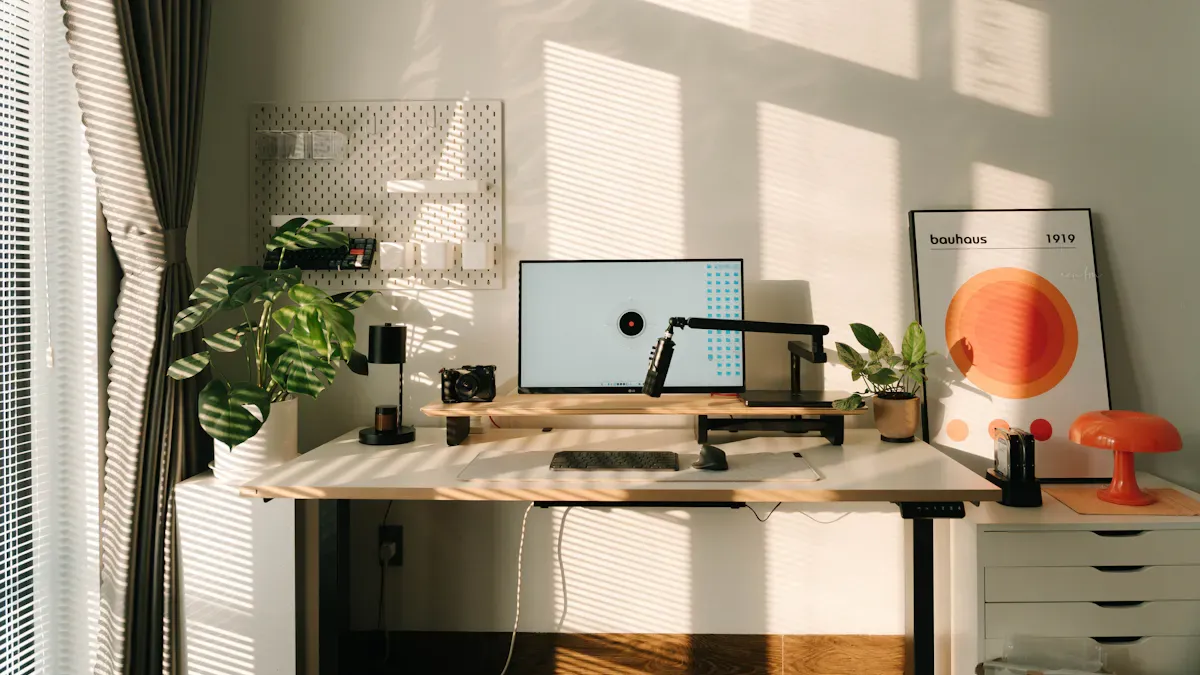
You want your lcd monitor to help you get more done, not slow you down. A bigger monitor size lets you see more apps and documents at once. You don’t have to keep switching windows, which saves time and keeps you focused. Most people find that a 24 to 27-inch monitor works best for office work. If you pick a higher resolution, you get sharper text and less eye strain. That’s great for reading emails or editing creative projects.
Here are some features that boost productivity:
Large screen and high resolution for multitasking
Ergonomic stands for easy height and tilt adjustments
Eye care technology to keep you comfortable
USB-C ports for quick connections
You’ll notice a real difference in your workflow when you choose a monitor with these features.
Eye Comfort & Viewing Angles
Staring at a monitor all day can make your eyes tired. You want a screen that keeps you comfortable. Many lcd monitors now use flicker-free technology and blue light filters. These features help reduce eye strain and make long work sessions easier.
Technology Type | Description |
|---|---|
Flicker-Free Technology | Produces a steady light, so your eyes don’t get tired from flickering. |
Blue Light Filters | Cuts down on harsh blue light, which helps prevent eye fatigue and discomfort. |
Wide viewing angles also matter. If you move around your desk, you still see clear color and image quality. This is important for sharing your screen with others or checking your work from different spots.
Multi-Monitor Setup Tips
Want to take your productivity to the next level? Try a dual monitor setup. You can keep your main work on one screen and use the second for research or chat. Studies show that using two monitors helps you multitask better and spend less time switching between apps.
Here’s how to set up your monitors for the best results:
Match monitor size and resolution for a smooth look.
Use the right cables to connect everything.
Line up the top edges of your monitors to reduce neck strain.
Spread out your work across both screens.
Keep your desk tidy with good cable management.
A good multi-monitor setup can make your workday smoother and more organized.
Gaming Monitor Guide
Refresh Rate & Sync
You want your games to look smooth and feel fast. The right refresh rate and sync technology make a huge difference. Most gaming monitors now offer high refresh rates and low response times. Check out this table to see what you should look for:
Feature | Recommendation |
|---|---|
Refresh Rate | |
Adaptive Sync | NVIDIA G-Sync, AMD FreeSync |
Response Time | Around 1ms MPRT |
A refresh rate of 144Hz or more keeps the action fluid. Fast response times, like 1ms, help you see every detail without blur. Adaptive sync, such as G-Sync or FreeSync, stops screen tearing and stuttering. You get a clear image and better control in every game.
Immersion Features
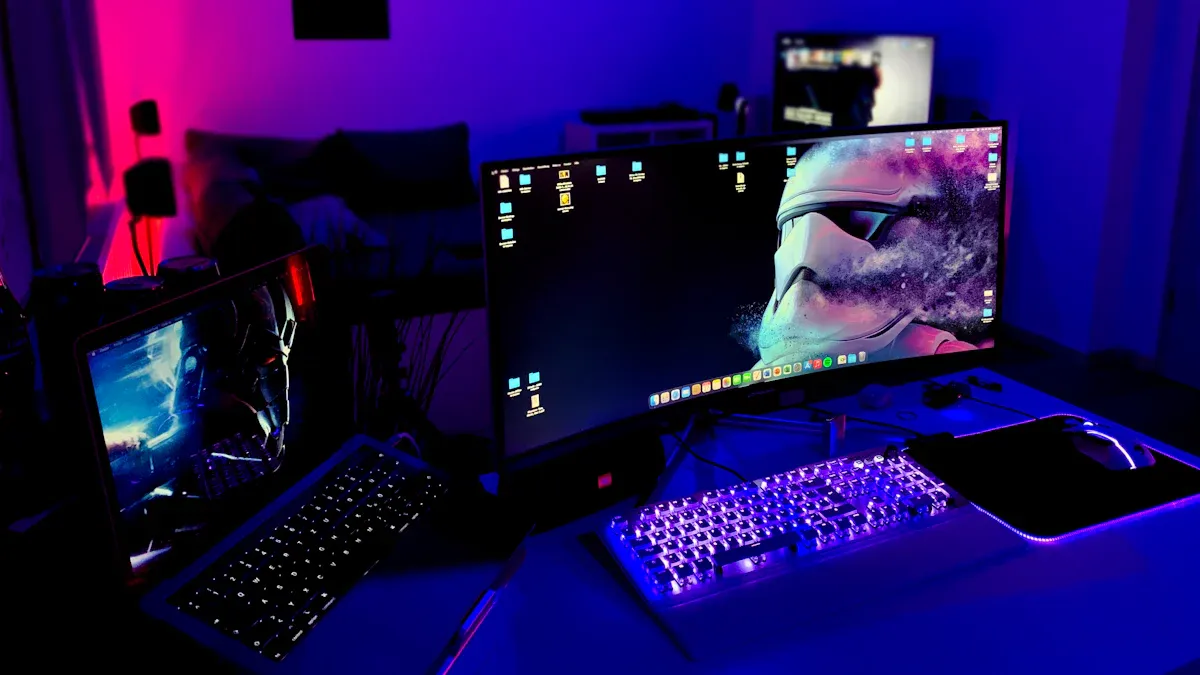
You want to feel like you’re inside the game. Immersive features help you get there. Many gamers love curved screens and RGB lighting. These features pull you deeper into the action and make your setup look awesome.
Feature | Description |
|---|---|
Curved Screens | Designed to wrap around your field of vision, reducing edge distortion and boosting immersion. |
Customizable RGB Lighting | Lets you personalize your setup and create a cool gaming atmosphere. |
High Refresh Rates | 144Hz or above, for smooth visuals and less motion blur. |
Low Response Times | 1ms or even lower, for sharp images during fast action. |
Curved monitors match the shape of your eyes. You notice more contrast and color at the edges. RGB lighting adds style and helps set the mood for every session. If you want the sharpest image, try a 4k monitor or uhd lcd monitor for next-level detail.
Gaming Setup Tips
You can get the most out of your gaming monitor with a few simple setup tips:
Pick a chair with good lumbar support and breathable fabric.
Make sure your desk has enough space for your gear.
Place your monitor at eye level and about an arm’s length away.
Use a mechanical keyboard and a gaming mouse for better control.
Try a headset with surround sound for a more immersive experience.
Add soft, adjustable lighting to reduce glare.
Follow the 20-20-20 rule to protect your eyes: every 20 minutes, look at something 20 feet away for 20 seconds.
With these tips, you can enjoy your lcd monitor and get the best out of your gaming sessions. Great gaming monitors bring out the best in every game, from color and contrast to speed and comfort.
Everyday Computer Monitor Use
Balanced Specs
You want a computer monitor that works well for everything—school, movies, and web browsing. The right specs make a big difference. You do not need the most expensive model, but you should look for a good balance. Check out this table for what to look for:
Specification | Description |
|---|---|
Display Resolution | QHD (1440p) or 4K UHD gives you sharp details for work and fun. |
Screen Size and Aspect Ratio | 24–34 inches fits most desks and works for both videos and homework. 16:9 is great for movies. |
Refresh Rate and Response Time | 120 Hz or higher keeps videos and games smooth. 3 ms or less means less blur. |
Color Accuracy and HDR Support | Wide color range and HDR10 make everything look bright and real. |
Connectivity Options | HDMI 2.1 and USB-C let you plug in laptops, game consoles, and more. |
Audio | Built-in speakers are handy for music and videos. |
Tip: Pick a monitor with a size that fits your desk and gives you enough space for multitasking.
Value & Reliability
You want your monitor to last and not break the bank. Look for brands with good reviews and long warranties. A reliable lcd monitor will work for years without problems. Scratch-resistant screens and sturdy stands help your monitor stay in good shape. You save money and avoid headaches when you choose a model known for quality.
Ease of Use
You do not want to struggle with your monitor every day. Easy-to-use features make life simpler. Here are some things that help:
Feature | Benefit |
|---|---|
Touch Responsiveness | Tap and swipe to control your screen easily. |
Display Quality | Bright and clear images help you see everything, even in sunlight. |
Durability | Scratch-resistant screens and strong parts mean less worry about damage. |
High brightness makes it easy to see in any room.
True-to-life colors make photos and videos pop.
Scratch-resistant surfaces keep your monitor looking new.
Long-lasting parts mean you do not have to replace your monitor often.
A good everyday monitor should be simple to set up and use. You want to spend more time enjoying your screen and less time fixing problems.
Extra Monitor Features
Curved vs. Flat
You might wonder if a curved screen is better than a flat one. Many people think curved displays are more comfortable for work and games. A curved display wraps around your eyes, so it feels bigger. You see less glare and fewer reflections on the screen. Some people say curved displays help them focus and feel better. Studies show curved displays can help you work faster and feel safer at your desk. Flat displays are still good for most things. If you share your screen or need straight lines for design, a flat display might be best. Both types use led technology for bright colors and sharp images.
Built-in Speakers & USB
You want your lcd monitor to do more than just show pictures. Many displays now have built-in speakers and USB hubs. These features make your desk cleaner and easier to use. Here’s what you can get:
Feature | Description |
|---|---|
Screen | 27" 4K UHD with SuperClear IPS panel |
Speakers | Dual 3W speakers for clear audio |
USB Hub | 1 upstream, 3 downstream ports, supports data transfer and up to 96W power |
Connectivity | 2 HDMI, DisplayPort, USB-C inputs |
Ergonomics | Tilt, swivel, pivot, and height adjustment |
Certifications | TCO, EnergyStar, EPEAT certified for sustainability |
User Experience | Reduces cable clutter and enhances overall functionality |
With built-in speakers, you can listen to music or watch videos easily. USB hubs let you plug in your phone, keyboard, or mouse right into the display. This keeps your desk neat and helps you work faster. Many led displays have these features for better quality and convenience.
Blue Light & Flicker-Free
You look at your display for hours every day. Eye comfort is important. Many lcd monitors now use blue light filters and flicker-free led backlights. These features help your eyes feel less tired. But what do experts say?
Source | Key Finding |
|---|---|
Cochrane Systematic Review on Blue Light Filtering Glasses | Blue light filtering glasses may not reduce eye strain symptoms compared to non-blue-light filtering lenses. |
Global Prevalence Study on Computer Vision Syndrome | Computer vision syndrome affects about 66% of digital device users worldwide, with digital eye strain being a top concern. |
American Academy of Ophthalmology Position Statement | No proof shows that light from screens harms your eyes; most symptoms come from how you use your display. |
You can still get benefits from a display with flicker-free led lighting and blue light reduction. These features make the display more comfortable for long use. If you want the best quality, look for a display that has both. When you compare lcd vs led, remember most new displays use led backlights for better quality and energy savings.
Computer Monitor Setup & Optimization
Calibration Tips
You want your lcd monitor to show colors and images clearly. Calibration helps you get the best picture. First, adjust the brightness so your screen feels comfortable. This stops your eyes from hurting. Next, change the white point. Move the RGB gains until colors look right. Whites should not look strange. Gamma adjustment makes shadows and highlights look normal. You can use tools like Displaymate, MonitorTest, or DisplayCAL to help you.
Calibration Technique | Description |
|---|---|
Brightness Adjustment | Set brightness to a level that feels good and avoids eye strain. |
White Point Adjustment | Adjust RGB gains for accurate color and a clean white. |
Gamma Adjustment | Fine-tune gamma for lifelike color and balanced contrast. |
Tip: If you work with photos or videos, calibrate your lcd monitor every few months for the best results.
Desk & Cable Management
A neat desk helps you focus and keeps your lcd monitor setup looking nice. Use cable trays under your desk to hide wires. Cable ties, clips, and sleeves keep cables together and stop them from getting messy. Pick cables that fit your space so you do not have extra slack. Velcro ties or cable sleeves group cables going the same way. This keeps your workspace neat and safe.
Cable trays hide wires and help you focus.
Ties and clips keep cables together and stop messes.
Sleeves protect cables and make your desk look tidy.
Keeping your cables organized makes your lcd monitor setup easier to use and safer.
Software Tools
You can make your lcd monitor work better with the right software. Some tools help you change settings, protect your screen, and control more than one monitor.
Software Tool | Key Features |
|---|---|
Customizable settings, easy interface, MultiScreen control, OLED protection, KVM feature | |
DisplayCAL | Calibration and profiling, interactive adjustments, supports many colorimeters and profiles |
ASUS DisplayWidget Center lets you change your monitor, manage screens, and protect your display.
DisplayCAL helps you calibrate your lcd monitor for correct colors.
Try these tools to get the most out of your lcd monitor and enjoy a better viewing experience.
Choosing the right lcd monitor makes your work, gaming, or daily tasks easier and more fun. Match your monitor’s specs to what you do most. Here’s a quick guide:
Specification | Best For |
|---|---|
1080p, 24" | Office, studying |
1440p, 27" | Design, multitasking |
4K, 27–32" | Creative work |
144Hz, 1–5ms | Gaming |
Use the quick picks and buying guide as your checklist. Compare your top choices, set your budget, and think about what you’ll need next year. Enjoy a better view every day!
FAQ
What size LCD monitor should I get for my desk?
You want a monitor that fits your space. Most people like 24 to 27 inches for work or school. If you have a small desk, pick a 22-inch screen. For big desks or multitasking, try 32 inches or more.
Do I need a high refresh rate for everyday use?
No, you do not need a super high refresh rate for web browsing or homework. A 60Hz or 75Hz lcd monitor works well for most daily tasks. Higher refresh rates help mostly with gaming.
How do I reduce eye strain when using an LCD monitor?
Pick a monitor with blue light filters and flicker-free technology. Adjust the brightness so it feels comfortable. Take breaks every 20 minutes. Look away from the screen and blink often to keep your eyes fresh.
Can I use an LCD monitor with my laptop?
Yes! Most lcd monitors connect easily to laptops with HDMI or USB-C cables. Just plug it in and select the right input. You can use the monitor as your main screen or as a second display.
What is the difference between LCD and LED monitors?
All LED monitors are actually LCD monitors with LED backlights. LED screens look brighter and use less power. When you shop, you will see "LED" and "LCD" used together. Both give you clear images and sharp colors.
See Also
Selecting The Perfect Gaming Monitor For Your Configuration
Finding The Ideal LCD Rack Monitor For Your Requirements
Best OLED Monitors To Purchase For Exceptional Visuals
Selecting The Optimal LCD Round Display For 2025 Projects
High-Resolution LCD Kiosk Displays You Will Adore For Exhibitions
