Best free digital signage software to turn your TV into a smart display
Shenzhen TopAdkiosk Display Technology Co., Ltd.
Add.: 2F, Bldg 10, Changfeng Industrial Park, Dongkeng, Fenghuang, Guangming, Shenzhen, China 518132
Mobile/WHATSAPP: 86-138 25769658
Email: marketing@topadkiosk.com topadkiosk@gmail.com
Skype: pghenry1
Wechat: adkioskhenry
English Web.: https://www.topkioskdisplay.com/
http://www.ad-kiosk.com/
https://www.toplcddisplay.com/
http://www.multitouchdigitalsignage.com/
https://www.youtube.com/channel/UCYVYNJHxLVEcQD8fuUxXNTA/videos?view_as=subscriber
https://www.facebook.com/TOPADKIOSKSHENZHEN/?ref=bookmarks
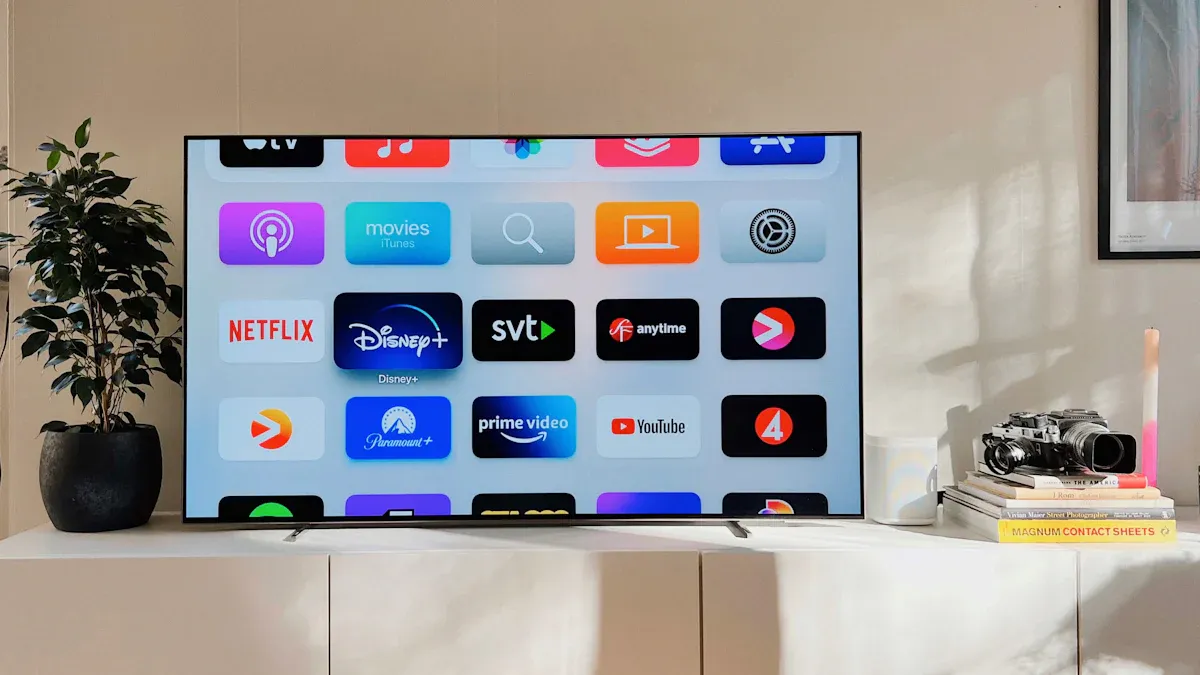
You can turn your TV into digital signage free by using top solutions like Yodeck, Screenly OSE, Xibo Community Edition, and AbleSign. These platforms allow you to turn TV into digital signage free with user-friendly interfaces and powerful content management tools. They are compatible with many types of TVs, making it easy to get started. Experts recommend choosing digital signage software that is simple to use, offers reliable updates, and works seamlessly with your display system. For more ideas and support on how to turn TV into digital signage free, visit https://www.topkioskdisplay.com/.
Key Takeaways
Pick easy-to-use digital signage software like Yodeck or AbleSign. This makes setup and management simple.
Make sure the software works with your TV or device. This helps everything run smoothly.
Use templates to make fun content fast. This saves time when you design.
Update your content often to keep displays new and interesting. This helps people pay attention.
Think about what you need, like tech support and ways to change things. This is important when you pick software.
Top Free Digital Signage Software Compared
Quick Feature Comparison Table
You want to pick the best digital signage software for your TV. The table below helps you compare top choices. It shows if they have free plans, easy setup, and helpful templates. Use this table to find the tool that fits your needs.
Software | Free Plan | Templates | Open Source | Best For |
|---|---|---|---|---|
Yodeck | Yes | Yes | No | Beginners, SMBs |
Screenly OSE | Yes | No | Yes | Tech teams |
Xibo Community | Yes | Yes | Yes | Organizations |
AbleSign | Yes | Yes | No | Home, Small Biz |
OptiSigns | Yes | Yes | No | Small Biz |
Anthias | Yes | No | Yes | Developers |
Concerto | Yes | No | Yes | Schools |
PosterBooking | Low Cost | Yes | No | Startups |
Tip: Templates make it easy to create content fast. Pick software with lots of templates if you want to save time.
TV Compatibility and Supported Platforms
You need software that works with your TV or device. Some options work on more platforms than others. For example, Yodeck works great with Raspberry Pi. DigitalSignage.com supports Windows, iPad, and Android. ScreenCloud lets you use TVs, tablets, and kiosks. Most top digital signage software works with smart TVs, streaming devices, and media players. Always check if your TV brand and system are supported before you start.
Ease of Use for Beginners
If you are new to digital signage, you want simple tools. Yodeck is a good choice for beginners. Users give it a 4.7 out of 5 for being easy to use. You get drag-and-drop editing, ready templates, and can manage everything from any device. AbleSign and OptiSigns are also easy to set up and have many templates. If you have a tech team, you might like open-source options like Screenly OSE or Xibo Community Edition. These give you more control but take more time to set up.
Note: Many people have problems like picking the wrong screen size, not updating content, or putting too much on the screen. Use clear templates and plan your content to avoid these issues.
Digital Signage Software Overviews
Yodeck Overview, Pros & Cons, Best For
Yodeck is a cloud-based digital signage software. It is great for beginners and small businesses. You can control your screens from anywhere. There are thousands of free stock images from Unsplash, Pexels, and Pixabay. Yodeck lets you show live video streams and any web page. Some other tools do not let you do this. The setup is plug-and-play, so you can start fast.
Feature | Yodeck's Offering | Comparison to Other Solutions |
|---|---|---|
Free Stock Images | Access to thousands of free stock images from Unsplash, Pexels, and Pixabay. | Unique to Yodeck |
Live Video Streaming | Supports IPTV and various live streaming sources. | Common but well-implemented |
Display Web Pages | Ability to display any web page, both public and internal. | Often limited in other tools |
Pros:
Setup is easy and the interface is simple.
There are many templates and images.
It works well with Raspberry Pi.
Tag-based playlists help manage content.
Cons:
Some people think design choices are limited.
The preview on your computer might not match the TV.
You need a paid plan for advanced features.
Best For:
Small businesses that want affordable digital signage.
Retail stores, restaurants, and offices.
Groups that want a simple and safe experience.
Tip: Yodeck is best if you want an easy start and lots of free images for your screens.
Screenly OSE Overview, Pros & Cons, Best For
Screenly OSE is open-source digital signage software. It gives you lots of control and flexibility. You can update your content from far away. You can schedule live or timed content. You can also check your screens from anywhere. Because it is open-source, you can change the software to fit what you need.
Advantages of Screenly OSE | Disadvantages of USB Sticks |
|---|---|
Allows remote updates of content, reducing the need for employee travel. | Requires physical presence to update content, which can be time-consuming. |
Supports live and timed content, providing flexibility in display. | Cannot show live updates or timed content without manual intervention. |
Can monitor display status remotely, alerting for malfunctions. | Does not provide feedback on display status, leading to potential downtime. |
Pros:
You can customize it because it is open-source.
You can manage and schedule content from anywhere.
It works well with Raspberry Pi.
Cons:
Community support is not as strong as paid options.
Setup is hard for people who are not technical.
There are not many templates or design tools.
Best For:
Tech teams and users who want to change their software.
Schools and groups with IT help.
People who want open-source flexibility.
Xibo Community Edition Overview, Pros & Cons, Best For
Xibo Community Edition is strong open-source digital signage software. You can change it to fit your needs. You can also connect it with other systems. Xibo has a helpful community for troubleshooting and tips.
Feature | Description |
|---|---|
Open-source Nature | Xibo is open-source, allowing for extensive customization and integration capabilities. |
Customization Potential | Organizations can modify the source code to add features or adapt functionality to their needs. |
Community Support | Active community provides forums and documentation for troubleshooting and best practices. |
Implementation Complexity | Requires significant technical expertise for setup and maintenance, suitable for organizations with IT resources. |
Cost-effective | Free model benefits large deployments where per-screen licensing is expensive. |
Pros:
You can customize it a lot.
The community is very helpful.
It is good for big groups because it is free.
It works with many devices.
Cons:
You need technical skills to set it up and keep it running.
The interface is hard for beginners.
Best For:
Groups with IT teams.
Schools and businesses with lots of screens.
People who want to connect digital signage with other systems.
AbleSign Overview, Pros & Cons, Best For
AbleSign is simple, cloud-based digital signage software. It is made for people who are not technical. You can upload content, make playlists, and manage screens with drag-and-drop tools. The free plan lets you try main features without paying.
Feature | Description |
|---|---|
Simplicity | Designed for ease of use, making it ideal for non-technical users. |
Cloud-based | Lightweight platform that allows straightforward content scheduling and management. |
Free Plan | Offers a free plan for SMBs to explore core features. |
User-friendly | No training needed; users can upload content and manage playlists easily. |
You can put the AbleSign app on a Firestick. This turns your TV into a digital sign in just a few minutes. You do not need any special skills.
Pros:
It is very easy to use.
You can set it up fast with the app.
It works well with Firestick and AndroidTV.
The free plan is good for small businesses.
Cons:
Firestick Lite may have trouble with big videos or images.
High-quality content can slow down weak devices.
Keep HD video bitrates under 10Mbps for smooth play.
Best For:
Home users and small businesses.
People who want a quick and easy solution.
Users with simple content and playlists.
OptiSigns Overview, Pros & Cons, Best For
OptiSigns is feature-rich digital signage software. It has a big app library and thousands of templates. You can use dynamic data mapping and curated feeds to keep content new. OptiSigns works on many devices, so it is very compatible.
Feature | OptiSigns | Yodeck |
|---|---|---|
App Library | 70+ apps | |
Customizable Templates | Over 4,000 templates | Several hundred templates |
Unique Features | Dynamic data mapping, curated feeds | Lacks equivalent to Feeds |
User Experience | Easy to use, quick setup | Reported frustrations with setup |
Customer Service | Exceptional | Limited support |
“Compared to many other digital signage products out there, this one is easy and inexpensive and once you set it once it is fast to update... Various people in our company can use it without extensive training.” — Katterine H., Capterra
Pros:
The interface is easy and setup is quick.
There are lots of templates and apps.
It works well and connects with other tools.
People rate it high for value and ease.
It works with many devices.
Cons:
Some advanced features need a paid plan.
You cannot change templates a lot.
Support is mostly by email or phone.
Best For:
Small businesses and offices.
Teams that want easy updates and many templates.
Users who need strong device compatibility.
Anthias & Concerto Overview, Pros & Cons, Best For
Anthias and Concerto are open-source platforms for full control. Anthias only works with Raspberry Pi. Concerto needs special industrial computers. Both let you change your digital signage and manage media in special ways.
Platform | Unique Features | Hardware Requirements |
|---|---|---|
Concerto | Free version, limited use cases | Specialized industrial small factor computers (costs upwards of $200) |
Anthias | Fully customizable, same features as hosted version | Restricted to using Raspberry Pi |
Software | Key Features | Best Served User Groups |
|---|---|---|
Anthias | Open source, developed for Raspberry Pi, requires individual screen management | Users preferring open-source solutions, tech-savvy individuals managing screens |
Concerto | Web server operation, Ruby on Rails, compatible with Windows and Mac OS | Users needing versatile media management platforms |
Pros:
They are open-source and you can change them.
Good for people who want to build their own system.
Anthias is free and has all the hosted features.
Cons:
Anthias only works with Raspberry Pi.
Concerto needs special, expensive hardware.
Both need technical skills to set up and use.
Best For:
Tech-savvy users and developers.
Schools or groups with IT help.
People who want to try open-source digital signage.
PosterBooking Overview, Pros & Cons, Best For
PosterBooking is low-cost digital signage software. The free plan lets you use up to 10 screens. You can manage content and use templates. Advanced features need a paid plan. PosterBooking works on many devices, so it is compatible.
Feature | Free Version | Premium Version |
|---|---|---|
Number of Screens Managed | Up to 10 screens | Unlimited screens |
Advanced Features | Limited | Full access to all features |
Monthly Overhead | None | Monthly fees apply |
Technical Assistance Required | No | Yes |
Pros:
Free for small setups with up to 10 screens.
Simple interface and easy to start.
Works well with smart TVs and media players.
Cons:
You must pay for advanced features.
Free plan does not include technical help.
Not fully free if you need more screens.
Best For:
Startups and small businesses.
People who want to try digital signage before paying.
Users who want basic features and low cost.
You can use these overviews to find the right digital signage software for you. Always check if your hardware works with the software before you pick one. If you want to see how your content is doing, look for software with analytics features.
How to Turn TV into Digital Signage Free
Step-by-Step Setup Guide for TVs
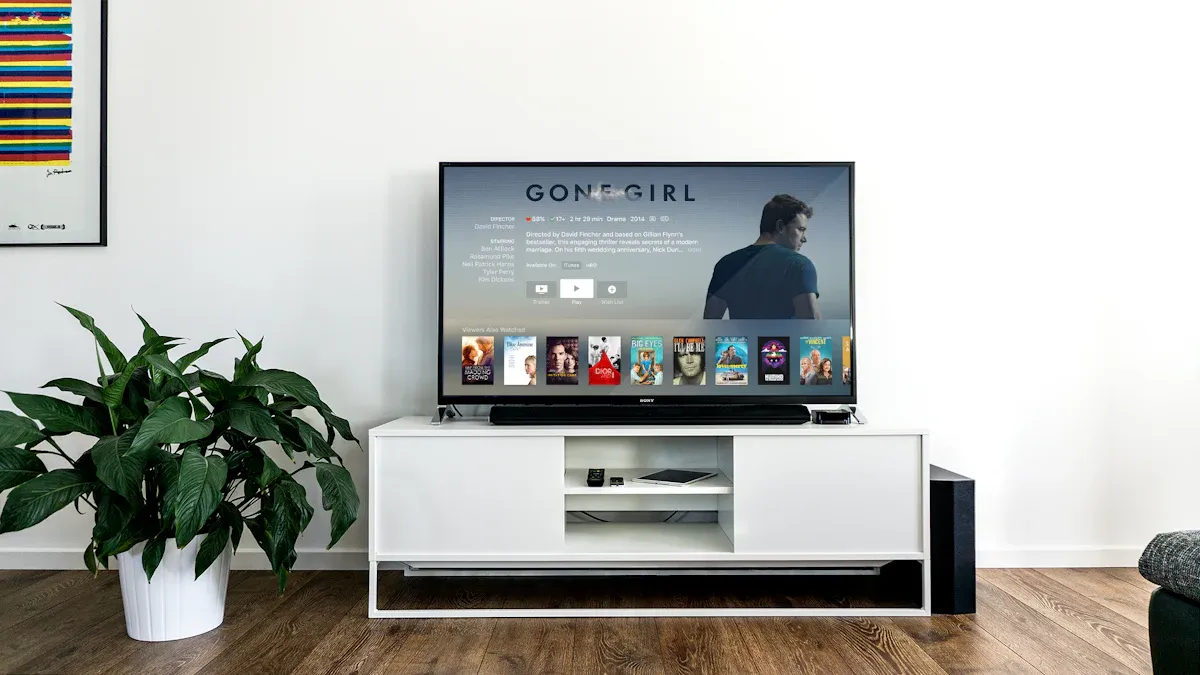
You can make your tv show digital signage for free. First, check your hardware. Most smart TVs, Fire TV Sticks, and Android devices work. Any device with a web browser is fine too. Make sure your TV has a strong internet connection. You need cloud-based cms or cloud-based tools to manage content and schedule it easily.
Pick free digital signage software like Yodeck or AbleSign. These are good if you want to save money.
Make a free account. Check the pricing to see what fits your budget.
Put the app on your TV or streaming device. Many apps use cloud-based tools for easy setup.
Add your content. Use template based design or content templating to save time.
Make playlists and set up playlist scheduling or calendar based scheduling. This helps you show the right things at the right time.
Use multi zone layout management if you want different content in different screen areas.
Turn on live feed integrations for real-time updates.
Use multi user scheduling if you have a team helping with content.
Tip: Cloud-based tools let you control your screens from anywhere. You can change content and schedules without being near the TV.
Troubleshooting and Tips for Beginners
If you have problems when you turn tv into digital signage free, try these steps:
Restart your TV and media device to fix connections.
Check power cables and make sure everything is plugged in.
Make sure your internet is strong. Double-check Wi-Fi or Ethernet settings.
Restart the app if the screen freezes.
Update your software to the newest version for bug fixes.
Look at the display to see if there is any damage.
For display problems, check the input source and change brightness.
Note: Restarting every day can stop many common problems. Always update your software for the best results.
Best Practices for Content Display
You want your content to look good and get people’s attention. Follow these best practices when you turn tv into digital signage free:
Use clear and simple visuals. Do not put too much on the screen. Show one message at a time.
Update your content often. Regular content scheduling keeps your display new.
Use real time analytics to see what works best.
Make your content for your audience. Think about what they want to see.
Try centralised scheduling for easy management if you have many screens.
Take care of your hardware and software so it works well.
Best Practice | Description |
|---|---|
Optimize placement | Put your TV where people will see it most. |
Keep content new with frequent scheduling. | |
Monitor performance | Use analytics to improve your content strategy. |
Use template based design | Save time and keep your display looking professional. |
Remember: Good content management and smart scheduling help you get the most from your digital signage, even if you do not have much money.
Choosing the Right Solution
Key Factors to Consider
You need to pick digital signage software that works for you and your TV. Think about these important things before you choose:
Factor | Why It Matters | Top Software Examples |
|---|---|---|
Simple tools let you make and change content fast. | Yodeck, OptiSigns, Rise Vision | |
Hardware Compatibility | The software must work with your TV or device. | Yodeck, ScreenCloud, Xibo |
Technical Skill Required | Some tools are easy. Others need IT skills or training. | Yodeck (easy), Xibo (technical) |
Support and Community | Good help lets you fix problems quickly. | Yodeck, OptiSigns, Xibo (community) |
Specialized Use Cases | Some software is better for schools, stores, or special screens. | Rise Vision (education), ScreenCloud |
Tip: Check if your TV or device is supported before you start.
Here is a quick way to see how easy the software is and what skills you need:
Software | User-Friendliness | Technical Skill Needed |
|---|---|---|
Yodeck | Very easy | None |
OptiSigns | Quick setup | None |
Rise Vision | Google tools integration | None |
ScreenCloud | Modern interface | Some learning needed |
Xibo | Not user-friendly | IT skills needed |
Think about what you want to show on your screens too. People use digital signage to do things like:
Get customers and workers interested
Show news or data right away
Tell people about products or services
Share facts in schools or museums
You have many strong free digital signage options for your TV. Here is a quick look at their strengths:
Software | Key Strengths |
|---|---|
Yodeck | Free for one screen, many templates, analytics |
OptiSigns | Free for three screens, easy to scale |
Look | Smart scheduling, multi-screen support |
To pick the best fit, check if the software works with your TV, supports remote content management, and offers offline playback.
Start small:
Audit your space for the best screen spot.
Review results and update monthly.
How to Turn Your TV into Digital Signage for Free
Want to repurpose that spare TV or old computer into a free digital billboard or information screen? That's a great idea. There are several zero‑cost methods to easily achieve this. Below are solutions tailored to different devices and needs – choose the one that fits your situation.
🚀 Quick Overview of Mainstream Free Solutions
Method | Best For | Key Advantages | Potential Limitations | Difficulty |
|---|---|---|---|---|
Smart TV built‑in browser | All smart TVs | No extra hardware – ready to go. Remote content management via web dashboard. | Smart TVs may be unstable for long‑term operation; may not auto‑start after power loss or updates. | ⭐ Easy |
Android TV stick / Fire TV Stick | Any TV with HDMI | Very low cost (hardware ~$30‑$50), stable performance, supports 4K playback and remote management. | Requires buying a streaming stick (small hardware investment). | ⭐ Easy |
Old phone / tablet / laptop / PC | Any old device with network | Zero‑waste, zero‑hardware cost. Runs via browser – flexible setup. | Device must stay powered on; may affect battery life. | ⭐⭐ Moderate |
Raspberry Pi | Tech enthusiasts, hobbyists | Powerful and hackable – great for DIY. Open‑source systems are completely free, support 4K and video walls. | Requires purchasing a Pi; some Linux knowledge needed. | ⭐⭐⭐ Higher |
🗺️ Four Detailed Implementation Paths
1. Smart TV Built‑in Browser Method – Simplest, Zero Cost
If your TV is a smart TV, this is almost the easiest way.
What you need: One internet‑connected smart TV.
Setup steps:
On your computer, choose a web‑based digital signage service. Many offer free plans, e.g., Yodeck (free for 1 screen), OpenSign (open‑source, self‑hosted), or Screenly Anywhere (free trial).
Register an account and follow the instructions to create a playlist.
On your TV, open the built‑in browser and enter the unique link provided by the service. After that, you can remotely update and manage the content on your TV from your computer.
Tip: For a more stable experience, try setting the TV’s browser to launch automatically at startup. You might also try open‑source retro‑style web apps like FlipOff – it turns your TV into an old‑school airport flip‑board display.
2. Android TV Stick / Fire TV Stick Method – Small Investment, Good Experience
If you’re willing to spend a little money (e.g., $30‑$50 on a streaming stick), you get a stable experience very close to a professional digital signage player.
What you need: A Fire TV Stick (or any Android TV box) and a TV with HDMI.
Setup steps:
Plug the streaming stick into the TV’s HDMI port and power it.
In the stick’s app store, search for and install a free signage app, e.g., AbleSign.
Open the app, register and pair it from your computer or phone.
From the web dashboard, start creating and publishing your content.
3. Old Device Repurposing – Waste to Worth
An old phone, tablet, laptop, or even a retired desktop sitting in a drawer can become a free advertising screen.
What you need: An old device that still boots, has network connectivity, and a functional screen.
Setup steps:
Clean and prepare the device: Factory reset it, uninstall all unnecessary apps, and set the screen to stay on while charging.
Choose your solution: Install one of the Android or web‑based signage apps mentioned above, or simply open the unique link from a web‑based service in the browser.
Mount and power: Secure the device in place and keep it connected to power for continuous operation.
4. Raspberry Pi Method – For Geeks, Fully Featured
This is for hobbyists who like to tinker. It gives you the most powerful and flexible setup at the lowest possible hardware cost.
What you need: A Raspberry Pi board (recommended 3 or newer), power supply, SD card.
Setup steps:
Download and install the Raspberry Pi OS.
Install an open‑source signage player. The community offers many options:
Anthias: A completely free open‑source solution from Screenly – very powerful.
info‑beamer: A premium platform for the Pi that provides open‑source packages and even supports video walls.
Xibo: With the community‑developed Arexibo player, it can run on Raspberry Pi 5.
Connect the Pi to your TV via HDMI and power it on – it will start running your signage.
⚠️ Important Considerations
Understand the Limitations of Free Plans
Free solutions do work, but they typically have some restrictions:
Screen count limits: For example, Yodeck’s free plan supports only one screen.
Brand watermarking: Some services display their logo on your screen.
Feature limitations: You may not get offline playback, 4K content, or advanced scheduling.
No technical support: Free software usually comes without official support – you’ll be on your own if problems arise.
Hardware Considerations
Commercial vs. consumer grade: Consumer TVs are designed for a few hours of use per day. Running them 24/7 may accelerate ageing. If reliability is critical, consider a commercial display.
Cooling: For devices that run continuously, especially streaming sticks or Raspberry Pis, ensure proper ventilation to avoid overheating.
Other Tips
Screensaver slideshow: If you only want to show images when the TV is idle, set the screen saver to a slideshow from a USB drive or network album.
USB direct playback: Some TVs (e.g., certain Sony models) support automatic slideshow playback of images and videos from a USB drive – this is a very simple signage solution.
I hope this guide helps you put your idle devices to good use! If you decide on a method but get stuck on a specific step, feel free to ask – I can help with more detailed instructions.FAQ
What devices can I use for free digital signage?
You can use smart TVs, Fire TV Sticks, Android TV boxes, or Raspberry Pi. Many free digital signage apps work with these devices. Always check the software’s website to see if your device is supported.
Do I need internet for digital signage software?
Most free digital signage software needs the internet to update content and manage screens. Some tools let you play saved content without internet, but you must upload new files online.
Is free digital signage software safe to use?
Yes, most popular free digital signage software is safe. Always download from the official website. Read reviews and check for updates to keep your system secure.
Can I schedule content to play at certain times?
Most free digital signage tools let you schedule content. Look for a “playlist” or “schedule” feature in the app. This helps you show different messages at different times.
How many screens can I manage for free?
The number of screens you can use depends on the software. Yodeck lets you use one screen for free. PosterBooking lets you manage up to ten screens. Check each tool’s free plan for more details.
See Also
Simple Steps to Set Up Digital Signage Software
Selecting The Perfect LCD Digital Signage For 2026
Best Ten Video Wall Digital Signage Options For 2026
