What is an Android Touch Advertising Player SIGNAGE and how it works with Cloud CMS
Add.: 2F, Bldg 10, Changfeng Industrial Park, Dongkeng, Fenghuang, Guangming, Shenzhen, China 518132
Mobile/WHATSAPP: 86-138 25769658
Email: marketing@topadkiosk.com topadkiosk@gmail.com
Wechat: adkioskhenry
English Web.: http://www.topadkiosk.com/
https://www.topkioskdisplay.com/
http://www.ad-kiosk.com/
https://www.toplcddisplay.com/
WHAT IS AN Android Touch Advertising Player SIGNAGE? You use this device to show ads and information on a screen. SIGNAGE lets you control what shows up by connecting to a Cloud CMS. You can change content from anywhere. Your messages stay new and important. This setup helps you handle displays easily. It keeps your audience interested.
Key Takeaways
Android Touch Advertising Player SIGNAGE shows ads and info on screens. You can control what is shown from far away using Cloud CMS.
The touch feature lets people interact with the screen. They can pick what they want to see and get info fast.
Cloud CMS makes it easy to manage content. You can update from any device. Screens always show the newest info.
Businesses spend less money by using digital signage. It helps them share content better than printed materials. It is simple to show moving and changing content.
Setting up SIGNAGE with Cloud CMS is easy. You only need a few steps to connect and control many screens well.
Android Touch Advertising Player SIGNAGE Overview
Key Features of SIGNAGE Devices
Android Touch Advertising Player SIGNAGE shows ads, info, and things you can touch. These devices have strong parts and software that can change. You can check the main specs in the table below:
Device Model | Processor | RAM | Storage | OS | Display Resolution | Connectivity Options | Additional Features |
|---|---|---|---|---|---|---|---|
TouchWo TD133F | Cortex-A55 RK3568 | 2GB | 16GB | Android 11 | Full HD | WiFi 802.11, RJ45, HDMI out, USB 2.0, USB 3.0, TF card slot, RS232, audio out jack | Built-in stereo speakers |
Shenzhen Electron 21.5″ | Cortex-A55 RK3566 | 2GB | 16GB | Android 12 | Full HD | WiFi 802.11, Bluetooth 4.0, RJ45, HDMI in, USB type C, 2 x USB 2.0, optional 4G | Built-in stereo speakers |
Shenzhen Electron 10.1″ L-Type | Cortex-A55 RK3566 | 2GB | 16GB | Android 11 | HD | WiFi 802.11, Bluetooth 4.0, RJ45, HDMI out, USB for serial, USB 2.0, USB 3.0, TF | Built-in stereo speaker |
Shenzhen Electron 10.1″ Meeting Room | Cortex-A55 RK3566 | 2GB | 16GB | Android 11 | HD | WiFi 802.11, Bluetooth 4.2, RJ45 (with PoE), optional 4G LTE module | LED light bar with RGB colors |
You get devices that work fast and show clear pictures. There are many ways to connect them. Android makes setup simple and lets you use lots of apps. You can manage your SIGNAGE easily. You pick the device you want. You do not have to use just one company.
Tip: Android SIGNAGE devices cost less and are easy to use. You can change your screens fast and keep your info new.
Interactive Touch Capabilities
Touchscreen lets your SIGNAGE become a fun tool. Your audience can control what they see. They can look at menus, find places, or learn about things. This makes your screens more interesting.
Customers get info quickly, so they wait less.
Touch SIGNAGE gives cool experiences. People use the screens, not just watch.
You help users connect with your brand. This makes them happier and more interested.
Cloud CMS helps you update your SIGNAGE content. You can change what people see right away. This keeps your screens useful and fun.
Cloud CMS for SIGNAGE Management
What is Cloud CMS?
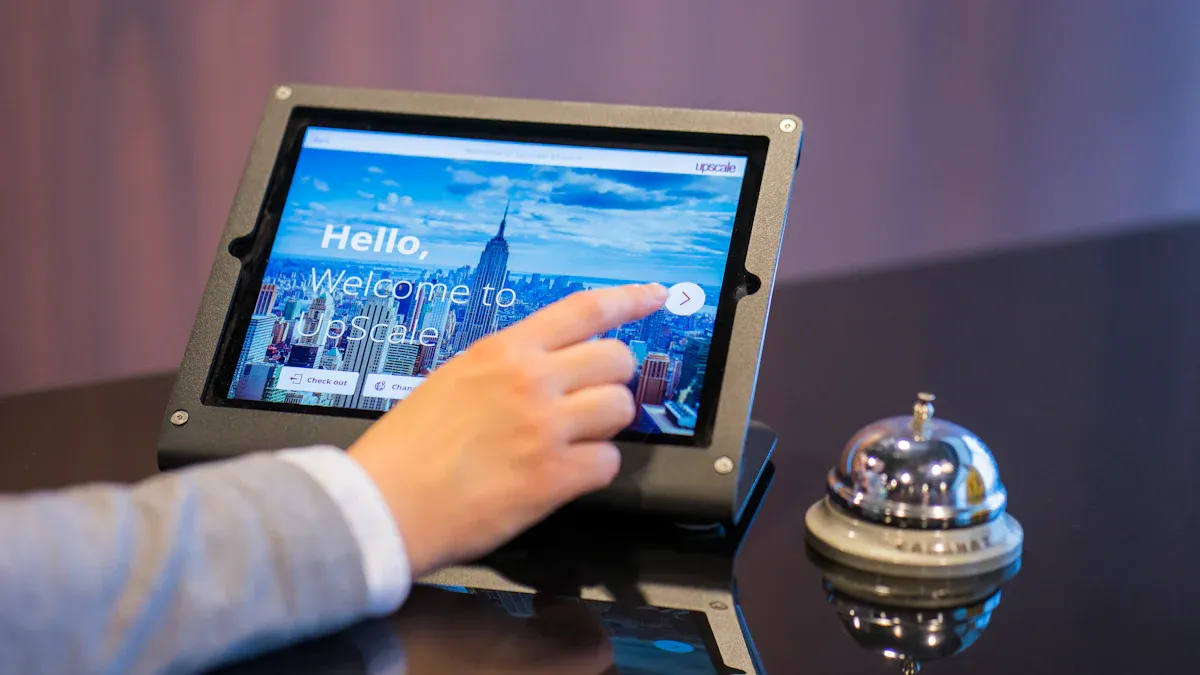
A Cloud CMS lets you handle digital content online. You can control what shows on your Android Touch Advertising Player SIGNAGE. Cloud CMS works on remote servers, so you do not need to install anything special. You log in with a web browser. This makes updating screens easy from any device, like a laptop or tablet.
Many businesses pick cloud-based CMS because it is quick and flexible. You can add new screens fast and manage them all in one spot. Some top Cloud CMS platforms for SIGNAGE are:
Xibo: Open-source and easy to change
NoviSign: Drag-and-drop, good for beginners
ScreenCloud: Modern look, fully cloud-based
DSignage: Android-native, supports local and remote playback
Cloud CMS platforms are becoming more popular. More companies use them because they make managing screens simple and effective.
Note: A cloud-based CMS, like Yodeck, lets you manage content from any device with internet. This makes it a favorite for many organizations.
Remote Content Control
Cloud CMS lets you control SIGNAGE content from one dashboard. You can change what shows on each screen right away. This helps keep your messages new and important. You can also set content to play at certain times, so you do not have to update it every day.
Feature | Benefit |
|---|---|
Centralized Management | Control all screens from one place. |
Real-time Updates | Change content quickly to match new information. |
Automated Scheduling | Set up content to play at the right time without extra work. |
Emergency Content Overrides | Show urgent messages right away when needed. |
Device Monitoring | Watch all screens and fix problems fast. |
Cloud CMS platforms help you grow your network. You can add more screens without extra work. Just connect a new player, put it in a group, and it will show the right content. This makes growing your digital signage system easy.
Security matters when you manage content from far away. Cloud CMS platforms use tools like authentication, encryption, and access control to keep your data safe. They also use HTTPS and SSL to protect information as it moves between your device and the server.
Tip: Always pick a Cloud CMS that is simple to use, works with your hardware, and keeps your content safe.
SIGNAGE and Cloud CMS Integration
Setup and Registration Steps
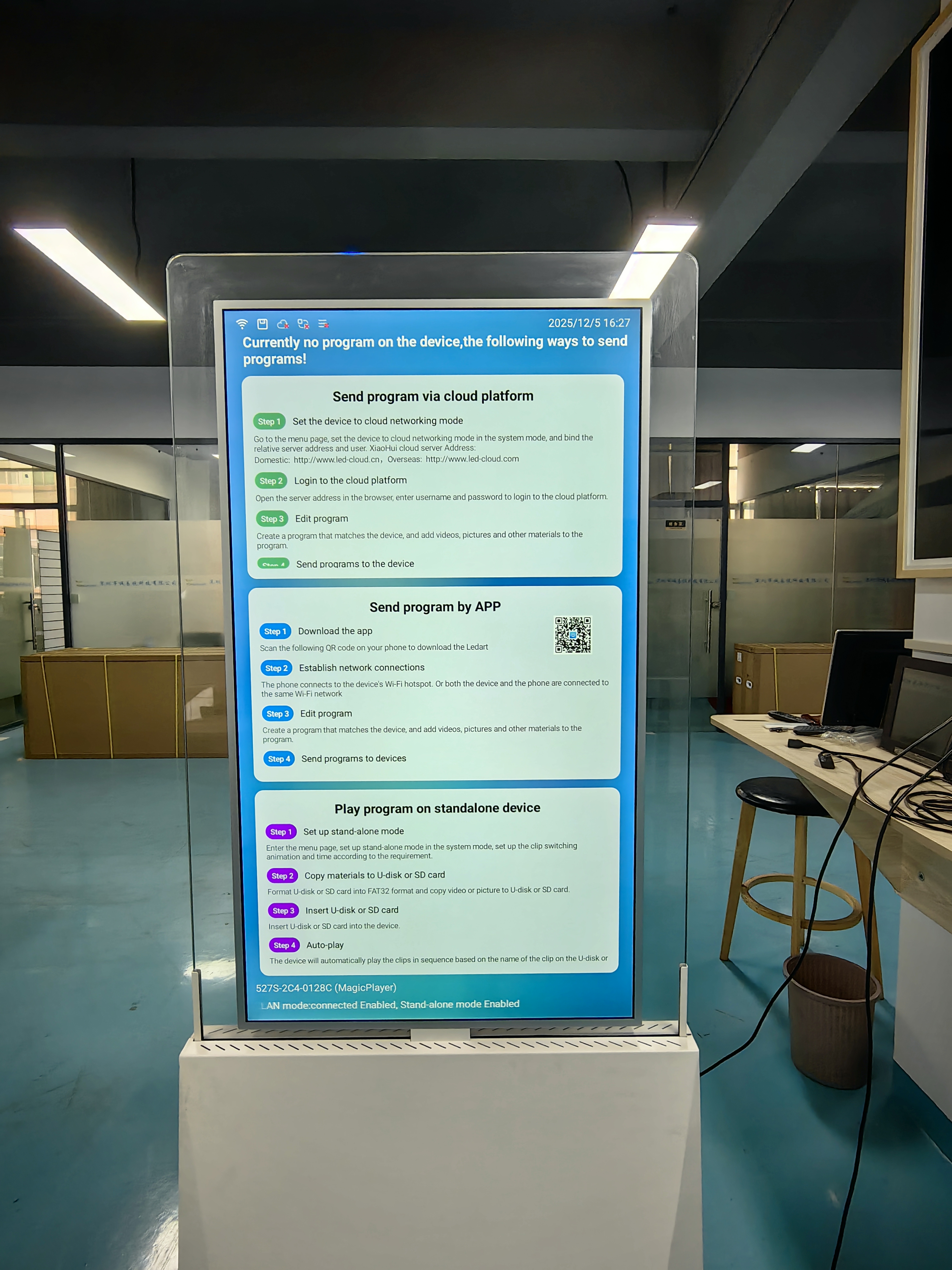
You can link your Android Touch Advertising Player SIGNAGE to a Cloud CMS with just a few steps. This lets you control your screens from anywhere. It also helps keep your content new.
Install a Digital Signage CMS App
Put a CMS app on your Android media player. You can get these apps from the Google Play Store or your CMS provider.Register Your Player with the CMS
Open the app and follow the steps to connect your player. You might scan a QR code or type in a pairing code. This connects your device to your online dashboard.Upload and Organize Content in the CMS Dashboard
Use the dashboard to add pictures, videos, and other files. You can sort your files into folders or playlists.Schedule Playlists and Layouts
Choose when and where your content will play. You can make playlists and send them to different screens.Monitor Playback and Make Updates Remotely
Check your screens from the dashboard. You can change content, fix problems, or see what is playing right now.
Tip: Make sure your device has a good internet connection. Wired Ethernet is best, but WiFi or cellular can work for far away places.
Here is a table of technical things you should check before you connect your SIGNAGE device:
Requirement | Details |
|---|---|
Bandwidth per player | 5-10 Mbps download for syncing; more for video streaming or live content. |
Connection options | Ethernet (most reliable), WiFi (flexible), cellular/4G/5G (for remote places). |
Network access | Outbound HTTPS (port 443) to CMS servers. |
Static vs DHCP | DHCP is easy to use; static IPs help with watching and security. |
Local network | Needed for on-premise CMS or local content caching. |
Firewall considerations | Whitelist CMS domains/IPs and allow needed ports. |
Reliable internet | 5-10 Mbps per player, wired Ethernet is best. |
Remote locations | Cellular backup or main connection may be needed. |
Content Scheduling and Updates
You can pick what shows on your SIGNAGE screens at any time. The Cloud CMS lets you make, plan, and change content for one or many devices at once.
Digital signage player software on your device talks to the Cloud CMS. It downloads, saves, and shows your content. When you change things in the dashboard, your screens update fast. This keeps your messages on time and important.
You get many tools to help you manage your content:
Set start and stop times for each piece of content.
Plan content for certain days, weeks, or months.
Watch and change content from your dashboard.
Manage all your Android screens in one spot.
Upload, plan, and change content from far away.
Send updates to many screens at once.
See what is playing with a live screen view.
Connect to outside data for real-time updates.
Note: Real-time data and local caching help your screens work well. If the internet stops, your content still plays.
Here is a table that shows how integration makes things faster and more reliable:
Feature | Benefit |
|---|---|
Real-time data integration | Smooth playback and dynamic content management |
Local caching of files | Content keeps running during internet outages |
Centralized control | Manage all players from one dashboard |
You can also use different logic types to show the right content:
Logic Type | Purpose |
|---|---|
Date-based | Show content for special dates or events |
Audience-based | Pick content for different groups |
Sensor input | Change content based on real-time data |
Tip: Always plan your schedules and check your time zones if you have screens in different places. This helps your content show at the right time everywhere.
By following these steps, you can set up and control your Android Touch Advertising Player SIGNAGE with Cloud CMS. This gives you full control over your digital screens and helps you keep your audience interested.
Benefits and Use Cases
Business Advantages
When you use Android Touch Advertising Player SIGNAGE with Cloud CMS, you get many good things. You can control your screens from any place. You do not need to print posters or buy costly servers. You can show videos and things people can touch. This makes your screens stand out. The table below lists the main business advantages:
Advantage | Description |
|---|---|
Remote accessibility | You update and manage content from anywhere. Your screens always show the latest information. |
Cost savings | You save money because you do not print signs or run local servers. |
Dynamic engagement | You use videos and touch features to make your screens more interesting. |
You also get tools that help your business. Cloud CMS gives you reports and data. You can see what your viewers like most. You can change your ads to match what works well. You can control all your screens from one simple dashboard.
Tip: You can start with just a few screens. You can add more as your business gets bigger. This makes your system easy to grow.
Industry Applications
Many types of businesses use this solution to share news and get people interested. Here are some common ways it is used:
Retail stores show sales, new items, and deals on screens. Shoppers can touch the screen to find what they want.
Restaurants put menus on screens and let people order food. This helps people get served faster and wait less.
Hospitals and clinics use screens to help visitors and give health tips. Patients can check in or find their way with a touch.
Schools and universities show events, news, and alerts on screens. Students can use maps or see announcements by touching the screen.
Corporate offices use screens for booking rooms and sharing company news. Workers can check schedules or see updates.
You can use data from Cloud CMS to see how people use your screens. This helps you make your messages better and reach your goals. You can also save money by picking the right plan and setup for your business.
Note: You can control content for one place or many places. Your screens stay fresh, and your viewers always see the newest info.
You can use Android Touch Advertising Player SIGNAGE with Cloud CMS to control your screens from anywhere. This setup lets you change playlists fast. You can see what users do and check if devices are working. You do not need to be an IT expert or use tricky hardware. Many businesses get more sales, spend less money, and have happier customers.
Change content for sales or emergencies in just a few seconds.
Use touch screens and QR codes to see how people interact.
Manage lots of places with one simple dashboard.
Resource Type | Description |
|---|---|
Digital Signage Software | Yodeck gives easy tools for setup and remote control. |
Support Options | Find guides, webinars, and case studies for help. |
You can begin with a few screens and add more as you grow.
FAQ
What is an Android Touch Advertising Player SIGNAGE?
You use this device to show ads and information on a screen. It has a touchscreen, so people can interact with your content. You control what appears using a Cloud CMS.
How do you update content on your SIGNAGE device?
You log in to your Cloud CMS dashboard. You upload new images, videos, or messages. The device downloads and displays your updates automatically.
Can you manage many screens at once?
Yes. You control many screens from one Cloud CMS account. You send different content to each device or group them together for the same message.
What happens if the internet goes down?
Your SIGNAGE device keeps showing the last downloaded content. When the internet returns, it updates with any new changes from your Cloud CMS.
Is it hard to set up an Android Touch Advertising Player SIGNAGE?
No. You install the CMS app, register your device, and connect it to the internet. The Cloud CMS guides you through each step with simple instructions.
An Android Touch Advertising Player Signage is essentially a smart, interactive digital sign. Think of it as a large, ruggedized Android tablet built for commercial use—it combines a high-brightness touchscreen with the Android operating system to display ads, information, or self-service menus .
When paired with a Cloud CMS (Content Management System), it becomes a powerful tool for managing your content from anywhere, on any device, without needing to be physically near the screen.
🧠 The "Android Touch Player" (The Hardware)
This is the physical screen you see in lobbies or retail stores. Its job is to run the Android OS and play your content.
It's a Full Computer: It contains an Android motherboard (CPU, RAM, storage) just like a smartphone, allowing you to install apps directly on the screen .
It's Interactive: The touchscreen allows users to browse catalogs, check in for flights, or navigate a map.
It's Built for Business: These are designed to run 24/7, unlike a home TV, and often have features like auto-start on power-up .
☁️ The "Cloud CMS" (The Software/Brain)
This is the online platform (website or app) you log into from your office computer or phone to control what shows on the screen .
Content Creation: Use drag-and-drop tools and templates to design your playlists without needing design software .
Remote Scheduling: Set different ads to play at specific times (e.g., "Breakfast Menu" from 6-11 AM, "Lunch Menu" from 12-5 PM) .
Mass Deployment: Publish a new sale to 1,000 screens in different cities with one click .
⚙️ How They Work Together (The Workflow)
Here is the step-by-step process of how the hardware and software connect to run your digital signage:
Create: You log into the Cloud CMS on your laptop and create an advertisement or menu board using a template .
Publish: You hit "Publish." The cloud server stores your content and schedule .
Sync: Your Android touch screen (which has a small "Player App" installed) connects to the internet via Wi-Fi or Ethernet and automatically downloads the new content from the cloud .
Play & Interact: The screen plays the content. If it's a touchscreen, a user can tap it to see more details, and the Android system handles that interaction instantly .
✅ Key Advantages Over Traditional USB Drives
Feature | Android + Cloud CMS | Traditional USB Update |
|---|---|---|
Content Updates | Instant, from anywhere | Manual, requires physical presence |
Multiple Screens | Manage hundreds at once | Update one screen at a time |
Scheduling | Set it and forget it (time/date specific) | Must manually change content |
Interactivity | Full touch support, app-based | Usually non-interactive |
Monitoring | See if screens are online/offline remotely | No visibility |
💡 Choosing the Right Fit
For a Single Café: Look for a Standard Android model with a built-in CMS (often free for 1 screen). Just ensure it has Wi-Fi.
For a Retail Chain: Choose a Professional Cloud CMS (like LG SuperSign, Samsung VXT, or NoviSign) that offers user permissions, advanced scheduling, and data integration .
For High-Traffic Interactive Kiosks: Invest in a Premium Android Player with a PCAP touchscreen (smoother, glass feel) and at least 4GB of RAM to ensure the interface doesn't lag .
Does your application require multi-touch gestures (pinch, zoom), or will it be simple "tap to select" functionality? Knowing this helps narrow down the specific touch screen specs you need.
Shenzhen TopAdkiosk Display Technology Co., Ltd.
Add.: 2F, Bldg 10, Changfeng Industrial Park, Dongkeng, Fenghuang, Guangming, Shenzhen, China 518132
Mobile/WHATSAPP: 86-138 25769658
Email: marketing@topadkiosk.com topadkiosk@gmail.com
Wechat: adkioskhenry
English Web.: http://www.topadkiosk.com/
https://www.topkioskdisplay.com/
http://www.ad-kiosk.com/
https://www.toplcddisplay.com/
See Also
The Role of Outdoor Digital Signage in Today's Companies
Top Digital Signage Players Gaining Popularity in 2026
An In-Depth Look at In-Store Digital Signage Options
Essential Features to Look for in Today's Touch Screen Kiosks
Seven Key Trends Influencing Digital Signage Technology in 2026
