Top tips for choosing affordable LCD display kiosks for small businesses
Addhttps://www.youtube.com/watch?v=bbg0WZalrUQhttps://www.youtube.com/watch?v=vPdl-idnE-4.: 2F, Bldg 10, Changfeng Industrial Park, Dongkeng, Fenhttps://www.youtube.com/watch?v=r_13Ocgccv4ghuang, Guangming, Shenzhen, China 518132
Mobile/WHATSAPP: 86-138 25769658
Email: marketing@topadkiosk.com topadkiosk@gmail.com
Skype: pghenry1
Wechat: adkioskhenry
English Web.: http://www.topadkiosk.com/
https://www.topkioskdisplay.com/
http://www.ad-kiosk.com/
https://www.toplcddisplay.com/
http://www.multitouchdigitalsignage.com/
https://www.youtube.com/channel/UCYVYNJHxLVEcQD8fuUxXNTA/videos?view_as=subscriber
https://www.facebook.com/TOPADKIOSKSHENZHEN/?ref=bookmarks
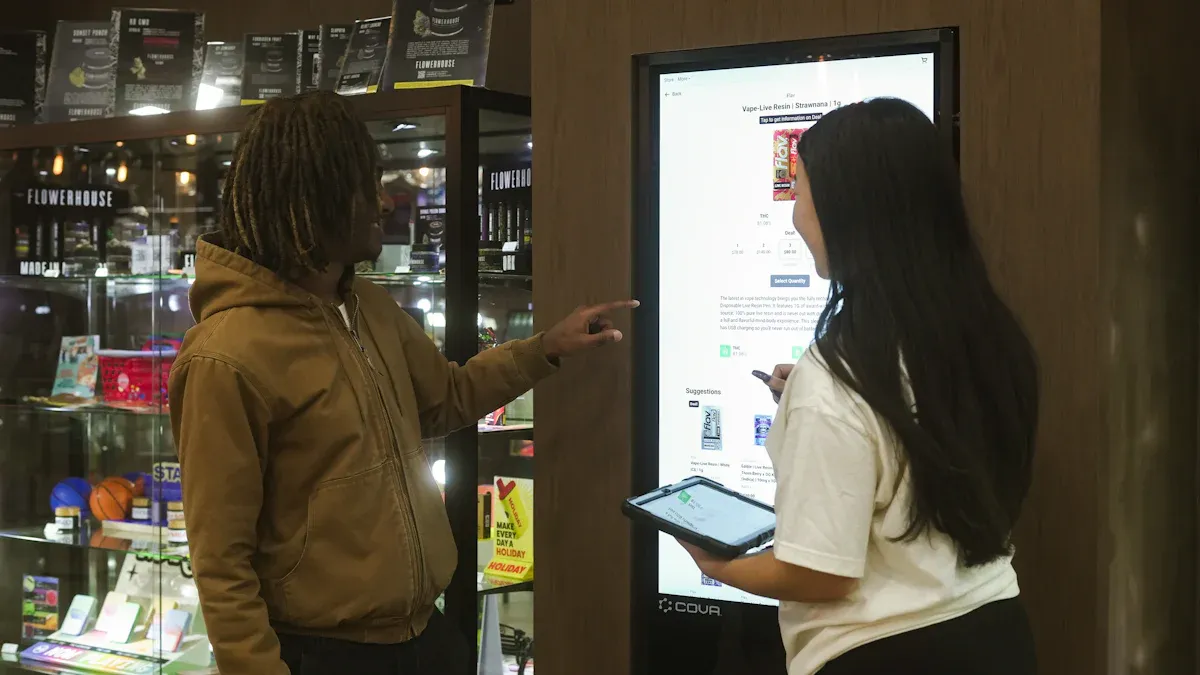
If you're looking for affordable LCD display kiosks for small businesses, it can be challenging to choose the right one. You may encounter high costs, complicated setups, and various tech issues. Here are some common challenges you might face:
Challenge | What it means for you |
|---|---|
You spend more money and time on care | |
More complex setup | You need to know more about technology |
Risk of technical problems | The touchscreen might break or freeze |
Before making a decision, consider what your business truly needs. Seek out straightforward solutions. For more tips, visit http://www.topadkiosk.com/.
Key Takeaways
Figure out what your business needs before picking a kiosk. Know how your business will use the kiosk to pick the right features.
Make a budget that covers more than just the price. Add installation and maintenance costs too. This helps you not spend too much.
Pick a kiosk type that matches what you need. If you only need to share information, a non-touch display might be enough and cheaper.
Affordable lcd display kiosks for small businesses: key factors
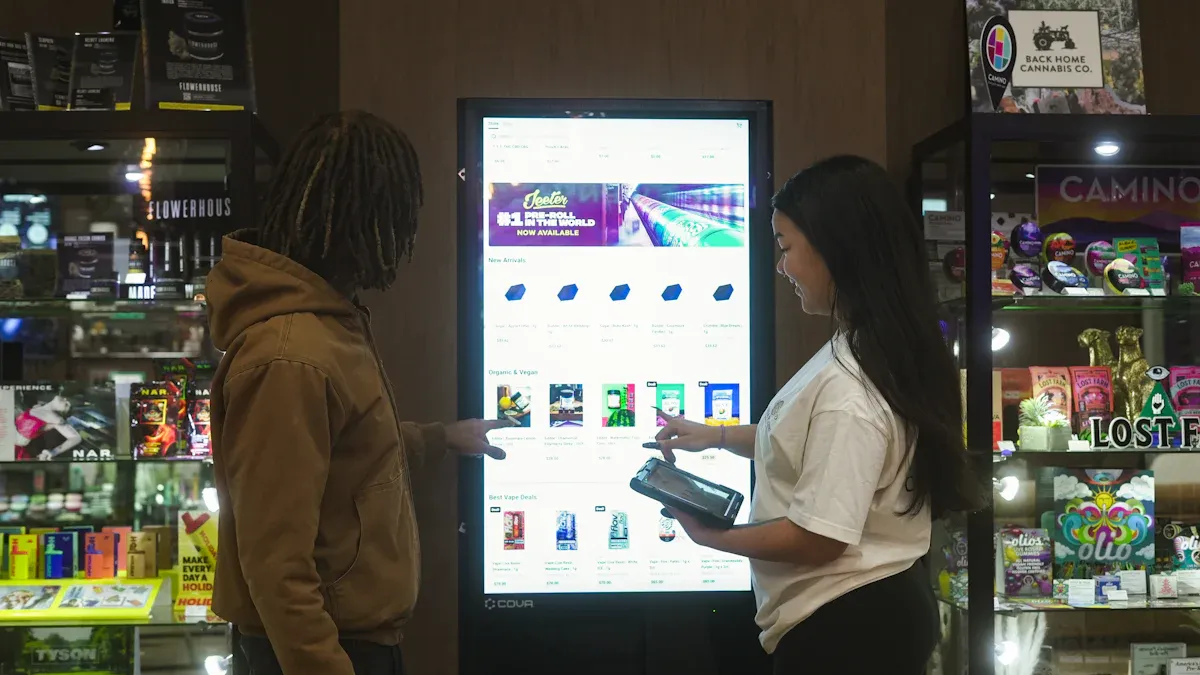
Define your business needs
You want affordable lcd display kiosks for small businesses. First, you should know what your business needs. Every business is not the same. You might have a store, a café, or a gym. Each place uses kiosks in different ways.
Kiosk displays help you talk to customers in a fun way. They work great in restaurants and shops.
Here are some ways small businesses use affordable lcd display kiosks for small businesses:
Retail stores show sales and reviews to get people interested.
Restaurants and cafes change menus fast to show specials.
Gyms share class times and messages to help members.
Offices greet guests and give company news.
Digital signage lets you talk to customers with moving messages. You can change what you show very quickly. This helps you keep up with sales or holidays. It makes affordable lcd display kiosks for small businesses a good way to keep customers interested.
Look at these benefits from using kiosks:
Benefit | Description |
|---|---|
Cost Reduction | Kiosks do jobs for you, so you need fewer workers but still give good service. |
24/7 Accessibility | Customers can get help any time, so your business is always open without extra cost. |
Enhanced Customer Experience | Interactive screens make people happy and want to come back. |
Consistency in Service Delivery | No mistakes from people, so everyone gets the same good info. |
Longevity and Maintenance | Kiosks are strong and last a long time in busy places. |
Remote Content Updates | You can change info everywhere at once, which saves time. |
Energy Efficiency | Kiosks use less power than old ones but work better. |
Versatility | Kiosks can give info or take payments, so you get more use. |
Space Efficiency | Small kiosks save space and make your business look nice. |
Integration with Business Systems | Kiosks help you collect info and make smart choices. |
When you know what you need, think about what you want your affordable lcd display kiosks for small businesses to do. Do you want self-service? Payment? Info? Maybe you want all of them. Write down your goals. This helps you pick the best kiosk and not pay for things you do not need.
Set your budget
Now you know what you need, so set your budget. Affordable lcd display kiosks for small businesses come in many types and prices. You do not want to spend too much, but you also want the right features.
Here is a look at usual price ranges:
Kiosk Type | Price Range |
|---|---|
Freestanding Kiosks | $2,000 - $10,000+ |
Wall-Mounted Kiosks | $1,500 - $6,000 |
Countertop Kiosks | $1,000 - $4,000 |
Outdoor Kiosks | $4,000 - $15,000+ |
Interactive Digital Signage | $1,000 - $10,000+ |
Think about more than just the price. Hardware costs include screens, players, and mounts. Installation costs cover checking the site, putting up the kiosk, and setting it up. Maintenance and support can cost more over time. If you want to save money, you can:
Pick LCD screens because they use less power and cost less.
Use tablets or TVs with digital signage software if you already have them.
Buy used or second-hand digital signs that still have a warranty.
Try LED displays if you want bright screens and to save energy.
Plan your budget by focusing on what matters most. Only buy what you need. Some businesses make money by selling hardware for more, making content, charging for setup, or using paid maintenance plans.
Affordable lcd display kiosks for small businesses help you get what you need for less money. You get the right features and do not spend too much. If you plan well, you can find a kiosk that fits your business and your budget.
Kiosk types and essential features
Compare kiosk types
When you start looking for an interactive kiosk, you will see many types. Each one works best for different business needs. Picking the right type helps you save money and get the most value.
Here is a table to help you compare popular kiosk types:
Type of Kiosk | What It Does |
|---|---|
LCD Digital Signage | Shows ads and information. Great for catching attention in stores or waiting areas. |
Outdoor LCD Digital Signage | Works outside. Handles rain, sun, and wind. Good for outdoor menus or event info. |
Touch Screen Kiosk & ATM | Lets people interact with the screen. Useful for self-checkout, ticket sales, or info lookup. |
Self-Service Terminal | Helps customers do things on their own, like ordering food or checking in. |
LCD Video Wall | Uses many screens together for big ads or presentations. Good for large spaces. |
Transparent LCD Screen | Shows content while letting you see what’s behind the screen. Popular in retail displays. |
Ultra Slim Double Sided Display | Shows ads on both sides. Perfect for busy walkways or malls. |
Stretched Bar LCD Display | Long, thin screens for special ads or menu boards. Adds a modern look to your business. |
You might wonder which interactive kiosk fits your business. Here are some common uses:
Self-order kiosks let customers place orders and pick what they want. You see these in fast food spots.
Self-checkout kiosks help people scan and pay for items by themselves. These work well in grocery stores.
Information kiosks give directions, maps, or event details. You find these in malls, airports, or offices.
Self-order and self-checkout kiosks often cost more because they need touchscreens, payment systems, and sometimes barcode scanners. Information kiosks usually cost less since they only need a simple display and basic software.
Tip: If you only need to share information, pick a simple digital signage display. You will save money and avoid paying for features you do not use.
Must-have features
When you choose an interactive kiosk, focus on the features that matter most. This helps you stay within your budget and avoid paying for extras.
Here are the must-have features for most small businesses:
Reliable display: Make sure the screen is bright and easy to read, even in sunlight.
Touchscreen (if needed): Only pick a touchscreen if your customers need to interact with the kiosk.
Strong case: The kiosk should handle daily use and not break easily.
Easy software: You want software that lets you update content quickly.
Basic connectivity: Wi-Fi or Ethernet is helpful, but you may not need both.
Some features sound nice but are not always needed. Leaving these out can lower your costs:
Front-facing camera
Barcode or ID scanner
Speakers
Accessibility audio jack
Payment terminals and printers
Note: Start with the basics. You can always add more features later if your business grows or your needs change.
To sum up, pick an interactive kiosk that matches your main goal. If you want to boost sales, a self-service terminal or digital signage display works well. If you only need to share information, a simple information kiosk is enough. Always check which features you really need. This way, you get the best value for your money and avoid spending on extras.
Interactive technology and display options
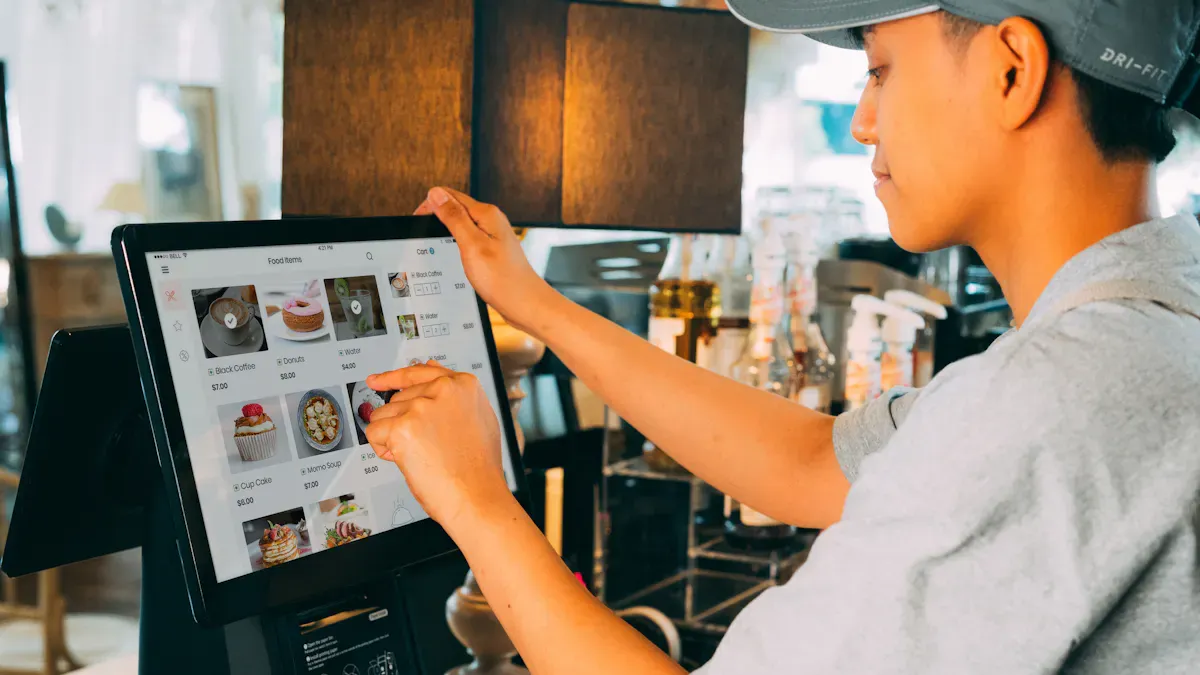
Touchscreen vs. non-touch
You have to pick between touchscreen and non-touch kiosks. Touchscreen kiosks let customers use the screen. They can look up things, order food, or check in. Non-touch kiosks show set content like menus or signs. Here are some differences:
Feature | Static Kiosks | Interactive Kiosks |
|---|---|---|
Interaction | No interaction; displays fixed content | Users can engage, search, and navigate menus |
User Experience | Passive viewing; no engagement | Personalized and responsive; users control pace |
Preference | N/A |
Touchscreen kiosks cost more at first. They help your business work better and make customers happy. Non-touch kiosks cost less, but you might need more workers to help people. Here is a quick look:
Kiosk Type | Cost Range | Long-term Benefits |
|---|---|---|
Touchscreen Kiosks | Increased operational efficiency and customer engagement | |
Non-Touch Kiosks | Lower upfront costs | Potentially higher labor costs and less customer interaction |
Think about what your business needs most. Touchscreen kiosks are good if you want customers to use the screen. Non-touch displays are better if you just want to show info and save money.
Size and durability
Screen size is important for kiosks and signs. Small screens (12″ to 15″) fit small spots and are good for simple jobs like ordering food or tickets. Medium screens (17″ to 21″) are used for maps, looking at products, or checking in. Large screens (22″ to 27″) are great for signs or menu boards. Extra-large screens (28″ and up) are best for big ads or events.
Screen Size (inches) | Common Applications |
|---|---|
12″ to 15″ | Ticketing, food ordering, visitor registration |
17″ to 21″ | Maps, product browsing, self-service banking |
22″ to 27″ | Digital signage, menu boards, photo printing |
28″ and above | Large ads, trade shows, wayfinding |
Durability matters a lot. A strong kiosk lasts longer and needs fewer repairs. Cleaning your kiosk often stops many problems. Remote checks can lower repair visits. Pick a kiosk with a good warranty and maintenance plan. This keeps your kiosk working and saves money.
Tip: Choose a screen size that fits your space and needs. Get a tough kiosk to spend less on repairs and keep your business running well.
Installation and technical support
Easy setup
You want your new kiosk up and running fast. A simple setup saves you time and stress. Look for models that come with clear instructions and all the parts you need. Some kiosks arrive almost ready to use—just plug them in and connect to your network. If you have a small team, choose a kiosk that does not need special tools or advanced tech skills.
Tip: Ask the vendor if they offer video guides or step-by-step manuals. These can make installation much easier.
You can also check if the company provides remote help during setup. This support can solve problems before they slow you down. A smooth start means you can focus on your business, not on fixing tech issues.
Access to support
After you install your kiosk, you need good technical support. Problems can happen at any time. Fast help keeps your business running. Ongoing support is important because it:
Makes sure your displays and software stay updated and working.
Lets you fix issues quickly, even from far away.
Here is what many vendors offer for small businesses:
Type of Support | Description |
|---|---|
Long-term service contracts | Ongoing maintenance and support agreements. |
Availability of spare parts | Quick access to replacement components. |
24-hour technical support | Help any time, day or night. |
Note: Choose a vendor with strong support options. This helps you avoid long waits and costly repairs.
When you pick a kiosk, think about both setup and support. These steps help you balance cost and function, so you get the most value for your money.
Long-term costs and maintenance
Software and updates
You want your kiosk to run smoothly for years. Software and updates play a big role in keeping everything working. Most kiosks need regular software updates to fix bugs and improve security. These updates can cost between $500 and $2,500 each year. You also pay for technical support, which ranges from $800 to $3,000 annually. If your kiosk accepts payments, you pay 2–4% of each transaction for processing.
Here’s a quick look at typical yearly costs:
Cost Factor | Annual Estimate |
|---|---|
Software Updates | $500–$2,500 |
Technical Support | $800–$3,000 |
Payment Processing | 2–4% of transactions |
Tip: Choose a display with easy-to-update software. This saves you time and keeps your kiosk safe from hackers.
Maintenance planning
Keeping your kiosk in good shape helps you avoid big repair bills. You can do some tasks yourself, like cleaning the screen with a soft cloth and checking for scratches. Set a routine for cleaning and use a screen protector to prevent damage. Watch for signs of wear and make sure your software stays up-to-date.
Here’s a simple maintenance schedule:
Clean the touch screen and outside every week.
Check fans and filters every month.
Update software every quarter.
Some repairs need a pro. If your kiosk breaks or needs a big update, call a technician. Service calls usually cost about $150. High-quality kiosks need fewer repairs, so you spend less over time.
Note: Plan for maintenance in your budget. Regular care keeps your kiosk running and helps you get the most value for your money.
Content management and usability
Simple content updates
You want your kiosk to always have new content. Updating info should be simple and not hard. Many small businesses use tools like Scalefusion for easy control. You can change menus or deals from one place. This works even if you have more than one kiosk.
Tip: Pick a system that lets you update fast. You will spend less time on tech and more time with customers.
Here are ways easy updates help you:
Feature | Benefit |
|---|---|
You can set up your kiosk in just one day. | |
No Design Skills Required | You get good results without needing design skills. |
Staff Can Actually Use It | Workers who are not tech experts can update content. |
Bulk Import Tools | You can add lots of info at once and save time. |
Administrative Time Reduction | You do less admin work than with other tools. |
You do not need to be a tech pro. The right system lets you update your kiosk in minutes.
Staff training
Teaching your team to use a kiosk should be quick. Companies like Gable give good training for staff. Most people learn the basics fast. You can use short lessons and step-by-step guides. When your staff feels sure, they can update content and fix small problems.
Note: If your team knows how to use the kiosk, you save money and keep things running well.
Your staff can do updates and simple fixes. This helps you save money and get more from your kiosk.
You can pick the right LCD display kiosk by focusing on what your business needs most. Look for a display that matches your goals, compare providers, and check support options.
Test kiosks with your team
Train staff for smooth use
Think about future growth
Ready to boost your business? Start exploring your options today!
1. Start with a "Good Enough" Screen Spec
You don’t need commercial-grade 4K for every use case.
For menus or signage indoors: 1080p (Full HD) is perfectly fine.
Brightness: 250–350 cd/m² is sufficient for indoor use. Outdoor requires 1500+ cd/m² (which costs much more).
Size: 22″–32″ is the sweet spot for most small businesses – affordable and readable.
Save by: Avoiding 4K, ultra-high brightness, or oversized screens unless absolutely necessary.
2. Separate Hardware from Software (Avoid Vendor Lock‑in)
All‑in‑one bundles are convenient, but often lock you into expensive monthly subscriptions.
Better approach:
Buy a standard Android‑based kiosk or even a used iPad/tablet with a secure enclosure.
Choose a separate cloud CMS (content management system) that works with almost any screen.
Example:
A $300 Android kiosk + $20/month software (e.g., OptiSigns, PosterBooking) is often cheaper than a $1500 proprietary bundle.
3. Look for Free or Low‑Cost CMS Plans
Many software providers offer free tiers for small numbers of screens.
Provider | Free Tier | Paid Starter Plan |
|---|---|---|
PosterBooking | Up to 10 screens – fully free | N/A |
OptiSigns | 1 screen free | ~$10/screen/month |
Yodeck | 1 screen free (Raspberry Pi based) | ~$8/screen/month |
ScreenCloud | No free tier | ~$20/screen/month |
Tip: Start with a free plan. Upgrade only when you outgrow it.
4. Consider Repurposing Old Tablets or TVs
Don’t buy a dedicated kiosk if you already have equipment.
Old iPad or Android tablet + a $20‑$50 lockable stand = instant kiosk.
Old TV + a $40‑$80 media player (Fire Stick, Raspberry Pi) = digital signage.
This can cut your upfront cost by 70–90%.
5. Buy Direct from Chinese Manufacturers (for volume)
If you need 5+ identical units, buying direct from China saves significant money.
Platforms to use: Alibaba, Made‑in‑China.com
Typical prices: $250 – $600 for a 32″ Android touch kiosk (vs. $1500+ locally).
Risks to manage:
Shipping cost and time
Minimum order quantity (often 1–5 pieces)
No local warranty – ask for spare parts included
Recommended suppliers (from previous discussion):
Shenzhen SSA Electronic
Shenzhen Zhixiantong Technology
HDFocus
6. Avoid Unnecessary Features That Drive Up Cost
Feature | When You Need It | When You Don’t |
|---|---|---|
Touchscreen | Ordering, check‑in, interactive maps | Pure signage, menu board |
Outdoor rating (IP65) | Direct sun, rain, dust | Inside a store, café, office |
Built‑in printer | Ticket, receipt, label | Digital menus, information display |
PCAP touch (pro‑capacitive) | High‑use public kiosks | Low‑traffic internal use (resistive is fine) |
Rule of thumb: Remove every feature you don’t actively need for the next 12 months.
7. Calculate Total Cost of Ownership (TCO) – Not Just Price Tag
The cheapest kiosk can become expensive if:
It breaks after 6 months (no warranty)
Software subscription costs $50/month per screen
It consumes high power (old LCD panels vs. modern LED‑backlit)
TCO checklist for 3 years:
Hardware cost (one‑time)
Software subscription (monthly × 36)
Electricity (watts × hours × rate)
Expected repairs or replacements
Example comparison:
Cheap Kiosk A | Mid‑range Kiosk B | |
|---|---|---|
Hardware | $400 | $900 |
Software | $20/mo | $10/mo (better included) |
3‑year TCO | $400 + $720 = $1,120 | $900 + $360 = $1,260 |
B is only $140 more expensive but likely more reliable.
8. Test Before You Buy (Even on a Budget)
For software: Almost all CMS providers offer 14‑30 day free trials. Use them.
For hardware: Buy 1 unit first as a pilot. Run it for 2 weeks in your real environment.
For DIY tablet kiosk: Test the exact tablet + stand + app combination for a few days.
Why this matters: A $400 mistake hurts a small business. Testing costs almost nothing.
9. Check for Open API or Export Options
Affordable doesn’t mean inflexible. Even cheap kiosks should allow you to:
Export usage logs (CSV)
Connect to Google Sheets, Zapier, or a simple webhook
Switch CMS providers later
Red flag: Proprietary software that only works with that specific hardware brand.
10. Buy Used or Refurbished Commercial Kiosks
Large businesses often replace kiosks every 2–3 years. You can buy them for 30–50% of original price.
Where to look:
eBay (search “commercial kiosk” or “digital signage kiosk”)
Local auction sites (restaurant liquidations)
B2B refurbishers (e.g., UsedKiosk.com, RefurbishedPOS.com)
What to check:
Screen condition (no burn‑in or dead pixels)
Android/Windows version (not too old to run modern apps)
Replacement parts availability
🎯 Final Quick Checklist for Small Business Owners
Step | Action |
|---|---|
1 | Define your #1 use case (signage? ordering? info?) |
2 | Set a total budget (hardware + first year software) |
3 | Check if an old tablet + stand works first |
4 | Compare 3‑year TCO, not just upfront price |
5 | Try free CMS plans (PosterBooking, Yodeck) |
6 | Buy 1 pilot unit before scaling to multiple |
7 | Avoid touchscreen if you don’t need it |
8 | Consider Chinese direct purchase for 5+ units |
9 | Look for open API – avoid closed ecosystems |
10 | Read reviews from other small businesses |
FAQ
How do you choose the right LCD kiosk for your business?
You should list your main goals. Compare kiosk types and features. Pick what fits your space and budget. Ask vendors about support and updates.
What features help you save money on LCD kiosks?
Focus on must-have features like a strong screen and easy software. Skip extras you do not need. Choose energy-efficient models to lower costs.
Can you update kiosk content without tech skills?
Yes! Many kiosks let you update menus or info with simple tools. You can use drag-and-drop editors. Staff can learn fast with basic training.
See Also
Finding The Right LCD Kiosk Installation Service In Your Area
Selecting Long-Lasting LCD Kiosks For Shopping Centers In 2026
Top LCD Display Kiosks For Retail Spaces In 2026
Comparing Pricing Of Freestanding LCD Kiosks From Leading Brands
