7 Essential Tips for Setting Up Interactive Kiosk Touch Screens
Shenzhen TopAdkiosk Display Technology Co., Ltd.
Add.: 2F, Bldg 10, Changfeng Industrial Park, Dongkeng, Fenghuang, Guangming, Shenzhen, China 518132
Mobile/WHATSAPP: 86-138 25769658
Email: marketing@topadkiosk.com topadkiosk@gmail.com
Skype: pghenry1
Wechat: adkioskhenry
English Web.: https://www.topkioskdisplay.com/
http://www.ad-kiosk.com/
https://www.toplcddisplay.com/
http://www.multitouchdigitalsignage.com/
https://www.youtube.com/channel/UCYVYNJHxLVEcQD8fuUxXNTA/videos?view_as=subscriber
https://www.facebook.com/TOPADKIOSKSHENZHEN/?ref=bookmarks
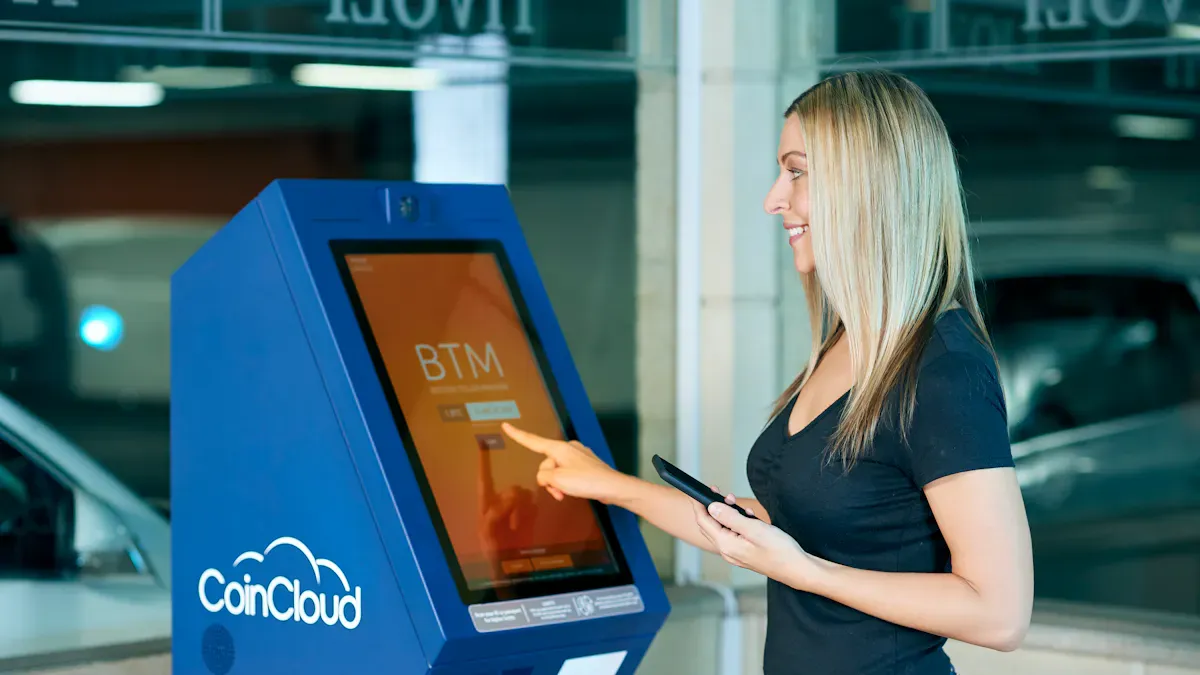
An interactive kiosk touch screen helps customers get information or finish tasks easily. They just need to tap the screen. You can find these screens in stores, airports, and hospitals. If you set up your touchscreen kiosk the right way, it will work better. Keeping it working well helps it last longer. It also makes users happy.
Cleaning and updating the kiosk often stops frozen screens and slowdowns. These problems can make people upset.
A clean and working kiosk helps people trust it. It also makes their visit better.
Checking the kiosk often helps it work well for a long time.
Common Challenge | How to Solve It |
|---|---|
Hardware Selection | Think about your space and needs before picking equipment. |
Software Configuration | Make clear goals so you choose the right technology for your use. |
Training and Awareness | Teach users how to use the kiosk. This makes it easy and less confusing. |
Key Takeaways
Cleaning and taking care of your kiosk often helps it work well and makes it easy to use. Clean the screen every day so people can see it clearly.
Pick a screen size and brightness that fits where your kiosk is and what it is for. This makes it easier for people to see and use.
Make the interface simple and easy to understand. Give clear steps and use big buttons so everyone can use it easily.
Try out your kiosk with real people to find problems. Watching people use it helps you make it better and makes users happier.
Update the content and software often. This keeps the information right and keeps the kiosk safe from problems.
Choose the Right Screen Size and Brightness
Choosing the right screen size and brightness makes your interactive kiosk touch screen easy to use and see. If you pick the wrong size or brightness, people might struggle to read or touch the screen. You want your kiosk to be user friendly and reliable.
Match Screen Size to Kiosk Tasks
You need to think about what your kiosk will do and where you will put it.
When selecting a screen size, consider the use case and the location. For example, a fast-food restaurant with a line of customers may benefit from medium to large-sized screens that let users view the menu and customize orders quickly. An information kiosk in a museum or airport might need a smaller, more compact screen that fits in tight spaces.
User interaction styles also matter. Touchscreens that support multi-touch gestures need a minimum size so users don’t feel cramped. Kiosks for scanning or single-button tasks can use smaller displays.
Accessibility is important. Kiosks should help all customers, even those who struggle with small fonts or tight buttons. Features like zoom or text enlargement depend on the physical size of the screen.
Here’s a quick guide to matching screen size to your space and tasks:
Screen Size | Ideal Viewing Distance | Use Case Description | Cost Range |
|---|---|---|---|
43-50 Inch | Under 12 feet | Hallways, training rooms | $4,500-7,000 |
55-65 Inch | 12-25 feet | Gymnasiums, main entrances | $7,000-12,000 |
70-86 Inch | Up to 40 feet | Large lobbies, big spaces | $15,000-25,000 |
Multi-Display | Varies | Large facilities | Scales with quantity |
Tip: Properly sized displays with relevant content are more effective than oversized screens with little information.
Adjust Brightness for Environment
Brightness affects how well people see your kiosk. If your screen is too dim or too bright, users may have trouble reading or interacting with it. You want your kiosk to stay user friendly in any lighting.
Here’s a table showing recommended brightness levels for different environments:
Environment | Recommended Brightness (nits) |
|---|---|
Indoor | 800 – 1,500 |
Outdoor | 4,000 – 10,000 |
Night | 100 – 150 |
Brightness helps legibility and reduces glare. Some kiosks use sensors to adjust brightness automatically. This keeps the screen clear and easy to read, even when lighting changes. Smooth transitions in brightness prevent jarring experiences and improve contrast. If your kiosk is outdoors, you need higher brightness to fight sunlight and reflections.
Note: Adjusting brightness for the environment improves usability and builds trust. People feel comfortable using a kiosk that’s easy to see and touch.
Optimize Interactive Kiosk Touch Screen Design
A good interactive digital kiosk starts with smart design. You want people to walk up and know what to do. They should finish their task fast. If you keep things simple, everyone has a better time.
Simplify Interface Layout
When you set up your interactive digital kiosk, use a clean interface. Too many buttons or choices can confuse people. You want to help them, not make it hard. A simple layout works for all ages and skills.
Here are some tips for a better kiosk interface design:
Design Principle | Description |
|---|---|
Clear Instructions | Use easy words like "touch screen to begin" to help users. |
Touch-Friendly Elements | Make buttons big and easy to tap. |
Visual Guidance | Use color and size to show what matters most. |
Immediate Feedback | Show users when they do something right or wrong. |
Consistency | Keep the same style on every screen. |
Color Contrast | Use colors that stand out so things are easy to see. |
Optimal Layout | Put main actions in the middle of the screen. |
Easy Navigation | Place main choices where users can find them fast. |
A plain interface helps people stay focused. Simple navigation keeps users interested. If you design for accessibility, you help everyone, even people with vision or movement problems.
Use Clear Visual Cues
Visual cues make your interactive digital kiosk easy to use. You can use arrows, highlights, or a swipe effect to show what to do next. Some kiosks let you swipe left or right to see more options. This helps people know how to move through the screen, even if they have never used a touchscreen before.
A balanced layout gives just enough options to help users reach their goals. You avoid confusion by not crowding the screen. New technology, like gesture controls and voice commands, makes things smoother. A responsive display and multi-touch features let people use the kiosk in a natural way.
Tip: Always test your design with real users. Watch how they use your interactive digital kiosk. Make changes if you see them struggle.
Your goal is to make every visit easy and fun. When you use smart design and clear cues, your interactive digital kiosk will stand out.
Enhance Customer Experience
A good interactive kiosk touch screen does more than just work. It helps people feel safe and sure of themselves. You want every visitor to have a smooth and helpful time. When you care about customer experience, people trust your kiosk. They will want to use it again.
Provide Easy-to-Follow Instructions
Clear instructions help everyone use your kiosk without worry. You can make your kiosk simple to use by doing these things:
Keep it simple. Only show the most important choices on each screen.
Use easy words on buttons. Make buttons big and easy to see.
Give steps one at a time. Use arrows or highlights to show what to do next.
Give quick feedback. Let users know when they finish a step or make a mistake.
These tips help people use your kiosk more. They finish faster and feel happy with their visit.
Ensure Accessibility for All Users
You want your kiosk to work for everyone, no matter what they need. Good accessibility means more people can use your kiosk easily. Here are some important things to add:
Description | |
|---|---|
Tactile Input | Lets blind users use the kiosk without seeing the screen. |
Audio Access | Gives spoken help for people with low vision. |
Clear Feedback | Shows users their actions worked, so they feel sure. |
Consistency | Keeps screens and controls the same, so users learn fast. |
Reachability | Makes sure people of all heights and abilities can touch the screen. |
Privacy and Safety | Keeps personal information safe while using the kiosk. |
Multimodal Design | Shares information in different ways, like sound and touch. |
Maintenance and Testing | Checks and updates features to meet new needs. |
When you add these things, you make a better customer experience. People feel welcome and included. Your kiosk will be ready for more users in the future.
Tip: Try your kiosk with people who have different needs. Their ideas help you fix problems before you open it to everyone.
Test Your Touch Screen Kiosk
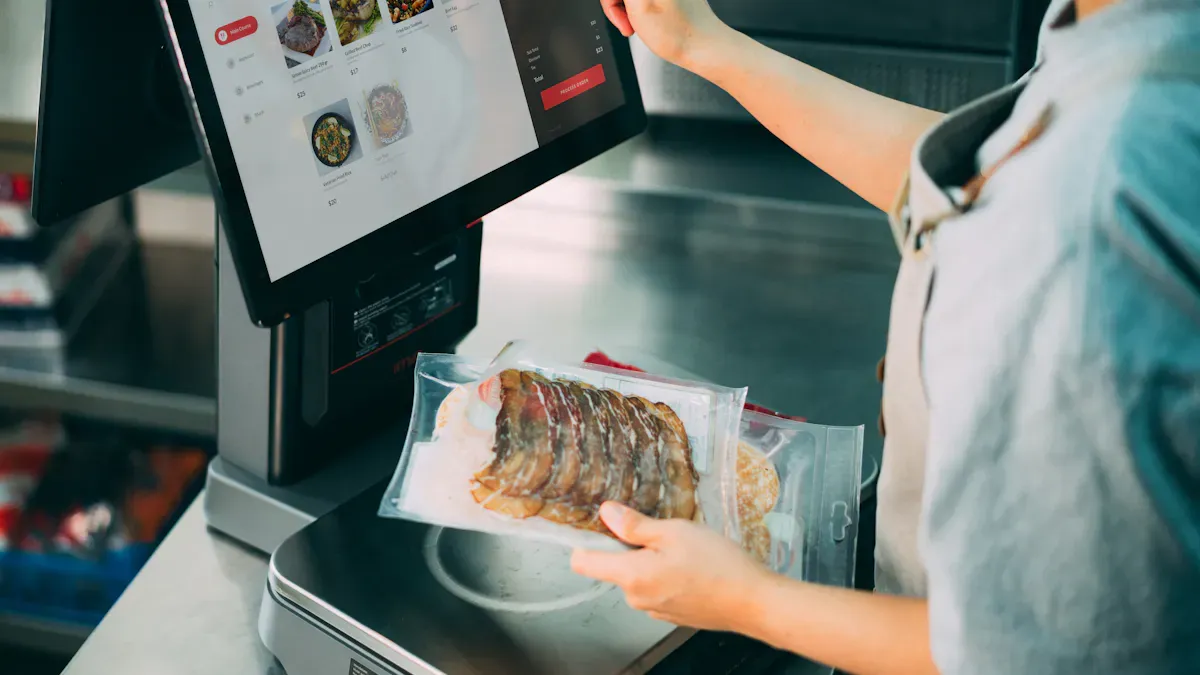
Testing your interactive kiosk touch screen is a key step before you let people use it. You want to make sure everything works smoothly. If you skip testing, users might get stuck or frustrated. Let’s look at how you can check your kiosk and make it better for everyone.
Check Responsiveness and Accuracy
You need your kiosk to react fast and touch points to work every time. If the screen lags or misses touches, people will not trust it. Here are some ways to test your kiosk’s responsiveness and accuracy:
Try the kiosk with people who do not know much about technology. Watch where they get confused or lost.
Test the kiosk when the internet is slow or busy. Make sure screens load quickly and buttons still work.
Plan for problems. Have backup instructions or staff ready if something goes wrong.
Tip: Always test your kiosk in the real place where you will use it. Lighting, noise, and crowds can change how well it works.
Conduct Usability Testing
Usability testing helps you find out what works and what does not. You can use different methods to see how people use your kiosk and what you need to fix. Here’s a table that shows some common ways to test and improve your kiosk:
Method | Purpose | Key Activities |
|---|---|---|
Observational Testing | See how users interact with the kiosk | - Watch if users finish tasks, spot mistakes, and measure how long tasks take. |
- Ask users how they feel about the experience. | ||
A/B Testing | Compare different designs | - Try out different layouts, colors, or features to see which works best. |
Analytics and Metrics | Track how people use the kiosk | - Check how long sessions last, which screens people leave, and what features they use. |
Continuous Improvement | Keep making the kiosk better | - Update content and features based on what you learn from users. |
Testing is not just a one-time thing. Keep checking your kiosk and listen to feedback. This way, you make sure your kiosk stays easy and fun to use for everyone.
Maintain and Clean Regularly
Keeping your interactive kiosk touch screen clean and well-maintained helps it last longer and work better. If you skip regular cleaning, dirt and germs can build up. This can make the screen less sensitive and harder to see. You also want your kiosk to look good and feel safe for everyone who uses it.
Use Gentle Cleaning Solutions
You should always use gentle cleaners that protect your screen. Strong chemicals can damage the surface or leave streaks. Most manufacturers suggest using a mix of water and isopropyl alcohol (no more than 70%). Never spray cleaner right on the screen. Instead, put it on a soft microfiber cloth and wipe in small circles. Let the screen dry before you turn it back on.
Here’s a quick guide for what to use on different parts of your kiosk:
Surface | Recommended Cleaning Solution |
|---|---|
Glass Touchscreens | 1:1 water and isopropyl alcohol (up to 70%) |
Aluminum Bezels | Mild detergent or soap in water, microfiber cloth |
Stainless Steel Computers | Stainless steel cleaner, microfiber cloth |
Antimicrobial Computers | Disinfecting wipes, alcohol-based cleaners |
You can also use commercial electronics cleaners or medical-grade disinfectants if you need extra cleaning power. Just make sure they are safe for screens.
Tip: Always use a soft cloth. Paper towels or rough fabrics can scratch your screen.
Set a Cleaning Schedule
A regular cleaning schedule keeps your kiosk looking new and working well. In busy places, you should clean the screen every day. This stops dirt, dust, and germs from piling up. Regular cleaning also keeps the touch working right and the display clear.
Clean daily in high-traffic areas.
Wipe down all surfaces, not just the screen.
Check for sticky spots or fingerprints and clean them right away.
If you keep up with cleaning, you will save money over time. Regular maintenance means fewer service calls, which can cost a lot. In fact, taking care of your kiosk can cut down on repair bills and help your device last longer.
Remember: A clean kiosk makes people feel safe and happy to use it. You also protect your investment and avoid big repair costs later.
Consider Lighting and Placement
Setting up your interactive kiosk touch screen in the right spot makes a big difference. You want people to see the screen clearly and use it without trouble. Good lighting and smart placement help everyone have a better experience.
Avoid Glare and Reflections
Glare and reflections can make your kiosk hard to read. Bright lights, sunlight, or shiny floors often cause these problems. You can fix this with a few smart choices:
High ambient light, like sunlight or strong indoor lights, creates glare and reflections on your screen.
Anti-glare or anti-reflective coatings help cut down on these issues. These coatings make the screen easier to see, even in bright places.
Good brightness and contrast settings also help. If your screen is bright enough, people can read it without squinting.
Tip: Place your kiosk away from windows or direct light sources. This simple step can stop most glare before it starts.
Position for Maximum Visibility
Where you put your kiosk matters just as much as how it looks. If people can’t see or reach the screen, they won’t use it. You want your kiosk to stand out and feel easy to use.
Description | |
|---|---|
F-Pattern and Z-Pattern Reading | People scan screens in these shapes. Put important buttons and info where eyes land first. |
Grid-Based Layouts | Keep things lined up and spaced out. This helps users find what they need fast. |
Color and Contrast | Use strong colors and clear contrast. This makes words and buttons pop, even in busy places. |
Natural Touch Zones | Place buttons where hands reach easily. This helps everyone, including kids and people in wheelchairs. |
Initial User Assessment | Make your kiosk’s purpose clear right away. People decide fast if they want to use it. |
If you mount your kiosk at the right height and angle, more people will use it. Secure mounting keeps the screen steady and safe. When you set the screen at a comfortable viewing angle, users feel welcome and stay longer. Good placement boosts engagement and makes your kiosk more effective.
Remember: A well-placed kiosk with the right lighting invites people in. You help everyone have a smooth and easy visit.
Keep Content and Software Updated
You want your interactive kiosk touch screen to always have the right information. If you let the content get old, people might see wrong or missing updates. Keeping things fresh helps users find what they need and trust your kiosk.
Schedule Regular Updates
Set up a routine to check and update your content. Many groups check their kiosks every few months to keep things safe and useful. If you pick someone to handle updates, your kiosk will not be forgotten. Calendar reminders help you remember when to review and refresh information.
Here are some smart ways to manage updates:
Make a schedule for checking and updating content.
Choose a person or team to handle updates.
Set reminders to check if the content is still good.
You can use tools to make updates easier. Look at this table for features that help you manage content and information:
Feature | Description |
|---|---|
Centralized Management | Control all screens from one place, making content updates simple. |
Dynamic Playlists | Schedule information and content for different audiences. |
Remote Management | Update information and content without visiting each kiosk. |
Performance Tracking | See how well your content and information work for users. |
Automation Workflows | Make content updates automatic, so you spend less time on manual tasks. |
Enterprise-Grade Security | Keep information and content safe across many kiosks. |
Tip: When you keep your content and information up to date, your kiosk gives the best experience.
Apply Security Patches
Security patches keep your kiosk safe from bugs and threats. If you skip updates, hackers can break in and steal information. You could lose data or let someone see private stuff. You need to add patches fast to keep everything safe.
Here are some risks if you skip security updates:
Hackers can use bugs to steal information.
Your kiosk might slow down or stop working if you miss patches.
You could lose trust if there is a data breach.
To protect your information, use these strategies:
Strategy | Description |
|---|---|
Automatic Updates | Keep software and information secure by updating automatically. |
Use of MDM Software | Manage updates and information across all kiosks easily. |
Lock your operating system so only the right people can use it.
Turn off services you do not need to lower risks.
Remove extra software so only approved content and information run.
Turn on auto updates for software and information.
Remember: When you keep your content and information safe, you protect your business and your users.
If you use these seven important tips, your interactive kiosk touch screen will work better and be easier to use. You help people feel sure and happy when they use it. Here’s what you get:
You get feedback right away and make it easier for everyone.
More people use the kiosk, and things run better in busy spots.
Your kiosk breaks down less and lasts longer if you take care of it.
You help your kiosk do well for a long time. Try these ideas now and see your customers enjoy using your kiosk! 🚀
How It Works – The Basics
Under the glass surface, the kiosk combines three layers:
A touch sensor – detects where and how you touch.
A controller – converts touch signals into digital data the computer understands.
A display (usually LCD or OLED) – shows the visual interface.
When you touch the screen, the sensor registers the contact point (X,Y coordinates) and, for multi‑touch devices, also detects gestures like pinch, zoom, or swipe. The controller processes this raw data and sends it to the kiosk’s onboard computer (often a small PC or a built‑in Android board). The software then executes the appropriate action – for example, moving a map, highlighting a product, or processing a payment.
Common Touch Technologies for Kiosks
Different environments need different touch technologies. Here are the four most popular types used in interactive kiosks today:
Technology | How It Works | Pros | Cons | Typical Use |
|---|---|---|---|---|
Resistive | Two flexible layers separated by a small gap. Pressure pushes the layers together, completing a circuit. | Low cost, works with any input (finger, gloved hand, stylus), resistant to dust/water. | Poor optical clarity (more reflections), only single‑touch, can wear out over time. | Industrial controls, medical devices, outdoor kiosks (where operators wear gloves). |
Capacitive (PCAP) | A grid of electrodes under the glass. Your finger’s natural capacitance distorts the electric field, which the controller measures. | Excellent sensitivity, multi‑touch support (up to 10+ touches), high clarity, durable glass surface. | More expensive; requires a conductive input (bare finger or special stylus); can be affected by water droplets. | Retail kiosks, ATMs, restaurant order points, modern consumer interfaces. |
Surface Acoustic Wave (SAW) | Ultrasonic waves travel across the glass surface. A touch absorbs some of the wave energy, and sensors detect the drop. | Very high optical clarity (no coating), excellent durability. | Can be triggered by dirt, dust, or water on the surface; not suitable for outdoor or dirty environments. | Indoor kiosks in clean environments (e.g., museums, premium retail). |
Infrared (IR) | An array of IR LEDs and photodetectors around the bezel create an invisible grid. A finger breaks the light beams, identifying the touch point. | Works with any input (gloves, stylus, even a sleeve), very durable (no overlay on glass), scalable to large sizes. | Bezel can collect dust; performance can degrade in direct sunlight (ambient IR interference). | Large‑format interactive whiteboards, outdoor kiosks (with proper sunlight filtering), industrial HMIs. |
The Flow of a Touch Interaction (Simplified)
Touch occurs – You tap a button on the screen.
Sensor detects – The touch technology (capacitive, resistive, etc.) identifies the coordinates (X,Y) and pressure (if supported).
Controller processes – The touch controller digitizes the signal and sends it to the computer via USB or I²C.
Operating system interprets – The OS (Windows, Android, Linux) translates the raw touch data into mouse‑click equivalents or gesture events.
Application responds – The kiosk’s software reacts (e.g., loads a new page, plays a sound, sends a command to a printer or payment terminal).
All of this happens in milliseconds – typically 10–30 ms – so the interaction feels instantaneous.
Why Kiosks Use Specialized Touch Screens
Consumer tablets and phones use capacitive touch, but kiosks often require commercial‑grade screens because:
Durability – Public kiosks see thousands of touches per day. The glass must be scratch‑resistant (often 7H hardness or better) and the touch controller must endure heavy use.
Environmental resistance – Outdoor kiosks need sunlight‑readable brightness (1,000+ nits), wide operating temperatures (-20°C to 70°C), and protection against rain, dust (IP65 or higher), and vandalism (IK rating).
Long‑term availability – Consumer displays change every year. Kiosk manufacturers need the same touch screen model available for 5+ years for repairs and replacements.
Peripheral integration – Kiosk touch screens often work alongside card readers, receipt printers, barcode scanners, and cash acceptors. The touch controller must coexist with these without interference.
Bottom Line
An interactive kiosk touch screen is a durable, high‑reliability input device that turns a static display into a self‑service tool. It works by combining a sensing technology (resistive, capacitive, IR, or SAW) with a controller and software that translates your touch into digital actions. The right choice depends on your environment: capacitive for sleek retail, resistive for glove‑friendly industrial, IR or SAW for large or highly durable outdoor installations.
If you describe your intended use case (indoor/outdoor, gloved vs. bare finger, size, environment), I can recommend the best touch technology for your kiosk project.
FAQ
What is an interactive kiosk touch screen and how does it work?
An interactive kiosk touch screen is a digital display you can tap or swipe. You use your finger to pick options or get information. The screen senses your touch and responds right away. It feels like using a giant smartphone.
How often should I clean my kiosk touch screen?
You should clean your kiosk every day, especially in busy places. Wipe the screen with a soft cloth and gentle cleaner. This keeps the display clear and safe for everyone.
Can I use my kiosk outdoors?
Yes, you can use your kiosk outdoors. Pick a screen with high brightness and weather protection. Place it where sunlight and rain will not hit it directly. Outdoor kiosks need extra care to last longer.
What should I do if the touch screen stops responding?
First, restart the kiosk. If that does not help, check for dirt or damage on the screen. Clean it gently. If the problem stays, contact your support team for help.
How do I keep my kiosk software secure?
Set up automatic updates for your software. Use strong passwords and limit who can change settings. Always install security patches as soon as they come out. This keeps your kiosk safe from hackers.
See Also
6 Essential Guidelines for Selecting Kiosks in Various Environments
A Comprehensive Manual for Setting Up Touch Screen Kiosks
Discover 10 Unexpected Applications for Touch Screen Kiosks in 2026
Key Characteristics to Look for in Today's Touch Screen Kiosks
Effective Solutions for Resolving Common Kiosk Problems Efficiently
